Server Migration Checklist Template

Building the new server is the easy part. The calls come from the scheduled job nobody listed, the script with the old IP address in it, the certificate that never came across, and the old server someone switched back on.

Last reviewed: October 2026

Printed from checkflow.io/templates/information-technology/server-migration-checklist

This free server migration checklist moves one server’s workloads to a new server, from the first inventory to the day the old server is handed over for decommissioning. It is for IT teams and managed service providers replacing old hardware, leaving an operating system that is reaching end of support, consolidating servers, or moving an on-premises server to a hosted or cloud virtual machine. It covers the scope and the cutover window, an inventory of roles, applications, shares, scheduled jobs, accounts, certificates and dependencies, a performance baseline, acceptance tests and a tested backup, the runbook and rollback plan, building the target, the data sync and a rehearsal. The service owner gives the go before the cutover and signs off the tests after it; then come hypercare and retiring the old server. Moving whole workloads into a cloud landing zone is the job of the Cloud Migration Checklist.

Server Migration, In-Place Upgrade or Cloud Migration?

A server migration moves the workloads of one server onto a different server: new hardware, a virtual machine on your own hosts, or a hosted or cloud virtual machine. Microsoft’s Windows Server planning guide treats it as a separate method from an in-place upgrade, which installs a newer version over the existing one on the same machine, and says migration is the better choice when you are moving to new hardware. Much of this checklist is about finding everything the old server does, so nothing is left behind when it is switched off.

Several checklists cover the jobs around it. Build the new server with the Server Setup & Provisioning Checklist and retire the old one with the Server Decommissioning Checklist. Move a database with the Database Migration Checklist, and take the change itself through the IT Change Management Checklist. Two more are easy to confuse with this one:

This checklist

One server's workloads to a new server

Moves: the roles, applications, shares, scheduled jobs and data of one server to new hardware, a virtual machine or a hosted VM.

Covers: the inventory and dependencies, baselines, the target, data sync, a rehearsal, the cutover, tests, rollback and retiring the old server.

Gate: the service owner’s go/no-go before the cutover.
Same server, newer version

The Operating System Upgrade Rollout Checklist

Changes: the operating system on servers and devices that stay where they are.

Use it: when the hardware can stay and the roles on the server can be upgraded in place. Operating System Upgrade Rollout Checklist.

Workloads to the cloud

The Cloud Migration Checklist

Moves: whole workloads into a cloud landing zone, one workload per run, with a strategy decision such as rehost or refactor for each.

Use it: for a data centre exit or a programme of moves to AWS, Azure or Google Cloud. Cloud Migration Checklist.

What the Server Migration Checklist Covers

Eight phases take one server from the first inventory to the day it is handed over for decommissioning. Every due date counts in business days from the planned cutover date on the first task: back from it for the inventory, the plan, the build and the rehearsal, and forward from it for the tests, hypercare and retirement. The method (a rebuild, a whole-server replication or Storage Migration Service), a hosted VM, consolidation, end of support, the roles found and any unsupported application each add their own tasks. The service owner’s go/no-go is the gate before the cutover, and a no-go, a rollback or a sign-off that is not accepted adds the task that follows.

  1. Phase 1

    Phase 1: Scope, Reason & People

    5 tasks

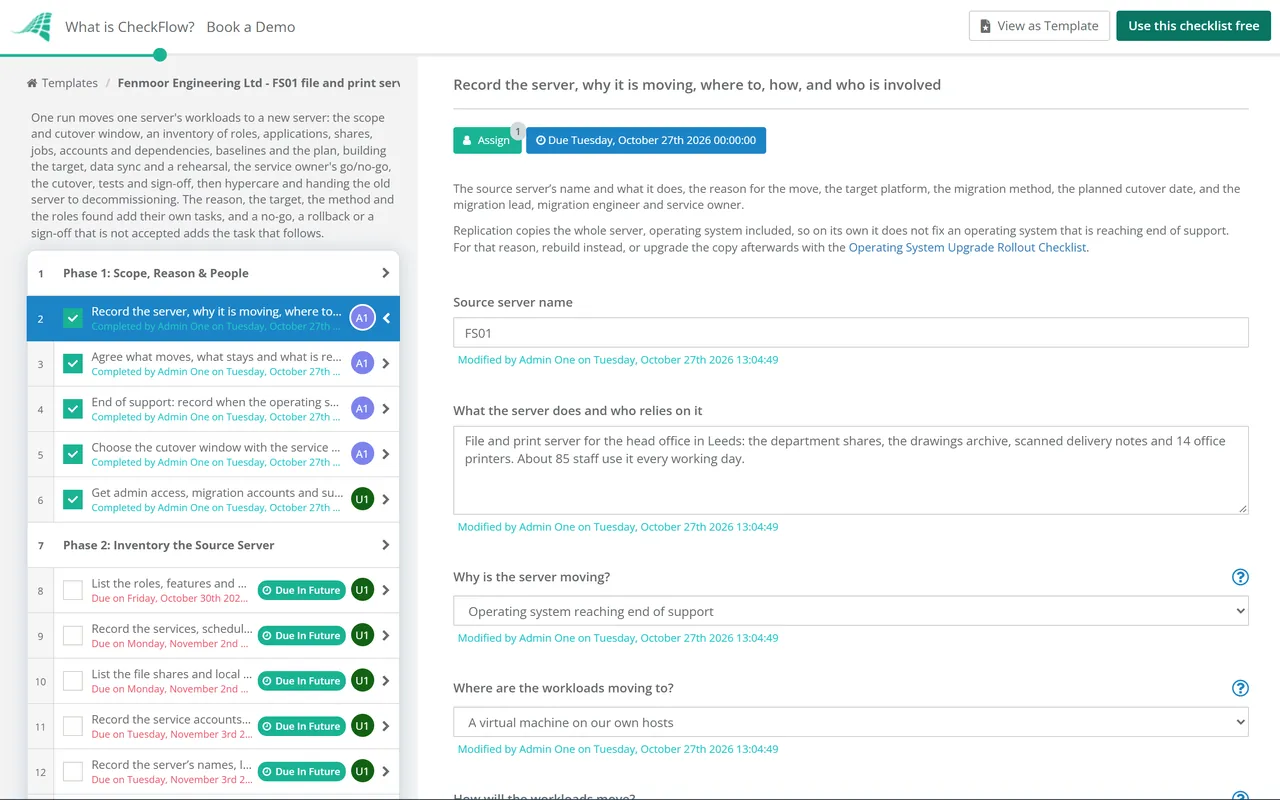
    Record which server is moving, why, where to and how, and who does each step. Enter the planned cutover date on the first task: every task before it counts back from that date in business days and every task after it counts forward, so changing the date moves the whole plan.

    • Record the server, why it is moving, where to, how, and who is involved — the source server’s name and what it does, the reason for the move, the target platform, the migration method, the planned cutover date, and the migration lead, migration engineer and service owner
    • Agree what moves, what stays and what is retired — each workload on the server and where it goes (to the target, to another server or service, or switched off), anything out of scope, and the business reason for the move, agreed with the service owner
    • End of support: record when the operating system stops getting security updates — the operating system and version on the source, the date its vendor stops security updates, taken from the vendor’s own lifecycle page, and any paid extended support that covers the server until the cutover
    • Choose the cutover window with the service owner — a date and time when the service can be out of use for the cutover and a possible rollback, the longest outage the service can take, and dates to avoid, such as month-end, payroll or a busy season
    • Get admin access, migration accounts and support contacts — administrator access to the source and the target for named accounts rather than a shared login, the accounts any migration tool needs, and support contacts for the hardware, the hosting provider and each application’s vendor
  2. Phase 2

    Phase 2: Inventory the Source Server

    7 tasks

    Find out everything the server does before anything moves. The things that break after a cutover can be the ones nobody listed: a scheduled job, a script with the old IP address in it, a certificate, a partner’s file transfer. The roles you tick on the first task of this phase add the tasks they need.

    • List the roles, features and applications on the server — every role and feature installed and every application with its version, vendor and owner, read from the server itself rather than from old documentation
    • Record the services, scheduled tasks and jobs that run on it — every service set to start automatically, every scheduled task, cron job or script, when each one runs and which account it runs as, so nothing silently stops after the move
    • List the file shares and local data, with their size and owners — each share or folder with its path, size, permissions and owner, plus data kept outside the shares that something reads, such as application folders, exports and logs
    • Record the service accounts, local accounts and certificates — the service accounts the server’s services and jobs run as, any local users and groups, and every certificate installed, with its expiry date and what uses it
    • Record the server’s names, IP addresses, DNS records and firewall rules — the host name, every IP address, the DNS records and aliases that point at the server, the ports it listens on, and the firewall rules on the server and on the network that allow traffic to and from it
    • Find every system and person that connects to it, and everything it connects to — inbound connections from users, other servers, devices and partners, and outbound connections to databases, mail relays, licence servers and other services, found from connection logs or monitoring and not only from documentation, including scripts, mapped drives and application settings that name the server or its IP address
    • Check each application is supported on the target — for each application, whether its vendor supports the version you will run on the target operating system, and on virtual or hosted infrastructure if that is the target, and whether an upgrade or a new licence is needed
  3. Phase 3

    Phase 3: Baselines & the Migration Plan

    9 tasks

    Measure how the server behaves today, agree how success will be tested, and write down how the cutover and the rollback will run. The service owner writes the acceptance tests now, so the sign-off after the cutover checks what matters to them.

    • Record a performance baseline and size the target from it — CPU, memory, disk space, disk activity and network use over a normal period that includes the busiest times, and the target’s CPU, memory and storage with room for growth
    • Write the acceptance tests with the service owner — the checks the service owner will run after the cutover to show the service works, such as signing in, the main transactions, reports, printing, integrations and anything that runs overnight, each with its expected result
    • Take a full backup of the source and prove it restores — a full backup taken before any change and a test restore of a sample of files, or of the whole server to an isolated place, so there is a known good copy to fall back on
    • Agree what to do about each unsupported application — for each application without vendor support on the target, a decision with the service owner: upgrade it to a supported version, replace it, keep it on a separate supported server, or accept the risk in writing
    • Consolidation: check the workloads can share the target — the combined load of every workload moving onto the target, clashing ports, share names or host names, conflicting versions of runtimes or components, different maintenance windows, and workloads with different security needs that should stay apart
    • Databases: plan the database move with its own checklist — each database on the server with its engine and version, moved with the Database Migration Checklist so the schema, the sync and the validation get their own steps, and how the database cutover fits this server’s window
    • Decide how users and systems will find the new server — whether the target takes over the old server’s name and IP address, keeps the name with a new address, or gets a new name with DNS records, aliases, scripts and settings updated
    • Write the cutover runbook and the rollback plan — each cutover step with its time and who does it, the freeze, the final sync, the switch, the smoke tests, the time by which you decide to keep the new server or roll back, and the exact steps to switch users back to the source
    • Raise the change request for the cutover — a change request in your change process with the runbook, the rollback plan, the acceptance tests and the window, sent to whoever approves changes in good time before the go/no-go
  4. Phase 4

    Phase 4: Build the Target

    8 tasks

    Prepare the server the workloads will run on: built to your own standard, licensed, monitored and reachable before any data arrives. The method, the target platform and the roles you ticked add their own tasks.

    • Build the target server to your standard — the operating system version you chose, installed and patched, hardened to your baseline and joined to the domain where needed, with a temporary name and address if it will take over the old server’s later
    • Hosted VM: agree the size, region, network and what the provider manages — the virtual machine’s size and storage, the region or data centre, how it connects to your network and users, who patches and backs it up, and the provider’s support terms
    • Replication: prepare the target platform and the replication tool — the target host or cloud account, the network the copy will run on, the replication tool’s requirements and agent, and an account with the access it needs
    • Install the applications on the target and recreate their jobs, accounts and certificates — each application from the Phase 2 list, installed at a version its vendor supports on the target and configured from the source’s settings, then every service, scheduled task and job set to run as the right account and every certificate imported, with jobs left disabled until the cutover if they must not run twice
    • Domain controller: promote a new domain controller instead of moving this one — a new server promoted to a domain controller in the existing domain as its own change, the FSMO roles moved to it after checking which server holds them, and the old domain controller’s demotion planned before it is retired
    • License and activate the operating system and applications on the target — a licence for the target’s operating system, activated, and each application licence moved or reissued where it is tied to the old server’s name, hardware or address
    • Add the target to monitoring, backup, patching and security tools — monitoring and alerts, backup jobs, patching, endpoint protection and log collection set up for the target, ready to switch on fully at the cutover
    • Open the network and firewall access the target needs — the ports and rules from the Phase 2 record opened for the target on the server and on the network, including any access for partners or remote sites, tested from where the users and systems connect
  5. Phase 5

    Phase 5: Data Sync & Rehearsal

    6 tasks

    Copy the data while the source keeps running, then practise the cutover so the real one has no surprises. The service owner runs the acceptance tests on the target before the go/no-go.

    • Copy the data to the target and check the permissions — an initial copy of the shares and application data with a tool that keeps permissions, owners and timestamps, then repeat copies that pick up the changes, with the errors in each copy log fixed or explained
    • Storage Migration Service: inventory the source and transfer the data — an orchestrator and the Storage Migration Service tool set up in Windows Admin Center, an inventory of the source, then a transfer to the target with the error log checked
    • Replication: replicate the server and test-launch a copy in an isolated network — the source replicating until the initial copy is complete, then a test launch of the copy in a network that cannot reach production, checked by the engineer before the real cutover
    • Rehearse the cutover and time each step — a practice run of the runbook against the target or a test copy, with the time each step took, so you know the final sync and the switch fit inside the window
    • Run the acceptance tests on the target before the cutover — the service owner’s tests run against the target with test or copied data, with any failures fixed and the tests run again before the go/no-go
    • Tell users and the service desk about the cutover window — the date and time of the outage, what users must do beforehand, what will change for them and how to report problems, with the service desk briefed on the runbook and the rollback plan
  6. Phase 6

    Phase 6: Go/No-Go & Cutover

    9 tasks

    Confirm the change is approved, get the service owner’s go, then move. The go/no-go is the gate: nothing after it can be completed until the service owner records a decision. On the cutover date, freeze the source, run the final sync, switch over and test.

    • Confirm the change is approved and get the switch ready — the change approved in your change process with any conditions met, the people in the runbook and the vendors’ support available for the window, and the TTL lowered on any DNS record that will change
    • Go/no-go: the service owner approves the cutover — the service owner’s decision to go ahead in the approved window, based on the rehearsal, the acceptance tests on the target, a tested backup and the rollback plan; a no-go adds a task to record why and set a new date
    • No-go: record why and set a new date or stop the migration — what was not ready and the work needed, then either a new planned cutover date on the first task, which moves every due date, or a decision to stop with the remaining tasks marked not applicable
    • Freeze changes and stop the services on the source — a message that the outage has started, users signed out, the applications and services on the source stopped and, for file shares, the shares set to read-only so nothing changes during the final sync
    • Run the final sync and check it finished without errors — the last copy, replication or transfer of the changes since the previous one, with its log checked and the totals compared with the source before anyone is switched over
    • DHCP: move the scopes, reservations and options, and stop the old service — the scopes, reservations, options and leases moved to the target, the old DHCP service stopped so two servers never hand out the same addresses, and DHCP relays pointed at the new server
    • Print server: move the printers, drivers and queues — printers, drivers, ports and queue settings moved to the target, with Printbrm on Windows Server or your print server’s own tools, and users’ printer connections pointed at the new server
    • Switch names, addresses and DNS to the new server — the old server renamed or taken off the network and the target given its name and address, or the DNS records and aliases updated, as decided in Phase 3, with scripts, mapped drives and settings that name the old server changed
    • Start the services on the target and run the smoke tests — services and scheduled jobs enabled, a quick test of each main function by the engineer, and a decision by the rollback time in the runbook to keep the new server or roll back
  7. Phase 7

    Phase 7: Tests, Sign-Off & Rollback

    5 tasks

    Prove the service works on the new server and get the service owner’s acceptance. A failed cutover adds the rollback task here, and a sign-off that is not accepted adds a task to fix the failures or roll back.

    • Roll back: switch users back to the source and record what failed — the runbook’s rollback steps: the target taken out of service, the old server’s name, address and services restored, users told, and what failed recorded
    • Replication: remove the agent and old drivers from the migrated server — the replication agent removed or the replication stopped as the tool’s guide says, and drivers, tools and agents for the old hardware or hypervisor removed so they do not run or alert on the new platform
    • Check every dependency connects to the new server — each system and user on the Phase 2 dependency list checked against the new server now, with jobs that run only weekly or at month-end listed and checked when they first run during hypercare, and anything still pointing at the old name or address fixed
    • Service owner runs the acceptance tests and signs off — the acceptance tests from Phase 3 run on the live service, with the results recorded and the service owner’s decision: accepted, accepted with follow-ups, or not accepted
    • Not accepted: fix the failures or roll back — each failed test fixed and run again with the service owner or, if it cannot be fixed in time, the rollback steps from the runbook, with the old server kept unchanged until the service owner accepts
  8. Phase 8

    Phase 8: Hypercare & Retire the Old Server

    6 tasks

    Support the new server through its first busy period, keep the old one recoverable until an agreed date, then hand it to the decommissioning process. Due dates count forward from the cutover date.

    • Update the CMDB, documentation and network diagrams — the new server’s record in the CMDB or asset register with its owner, the old server’s record marked as being retired, and the documentation, diagrams and runbooks that name the old server updated
    • Switch the old server off and keep it recoverable until an agreed date — the old server switched off or disconnected, not wiped, until a date agreed with the service owner, so files or settings found missing can still be recovered
    • Compare performance with the baseline — the same measures as the Phase 3 baseline, taken on the new server over a normal week, with any slowdown investigated and the target resized if needed
    • Tell users the move is complete and support them through the first busy period — a message to users that the migration is finished and how to report problems, then extra monitoring and quick support until the first month-end, payroll run or other busy period has passed, including the weekly and month-end jobs listed at the dependency check, with every issue logged and fixed
    • Hand the old server to the decommissioning process — the old server passed to the Server Decommissioning Checklist on the agreed date, which removes its DNS records, firewall rules, accounts, backups and monitoring and deals with the hardware or the virtual machine; a domain controller is demoted first
    • Close the migration and record what to change next time — the final state of every workload, open follow-ups handed to the service desk or the service owner, and what went well and what to change before the next server migration

Ways to Move a Server, and Windows Server Support Dates

Ways to move a server’s workloads

The method you choose on the first task decides which tasks appear. Pick the one that fits each workload; a single server can need more than one.

Method What moves Points to know
Rebuild and reinstallThe applications, installed fresh on the new operating system, then the dataWorks from any source; every service, job, account and certificate has to be recreated, which is why Phase 2 lists them
Windows Server Migration Tools and Microsoft’s role guidesRoles, features, operating system settings, data and shares, to other servers, including later versions of Windows ServerMicrosoft’s matrix shows which roles can migrate and which need downtime; print servers move with Printbrm
Storage Migration ServiceFiles, shares and their security settings, from Windows, Linux (Samba) and NetApp CIFS serversInventory, transfer and an optional cutover in which the target takes over the source’s identity; Microsoft says it never removes files from the source; it cannot cut over from a domain controller or merge several servers into one; runs from Windows Admin Center
A new domain controllerActive Directory, by promoting a new domain controller and demoting the old oneMicrosoft recommends this over upgrading a domain controller in place; check which server holds the FSMO roles first
Replication to a virtual machineThe whole server, operating system includedAzure Migrate (to Azure) and AWS Transform MGN (block-level replication to AWS) are examples; the server keeps its operating system, so the move alone does not fix end of support
In-place upgrade (not this checklist)Nothing moves: a newer version is installed over the old oneMicrosoft’s matrix lists roles that cannot upgrade in place, such as AD FS and print; see the Operating System Upgrade Rollout Checklist

Windows Server: when security updates end

From Microsoft’s lifecycle pages as they stood on 27 October 2026. Where two Microsoft pages give different dates, both are shown. Check the pages again when you plan, and for Linux use your distribution’s own lifecycle page.

Windows Server version Security updates end What it means for a migration
Windows Server 2012 and 2012 R2Extended support ended 10 October 2023; the third year of Extended Security Updates ended 13 October 2026Migrate these first; Microsoft’s lifecycle page lists no Extended Security Update year after the third
Windows Server 201612 January 2027Plan cutovers before this date
Windows Server 20199 January 2029Still receiving security updates
Windows Server 202214 October 2031Mainstream support ended 13 October 2026; security updates continue in extended support
Windows Server 20252034: 14 November on Microsoft’s product page, 10 October on its 2034 end-of-support listThe longest runway for a new target; the two pages also differ on the end of mainstream support (13 November or 9 October 2029)

Sources, read 27 October 2026. Microsoft Learn: Plan Your Windows Server Upgrade Path, Upgrade and migrate roles and features, Storage Migration Service overview and its FAQ, Upgrade domain controllers, About Azure Migrate, the lifecycle pages for Windows Server 2012 R2, 2016, 2019, 2022 and 2025, and Microsoft’s end-of-support lists for 2026, 2027, 2029, 2031 and 2034; AWS: What is AWS Transform MGN?.

Why Run Server Migrations in CheckFlow?

1

Only the steps this server needs

The first task asks why the server is moving, where to and how. The matching tasks appear: a rebuild, a whole-server replication or Storage Migration Service, a hosted VM, consolidation checks and an end-of-support date. Ticking a domain controller, DHCP, print or database role in the inventory adds that role’s task, and an unsupported application adds a decision before the build.

2

No cutover without the service owner

The service owner writes the acceptance tests, runs them on the target before the cutover and gives the go. Nothing in the cutover, the tests or the retirement of the old server can be ticked off until then. A no-go, a failed smoke test or a sign-off that is not accepted each add the task that follows. See how approval steps work.

3

Every step dated and owned

Tasks are assigned to the migration lead, the migration engineer or the service owner. Due dates count back from and forward from the planned cutover date, so moving the date moves the plan, and overdue alerts go to the people assigned. The Reports Grid lists every server migration with its answers, so a refresh of many servers can be tracked at once, and Analytics shows completion rates and overdue work.

CheckFlow does not copy data, replicate servers or change DNS records; your migration tools and engineers do that. CheckFlow runs the work around them: who does each step by when, what the inventory found, the test results and who approved the cutover. See how checklists run.

Build the new server with the Server Setup & Provisioning Checklist, raise the change with the IT Change Management Checklist and move databases with the Database Migration Checklist. Upgrade servers that can stay where they are with the Operating System Upgrade Rollout Checklist, move whole workloads to the cloud with the Cloud Migration Checklist, prove the new server’s backups restore with the Backup Verification & Restore Test Checklist and retire the old server with the Server Decommissioning Checklist.

AI generator

Didn’t find what you need? Describe it.

Describe the process in a sentence and the AI checklist generator drafts the phases and tasks for you.

Frequently Asked Questions

What should a server migration checklist include?

The reason and scope, an inventory of the server’s roles, applications, shares, services, scheduled jobs, accounts, certificates and dependencies, a performance baseline, acceptance tests, a tested backup, a runbook and rollback plan, the change request, the target build, the data sync, a rehearsal, a go/no-go, the cutover, tests and sign-off, hypercare and retiring the old server. This template covers each of those and adds tasks for the method, a hosted VM, consolidation, end of support and roles such as a domain controller.

Can I use this as a server migration plan template?

Yes. Enter the planned cutover date on the first task and every task gets a due date: the inventory, baselines, plan, build and rehearsal count back from it in business days, and the tests, hypercare and retirement count forward. The runbook, the rollback plan and the change request come in Phase 3, and the service owner’s go/no-go falls two business days before the cutover. Change the date and the whole plan moves with it.

What is the difference between a server migration and an in-place upgrade?

Microsoft’s Windows Server planning guide describes an in-place upgrade as installing a newer version over the existing one, keeping settings, roles, features and data, and a migration as moving roles or features from a source server to a different destination server. It says migration is the better choice when you move to new hardware, and its matrix lists roles that cannot be upgraded in place, such as print and AD FS. In-place upgrades have their own Operating System Upgrade Rollout Checklist.

How do you migrate a Windows file server to a new server?

Microsoft’s Storage Migration Service works in three steps: an inventory of the source servers, a transfer of the files, shares and security settings, and an optional cutover in which the new server takes over the old server’s identity, so users and apps do not have to change anything. Microsoft says it never removes files from the source: after a cutover, the source stays unavailable to users, with its files still on it, until you decommission it. It runs from Windows Admin Center.

Should a domain controller be upgraded in place or replaced?

Microsoft’s guidance says the recommended way is a clean install: promote a new server running the newer version of Windows Server to a domain controller and demote the older one, rather than upgrading the existing domain controller in place. Check which server holds the FSMO roles first and move them to the new domain controller. Ticking a domain controller in this template’s inventory adds a task for it, and the old one is demoted before it is decommissioned.

When does Windows Server 2016 support end?

Microsoft’s lifecycle pages give 12 January 2027 as the end of extended support for Windows Server 2016, after which it gets no more security updates. Windows Server 2012 and 2012 R2 are already past theirs, and the third year of their Extended Security Updates ended on 13 October 2026. Check the lifecycle pages again when you plan, and choose operating system end of support on the first task to record the date.

How long should you keep the old server after a migration?

No rule sets a period, so this template asks you to agree a date with the service owner. The old server is switched off or disconnected, not wiped, so anything found missing can still be recovered, and kept until the service owner has accepted the tests and the first busy period has passed. It then goes to the Server Decommissioning Checklist, which removes its DNS records, firewall rules, accounts, backups and monitoring.

Is moving a server to a cloud VM a server migration or a cloud migration?

Either can fit. Use this checklist for one server moving to a hosted or cloud virtual machine, with a task to agree the size, region, network and what the provider manages. Use the Cloud Migration Checklist when the move is part of a programme into a cloud landing zone, with a strategy decision for each workload. Replication tools such as Azure Migrate and AWS Transform MGN copy the whole server, operating system included.

Is CheckFlow free for this template?

14-day free trial, no card required. The Business plan is $10 per user per month after the trial. Full details at checkflow.io/pricing.

Move the Server Without Leaving Anything Behind

Free trial — no credit card required.

14-day free trial, no credit cardFull refund in your first 30 daysUS hosting, EU on request