To make a checklist in Microsoft Teams, add a Lists tab to a channel and create a list with a Yes/No column for done, a Person column for the owner and a Date column for the due date. Everyone in the channel can then work through it together. For a few sub-steps inside one task, use the checklist in a Planner task, and for a quick list in a conversation, send a Loop checklist in the chat.
Teams used to have its own Checklist app, but Microsoft retired it on 10 March 2023, so older guides that tell you to open it no longer work. This guide covers the three ways that work today, how to see who ticked what, and where a Teams checklist stops being the right tool.
Which Teams Tool to Use
| Tool | Best for | Good to know |
|---|---|---|
| Microsoft Lists, as a channel tab | A shared checklist with an owner and a due date on each step | Stored in SharePoint; has an Employee onboarding template |
| A checklist in a Planner task | Sub-steps of one task | Up to 20 items per task; tasks can repeat |
| A Loop checklist in a chat | A quick list everyone in the chat can tick | Saved to OneDrive; a Loop task list syncs with Planner |
How to Make a Checklist in Teams with Lists, Step by Step
Add a Lists tab to the channel
In the channel, select Add a tab (+), choose Lists and select Save. Newer versions of Teams label this Open Apps, then search for Lists and choose Pin a tab for Lists. Then select Create a list, or Add an existing list to show one you already have. Microsoft's Lists in Teams guide notes that guests can't create lists, and that on a phone you can view and edit a list but not create one.
Start from blank or a template
Choose Blank list, a template, From existing list (which copies the columns but not the items) or From Excel, according to Microsoft's guide to creating a list. Of the eight list templates, Employee onboarding is the closest to a checklist: it comes with a Complete (yes/no) column, a Complete by date and a Mentor person column.
Add the columns
Select + Add column, choose the type, name it and select Save. For a team checklist, add a Yes/No column called Done (it shows as a checkbox, with a default you can set to No), a Person or Group column called Owner and a Date and time column called Due. A Choice column works for a status such as Not started, In progress and Done. Microsoft lists every type in column types and options.
Add the steps
Add each step as an item with + Add new item, or select Edit in grid view to type the whole checklist like a spreadsheet, one step per row. Fill in the owner and due date as you go.
Notify people with a rule
To tell someone when a step changes, create a rule from Integrate > Rules (in some versions, Automate > Create a rule): for example, when Done changes, notify the line manager. Rules send a notification and nothing else, and a list can have at most two rules based on a date approaching.
Add views
Open View options and choose Create new view to show the same checklist another way: as a list, a gallery, or a calendar, which needs a start and an end date. Microsoft explains views in creating a view of a list.
A Checklist Inside a Planner Task
Planner is the better fit when the checklist belongs to one task, such as "Prepare the board pack" with its five sub-steps:
- Add Planner to the channel: Add a tab (+), then Planner, then Save, and choose a new or an existing plan (Microsoft's steps).
- Open a task and, under Checklist, select Add an item. Press Enter for the next one.
- Tick Show on card to see the checklist on the task's card in the board (add a checklist to a task).
A task can hold up to 20 checklist items and up to 20 assignees, but the items themselves have no owner or due date. Planner tasks can repeat daily, on weekdays, weekly, monthly, yearly or on a custom schedule.
A Checklist in a Teams Chat with Loop
For a quick list in a conversation, select the Loop components button below the message box, choose a checklist, type the items and send it. Everyone in the chat can tick items in place, and the component is saved to the sender's OneDrive (send a Loop component). Choose a task list instead if each item needs an owner: its tasks sync with Planner and appear under Assigned to me in each person's Planner.
An Example Checklist List
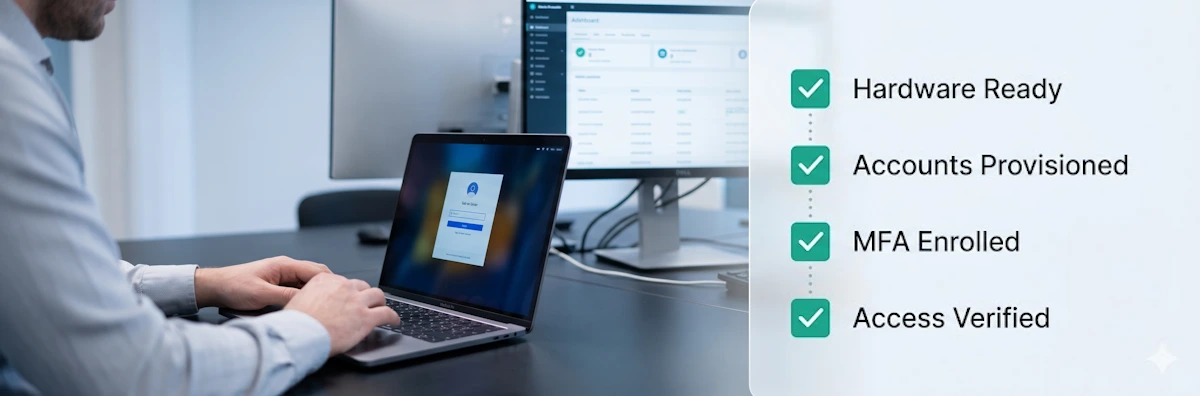
Here is a new-starter IT checklist as a Microsoft List. The Due column counts days from the start date, so the same steps work for every new starter.
| Title | Done | Owner | Due | Status |
|---|---|---|---|---|
| Create the user account and email address | ☐ | IT | Day −3 | Not started |
| Order and set up the laptop | ☐ | IT | Day −3 | Not started |
| Add to payroll | ☐ | HR | Day −1 | Not started |
| Book the welcome meeting | ☐ | Line manager | Day 1 | Not started |
| Grant access to shared drives and tools | ☐ | IT | Day 1 | Not started |
See Who Ticked What
Each item in a list keeps its own version history: select the item's ••• menu, or right-click it, and choose Version history to view or restore earlier versions. Microsoft's help sets out the limits:
- Version history has to be turned on for the list.
- Lists keep major versions only.
- When the list reaches its version limit, the oldest version is deleted.
Where a Teams Checklist Runs Out
Lists, Planner and Loop are good for a team's working lists and for one-off projects. Teams usually hit the same limits when one checklist becomes a process that runs every week or for every new starter:
The five limits teams run into
- One list serves every run. The same list holds every new starter's steps, or you create a new list each time, and From existing list copies the columns but not the steps.
- Nothing starts on a schedule. A Planner task can repeat, but a whole list of steps can't. Starting a fresh checklist each week means a Power Automate flow or doing it by hand.
- Rules only notify. They can tell someone a step changed, but nothing is assigned or chased step by step, and a list allows two date-based rules at most.
- Any member can tick any row. Nothing stops a step being ticked out of order, or unticked later. The Approvals app in Teams handles sign-off as a separate request, not as a step that holds up the next one.
- The history depends on settings. Item versions are kept only while versioning is on and only up to the list's limit.
That is the point where checklist software earns its place. In CheckFlow a template starts a fresh checklist for each new starter or on a schedule, every task has an owner and a due date, halts keep steps in order, approvals stop later steps until the decision is recorded, and every run is kept with who did what and when. Generate with AI imports Excel and CSV files, so a checklist kept in a list or a spreadsheet can become a template you can edit. Start from the IT onboarding checklist, the employee onboarding checklist or, for MSPs, the Microsoft 365 tenant onboarding checklist, or describe your own process to the free AI onboarding checklist generator. Approval software shows how sign-offs work inside a checklist.
Make a Checklist in Other Apps
The same checklist in the other tools your team may use: Excel, Google Sheets, Word, OneNote and Notion.
Sources
- Microsoft (OfficeDev on GitHub), "Checklist app template" retirement notice
- Microsoft Support, "Get started with Lists in Teams"
- Microsoft Support, "Create a list in a Teams channel"
- Microsoft Support, "Create a list"
- Microsoft Support, "List templates in Microsoft 365"
- Microsoft Support, "List and library column types and options"
- Microsoft Support, "Create a rule to automate a list or library"
- Microsoft Support, "Create, change, or delete a view of a list or library"
- Microsoft Support, "Add Planner as a tab in Microsoft Teams"
- Microsoft Support, "Add a checklist to a task"
- Microsoft Learn, "Microsoft Planner limits"
- Microsoft Support, "Recurring tasks in Planner"
- Microsoft Support, "Send a Loop component in Microsoft Teams chats"
- Microsoft Support, "Manage your tasks from Loop Task lists and Collaborative notes in Planner"
- Microsoft Support, "View the version history of an item or file in a list or library"
Frequently Asked Questions
How do I create a checklist in Microsoft Teams?
In a channel, select Add a tab (+), choose Lists and create a list with a Yes/No column for done, a Person column for the owner and a Date column for the due date. For sub-steps of one task, use the checklist in a Planner task; for a quick list in a chat, send a Loop checklist.
Is there a checklist template in Microsoft Lists?
Microsoft Lists has eight ready-made templates. The closest to a checklist is Employee onboarding, which has a Complete (yes/no) column, a Complete by date and a Mentor column. You can also start from a blank list, an existing list or an Excel file.
What happened to the Checklist app in Teams?
Microsoft retired the Teams Checklist app on 10 March 2023. Use a Lists tab, a Planner task checklist or a Loop checklist in a chat instead.
How many items can a Planner checklist have?
A Planner task can hold up to 20 checklist items, according to Microsoft's Planner limits. Tick Show on card to see the checklist on the task's card.
Can a Microsoft Lists checklist repeat every week?
Not by itself. A Planner task can repeat, but a list of steps can't start itself again: you create a new list or items by hand or with a Power Automate flow. If the checklist runs every week, checklist software such as CheckFlow starts each run on schedule with the steps already assigned.