
One process library for templates, SOPs, files and data.
Keep the template that runs a process, the SOP that explains it, the files it refers to and the lists it picks from in the same folder, under the same permissions, found by the same search.
14-day free trialNo credit cardUnlimited free guests
Last updated
The CheckFlow Library is where a team keeps everything a process needs: templates, knowledge base articles for SOPs and guides, files of any type, and Data Sets of reference data. Items live in nested folders with tags and search, and folder permissions decide who can view or edit them. Templates keep their version history, run history and analytics. It suits teams that want documentation and execution in one place.
Process knowledge in one place, not five.
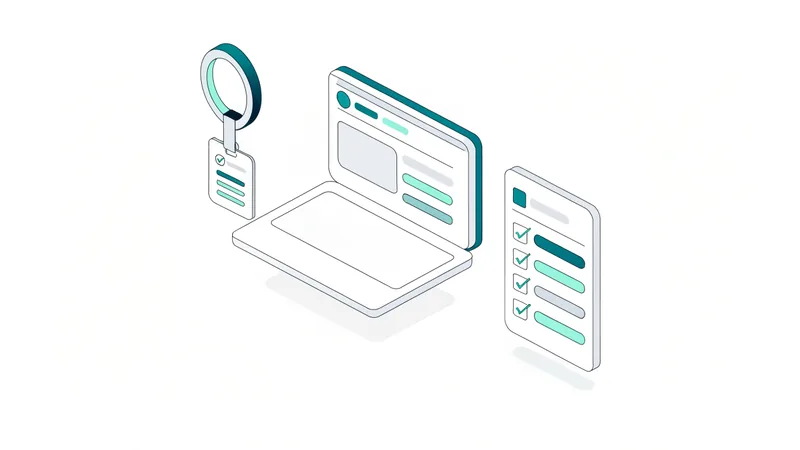
The guide sits beside the checklist
An SOP article and the template it explains share a folder, so whoever runs the process can find the why.
The right people edit, everyone else reads
Folder permissions give a team edit rights over its own processes and view rights over everyone else’s.
Nothing changes without a record
Every template save is a numbered version with a name and a time, and older versions stay viewable.
Four kinds of item
What lives in the Library
Four kinds of item share one set of folders, one search box and one permissions model.
Templates
The blueprints your checklists run from. Each one shows its checklist runs, its version history and an Analytics tab, and can be duplicated, printed, moved or given a Create & Run link from the folder.
The template designerArticles
A rich-text knowledge base for SOPs, guides and reference material. Preview an article in the list without opening the editor, and keep it in the folder of the template it supports.
SOP softwareFiles
PDFs, spreadsheets, images, video and archives. Tag them, file them where they belong, and anyone with access to the folder can download them.
Files in the LibraryData Sets
Reusable tables of clients, sites, products or suppliers that fill drop-downs, multi-choice lists, sub-tasks and tables in your checklists. Change a record once and every linked control has it.
Data Sets
Find it
Folders, tags and search
The sidebar holds the folder tree, your tags and a search box; the item list sits beside it. The System section gives you Unfiled for anything not yet sorted, Archived for retired templates and Example Templates to copy from. The Team section holds the folders you create, nested by department, client, site or process area.
Search finds items by name across every folder you can access, so nobody needs to know where something was filed. Tags work across all four kinds of item, by client, region, framework or whatever scheme suits you. Like checklists and the task grids, the Library updates in real time.
- Expand an item to see its runs, an article preview, file details or analytics
- Copy any example template into a Team folder and adapt it
- Removing a template from the Library does not delete it
Permissions
Folder permissions decide who sees and edits what
Each folder grants Edit, View or Deny to individual people or groups, and that applies to every template, article, file and Data Set inside it. Give finance a space of its own, let line managers view the onboarding folder without changing it, and keep the processes that run the business editable only by the people who own them.
On top of folders, each Member’s Library permission sets what they can do overall: Library.Creator to add and change items, Library.Viewer to read and download, Library.FileUploader to upload. The stricter of the two wins. Administrators see everything, Guests have no Library access, and only Administrators archive and restore templates or delete a Data Set.
- Search only returns items from folders you can open
- Moving an item needs Edit on both folders
- Archiving is reversible; deleting is not, so they are kept apart
Template analytics
See how one process performs across every run
Every template in the Library has an Analytics tab covering the whole team. Donuts break down the status of its current runs and of every task in them. One bar chart shows each person’s tasks by status, so you can see who is overloaded; another shows each step’s completion, so you can see which step is late or marked not applicable most often.
Below the charts sit the numbers for that process: checklists in progress, due today and overdue, and the average completion time. Switch on Show Completed Runs to include finished checklists. The tab is for viewing in the app; for trends across every process, or per-template figures you can export, use Analytics and the Reports Grid.
Change
Version history on every template
Every save creates a numbered version recording who saved it and when, and you can open any earlier version read-only to see what the process looked like at the time. To go back, open the older version and save it: it becomes the newest version and the history stays intact.
Editing a template never rewrites checklists already running. They stay on the version they started from, unless you choose to move specific open checklists onto the new one when you save.
Compared
Process docs in a separate wiki, or in the Library
A checklist says what to do. An article says why, what good looks like and what to do when something unusual happens. They work best side by side.
| What matters | Separate wiki and shared drive | CheckFlow Library |
|---|---|---|
| SOP and checklist | Different tools, never linked | Same folder, same search |
| When the process changes | The wiki page drifts | Template and article updated by the same people |
| Reference files | Somewhere on a shared drive | Tagged, searchable, downloadable from the folder |
| Permissions | Set again in every tool | One set of folder permissions for all four item types |
| Template changes | No record of what changed | Numbered versions with who and when |
| A new team starting out | Starts from a blank page | Copies from Example Templates on day one |
The Library is included in the Business plan at $10 per user per month, or $9 billed annually.
Fill the Library faster with AI.
AI can draft templates and keep reference data current. Articles and files you add yourself.
Turn an SOP into a template
Generate with AI in the template designer reads Word, PDF, Excel or a photo of a paper checklist and drafts a template you can file next to the original document.
Try the AI generatorTemplates and Data Sets over MCP
Through the MCP server, Claude, ChatGPT, Gemini, Grok, Copilot or any other AI assistant can list and copy templates, draft and commit new versions, and create or update Data Sets from a spreadsheet.
Read the MCP guideKeep lists in sync by API
API v3 manages Data Sets, their records and views, and imports or exports CSV, so a CRM or asset register can feed the Library.
Developer overview
Make a copy of Employee Onboarding called Contractor Onboarding so I can adapt it.
template: "Employee Onboarding"
name:     "Contractor Onboarding"
Done. Contractor Onboarding is a separate template now, so changes to it will not touch Employee Onboarding. Want me to remove the payroll tasks?
Example templates to start your Library.
The same templates appear in the Example Templates folder, ready to copy.
Library questions
What can I store in the CheckFlow Library?
Four kinds of item. Templates are the blueprints your checklists run from, each with version history, run history and an Analytics tab. Articles are rich-text knowledge base pages for guides, SOPs and reference material. Files can be any type and can be tagged and downloaded by anyone with access to their folder. Data Sets are reusable reference tables that feed drop-downs and other controls in your checklists. All four share the same folders, tags, search and permissions.
Who can see a folder in the Library?
Each folder grants Edit, View or Deny to people or groups, and that applies to everything inside it. A Member also needs a Library permission (Library.Creator, Library.Viewer or Library.FileUploader), and the stricter of the two applies. Search only returns items from folders you can open. Administrators see everything, including the Archived folder, and Guests have no access to the Library.
Can I roll back a template to an earlier version?
Yes. Every save is kept as a numbered version with who saved it and when, and you can view any of them read-only. To roll back, open the earlier version and save it, which makes it the newest version without losing the history. Checklists already running stay on the version they started from, so a correction does not disrupt work in progress.
What is the difference between an Article and a Template?
A template is something you run: a structured sequence of tasks and controls that becomes a checklist with assignees, due dates and answers. An article is something you read: a rich-text page with the guidance or procedure behind a process. A Team folder usually holds both. Creating articles needs the Article.Creator permission, or an Administrator.
Where do the Example Templates come from?
The Example Templates folder in the System section shows CheckFlow’s public library of example templates. Browse them and copy any into one of your Team folders, then adapt the copy. The same templates can be browsed on the website at checkflow.io/templates.
Do Data Sets live in the Library too?
Yes. A Data Set is filed in a folder and tagged like any other item, and follows that folder’s permissions. Linked drop-down and multi-choice controls read their options from it each time a checklist loads, so the list is kept in one place. See Data Sets for fields, records, views and dynamic values.
Does the Library update in real time?
Yes. The Library updates in real time, the same way checklists, the Reports Grid and the Tasks Grid do, so the folder you are looking at shows its current state without a refresh. See real-time updates.
Give your processes a home.
Start a trial, copy an example template into a folder and add the SOP beside it.
14-day free trial, no credit cardFull refund in your first 30 daysUS hosting, EU on request