Application Migration Checklist Template

Moving an application is more than moving its servers. An interface nobody listed, a licence that does not cover the new host or users who never tested it can each stop the cutover.

Last reviewed: October 2026

Printed from checkflow.io/templates/information-technology/application-migration-checklist

This free application migration checklist moves one business application to a new home and keeps it the same application: a new data centre or hosting provider, a new operating system or runtime, a new major version, or the cloud. It is for IT teams, application owners and the managed service providers who move applications for them. It covers the owner and the outage the business can accept, the components, every integration and its owner, licences and vendor support on the target, the target build, a trial data move, integration tests and a timed rehearsal, and the key users’ and the application owner’s acceptance tests. The owner gives the go; then come the cutover and rollback plan, user communications, hypercare, the hand-over to support and retiring the old instance. Replacing the application with a different product is the job of the Data Migration Checklist and the New Software Implementation Checklist.

Application Migration, Server Migration or Data Migration?

An application migration moves one business application, with its servers, databases, file stores, jobs and integrations, to a new home while it stays the same application: a new data centre or hosting provider, a new operating system or runtime, a new major version, or the cloud. The application owner and the people who use it decide whether it works there, so this checklist is built around their tests and the owner’s go-ahead as much as the technical move.

Several checklists cover the jobs around it. Move a database to a new engine or platform with the Database Migration Checklist, and settle the strategy, landing zone and costs of a cloud move with the Cloud Migration Checklist. Two more are easy to confuse with this one:

This checklist

One application, a new home

Moves: one business application and everything it is made of to a new data centre, hosting provider, platform or major version, or to the cloud.

Covers: integrations and their owners, licences and vendor support on the target, the target build, the data move, acceptance tests by key users and the owner, the cutover and rollback, hypercare and retiring the old instance.

Gate: the application owner gives the go for the cutover.
One server

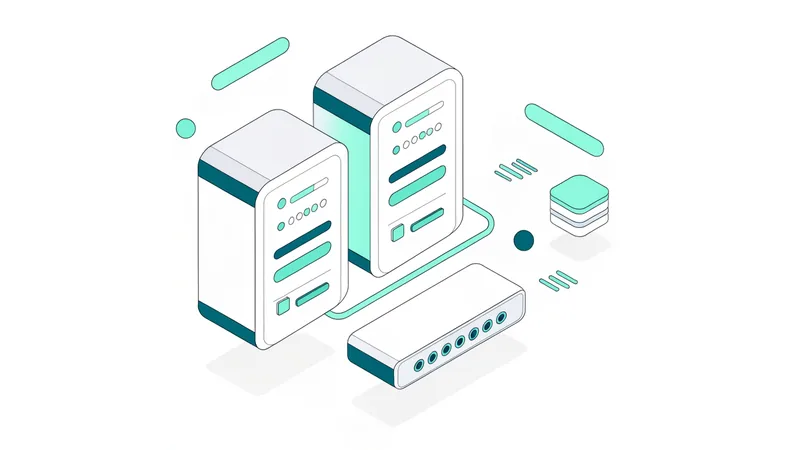
The Server Migration Checklist

Moves: one server’s roles, files, services and names to a new server.

Use it: when the job is the server itself, such as a file or print server, rather than an application with its own owner and users. A large application may need it for each of its servers. Server Migration Checklist.

A different product

Data Migration and Software Implementation

Covers: replacing the application with a different product: mapping and reconciling the data into it, then configuring, testing and adopting the new software.

Use them: when the old application is being retired for a new one. Data Migration Checklist and New Software Implementation Checklist.

What the Application Migration Checklist Covers

Nine phases take one application from where it runs now to the day the old instance is switched off. Every due date counts in business days from the planned cutover date on the first task: back from it for the inventory, licence checks, build, trial move, rehearsal and acceptance tests, and forward from it for hypercare, the owner’s acceptance and retiring the old instance. Three questions on the first task add the tasks that a new data centre or hosting provider, a cloud move, a new operating system or runtime, or a new major version needs. The application owner’s go/no-go is the gate before the cutover, and failed acceptance tests, a no-go or a rollback each add the task that follows.

  1. Phase 1

    Phase 1: Scope, Owner & Target

    4 tasks

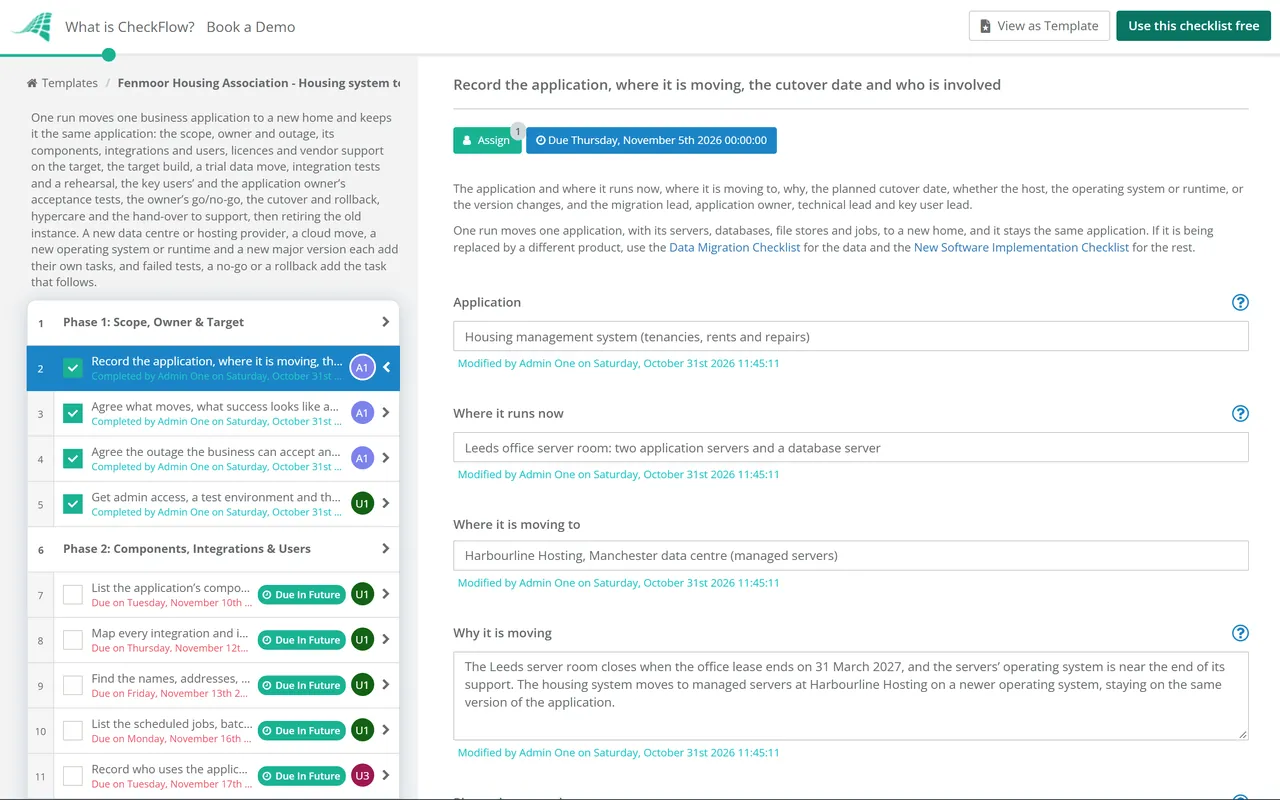
    Record which application is moving, where to, what changes with it and who does each step. Enter the planned cutover date on the first task: every task before it counts back from that date in business days and every task after it counts forward, so moving the date moves the plan. Three questions about the host, the platform and the version add the tasks that kind of move needs.

    • Record the application, where it is moving, the cutover date and who is involved — the application and where it runs now, where it is moving to, why, the planned cutover date, whether the host, the operating system or runtime, or the version changes, and the migration lead, application owner, technical lead and key user lead
    • Agree what moves, what success looks like and what stays out of the move — the components in scope, the measures the application owner will judge the move by, such as every function working as before and response times no slower than the baseline, and the changes that wait until after the move, so a fault after the cutover can be traced to the move
    • Agree the outage the business can accept and the dates to avoid — how long the application can be unavailable, the days and times a cutover can happen, and the busy periods to avoid, such as month-end, payroll or a seasonal peak, agreed with the application owner, and the notice period and renewal date of the current host’s and support contracts, so notice can be given in time
    • Get admin access, a test environment and the vendor’s support contacts — admin access to the current servers and to the target, a test environment on the target where the application can be built and tested before production, and support contacts for the application vendor and for the current and new hosts
  2. Phase 2

    Phase 2: Components, Integrations & Users

    6 tasks

    List everything the application is made of, everything that connects to it and everyone who uses it before planning the move. Faults after a cutover can come from a part nobody listed: a scheduled job, an address written into a script, a partner’s file transfer or a certificate.

    • List the application’s components, versions and where each runs — every server, database, file store, web front end, client install and licence server the application uses, with its version, what it runs on and the vendor’s support status for that version
    • Map every integration and interface, with the owner of the other end — each system that sends data to the application or takes data from it, how (an API, a file transfer, a database link, email), how often, and who owns the other end, inside the business or at a partner, customer or supplier, so each owner can be told and can test
    • Find the names, addresses, certificates and accounts the move will change — host names, IP addresses and ports written into configuration files, scripts, client installs and partners’ allowlists, the certificates the application uses with their expiry dates, and the service accounts and their permissions
    • List the scheduled jobs, batch runs and reports, with when each runs — every job that runs on or against the application, with its schedule, including the ones that run only at month-end, quarter-end or year-end, so each one is checked when it first runs on the target
    • Record who uses the application, where and how they sign in — the teams and how many users each has, their sites and time zones, the client or browser they use, how they sign in, such as single sign-on or accounts in the application, and the key users who will test the move
    • Take a baseline of performance and use at a busy time — response times for the main tasks users do, batch run times, the most users at once, and database and file store sizes and growth, measured at a busy time, so the target can be sized from it and compared with it after the cutover
  3. Phase 3

    Phase 3: Licences, Vendor Support & the Plan

    8 tasks

    Check that the application may run, and will be supported, where it is going, then choose how to move it and how it will be tested. Licence and support terms are the vendor’s and differ by product and agreement, so read your own; this checklist quotes none.

    • Check the licence terms allow the application to run on the target — what the vendor’s licence says about running the application on new hardware, at another hosting provider, on virtual machines or in the cloud, how it is counted (by user, server, processor or core), whether licence keys are tied to a machine, and whether the move needs the vendor’s consent or a new licence
    • Confirm the vendor supports the application on the target platform and versions — the vendor’s list of supported operating systems, databases and runtimes for your version, whether your support contract covers the target, and how to reach the vendor during the cutover window
    • New host: agree what the provider manages, its service levels and the contract — what the data centre or hosting provider runs and what you run, such as hardware, operating system patches, backups and monitoring, the service levels and support hours, where the servers and backups will be, and the contract signed before anything is built
    • Cloud: settle the strategy, landing zone and costs with the Cloud Migration Checklist — the migration strategy for this application, the landing zone it goes into, the network and identity it needs and the run cost, decided with the Cloud Migration Checklist, which this checklist does not repeat
    • New platform: check every component and driver is supported on it — each component from Phase 2, with its add-ins, drivers, client software and agents, checked against the vendor’s supported platforms for the new operating system or runtime, and anything unsupported given a fix, an upgrade or a replacement
    • New version: read the vendor’s upgrade path, release notes and removed features — the versions you can upgrade from directly, any intermediate version, the prerequisites, what the release notes say changes or is removed, and what the vendor’s upgrade does to the data, so the customisations and reports that need work are known
    • Choose how the application will move and record why — for example a fresh install on the target with the data copied across, a replica of the servers switched over, or a backup restored on the target, with the outage each needs and the reason for the choice
    • Write the acceptance tests with the application owner and key users — the tasks users do every day and at month-end, the reports and documents the application produces, each integration and the response times from the baseline, each written as a test with its expected result and who runs it; the application owner agrees them before testing starts
  4. Phase 4

    Phase 4: Build the Target

    8 tasks

    Build the target to your own standard and to the vendor’s requirements, install the application and connect it to the tools that keep it running. The jobs stay switched off until the cutover, and nothing reaches users until the tests in Phases 5 and 6 pass.

    • Build the target servers or platform to your standard — sized from the baseline, with the operating system, database and runtime at the versions checked in Phase 3, hardened and patched to your build standard, in the network zones the application needs
    • New host: set up the network links, addresses and firewall rules at the new site — the connections between the new site and your offices, users and partners, the addresses the application will have, the firewall rules and allowlists for each interface from Phase 2, and the link to the old site the data move will use
    • Cloud: build the application’s resources in the landing zone — the servers or managed services for each component, the network routes to users, sites and partners, and the accounts and roles the application and its administrators use, built in the landing zone agreed in Phase 3
    • Install and configure the application on the target — the application installed at the agreed version, with its configuration, settings, add-ins and customisations copied or recreated from the current instance, and any difference recorded
    • New platform: rebuild or repackage the add-ins, scripts and clients that need it — anything that does not run as it is on the new operating system or runtime, such as drivers, scripts, scheduled tasks, compiled add-ins and client packages, rebuilt or replaced and tested on the target
    • New version: rework the customisations, reports and integrations for it — each customisation, report, template and integration that the release notes or a first test show is affected, changed for the new version and tested in the test environment
    • Recreate the service accounts, certificates and scheduled jobs on the target — each account with the permissions it needs and no more, the certificates installed with their names and expiry dates, and every job from Phase 2 created on the target but left switched off until the cutover
    • Add the target to backup, monitoring, patching and security tools — backups scheduled and a restore tested, alerts for the application and its servers sent to the team that will support it, patching and endpoint protection in place, and logs sent where they are kept today
  5. Phase 5

    Phase 5: Data Move, Integration Tests & Rehearsal

    7 tasks

    Prove the move works before the day: a trial move of the data, each integration tested with the owner of the other end, and a full rehearsal of the cutover, timed. The runbook and the rollback plan are written from what the rehearsal showed.

    • Plan how the data moves and how you will check it all arrived — the method, such as a backup and restore, replication or the vendor’s export and import, the order, how long it takes at full size, and the checks that prove it arrived: record counts, totals that matter to the business, file counts and a sample opened in the application
    • Run a trial move of the data into the test environment and check it — a full-size copy moved by the planned method and timed, the checks from the plan run, and the application opened on the moved data
    • New version: run the vendor’s upgrade on the trial data and check the result — the vendor’s upgrade tool or scripts run on the trial copy and timed, the upgrade log checked for errors, and the upgraded data opened in the new version
    • Test each integration on the target with the owner of the other end — each interface from Phase 2 pointed at the test environment, or tested in a slot agreed with its owner inside the business or at the partner, with the result recorded and the steps and timing for switching it on the cutover day agreed
    • Rehearse the cutover end to end and time every step — the whole cutover run in the test environment or on a copy of production, in the agreed order, from stopping the application to the smoke tests, with each step timed, so you know it fits the outage the business accepted
    • Write the cutover runbook from the rehearsal — every step in order with its owner and the time it took in the rehearsal, the change freeze before the cutover, who is on call, the vendor and partner contacts, and the checks at each stage
    • Agree the rollback plan, its trigger and the last point to roll back — how users and integrations go back to the old instance, what would trigger a rollback, such as a failed smoke test or the cutover running past its window, the last point at which a rollback can be decided, and what happens to work done on the target before a rollback
  6. Phase 6

    Phase 6: Acceptance Tests & Go/No-Go

    8 tasks

    The key users and the application owner test the application on the target with the tests agreed in Phase 3, and users, the service desk and the change process are told what is coming. The go/no-go is the gate: nothing after it can be completed until the application owner records a decision.

    • Key users run the acceptance tests on the target and record the results — each test from Phase 3 run by the person named against it, on the moved trial data, with every failure logged and the result recorded; failed tests add a task to fix the faults and test again
    • Tell users the dates, what changes for them and where to get help — the cutover date and outage, what users must do, such as use a new address, install a new client or sign in again, what to do with work in progress, and who to contact during the outage and after it, sent to every user group and to each integration owner
    • Failed tests: fix the faults and test again — each failure fixed on the target and the test run again by the person who found it; once the tests pass, change the overall result on the key users’ test task; if the fixes will not be ready in time, move the cutover date on the first task
    • Application owner checks the results and the reports that matter most — the test results and open faults reviewed, and the checks only the owner can judge run on the target, such as the key reports, figures and documents the application produces
    • Brief the service desk and the support team for the cutover — what is changing, the cutover window, known issues from the tests, how to tell a fault caused by the move from a normal call, who to escalate to, and a ticket category for the migration
    • Raise the change request for the cutover and get it approved — the change raised under your change process with the runbook, the rollback plan, the test results and the outage, and approved before the go/no-go
    • Go/no-go: the application owner approves the cutover — the application owner’s decision, based on the test results, the open faults, the rehearsal, the runbook, the rollback plan and the approved change; a no-go adds a task to record why and set a new date
    • No-go: record why and set a new cutover date — what was not ready, the work needed and who does it, then a new planned cutover date on the first task, which moves every due date
  7. Phase 7

    Phase 7: Cutover & Rollback

    5 tasks

    On the cutover date, stop the application, back it up, move the last of the data, start it on the target and switch everything that connects to it. If the smoke tests fail or the window runs out, the rollback plan from Phase 5 puts users back on the old instance.

    • Stop the application on the old instance, back it up and move the last of the data — users told the outage has started, the application and its jobs stopped on the current servers, a full backup taken and checked to open, and the final data move run by the rehearsed method with the checks from Phase 5; for a new version, the vendor’s upgrade is run on it as rehearsed
    • Start the application on the target and switch names, addresses and integrations to it — the application and its jobs started on the target, DNS names, load balancers, client settings and partners’ connections switched as the runbook says, and the old instance left stopped
    • Run the smoke tests and record whether the application is live — a short set of the acceptance tests run on the target by the key users and the technical lead: signing in, the main tasks, a report and each integration’s first exchange, then the result recorded; a rollback adds a task to record what failed
    • Rolled back: record what failed and plan the next attempt — users and integrations returned to the old instance as the rollback plan says, the failure and its cause recorded, and a new planned cutover date entered on the first task once the fix is known
    • Open the application to users and confirm the move is done — users told the application is available and anything they must do, the service desk told the cutover is complete, and the change record updated
  8. Phase 8

    Phase 8: Hypercare & Support Hand-Over

    5 tasks

    Support the application closely for the first weeks, check that every job, report and integration runs on the target, and hand it to the team that will support it. The application owner accepts the move at the end of hypercare.

    • Check each scheduled job, report and integration on its first run — every job and report from Phase 2 checked when it first runs on the target, with the month-end ones checked when they come round, and each integration’s exchanges checked with its owner
    • Compare performance and use with the baseline — response times, batch run times and resource use measured at a busy time on the target and compared with the baseline from Phase 2, with any slower area fixed or accepted by the application owner
    • Run hypercare with a daily check-in and a log of every fault — a named team watching the application, a short daily check-in with the key users and the service desk, and every fault reported logged with its fix, for the period agreed with the application owner; complete this task on the day hypercare closes
    • Hand the application over to the team that will support it — the support team given the updated runbooks, the new names and addresses, the vendor and host contacts and the open faults, and the CMDB, network diagrams and documentation updated
    • Application owner accepts the move — the application owner’s acceptance, once hypercare has closed, every open fault has an owner and the success measures from Phase 1 have been checked
  9. Phase 9

    Phase 9: Retire the Old Instance

    4 tasks

    Keep the old instance until the application owner has accepted the move and the agreed keep period has passed, then switch it off, keep what must be kept and stop paying for it.

    • Export and keep anything from the old instance that must be kept — logs, audit trails, old reports or data that did not move, kept for the period your retention schedule sets, in a place people can search
    • Switch the old instance off and hand it to decommissioning — the old servers kept stopped but recoverable until the date agreed with the application owner, then switched off, their data wiped or the host asked to delete it, and the hardware or hosting handed to the Server Decommissioning Checklist
    • Cancel or move the old licences, support contracts and hosting — licences that no longer run anywhere ended, or moved to the target as the vendor allows, the old host’s contract given notice by the date found in Phase 1, and support contracts updated
    • Close the migration and record what to change next time — the change record closed, the success measures recorded against Phase 1, and what the next application move should do differently

What Each Kind of Move Adds, and Who Does What

What each kind of move adds

The three questions on the first task, about the host, the operating system or runtime, and the version, add these tasks. A move can answer Yes to more than one, such as a new hosting provider and a newer operating system at the same time.

Kind of move (first task) What this template adds What to check
A new data centre or hosting providerThe provider’s contract and service levels (Phase 3); the network links, addresses and firewall rules at the new site (Phase 4)What the provider manages and what you do, where the servers and backups will be, and a written contract if the provider processes personal data for you
The cloudThe strategy, landing zone and costs, settled with the Cloud Migration Checklist (Phase 3); the application’s resources built in the landing zone (Phase 4)That the licence allows the application to run there and the vendor supports it there; this checklist runs the application’s own side of the move
A new operating system or runtimeSupport for every component, add-in and driver (Phase 3); rebuilt or repackaged add-ins, scripts and clients (Phase 4)The vendor’s supported platforms for your version, and every agent, driver and client package
A new major versionThe upgrade path and release notes (Phase 3); rework of customisations, reports and integrations (Phase 4); the vendor’s upgrade run on the trial data (Phase 5)Intermediate versions, prerequisites, removed features, and how long the upgrade takes on full-size data
Every moveComponents, integrations, jobs, users and a baseline; licence and support checks; the target build; a trial move, integration tests and a rehearsal; acceptance tests; the cutover; hypercare; retiring the old instanceThe outage the business accepts, the owner of each integration, and the rollback trigger

Who does what

The four people named on the first task are assigned their tasks automatically. One person can hold more than one role in a small team, but the application owner should be someone who uses or answers for the application, not the person moving it.

Role (first task) What they do in this template
Migration leadRuns the checklist: the scope and outage, licences and vendor support, the runbook and rollback plan, user communications, the service desk brief, the change request, hypercare and the hand-over to support
Application ownerAgrees the outage, checks the results and the reports that matter most, gives the go or no-go, and accepts the move after hypercare
Technical leadLists the components and integrations, builds the target, moves the data, tests each integration with its owner, rehearses and runs the cutover, and retires the old instance
Key user leadRecords who uses the application, writes the acceptance tests with the owner, and has the key users run them on the target
Owners of each integration (not on the first task)Test their end on the target with the technical lead and switch it over on the cutover day

Licences, support and sources, read 31 October 2026. No law sets out how to migrate an application: the steps, roles and timings here are this template’s practice. Licence and support terms are the vendor’s and differ by product and agreement, so the template asks you to read your own and quotes none. On personal data held by a new provider, the ICO’s UK GDPR guidance: Contracts (marked as under review after the Data (Use and Access) Act) and A brief guide to international transfers.

Why Run Application Migrations in CheckFlow?

1

Every integration tested with its owner

Phase 2 lists every integration with the person or partner who owns the other end, and Phase 5 tests each one on the target with them and agrees its step on the cutover day, so nobody outside the team learns about the move from a failed file transfer.

2

No cutover without the application owner

The key users run the acceptance tests agreed with the application owner, and failed tests add a task to fix the faults and test again. The owner’s go/no-go is a gate: nothing in the cutover or after it can be ticked off until a decision is recorded. See how approval steps work.

3

Only the steps this move needs

Three questions on the first task add the tasks a new host, a cloud move, a new platform or a new major version needs. Due dates count back from and forward from the planned cutover date, so moving the date moves the plan. The Reports Grid lists every migration with its answers, and Analytics shows completion rates and overdue work.

CheckFlow does not move servers, data or applications; your tools, scripts, hosts and vendor do that. CheckFlow runs the work around them: who does each step by when, what the tests found and who approved the cutover. See how checklists run.

Test the application with the User Acceptance Testing (UAT) Checklist, raise the cutover under the IT Change Management Process Checklist, check what you are licensed for with the Software License Audit Checklist and retire the old servers with the Server Decommissioning Checklist. Moving a fleet of devices to a new operating system is the Operating System Upgrade Rollout Checklist.

AI generator

Didn’t find what you need? Describe it.

Describe the process in a sentence and the AI checklist generator drafts the phases and tasks for you.

Frequently Asked Questions

What should an application migration checklist include?

The application owner and the outage the business accepts, the components, integrations and their owners, scheduled jobs, users and a performance baseline, then licence and vendor support checks for the target, the target build, a trial data move, integration tests, a timed rehearsal, a runbook and rollback plan, acceptance tests by key users and the owner, a go/no-go, the cutover, hypercare, the hand-over to support and retiring the old instance. This template covers each, with extra tasks for a new host, platform or version.

What is the difference between application migration and data migration?

An application migration moves the same application to a new home, such as a new hosting provider, operating system or major version, so the work is its components, integrations, licences, tests and the cutover. A data migration moves a business’s records from one application into a different one, so the work is mapping, cleansing and reconciling the data. Replacing a product needs the Data Migration Checklist and the New Software Implementation Checklist instead.

How is an application migration different from a server migration?

A server migration moves one server’s roles, files and services to a new server, and its service owner checks it works. An application migration moves everything one business application is made of, which may be several servers, databases and file stores, with its integrations, and its key users and owner test it before the go. A large application can run the Server Migration Checklist for each of its servers alongside this one.

How do you migrate a legacy application to a new platform?

Start by finding out what it is made of and whether its vendor still supports it where you want it to run. This template lists every component with its version and support status, checks the licence and the vendor’s supported platforms, and, when the operating system or runtime changes, adds tasks to check each add-in and driver and to rebuild what does not run as it is. If nothing will support the application any more, plan its replacement instead.

Who approves the go/no-go for an application migration?

The application owner: the person in the business who answers for the application, not the team moving it. In this template the owner reviews the key users’ test results, checks the reports and figures that matter most, then records Go, Go with conditions or No-go three business days before the cutover. The go/no-go is a gate: nothing after it can be completed until a decision is recorded, and a no-go adds a task to set a new date.

What should you check about licences before moving an application?

Read the vendor’s licence terms for the target: whether the application may run on new hardware, at another hosting provider, on virtual machines or in the cloud, how it is counted (by user, server, processor or core), whether licence keys are tied to a machine, and whether the move needs the vendor’s consent or a new licence. Terms differ by vendor and agreement, so this template records what yours say and quotes none.

How do you test an application after it has moved?

With acceptance tests written before the move: the tasks users do every day and at month-end, the reports and documents it produces, each integration and the response times from the baseline. In this template key users run them on the target before the go/no-go, failures add a task to fix and retest, smoke tests run on the cutover day, and each scheduled job and integration is checked on its first run. The User Acceptance Testing (UAT) Checklist runs a full UAT.

What should trigger a rollback in an application migration?

The trigger you agree before the day, such as failed smoke tests or the cutover running past its window, decided before the last point at which a rollback is still possible. This template writes the rollback plan from the rehearsal and records the cutover result. Rolled back adds a task to put users and integrations back on the old instance, record the cause and set a new cutover date, and the old instance is kept until the move is accepted.

Can I use this as an application migration plan template?

Yes. Enter the planned cutover date on the first task and every task gets a due date: the inventory, licence checks, build, trial move, rehearsal and acceptance tests count back from it in business days, and hypercare, the owner’s acceptance and retiring the old instance count forward. The go/no-go falls three business days before the cutover. Change the date and the whole plan moves with it, and the Reports Grid lists every migration you run.

Is CheckFlow free for this template?

14-day free trial, no card required. The Business plan is $10 per user per month after the trial. Full details at checkflow.io/pricing.

Move the Application and Keep It Working

Free trial — no credit card required.

14-day free trial, no credit cardFull refund in your first 30 daysUS hosting, EU on request