
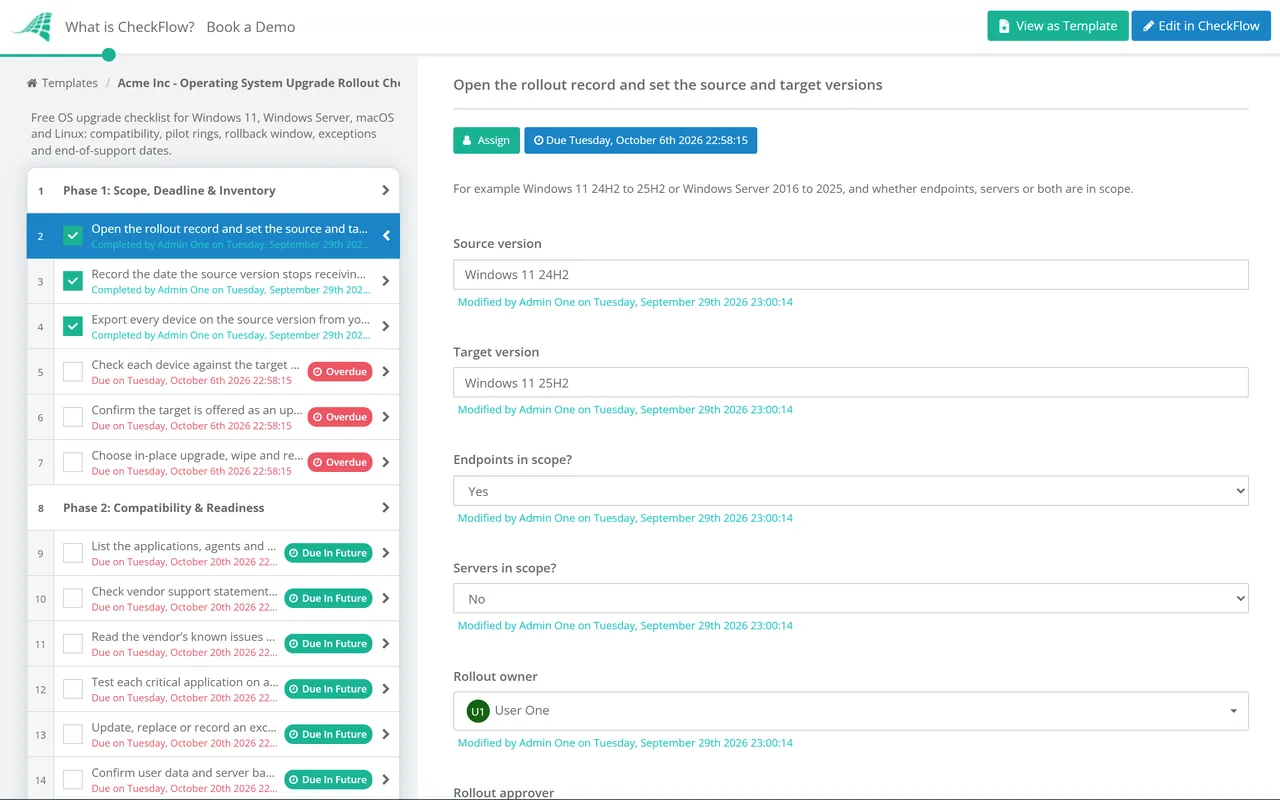
Fixes to the version you run
Trigger: the vendor’s monthly release.
Rollback: uninstall the update or restore.
Deadline: days to weeks, set by severity.
This free OS upgrade checklist moves an existing estate to a new operating system version in rings. Endpoint and infrastructure teams and MSPs use it for Windows 11 feature updates, Windows Server upgrades, and macOS and Linux major versions. It covers hardware eligibility, compatibility, a rollback window set before anyone upgrades, a representative pilot, user communications, exceptions, and completion tracked against the old version’s end of security updates.
Patching and upgrading share tools and often rings, so they get mixed up. The difference is what can break and how far back you can go. A monthly update fixes the version you run. A feature update or new major version replaces it: drivers, agents and business applications meet new code at once, and after a short window there is no uninstall.
Trigger: the vendor’s monthly release.
Rollback: uninstall the update or restore.
Deadline: days to weeks, set by severity.
Trigger: the old version’s end of security updates, or features you need.
Rollback: a limited window, then a rebuild.
Deadline: months, counted back from end of support.
Trigger: ineligible hardware, an unsupported upgrade path or a role that cannot upgrade in place.
Rollback: keep the old device or server until the new one is accepted.
Output: a new build from your standard image.
Microsoft’s deployment guidance describes three rings: Preview for IT to evaluate, Limited for a representative pilot, and Broad for everyone else. It warns that IT’s own devices are not a representative sample, so this checklist keeps the IT test ring and the pilot separate. Rolling out a new business application is a different project, about people and data rather than drivers, with its own New Software Implementation Checklist.
Seven phases take an upgrade from inventory to sign-off. Phase 5 appears when endpoints are in scope, Phase 6 when servers are, and a failed pilot adds a pause task before the broad rings open.
The two scope answers on the first task decide whether the endpoint phase, the server phase or both appear.
The approver named on the first task signs off on the last task. The checklist halts there, and nothing is deployed until they decide.
If the pilot result is recorded as Fail, the last task appears and the broad rings wait.
Tasks appear only when endpoints are in scope.
Tasks appear only when servers are in scope.
The exception task appears only when devices remain on the source version.
Phase 1 counts the plan back from the date the source version stops receiving security updates. These Microsoft dates come from its lifecycle and release information pages as of 29 September 2026. Recheck them when you start.
| Version | Editions | Security updates end | What it means for the plan |
|---|---|---|---|
| Windows 11 24H2 | Home, Pro, Pro Education, Pro for Workstations | 13 October 2026 | Pro devices need 25H2 or 26H2 now |
| Windows Server 2012 and 2012 R2 | Servers enrolled in ESU | 13 October 2026 | The three-year ESU period ends; upgrade or rebuild anything still running |
| Windows 11 23H2 | Enterprise, Education | 10 November 2026 | The last 23H2 editions still receiving updates |
| Windows Server 2016 | All editions | 12 January 2027 | End of extended support; in-place upgrade to 2019, 2022 or 2025 is supported |
| Windows 11 24H2 | Enterprise, Education | 12 October 2027 | Plan the move to 25H2 or 26H2 within the next year |
| Windows 11 25H2 | Home and Pro / Enterprise and Education | 12 October 2027 / 10 October 2028 | The target for estates not ready for 26H2 |
| Windows 11 26H2 | Home and Pro / Enterprise and Education | 10 October 2028 / 9 October 2029 | Released 29 September 2026; the longest runway |
| Windows 10 22H2 | Organisations enrolled in ESU | Up to three years after 14 October 2025 | A paid bridge, priced per device and doubling each year |
The edition matters. Microsoft supports each Windows 11 feature update for 24 months on Home and Pro and 36 months on Enterprise and Education. On Pro, common in small businesses and MSP client estates, an annual upgrade is close to unavoidable; an Enterprise estate can upgrade every other year.
The rollback window is the other date to set on purpose. Windows allows a go-back for 10 days unless you change it, and DISM accepts 2 to 60 days. Set it before the pilot, so a problem found in week three can still be undone. Red Hat’s upgrade guide says to back up first, with ReaR, LVM snapshots or a VM snapshot: on Linux, the backup is the rollback plan.
The plan approval is assigned to the approver picked on the first task, and the checklist halts until they decide. The pilot result is a dropdown: record Fail and the pause task appears, so the broad rings cannot quietly start on schedule.
Two scope answers show the endpoint phase, the server phase or both. A data set holds your device groups with owner, hardware models and ring, and an annual recurring schedule can open each autumn’s feature update rollout.
Every device left on the old version is a row in a table inside the exception task, with owner, reason and end date. Pilot reports and completion exports attach to the tasks they prove, and tags keep each client or site separate for MSPs.
Monthly security updates follow a different cycle with shorter deadlines, run through the Patch Management Checklist. The rollout’s change record goes through the IT Change Management Checklist, and CheckFlow’s change management checklist software shows how approvals work across IT.
Servers that cannot be upgraded in place are rebuilt through the Server Setup & Provisioning Checklist. Devices that fail the hardware check join the replacement plan in the IT Asset Management Checklist.
Patch Management Checklist
IT Change Management Checklist
New Software Implementation Checklist
Server Setup & Provisioning Checklist
Laptop Provisioning & Imaging Checklist
Describe the process in a sentence and the AI checklist generator drafts the phases and tasks for you.
Ten days by default. Administrators can change the window with DISM /Online /Set-OSUninstallWindow, which accepts values from 2 to 60 days; anything outside that range falls back to 10. Once the days since the upgrade exceed the window, the device can no longer go back to the previous version. Set a longer window before the pilot, not after a problem appears.
Groups of devices that receive the upgrade in sequence, each with criteria to meet before the next group starts. Microsoft describes two ways to move between rings: carry on until someone presses a “red button” to stop, or wait for a “green button” after validation before each ring opens. This checklist records the exit criteria and the pilot result, so either approach leaves evidence.
Yes, using installation media. Windows Server 2025 supports in-place upgrades for non-clustered servers from Windows Server 2012 R2 and later, up to four versions at a time. Failover clusters are different: a cluster OS rolling upgrade moves one version at a time. Check that each server role supports in-place upgrade, back up first, and remember each upgrade needs a licence for the new version. Windows Server 2016 extended support ends on 12 January 2027.
In place is faster and keeps settings, applications and data, which suits most devices with a supported path. A rebuild clears years of configuration drift, and it is the only route where the path or server role is not supported or the hardware is changing anyway.
They keep working, but since 14 October 2025 they receive no security updates unless enrolled in Extended Security Updates. Organisations can buy ESU for up to three years, for version 22H2 only, at $61 per device for the first year, with the price doubling each year. It brings no new features or general technical support. Treat it as time to finish the upgrade, recorded as an exception with an end date.
14-day free trial, no card required. The Business plan is $10 per user per month after the trial. Full details at checkflow.io/pricing.
14-day free trial, no credit cardFull refund in your first 30 daysUS hosting, EU on request