GA4 Setup & Audit Checklist Template

Most Google Analytics problems never show as an error. Office visits counted as customers, a purchase recorded twice, a payment page that turns every sale into a referral, or a key event nobody marked: the reports still look reasonable, and decisions get made on them.

Last reviewed: October 2026

This free GA4 setup and audit checklist is for marketing teams, analysts, developers and agencies who run Google Analytics 4 for a website or app. One run is either the setup of a new property or an audit of an existing one. It covers the measurement plan, account and property structure and access, property settings and data retention, data streams and the tag, enhanced measurement, events, key events and custom definitions, consent mode and the data collection settings, internal and developer traffic filters, cross-domain measurement and unwanted referrals, the Google Ads, Search Console and BigQuery links, and reports. Each task says where the setting lives in Google Analytics and what good looks like. Data quality checks compare the numbers with your own systems, and the analytics owner signs the property off as ready for reporting.

A GA4 Audit Checks the Measurement, Not the Marketing

Google Analytics rarely breaks loudly. A second copy of the tag doubles every page view, a payment provider turns each sale into a referral, office visits are counted as customers, and a key event nobody marked is missing from every report. The numbers still look plausible, so nobody notices until a decision has been made on them.

This checklist sets up a new Google Analytics 4 property, or audits an existing one, for one website or app. It checks what the property collects and how. It is not a search audit or a privacy review, though it works alongside both: run the SEO Audit Checklist to find out why pages rank or do not, and the Website Privacy & Cookie Compliance Checklist to review the banner, the cookie list and the privacy notice.

This checklist

The GA4 setup or audit

Asks: does the property collect the right events, once, from every page, with the right settings, filters, links and consent signals?

When: when a property is created, then every quarter or after a rebuild, a tag change or a new link.

Output: checked settings, a data quality comparison, documentation and the analytics owner’s sign-off.

Search visibility

The SEO audit

Asks: can search engines crawl, index and rank the pages, and what is holding them back?

When: every quarter, in the SEO Audit Checklist, using Search Console and Analytics data.

Output: technical, content and link fixes ranked by impact.

Privacy

The cookie compliance review

Asks: does the site ask for consent where it must, list its cookies and explain them in the privacy notice?

When: every quarter or after a major release, in the Website Privacy & Cookie Compliance Checklist.

Output: a reviewed banner, cookie list and notice. This checklist then checks the banner’s choices reach the Google tag.

What the GA4 Setup & Audit Checklist Covers

Eight phases follow one property from the measurement plan to the analytics owner’s sign-off. The answers in the first task decide which tasks appear: creating the property or reviewing the last audit, website or app streams, e-commerce events, consent mode for visitors in the EEA or the UK, the Google Ads and BigQuery links, and a fix task when the data quality checks find a problem. Each check records In order or Gaps found, and the sign-off is the gate before the property is used for reporting.

  1. Phase 1

    Phase 1: Scope, People & Measurement Plan

    4 tasks

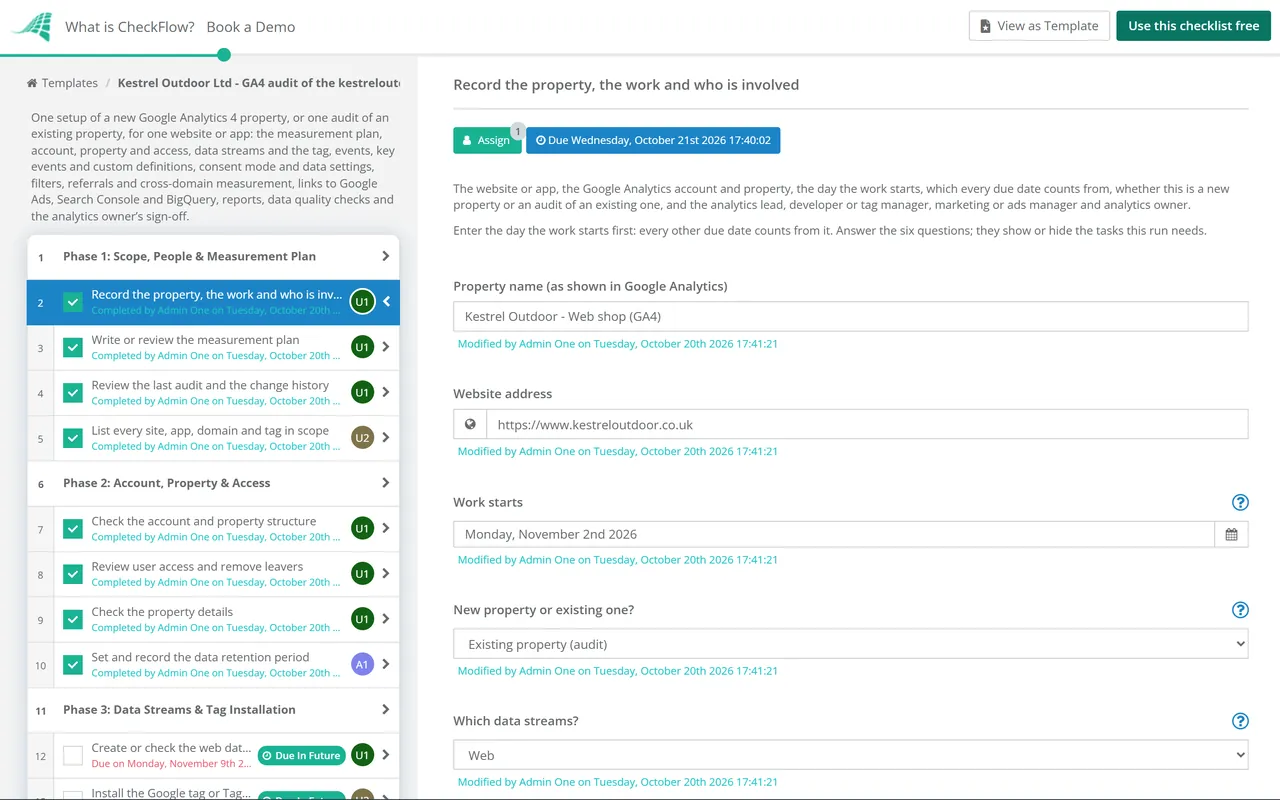
    Answer the questions in the first task before anything else: a new property or an existing one, web or app streams, e-commerce, visitors in the EEA or UK, Google Ads and BigQuery. They show the tasks this run needs. Every due date counts from the day the work starts.

    • Record the property, the work and who is involved — the website or app, the Google Analytics account and property, the day the work starts, which every due date counts from, whether this is a new property or an audit of an existing one, and the analytics lead, developer or tag manager, marketing or ads manager and analytics owner
    • Write or review the measurement plan — the business goals the property serves, the user actions that show progress towards them, the event that measures each action, which of those events are key events, and the reports people need from the data
    • Review the last audit and the change history — the actions from the last audit, closed or carried forward with an owner, and the property’s Change history in Admin since then: settings changed, links added or removed, and by whom
    • List every site, app, domain and tag in scope — every domain and subdomain, checkout, booking or payment pages on other domains, each app, the measurement ID or Tag Manager container on each, and any other tool or plugin that sends data to the property
  2. Phase 2

    Phase 2: Account, Property & Access

    5 tasks

    A new property is created here; an existing one has its structure checked instead. User access, the property details and the data retention setting are checked in both.

    • Create the account and property — in Admin, Create, then Account (if the business has none) and Property: a property name, the reporting time zone and currency, the industry category and business size, and the Terms of Service and Data Processing Amendment accepted for a new account, all under an account the business owns
    • Check the account and property structure — the property sits in an account the business owns rather than an agency’s, its name says which site or app it measures, and old or test properties that still collect data are recorded for a decision
    • Review user access and remove leavers — in Admin, Account access management and Property access management: each person or group has the lowest of the five roles (Administrator, Editor, Marketer, Analyst, Viewer) they need, No Cost Metrics or No Revenue Metrics where cost or revenue should stay hidden, and leavers and former agencies removed
    • Check the property details — in Admin, Property details: the property name, industry category, reporting time zone and currency. A time zone change only affects data from then on and can leave a flat spot or a spike, so change it no more than once a day
    • Set and record the data retention period — in Admin, Data retention: 2 or 14 months on a standard property, chosen on purpose and recorded. It limits how far back explorations and funnel reports can look; standard reports are not affected. A change takes effect after 24 hours, and needs the Editor role
  3. Phase 3

    Phase 3: Data Streams & Tag Installation

    6 tasks

    The website tasks appear for web streams and the app task for app streams. Check the tag on real pages, not only the home page, and watch the events arrive before going further.

    • Create or check the web data stream — in Admin, Data collection and modification, Data streams: one web stream for the site, its URL and stream name, and the measurement ID (G-) recorded for the developer
    • Create or check the app data streams — an iOS or Android stream per app with its bundle ID or package name, the Firebase project the stream is linked to, and the Google Analytics for Firebase SDK in the current app release
    • Install the Google tag or Tag Manager container on every page — the Google tag (gtag.js) or a Google Tag Manager container on every page of every domain, using the same tag ID across domains, with the Tag coverage summary in the Google tag settings showing no untagged pages
    • Check for duplicate and leftover tags — one page_view per page load, with no second copy of the tag from a plugin, a hard-coded snippet or an old container, and no tags left by tools the business no longer uses
    • Verify the events in Tag Assistant and DebugView — debug mode turned on for your own device through Tag Assistant (tagassistant.google.com), the events watched in Admin, Data display, DebugView as you use the site or app, and the tag quality status in the Google tag settings
    • Review the Google tag settings — in the web stream, Configure tag settings: automatic event detection, the session timeout (30 minutes by default) and the engaged-session timer (10 seconds by default), each kept or changed on purpose
  4. Phase 4

    Phase 4: Events, Key Events & Custom Definitions

    7 tasks

    Use Google’s recommended event names before inventing your own. The e-commerce tasks appear when the site or app sells online. Key events and custom definitions only count from the day they are set up; they do not change past data.

    • Check enhanced measurement — in the web stream, Enhanced measurement: page views, scrolls, outbound clicks, site search, video engagement, file downloads and form interactions each on or off on purpose, the site search query parameters matching the site, and no personal information collected in page addresses
    • Check the recommended events — the actions in the measurement plan sent with Google’s recommended event names and their prescribed parameters, such as generate_lead, sign_up, login and search, where one fits
    • Check the custom events and their names — every custom event in the measurement plan, named consistently, not repeating a recommended or automatically collected event, firing once per action and carrying no personal information
    • Set up the e-commerce events — the events view_item_list, select_item, view_item, add_to_cart, remove_from_cart, view_cart, begin_checkout, add_shipping_info, add_payment_info, purchase and refund, each with its items array, and currency set at event level whenever value is sent
    • Test a purchase and its transaction ID — a test order with a unique transaction ID (never an empty one), value, tax, shipping and currency matching the order in the shop, a reload of the confirmation page not counted twice, and a refund sent with the same transaction ID
    • Mark the key events — in Admin, Data display, Events: the events in the measurement plan marked as key events with the star, within the limit of 30 on a standard property, and events that no longer matter unmarked. Marking needs the Marketer role and counts from that day, not before
    • Register the custom dimensions and metrics — in Admin, Custom definitions: each custom parameter the reports need registered once, within the standard limits (50 event-scoped and 25 user-scoped dimensions, 10 item-scoped, 50 custom metrics), no predefined dimension registered again and no high-cardinality values such as IDs or timestamps
  5. Phase 5

    Phase 5: Consent & Data Settings

    7 tasks

    Your consent banner and your legal adviser decide which visitors are asked and what waits for their answer; this phase checks the property does what they decided. The consent mode tasks appear when you have visitors in the EEA or the UK.

    • Record what your consent banner and legal adviser require — which visitors see the banner, which tags may run before a choice and which wait, who decided and when, so the checks below have something to test against
    • Set up consent mode — the default consent state set on every page before any tag sends data, all four parameters (ad_storage, analytics_storage, ad_user_data and ad_personalization) updated from the banner’s choice, and basic or advanced consent mode chosen with the legal adviser
    • Test that the banner’s choices reach the tag — accept, reject and change the choice in Tag Assistant: the consent update is sent on the page where the visitor chooses, before they move on, and with analytics consent denied no events appear in DebugView
    • Check Consent settings in Admin — in Admin, Data collection and modification, Consent settings: each data stream shows the ad_user_data and ad_personalization signals arriving. After a fix, the notices can take 48 to 72 hours to update
    • Review Google signals and ads personalisation — in Admin, Data collection and modification, Data collection: Google signals on or off on purpose, the regions it collects in, and the ads personalisation setting by country or region, agreed with whoever owns privacy
    • Review user-provided data collection and the acknowledgement — in Admin, Data collection: whether user-provided data collection is on (it needs a Google Ads link and is not available in the Health industry category), the "I acknowledge" box for user data collection, and the matching Google tag setting, each agreed with whoever owns privacy
    • Check the reporting identity — in Admin, Data display, Reporting identity: Blended, Observed or Device-based chosen on purpose and recorded, with User-ID sent only if the site or app signs users in
  6. Phase 6

    Phase 6: Filters, Referrals & Cross-Domain

    5 tasks

    A data filter is permanent: excluded data is never processed and cannot be recovered. Test every filter before you make it active. Internal traffic, cross-domain and referral settings belong to the web stream.

    • Define internal traffic — in the web stream, Configure tag settings, Define internal traffic: a rule for each office or VPN IP address or range, with traffic_type set to internal (or a name per location)
    • Test and activate the internal traffic filter — in Admin, Data filters: an Internal Traffic filter created in the Testing state, matching events checked in an exploration with the Test data filter name dimension (allow 24 to 36 hours), then made Active
    • Check the developer traffic filter — a Developer Traffic filter, which excludes events sent in debug mode, tested and then made Active, within the limit of 10 data filters per property
    • Set up cross-domain measurement — in the web stream, Configure tag settings, Configure your domains: every domain a visitor moves between in one journey, such as a separate checkout or booking domain, all using the same tag ID, tested by following a link and seeing the _gl parameter
    • List unwanted referrals — in the web stream, Configure tag settings, List unwanted referrals: payment providers and other services visitors return from, such as a password-reset email link, so they do not start new sessions as referrals (up to 50 per stream)
  7. Phase 7

    Phase 7: Links & Reporting

    6 tasks

    The Google Ads tasks appear when Google Ads is in use and the BigQuery task when an export is wanted. Then make sure the people who use the data can find the reports they need.

    • Link Google Ads — in Admin, Product links, Google Ads links: each Google Ads account (or the manager account) linked by someone who is an Editor in Analytics and an administrator in Google Ads, with auto-tagging and personalised advertising set on purpose
    • Check the key events used in Google Ads — the Google Ads conversions created from Analytics key events listed, each still matching an event that fires, and Google Ads traffic not reported as (not set) because of an unlinked account, auto-tagging switched off or incomplete UTM tags
    • Link Search Console — in Admin, Product links, Search Console links: the verified Search Console property linked to the web stream (one each way), and the Search Console report collection published from the Library, since it is unpublished by default
    • Link BigQuery — in Admin, Product links, BigQuery links: a Google Cloud project with the BigQuery API on, linked by someone with owner access to it, the data location, the streams and events to export, and daily or streaming export, kept under the 1 million events a day daily-export limit of a standard property
    • Set up the reports people use — the report collections in the Library match the business, with key event and e-commerce reports where they apply, and the people in the measurement plan know where to find what they need
    • Build the explorations and saved comparisons — the free form, funnel and path explorations the measurement plan asks for, shared with the property, and saved comparisons such as web against app or one country against the rest
  8. Phase 8

    Phase 8: Data Quality Checks & Sign-off

    8 tasks

    Check the data after at least a week with the filters active. A data quality problem found here adds a task to fix it, and the analytics owner signs off the property as ready for reporting.

    • Compare Google Analytics with the source system — orders, revenue, leads or sign-ups for the same week in Google Analytics and in the shop, CRM or app back end, with the difference recorded and explained
    • Check (not set), Unassigned and self-referrals — (not set) landing pages (sessions with no page_view), (not set) session source or medium (often a Tag Manager tag not firing on Initialization - All pages), campaign links with incomplete UTM tags, and your own domains appearing as referrers
    • Check thresholds and sampling in reports — reports and explorations that show the thresholding notice (data withheld so that no one can identify individual users, most often with demographics or search query data) or sampling, and whether a wider date range or BigQuery gives the people who need the data what they need
    • Record whether data quality problems were found — one answer for the whole run: any gap from the checks above that would mislead someone reading the reports, listed with its cause
    • Fix and retest the data quality problems — each problem fixed and checked again in DebugView or the reports, or accepted by the analytics owner with a reason, and the date of each fix recorded so report users know where the data changes
    • Document the setup — the measurement plan, events and parameters, key events, custom definitions, filters, links, consent setup, data retention and who has access, kept where the next person to audit the property will find it
    • Analytics owner signs off the property as ready for reporting — the analytics owner reviews the checks, the open gaps and the documentation and decides whether people can rely on the property’s reports. Nothing after this task can be completed until the decision is recorded
    • Hand over and book the next audit — the people who use the reports told what changed and from which date, open actions given owners, and the next audit booked, for example every quarter or after a site rebuild, tag change or new link

Where Each GA4 Setting Lives and What Good Looks Like

Where the main settings live in Google Analytics 4 and what to look for. Google moves and renames settings from time to time, so the names here are the ones its help pages used in October 2026. The limits are for a standard (free) property; Analytics 360 allows more.

Setting Where in Google Analytics What good looks like
User accessAdmin › Account access management and Property access managementEach person has the lowest of the five roles they need; leavers and former agencies removed; No Cost Metrics or No Revenue Metrics where needed
Property detailsAdmin › Property detailsCorrect reporting time zone, currency and industry category; the time zone changed no more than once a day
Data retentionAdmin › Data retention2 or 14 months chosen on purpose. It limits explorations and funnel reports, not standard reports
Data streamsAdmin › Data collection and modification › Data streamsOne stream per website or app, named clearly, with its measurement ID recorded
Tag coverage and qualityData stream › Configure tag settingsNo untagged pages in the Tag coverage summary; tag quality Excellent or Good
Enhanced measurementData stream › Enhanced measurementEach option on or off on purpose; no personal information in collected page addresses
Key eventsAdmin › Data display › EventsThe events in the measurement plan marked with the star, up to 30 per property
Custom definitionsAdmin › Custom definitionsWithin 50 event-scoped, 25 user-scoped and 10 item-scoped dimensions and 50 custom metrics; no high-cardinality values
Consent signalsAdmin › Data collection and modification › Consent settingsad_user_data and ad_personalization signals arriving on each stream with EEA traffic
Google signalsAdmin › Data collection and modification › Data collectionOn or off on purpose, by region, agreed with whoever owns privacy
Internal trafficData stream › Configure tag settings › Define internal traffic, then Admin › Data filtersOffice and VPN ranges defined; the filter tested before it is made Active (up to 10 data filters)
Cross-domain and referralsData stream › Configure tag settings › Configure your domains and List unwanted referralsEvery domain in one journey listed; payment providers listed as unwanted referrals (up to 50)
Session timeoutData stream › Configure tag settings › Adjust session timeout30 minutes and a 10-second engaged session by default; changed only for a reason
Reporting identityAdmin › Data display › Reporting identityBlended, Observed or Device-based chosen on purpose
Product linksAdmin › Product links (Google Ads, Search Console, BigQuery)Each link still needed and owned; the BigQuery daily export under 1 million events a day

Key events, not conversions. In Google Analytics, an important event is now marked as a key event. A conversion is a key event that is also used to measure and bid in Google Ads, created from the key event in either product. Older guides that say "mark as conversion" mean marking a key event.

Filters are permanent. Google’s help pages say a data filter works from the moment it is active, never on past data, and that excluded data is never processed and cannot be brought back. That is why Phase 6 tests each filter first.

Why Run GA4 Setups and Audits in CheckFlow?

1

One checklist for setup and audit

The first task asks whether the property is new or already collecting data. A new property gets the task to create it; an existing one gets the review of the last audit, the change history and the structure. Web or app streams, e-commerce, consent mode, Google Ads and BigQuery answers add only the tasks that apply.

2

Every gap written down

Each check records In order or Gaps found and asks what needs to change. Tasks are assigned from the four people named at the start, every due date counts from the day the work starts, and the Reports Grid shows every setup or audit still open across your sites and clients.

3

Signed off before anyone relies on it

A data quality problem adds a task to fix and retest it, and the analytics owner records Ready, Ready with conditions or Not ready. Nothing after that approval step can be completed until they do. Run the audit on a recurring schedule so it comes round every quarter.

CheckFlow does not connect to Google Analytics or change its settings. Your team does the work in Google Analytics, Tag Manager and Tag Assistant. CheckFlow makes sure each setup or audit covers the same ground, that every gap has an owner and a date, and that the sign-off is on record. Workflow software shows how hand-offs like these run across a team.

Set up analytics as part of a website launch or an e-commerce store launch, and check the property again in the Website Migration Checklist whenever URLs or domains change. Test the tracking on each campaign page with the Landing Page QA Checklist, use the data in the Keyword Strategy Checklist and the SEO Audit Checklist, and report it to clients with the Agency Monthly Client Reporting Checklist.

AI generator

Didn’t find what you need? Describe it.

Describe the process in a sentence and the AI checklist generator drafts the phases and tasks for you.

Frequently Asked Questions

What should a GA4 audit checklist include?

The account and property structure and who has access, the property details and data retention, the data streams and whether the tag is on every page exactly once, enhanced measurement, recommended and custom events, key events and custom definitions, consent mode and the data collection settings, internal and developer traffic filters, cross-domain measurement and unwanted referrals, the Google Ads, Search Console and BigQuery links, and the reports people use. Finish by comparing the numbers with your shop, CRM or app back end, and have someone sign the property off.

What happened to conversions in GA4?

Google Analytics now calls an important event a key event. You mark it in Admin, under Data display, Events, by clicking the star, and you need the Marketer role or above. A conversion is now a key event that is also used to measure and optimise Google Ads, created from the key event with a linked Google Ads account. Marking a key event counts from that day; it does not change past data, and new key events can take up to 24 hours to show in standard reports.

How many key events and custom dimensions can a GA4 property have?

On a standard property, Google lists 30 key events, 50 event-scoped and 25 user-scoped custom dimensions, 10 item-scoped custom dimensions and 50 custom metrics. Analytics 360 allows more. After deleting custom dimensions at the limit, you wait 48 hours before adding new ones, so register only the parameters your reports need and avoid high-cardinality values such as IDs and timestamps.

Which data retention setting should we choose?

A standard property can keep user-level and event-level data for 2 or 14 months; Analytics 360 allows up to 50 months for event data. The setting limits how far back explorations and funnel reports can look; standard aggregated reports are not affected. A longer period also applies to data already collected and not yet deleted. Choose the period with whoever owns privacy, record it, and remember a change waits 24 hours before it takes effect.

Do we need consent mode for GA4?

Google’s EU user consent policy requires you to get end users’ consent in the European Economic Area, the UK and Switzerland for cookies where the law requires it and for personalised ads. To keep using Google’s measurement, ad personalisation and remarketing features for EEA users you must share their consent choices with Google. Consent mode does that: it passes your banner’s choices to the Google tag through ad_storage, analytics_storage, ad_user_data and ad_personalization. Which visitors are asked, and what waits for their answer, is for your consent banner and your legal adviser to decide.

How do I stop internal traffic showing in GA4?

First define it: in the web stream’s Configure tag settings, Define internal traffic, add the IP addresses or ranges of your offices and VPN, which tags their events with traffic_type internal. Then, in Admin, Data filters, create an Internal Traffic filter in the Testing state and check the matching events in an exploration, which can take 24 to 36 hours. Only then make it Active: a filter is permanent and does not apply to past data.

Why does (not set) appear in my GA4 reports?

(not set) means Google Analytics received no value for that dimension. A (not set) landing page is usually a session with no page_view event. A (not set) session source or medium often means the session_start event is missing, for example when a Tag Manager Google tag does not fire on the Initialization - All pages trigger. In Google Ads reports, check the accounts are linked, auto-tagging is on and campaign links have complete UTM tags.

How is a GA4 audit different from an SEO audit?

A GA4 audit checks the measurement itself: whether the property collects the right events from every page, once, with the right settings, filters and links. An SEO audit uses that data, with Search Console, to find out why pages rank or do not. Audit the property first: an SEO audit built on doubled page views or traffic counted as referrals reaches the wrong conclusions.

Is CheckFlow free for this template?

14-day free trial, no card required. The Business plan is $10 per user per month after the trial. Full details at checkflow.io/pricing.

Make Your Analytics Data Worth Trusting

Free trial — no credit card required.

14-day free trial, no credit cardFull refund in your first 30 daysUS hosting, EU on request