
Generated by the PSA or RMM
Audience: technicians and the service desk.
Content: raw counts, charts and device lists.
Exceptions: listed, not explained.
Quality control: none. It sends on schedule whether the data is right or not.
A managed services client pays every month for work they mostly never see: patches deployed overnight, backups verified, alerts resolved before anyone noticed, tickets closed inside the SLA. The monthly service report is the one document that shows it. Done well, it is the quiet reason clients renew. Done badly, as a raw export from the PSA sent late or not at all, it teaches the client that nobody at their MSP is paying attention. This free monthly managed services report checklist gives service managers and account managers a repeatable process for every client, every month. A service coordinator collects the numbers from the PSA, the RMM and the backup platform. A technical account manager or vCIO turns them into a plain-language summary with recommendations. A second person checks it before it goes out. A conditional section handles the months when something went wrong, so SLA breaches, failed backups and security incidents are explained before the client has to ask.
Every PSA and RMM platform can email a scheduled report. Those exports have their place, but they are written for technicians, not for the managing director who signs the contract. They show 412 patches installed and 38 tickets closed, but they do not say whether that was a good month, why the server backup failed twice, or which three laptops should be replaced before the end of the year. They also go out whether or not the numbers are right. When device counts drift from what the agreement says, or one client’s data turns up in another client’s report, nobody notices until the client does.
A service report is a reviewed document. Somebody reconciles the data, writes a short account of the month in the client’s language, explains every exception, and makes a recommendation. Somebody else checks it before it is sent. That takes between thirty minutes and two hours per client, depending on size. A checklist is what keeps that effort consistent when you have forty clients and the reports are due in the same week.
Audience: technicians and the service desk.
Content: raw counts, charts and device lists.
Exceptions: listed, not explained.
Quality control: none. It sends on schedule whether the data is right or not.
Audience: the client’s decision-maker.
Content: a summary of the month, explained exceptions and prioritised recommendations.
Exceptions: root cause, fix and next step, in plain language.
Quality control: reconciled against the agreement and peer-reviewed before delivery.
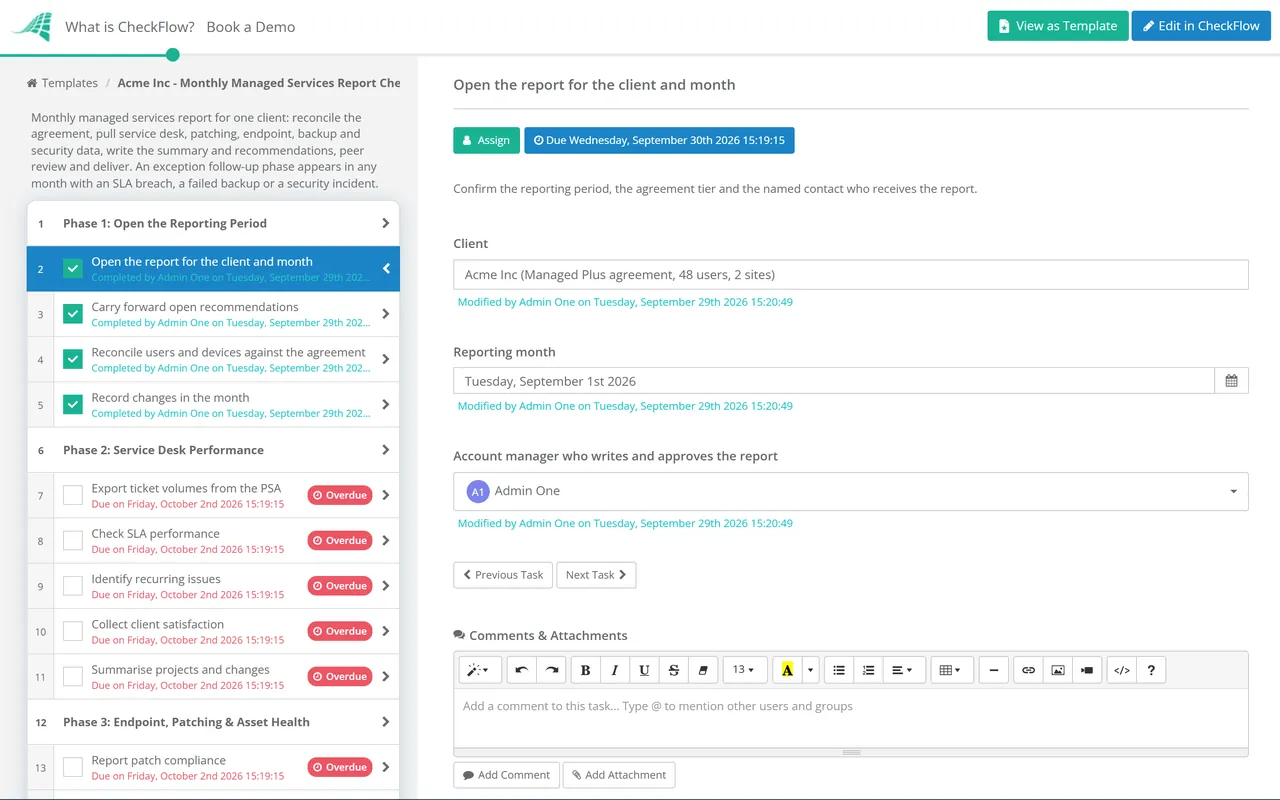
Six phases take each client’s report from data collection to delivery. A seventh phase switches on automatically in any month with an SLA breach, a failed backup or a security incident.
Assign this phase to the service coordinator. It takes ten minutes, and it catches billing and scope problems before they reach the report.
This phase belongs to the technical account manager or vCIO who owns the relationship, not to the person who pulled the data.
Shown only when the month had an SLA breach, a failed backup or a security incident. Conditional logic keeps the checklist short in a clean month.
A monthly report should answer the questions a client would ask if they had time to ask them. Is my team getting help quickly? Are we protected? Could we recover? What should I budget for? The table maps each section of the checklist to its usual source and to the question it answers. Keep the technical detail in an appendix, and keep the first page for the answers.
| Report section | Typical source | The client’s question | Checklist phase |
|---|---|---|---|
| Tickets and SLA performance | PSA | “When my staff ask for help, do they get it quickly?” | Phase 2 |
| Patching and endpoint protection | RMM and EDR console | “Are our computers up to date and protected?” | Phase 3 |
| Asset lifecycle | RMM and documentation platform | “What will I need to replace, and when?” | Phase 3 |
| Backups and test restores | Backup console | “If something went wrong tomorrow, could we recover?” | Phase 4 |
| MFA and admin accounts | Identity provider admin centre | “Could someone get into our accounts?” | Phase 4 |
| Licences | Microsoft 365 or SaaS admin consoles | “Are we paying for things we don’t use?” | Phase 4 |
| Summary and recommendations | Account manager or vCIO | “Was this a good month, and what should I do next?” | Phase 5 |
Agree the delivery date in the service agreement, so the report is a promise the client can hold you to rather than something that arrives when the service desk is quiet. Many MSPs commit to a working day early in the following month. Whatever you choose, the report should always arrive before the client has to chase it.
Set a recurring schedule for each client and the report checklist is created on the first working day of every month, with the data collection assigned to the service coordinator and the summary assigned to the client’s account manager. A report that has not gone out shows up as overdue, not as a client complaint.
The grid view shows every client’s report for the month side by side: which are still collecting data, which are waiting for review and which have gone out. Service managers can see at a glance which reports are late and whose review queue is full.
Clients who want more than a PDF can be given a live, read-only view of their own checklist through secure sharing, with your logo and subdomain. The work you did that month becomes something the client can see for themselves.
MSPs use CheckFlow for the human processes their PSA and RMM don’t manage well, from client onboarding to monthly maintenance reviews. See how it fits alongside your stack on the MSP process management software page.
Resellers and MSPs who deliver reports through a branded client portal should read our guide to white label checklist software. It covers how branded reporting turns routine service work into a visible, recurring deliverable. Marketing agencies reporting on campaigns rather than IT services should use the agency monthly client reporting checklist instead.

MSP Quarterly Business Review (QBR) Checklist

SLA Performance Review Checklist

MSP Monthly Billing Reconciliation Checklist

MSP Daily Backup Monitoring Checklist

Agency Monthly Client Reporting Checklist

Monthly Client Health Check Checklist (MSP)
Describe the process in a sentence and the AI checklist generator drafts the phases and tasks for you.
At minimum: ticket volumes and SLA performance, patch compliance, endpoint protection coverage, backup success and a tested restore, and a short list of recommendations. Most MSPs also report MFA coverage, lifecycle risks such as hardware leaving warranty, and licence usage. The most important part is not a metric at all. It is a three-to-five-sentence summary that tells the client, in plain language, whether it was a good month and what they should do next.
You can attach it, but it should not be the report. Automated exports are written for technicians, they don’t explain exceptions, and nobody checks them before they go out. Clients who receive only exports tend to stop reading them. Use the exports as the data source for Phases 2 to 4, then write the summary and recommendations yourself.
Split the work. A service coordinator or dispatcher can collect the data in Phases 1 to 4. The summary and recommendations in Phase 5 belong to the person who owns the client relationship, usually a technical account manager or vCIO, because they know what matters to that client. A second person reviews the report before it is sent. In a small MSP that may be the owner.
Short enough to read in two minutes. One page of summary, exceptions and recommendations is enough for most small and mid-sized clients, with the detailed exports attached for anyone who wants them. If the client’s decision-maker has to scroll through device lists to find out whether anything went wrong, the report is too long.
The monthly report looks back at operations. The quarterly business review looks forward at the client’s business and technology roadmap. The two are linked by the recommendation log: every recommendation raised in a monthly report is carried into the next QBR. Three good monthly reports make the QBR much easier to prepare.
Once the backup and security data is in, the template asks whether the month included an SLA breach, a failed backup or a security incident. If the answer is yes, a seventh phase appears. It records the root cause, checks the agreement for service credits, and makes sure the account manager tells the client before the report arrives. Clients forgive problems much more readily than surprises.
14-day free trial, no card required. The Business plan is $10 per user per month after the trial. Full details at checkflow.io/pricing.
14-day free trial, no credit cardFull refund in your first 30 daysUS hosting, EU on request