
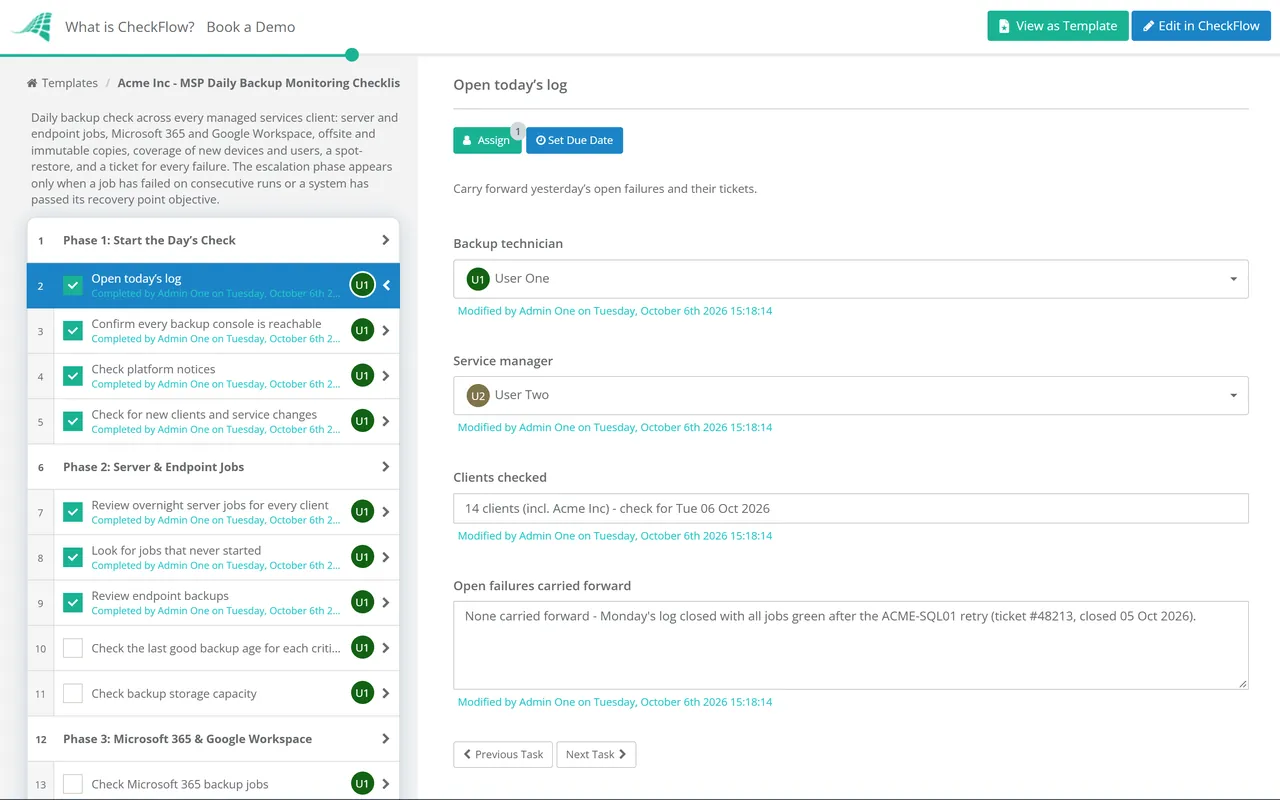
Did it run, and is it covered?
Cadence: every working day, across all clients.
Checks: job status, missed jobs, offsite copies, coverage gaps and one small spot-restore.
Output: a ticket for every failure and a dated daily log.
No Credit Card Required
Printed from checkflow.io/templates/managed-services/msp-daily-backup-monitoring-checklist
Every MSP backs up its clients. Fewer can say, on any given morning, which jobs failed overnight across every client, which ones never ran at all, and whether the offsite copy landed. The backup consoles send alerts, but alerts get filtered, missed jobs often raise none, and an alert nobody acts on protects nothing. This free MSP daily backup monitoring checklist turns the morning backup check into a short, repeatable routine that any technician can run. It covers overnight server and endpoint jobs, Microsoft 365 and Google Workspace backups, offsite and immutable copies, coverage gaps from new devices and users, one rotating spot-restore, a ticket for every failure and a daily log. When the same job has failed on consecutive runs, or a system’s last good backup is older than its recovery point objective, a conditional escalation phase brings in the service manager the same day.
The daily check asks a narrow question: did last night’s backups run, for every client and every system they should cover, and did the copies land where they should? It takes minutes per client, it runs every working day, and its job is to make sure no failure goes more than a day without an owner. It doesn’t prove that a server can be recovered within its target time. That needs a real restore, and the Backup Verification & Restore Test Checklist runs one every month, with deeper quarterly tests and measured times against RTO and RPO.
The UK National Cyber Security Centre’s principles for ransomware-resistant backups make the same point about alerts. Backups stopping, mass deletions and changes to retention or administrator accounts should all raise an alert, but alerts only work if someone starts a follow-up process when they fire. The daily checklist is that process, written down and assigned.
Cadence: every working day, across all clients.
Checks: job status, missed jobs, offsite copies, coverage gaps and one small spot-restore.
Output: a ticket for every failure and a dated daily log.
Cadence: monthly, with deeper quarterly tests.
Checks: full restores of files, servers, databases and SaaS data into an isolated network.
Output: measured restore times against RTO and RPO, signed off per system.
Six phases run every working day across your client base. Phase 7 appears only when a failure has repeated or a system’s recovery point is at risk.
On Mondays, the check covers every job since Friday’s check, not only last night’s.
Shown only when a job has failed on consecutive runs or a recovery point objective is at risk. It is assigned to the service manager.
Different consoles use different words, but every result falls into one of the rows below. Agree the action for each with your team, so two technicians looking at the same status do the same thing.
| Status | What it often means | Action today |
|---|---|---|
| Success | The job completed as configured | None, but check the configuration still covers what it should |
| Completed with warnings | Some files were skipped, often locked or open files | Read the warning; ticket it if the skipped data matters |
| Failed | The job ran and did not complete | Ticket it; retry if the cause is clear and the window allows |
| Missed or not started | The device was off, the agent stopped or the schedule changed | Ticket it; check the agent and the device’s status in the RMM |
| Still running | The job is overrunning, often after a change in data volume | Note it and check again before midday |
| Last good backup older than the RPO | Several failures in a row, whatever today’s status says | Escalate through Phase 7 |
Write the thresholds down once, so nobody decides them at eight in the morning. Common choices are an endpoint threshold of a few days without a good backup, escalation after two consecutive failures of the same job, and an offsite lag that still leaves the recovery point objective achievable if the primary site is lost. Whatever you choose, align it with what each client’s agreement says, because that is the standard the client will hold you to.
The spot-restore is a smoke test, not a recovery test. It proves that a recent restore point is readable and that the technician knows the console, in a few minutes. A rotation keeps it from becoming the same easy file every day:
CISA recommends the 3-2-1 approach of three copies, on two types of storage, with one offsite, and its ransomware guidance calls for offline, encrypted backups that are tested regularly. The daily check confirms the copies exist and are current. The monthly restore test proves they work.
A recurring schedule creates the check each weekday and assigns it to the technician on backup duty, or to a group so whoever is in picks it up. Missed checks show as overdue, not as silence.
One yes/no answer at the end of the check decides whether conditional logic adds the escalation phase. When it appears, it goes to the service manager with a due date the same day.
Each day’s check is a dated record of what was looked at, what failed and which ticket owns it, with console exports attached. When a client or auditor asks how backups are monitored, you can show them every morning of the last year.
The daily check is one of the recurring processes that the MSP process management guide recommends standardising, because it depends on discipline rather than skill. See how CheckFlow for MSPs runs daily, monthly and quarterly routines across every client from one place.
At month end, the daily logs feed the backup section of the Monthly Managed Services Report Checklist, where every failed job and its fix is explained to the client before they ask. For in-house teams, the Server Maintenance Checklist reviews backup job status weekly alongside server health. Recovery planning beyond the daily check, from recovery tiers to DR testing, is covered in our disaster recovery checklist guide.

Backup Verification & Restore Test Checklist
Disaster Recovery Audit Checklist

Backup & Disaster Recovery (BDR) Deployment Checklist

Monthly Managed Services Report Checklist

Cyber Insurance Readiness Checklist
Describe the process in a sentence and the AI checklist generator drafts the phases and tasks for you.
For every client: last night’s server and endpoint jobs, including jobs that never started; Microsoft 365 and Google Workspace backups; whether the offsite and immutable copies completed; any security alerts from the backup platforms; and whether new devices and users are covered. Then raise a ticket for each failure, run one small spot-restore from a rotation and log the results.
Because alerts only report what the software notices, and only help if someone acts on them. A job that never started may raise no alert, alert emails get filtered or ignored, and a new server that was never added to a job produces no alert at all. The daily check looks for the absence of a good backup, not just the presence of a failure.
It depends on the number of clients and consoles, but a well-run check is usually measured in minutes per client, not hours. Most of the time goes on failures, so it shrinks as recurring causes are fixed. If it regularly takes much longer, look for repeat offenders: the same job failing every week usually needs a problem ticket, not another retry.
Most MSPs treat them as needing one. The platforms keep deleted items for a limited period and offer retention features, but those copies sit in the same tenant, behind the same administrator accounts, and are not an independent copy under your control. Whatever the client chooses, record the decision, and if a SaaS backup is in place, check it daily like any other job.
Set the rule in advance so the technician doesn’t have to judge it. A common rule is to escalate when the same job has failed on two or more consecutive runs, or when a system’s last good backup is older than its agreed recovery point objective. Escalation brings in someone who can authorise an interim backup, extra effort or a conversation with the client the same day.
A named technician on a rota, with a backup named for holidays and sickness, or a group so whoever is on shift picks it up. Rotating the duty spreads console knowledge across the team, which matters on the day a restore is urgent. The service manager should review the log weekly and own escalations, not the routine check.
14-day free trial, no card required. The Business plan is $10 per user per month after the trial. Full details at checkflow.io/pricing.
14-day free trial, no credit cardFull refund in your first 30 daysUS hosting, EU on request