SharePoint Migration Checklist Template

Copying the files is the easy part. The calls come from the folder path too long to land, the share nobody owned, the permission that quietly widened, and the old drive people kept saving to after the cutover.

Last reviewed: October 2026

This free SharePoint migration checklist takes one migration into SharePoint Online, OneDrive and Teams, from the first scan to the day the old source is retired. It is for IT teams and managed service providers moving file shares from a file server or NAS, an older SharePoint Server farm, sites from another Microsoft 365 tenant, or Google Drive, Box, Dropbox or Egnyte content. It covers the scope and sponsor, a scan for size, long paths, names SharePoint does not allow, permissions, owners and stale content, the clean-up decisions, the target design, the permission mapping and sharing settings, the tool and a pilot. The business owner approves the cutover after the pilot; then come communications and training, migration waves, the cutover with the source set to read-only and a final pass where the tool supports one, validation by the content owners, hypercare and decommissioning. Mailboxes move with the Email Migration Checklist for Google Workspace & Microsoft 365.

SharePoint, Email or Cloud Migration?

A SharePoint migration moves files, not mailboxes or servers. The content comes from file shares on a file server or NAS, an older SharePoint Server farm, another Microsoft 365 tenant after a merger, or a cloud storage service, and it lands in SharePoint Online, OneDrive and Teams. Most of the work happens before anything is copied: finding out what is there, deciding what is worth moving, designing where it will live and who can see it, and proving the process on a pilot.

Two neighbouring jobs often run alongside it. Mailboxes move with the Email Migration Checklist for Google Workspace & Microsoft 365, and the servers and applications behind a data centre move with the Cloud Migration Checklist. If the destination tenant is new to you, take it on with the Microsoft 365 Tenant Onboarding Checklist first, so its admin roles, MFA and sharing defaults are settled before any content arrives.

This checklist

Moving files into SharePoint, OneDrive and Teams

Moves: file shares, SharePoint Server sites, another tenant’s sites, or Google Drive, Box, Dropbox or Egnyte content.

Covers: the scan, clean-up, target design, permissions, the tool, a pilot, waves, the cutover, validation and retiring the source.

Gate: the business owner approves the cutover after the pilot.

Servers and workloads

The Cloud Migration Checklist

Moves: servers, applications and databases to AWS, Azure or Google Cloud.

Use it: for dependency mapping, a 7 Rs decision per workload and a go/no-go. Cloud Migration Checklist.

What the SharePoint Migration Checklist Covers

Nine phases take one migration from the first scan to the day the source is retired. Up to the business owner’s approval, due dates count forward in business days from the day the project starts; from there they count back from and forward from the cutover date entered on the approval. The source (file shares, SharePoint Server, another Microsoft 365 tenant, or Google Drive, Box, Dropbox or Egnyte), the migration tool, external sharing, new teams and any problems the scan finds each add their own tasks. The business owner’s approval of the cutover after the pilot is the gate before the migration waves and the cutover.

  1. Phase 1

    Phase 1: Scope, Sponsor & Access

    4 tasks

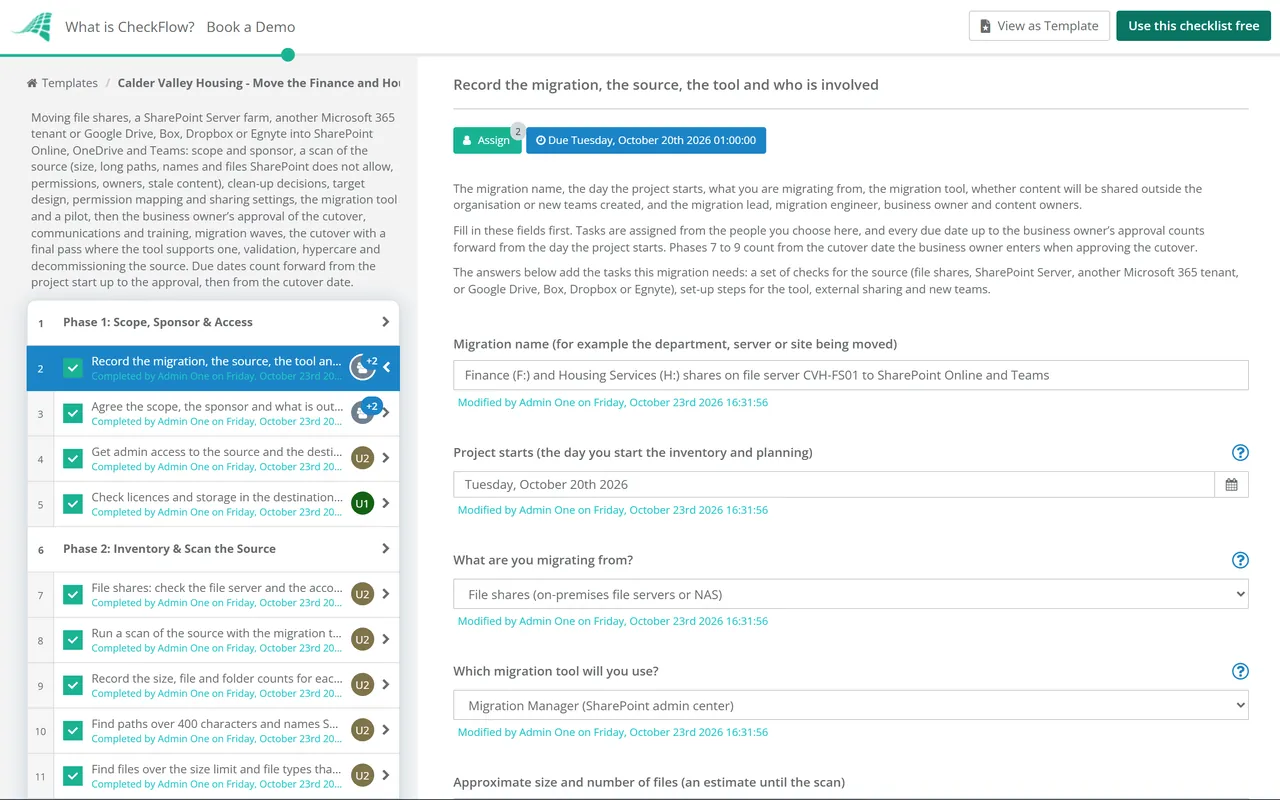
    Record what is moving, where from, with which tool and who decides. Enter the day the project starts on the first task: every due date up to the business owner’s approval counts forward from it in business days. The source, the tool, external sharing and new teams each add the tasks they need.

    • Record the migration, the source, the tool and who is involved — the migration name, the day the project starts, what you are migrating from, the migration tool, whether content will be shared outside the organisation or new teams created, and the migration lead, migration engineer, business owner and content owners
    • Agree the scope, the sponsor and what is out of scope — the shares, sites or accounts that move, the ones that do not, the business reason for the move, the target window for the cutover and who can make decisions when owners disagree
    • Get admin access to the source and the destination for the migration accounts — read access to every share, site or account at the source, the admin role the tool needs in the destination tenant, and named accounts for the people running the migration rather than a shared login
    • Check licences and storage in the destination tenant — the licences each user needs, the SharePoint storage the tenant has, the space the migrated content will use and any extra storage to buy before the bulk copy
  2. Phase 2

    Phase 2: Inventory & Scan the Source

    10 tasks

    Find out what is really there before anyone decides what moves. Scan with the migration tool, then record the size, the problems the scan finds and who owns each area. The source you chose adds its own checks.

    • File shares: check the file server and the account the tool reads with — each server or NAS that holds the shares, the protocol it supports, an account with read access to every share in scope, and any shares on local disks or personal drives
    • Google Drive, Box, Dropbox or Egnyte: list the accounts and drives and connect the source — every user drive, shared drive or team folder in scope, the admin account Migration Manager connects with, and the content in the source that it will not migrate
    • Run a scan of the source with the migration tool — a scan of every share, site or account in scope without migrating anything, with the reports saved so the problems it finds can be worked through
    • Record the size, file and folder counts for each area — the size, number of files and number of folders for each share, site or account, the largest files and the deepest folder trees, so the copy can be checked against them later
    • Find paths over 400 characters and names SharePoint does not allow — every path that will be too long once it sits under its new site and library, and every file or folder name with a character or reserved name SharePoint and OneDrive do not allow
    • Find files over the size limit and file types that may not work — files larger than the tool or SharePoint accepts, script and other file types that will not run in SharePoint, and files the scan could not read because they are locked, corrupted or inaccessible
    • List the permissions, groups and owners of each share or site — who can read and change each share, site or library today, the groups they use, folders with their own permissions, and a named owner for every area
    • Find stale, duplicate and orphaned content — files nobody has changed for years, duplicate copies, folders whose owner has left, and old exports, backups or installers stored with the working files
    • SharePoint Server: list customisations, workflows and classic pages — the SharePoint Server version, custom solutions and web parts, workflows and what replaces each one, classic pages, large lists and anything the scan says cannot move as it is
    • Another tenant: check each site’s size, items, Teams and sensitivity labels — each source site’s storage and item count, which sites are connected to teams, workflows, apps and flows to rebuild, and sensitivity labels that let users assign permissions
  3. Phase 3

    Phase 3: Clean-Up Decisions

    5 tasks

    Move only what people still need. Content owners decide what is kept, archived or deleted, within your retention rules, and anything the scan flagged is fixed before the pilot.

    • Agree the retention rules for what is kept, archived or deleted — the retention periods that apply to the content, any legal hold or investigation that means nothing may be deleted, who can approve a deletion and where archived content will live
    • Content owners decide what to keep, archive or delete in each area — a decision for each share, site or top-level folder, made by the person who owns it, with the reason recorded where content is deleted
    • Fix the paths, names and files the scan flagged — long paths shortened by flattening or splitting folders, names renamed, oversized files split or stored elsewhere and file types replaced, agreed with each owner before anything is renamed
    • Archive or delete the content that will not move — content marked archive copied to the agreed read-only location with its owner recorded, and content marked delete removed only where no retention rule or hold protects it, with a record of what went, when and on whose approval
    • Rescan after the clean-up and record the final totals — a second scan that confirms the fixes, with the size and file counts that will be migrated, which the validation in Phase 9 checks against
  4. Phase 4

    Phase 4: Target Design

    5 tasks

    Decide where everything lands before anything is copied. Map each source area to a OneDrive, a SharePoint site or a team, with short names and a simple structure. New teams and the source you chose add their own set-up tasks.

    • Decide what goes to OneDrive, SharePoint sites and Teams — personal files to each person’s OneDrive, team and department files to SharePoint sites or teams, and shared content such as policies and templates to sites that many people read
    • Design the sites, document libraries and folder structure — a mapping from every source area to its destination site, library and folder, with short names, fewer folder levels than the source, a library for each different set of permissions, and metadata columns or content types only where owners will use them
    • Create the destination sites and document libraries — each site and library from the design created with its name, owners, versioning settings and columns, ready for the pilot content
    • Create the teams and their channels for the migrated content — each team from the design created with its owners and channels, so its SharePoint site is ready as a destination; for a cross-tenant move, follow Microsoft’s guidance on precreating Microsoft 365 groups instead, because target sites must not exist before the move
    • Pre-provision OneDrive for users whose files are moving there — every user whose files go to OneDrive licensed and their OneDrive created before the pilot, so the tool has somewhere to copy to
  5. Phase 5

    Phase 5: Permissions & Sharing

    5 tasks

    Decide who can see and change each destination before the content arrives, and how it may be shared. Permissions do not always carry across as they were, so check the mapping rather than trusting the tool to copy them.

    • Map source permissions and groups to Microsoft 365 groups and SharePoint roles — each source group or permission set matched to a Microsoft 365 group or SharePoint group and a SharePoint role, with folders that had their own permissions reviewed with their owner
    • Prepare the user and group mapping file for the tool — each source account and group matched to its account or group in the destination tenant, with leavers and accounts that will not move mapped to an owner or left out on purpose
    • Set the owners and permissions on each destination — site owners, members and visitors set from the mapping, libraries with their own permissions set before content arrives, and no one given more access than they had at the source
    • Set the sharing settings for each site — the organisation-level sharing setting checked, external sharing turned off on sites that hold confidential content, and the default sharing link type agreed for each site
    • External sharing: decide who outside the organisation needs access and set the sites that allow it — the partners, clients or suppliers who need access, the sites or libraries they need, guest or link-based sharing, an owner for each external site and how often guest access will be reviewed
  6. Phase 6

    Phase 6: Migration Tool & Pilot

    11 tasks

    Set up the tool you chose and prove the whole process on a small group first. The pilot shows how fast the copy runs, which problems the scan missed and what users ask. The business owner’s approval of the cutover is the gate: Phases 7 to 9 cannot be completed until it is done.

    • Migration Manager: install the agents and check the prerequisites — the agents installed on machines that meet Microsoft’s requirements and can reach the source, the admin roles assigned and the project settings for permissions, filters and reports
    • SPMT: install it and check its accounts on the source and the destination — SPMT installed on a machine close to the source, an account with read access to the source, a site admin account on each destination and the settings for versions, permissions and filters
    • Cross-tenant migration: confirm the licences and Microsoft’s requirements — the licences bought through your Microsoft account team for the data you will move, the current SharePoint Online PowerShell, and each requirement checked for the source and target tenants
    • Third-party tool: confirm what it migrates and where content is held in transit — the tool’s licence, what it migrates and what it does not, where content and credentials are stored during the move, how long they are kept and who supports it during the cutover
    • Another tenant: set up the trust, precreate users and groups and upload the identity map — the trust between the source and target tenants set up and verified, every user and group precreated and licensed on the target, and the identity mapping file uploaded
    • Choose the pilot users and the pilot content — a small group of willing users and a share, site or account that is typical of the rest, including some of the awkward content the scan found
    • Test the tool on a small folder and check the result — a test copy of a small folder to a test library, checked for versions, dates, authors, permissions and file names before the pilot starts
    • Run the pilot migration and record its speed — the pilot content copied to its destination, the time it took, the throughput reached and every failed or skipped item from the tool’s reports
    • Pilot users check their files, permissions and links — the pilot users open and edit their files in the new location, confirm the right people can and cannot see them, and report links, macros or shortcuts that broke
    • Record the pilot results and the changes to the plan — what worked, what failed, the questions users asked, the estimate for the remaining content from the pilot speed, and the changes to the design, the communications or the waves
    • Business owner approves the cutover after the pilot — the approval to migrate the remaining content and switch users over on the cutover date entered here; if the pilot showed problems, record what must change and leave this task open, because Phases 7 to 9 cannot be completed until it is done
  7. Phase 7

    Phase 7: Communications, Training & Migration Waves

    5 tasks

    Prepare people and copy the content in waves before the cutover. With most tools each wave copies in the background while users keep working at the source, so the cutover only needs a final pass; a cross-tenant migration is a single pass with no incremental passes. Due dates count back from the cutover date.

    • Plan the migration waves and the order of departments or sites — which content is copied in each wave, the order, the dates of each bulk copy and the time each will take at the pilot’s speed, with busy periods and month-end avoided
    • Tell users the timetable, what moves where and what they must do — the cutover date, where each department’s files will be, what changes for them, the freeze on the old location and where to get help, sent early and repeated before the date
    • Train users and the service desk on OneDrive, SharePoint and Teams — short sessions or guides on opening, syncing, sharing and finding files in the new location, and a briefing for the service desk on the questions the pilot raised
    • Run the bulk copy for each wave and fix what failed — each wave copied in the background while users keep working at the source, the tool’s reports checked after each one, and every failed or skipped item fixed and recopied or recorded with the reason it will not move
    • Confirm the cutover runbook, the change freeze and the rollback plan — the steps and times for the cutover, who does each one, the change approval, how users report problems on the day and how to give users the source back if the cutover fails
  8. Phase 8

    Phase 8: Cutover

    4 tasks

    Stop changes at the source, copy what changed since the last pass and point everyone at the new location, on the cutover date.

    • Set the source to read-only at the start of the cutover — the shares, sites or accounts switched to read-only so nobody saves to the old location while the final pass runs, with a notice telling users where to go
    • Run the final incremental pass and check its report — the changes made since the last wave copied to the destination, with the report checked for failed items before users are switched over; for a cross-tenant migration there is no incremental pass, so record the result of the single migration here instead
    • Update mapped drives, shortcuts and links to the new locations — mapped drives removed or repointed through Group Policy or your device management tool, desktop and browser shortcuts replaced, and links in intranet pages, applications and scripts updated
    • Tell users the move is complete and where their files are now — a message to everyone affected with the new locations, how to sync or add shortcuts to them, what to do if something is missing and how long the source stays readable
  9. Phase 9

    Phase 9: Validation, Hypercare & Decommissioning

    6 tasks

    Prove the copy is complete, support users through the first weeks and retire the source on a date the owners agree. Due dates count forward from the cutover date.

    • Compare file counts and sizes between the source and the destination — the totals from the final rescan compared with the destination for every area, with each difference explained by the tool’s reports or fixed
    • Check permissions and sharing on the destination — a sample of sites, libraries and folders checked against the permission mapping, no unexpected access for everyone in the organisation, and external sharing only where it was agreed
    • Content owners spot-check their files and confirm they are complete — each owner opens a sample of files in their area, checks versions, dates and folders, and confirms in writing that the content is complete or lists what is missing
    • Run hypercare and log every issue raised — extra help for users in the first two weeks, every issue logged with its fix, and the source kept read-only so missing files can still be found
    • Archive or decommission the source once the owners agree — the source kept read-only for the agreed period, then archived or switched off, its backups kept as the retention rules require, and the server, farm, tenant or subscription retired
    • Close the migration and record what to change next time — the final totals, the open issues handed to the service desk, what went well and what to change before the next migration

SharePoint Limits and Migration Tools at a Glance

Limits to check in the scan

These are the limits that most often stop content moving or change how it lands. The figures are Microsoft’s, as its pages stated them in October 2026; Microsoft changes them, so check the linked pages before you plan around one.

Limit What Microsoft says What to do about it
File path lengthThe whole decoded path, including the file name, can be no more than 400 characters in SharePoint and OneDriveFind long paths in the scan, and keep site, library and folder names short because they count too
Characters in names" * : < > ? / \ | are not allowed, and a name cannot start or end with a space; # and % are supported but may need to be turned onRename before the copy, agreed with the owner, or let the tool rename and check its report
Reserved names.lock, CON, PRN, AUX, NUL, COM0 to COM9, LPT0 to LPT9, desktop.ini, names starting with ~$, and _vti_ anywhere in a nameRename or leave out
File sizeUp to 250 GB per file in SharePoint, OneDrive and Teams; Migration Manager supports up to 250 GB for file shares; the file share guide lists files under 15 GB for SPMTCheck the current limit for your tool; split or store very large files elsewhere
File typesNo general list of blocked types in SharePoint in Microsoft 365; some custom-script file types will not work unless the site allows custom scriptList script files in the scan and decide with their owners
Unique permissions50,000 items with unique permissions per list or library supported, 5,000 recommended; inheritance cannot be broken or restored on a list, library or folder over 100,000 itemsSet permissions on sites and libraries, not on single files
Syncing a libraryNo more than 300,000 files in one OneDrive or team site library for the best sync performanceSplit very large shares across libraries
StorageMost business and enterprise plans: 1 TB plus 10 GB per licence for the organisation, not counting OneDrive; up to 25 TB per siteCheck space before the bulk copy and buy more if needed
Cross-tenant site sizeAt most 5 TB or 1 million items per site, counting files and their versions, folders and list itemsSplit or trim large sites before a cross-tenant move

Microsoft’s migration tools

Microsoft’s own tools cover most sources. Pick the one that matches where the content is today.

Tool Moves from Points to know
Migration ManagerFile shares; Google Drive, Box, Dropbox and EgnyteRuns in the SharePoint admin center; agents on Windows machines for file shares, which need SMB 2.0 or higher; a Migration Administrator role limits access to Migration Manager; Mover is retired for admin-led migrations
SharePoint Migration Tool (SPMT)SharePoint Server 2010, 2013, 2016 and 2019 and SharePoint Foundation 2010 and 2013, as the SPMT page lists them (Microsoft’s migration overview still says 2010, 2013 and 2016); file sharesFree; can scan without migrating; also runs in PowerShell; moves some classic workflows to Power Automate
Cross-tenant SharePoint migrationAnother Microsoft 365 tenantSharePoint Online PowerShell; its own page says Enterprise Agreement customers only, licensed per 100 GB, while Microsoft’s migration overview still calls it a private preview, so confirm availability with your account team; one pass with no incremental passes; Teams content and channels do not move
SharePoint Migration Assessment Tool (SMAT)Nothing (it only scanned SharePoint Server 2010, 2013 and 2016 farms)Support ended on 1 October 2026 and it can no longer be downloaded; use the scan in SPMT
Third-party toolsDepends on the toolMicrosoft points to partners in the Microsoft Partner Center; confirm what the tool migrates and where it holds your content in transit

Sources, read 23 October 2026. Microsoft Learn: SharePoint limits, the file share migration guide, Migrate to Microsoft 365, Migration Manager and its prerequisites, the Migration Admin role, the SharePoint Migration Tool and what’s new in it, the SharePoint Migration Assessment Tool, cross-tenant SharePoint migration and external sharing; Microsoft Support: restrictions and limitations in OneDrive and SharePoint.

Why Run SharePoint Migrations in CheckFlow?

1

Only the steps this migration needs

The first task asks what you are migrating from, which tool you will use, whether content will be shared outside the organisation and whether new teams are needed. The matching tasks appear: file server checks, SharePoint Server customisations, a cross-tenant trust and identity map, Migration Manager agents or SPMT set-up, external access and new teams. If the scan finds long paths or names SharePoint does not allow, a task to fix them appears before the pilot.

2

No cutover without the business owner

The business owner approves the cutover after seeing the pilot’s results, and enters the cutover date. Nothing in the waves, the cutover or the validation can be ticked off until then. The scan reports, the clean-up decisions, the permission mapping and the pilot findings stay on the tasks they belong to. See how approval steps work.

3

Every step dated and owned

Tasks are assigned to the migration lead, the migration engineer, the business owner or the content owners. Due dates count forward from the project start, then back from and forward from the cutover date, and overdue alerts go to the people assigned. The Reports Grid lists every migration with its answers, so several departments or clients can be tracked at once.

CheckFlow does not copy files, scan file shares or change SharePoint permissions; Migration Manager, SPMT, PowerShell or your chosen tool do that. CheckFlow runs the project around them: who does each step by when, what the scan found, what owners decided and who approved the cutover. See how checklists run.

Check the destination tenant with the Microsoft 365 Tenant Onboarding Checklist before the move and review it each quarter with the Microsoft 365 Security Baseline Review Checklist. Move mailboxes with the Email Migration Checklist for Google Workspace & Microsoft 365. Decide what can be deleted with the Data Retention & Disposal Review Checklist, confirm who should still have access a few months later with the User Access Review Checklist, and retire the old file server with the Server Decommissioning Checklist.

AI generator

Didn’t find what you need? Describe it.

Describe the process in a sentence and the AI checklist generator drafts the phases and tasks for you.

Frequently Asked Questions

What should a SharePoint migration checklist include?

The scope and a sponsor, a scan of the source (size, long paths, names and files SharePoint does not allow, permissions, owners and stale content), clean-up decisions, the design of sites, libraries and teams, a permission mapping and sharing settings, the tool and a pilot, communications and training, migration waves, the cutover, validation, hypercare and retiring the source. This template covers each of those and adds tasks for the source, the tool, external sharing and new teams when a migration needs them.

Which Microsoft tool should we use to migrate to SharePoint Online?

It depends on the source. Microsoft points file share migrations and Google Drive, Box, Dropbox and Egnyte to Migration Manager in the SharePoint admin center. The free SharePoint Migration Tool (SPMT) migrates file shares and, according to its own page, SharePoint Server 2010, 2013, 2016 and 2019; check that page for your version. Sites in another Microsoft 365 tenant move with cross-tenant SharePoint migration in PowerShell, which needs its own licences. Third-party tools are an option when you need something these do not do.

What is the file path limit in SharePoint Online?

Microsoft’s SharePoint limits page says the whole decoded file path, including the file name, can be no more than 400 characters in SharePoint and OneDrive. The new site and library names count towards it, so a path that fits on a file server can be too long once it sits under its new address. Find long paths in the scan, keep site and library names short and flatten deep folder trees before the copy.

Which characters and file names are not allowed in SharePoint and OneDrive?

Microsoft lists " * : < > ? / \ | as characters that are not allowed, and names cannot start or end with a space. The names .lock, CON, PRN, AUX, NUL, COM0 to COM9, LPT0 to LPT9 and desktop.ini are not allowed, nor any name starting with ~$ or containing _vti_. The # and % characters are supported, but Microsoft’s migration guide says they are not enabled by default, so check your tenant.

Do file share permissions carry across to SharePoint?

Partly. Microsoft’s file share migration guide says the most restrictive of the share and NTFS permission levels decides the permission after migration, advanced NTFS permissions are removed, and explicit deny permissions are not migrated, so content they protected may become accessible. Full control maps to Full control, Modify and Write to Contribute, and the read permissions to Read. That is why this template maps permissions to groups and checks them after the cutover.

Should we clean up content before migrating?

Yes. Microsoft’s file share migration guide says to assess the source first and decide whether content is redundant, out of date or still relevant, because that shapes the design and the timing. Moving less content makes every wave faster. Let the people who own the content decide, within your retention rules and any legal holds; the Data Retention & Disposal Review Checklist covers deciding what can be deleted.

Can we migrate SharePoint sites from another Microsoft 365 tenant?

Yes, with Microsoft’s cross-tenant SharePoint migration. Its page says the feature and its licences are only available to Enterprise Agreement customers, licensed per 100 GB moved. The move is a single pass with no incremental passes, target sites must not exist beforehand, and Teams content and channels do not move with the site. Microsoft’s migration overview page still calls the SharePoint feature a private preview, so confirm availability with your Microsoft account team.

Is the SharePoint Migration Assessment Tool still available?

No. Microsoft’s page for the SharePoint Migration Assessment Tool (SMAT) says support ended on 1 October 2026 and the tool can no longer be downloaded. To scan SharePoint Server sites before a migration, use the scan in the SharePoint Migration Tool (SPMT). For file shares, Migration Manager and SPMT can both scan without migrating anything.

Is CheckFlow free for this template?

14-day free trial, no card required. The Business plan is $10 per user per month after the trial. Full details at checkflow.io/pricing.

Move Your Files Without Losing Any

Free trial — no credit card required.

14-day free trial, no credit cardFull refund in your first 30 daysUS hosting, EU on request