
Tenant build or hardening project
When: a new tenant, a new client or a security project.
Output: policies configured, licences assigned and a documented baseline.
Blind spot: everything that changes the week after it finishes.
No Credit Card Required
Printed from checkflow.io/templates/cybersecurity/microsoft-365-security-baseline-checklist
This free Microsoft 365 security baseline checklist is a recurring review of a tenant that is already in use, not the one-off build. It is written for IT teams who own one tenant and for MSPs who run the same review for every client tenant each quarter. Each run starts from the last one: Secure Score and its drift, then identity (Conditional Access, MFA coverage, legacy authentication, the global admin count, privileged role activation and break-glass accounts), app consent and guests, Exchange Online (external forwarding, SPF, DKIM and DMARC, Defender preset policies), SharePoint, OneDrive and Teams sharing, Intune device compliance where it is licensed, and Purview audit. It ends with an exception register and a sign-off, so the next review has something to compare against.
Setting up a tenant well is a project with an end date. The baseline review is the control that keeps it that way. Configuration drift in Microsoft 365 is normal rather than careless: Microsoft adds features and changes defaults, admins grant a role to fix an urgent problem and forget to remove it, a department turns on anonymous sharing for one supplier, and a Conditional Access policy is left in report-only mode after troubleshooting. None of these shows up as an incident. They show up when an auditor, an insurer or an attacker looks.
A good review compares the tenant with a written baseline, records each difference as fixed, accepted with an owner and an expiry date, or raised as a ticket, and keeps the evidence. Most teams base their baseline on one of two public sources. The CIS Microsoft 365 Foundations Benchmark, at version 7.0.0 since May 2026, is the most widely used in audits. CISA’s Secure Cloud Business Applications (SCuBA) secure configuration baselines, assessed with the free ScubaGear tool, cover Entra ID, Exchange Online, Defender, SharePoint and OneDrive, Teams and Power Platform. Microsoft Secure Score is useful for spotting change, but it is a score, not a baseline you have agreed.
When: a new tenant, a new client or a security project.
Output: policies configured, licences assigned and a documented baseline.
Blind spot: everything that changes the week after it finishes.
When: every quarter, and after any major change or incident.
Output: drift found and fixed, accepted exceptions with owners, and a signed record.
Catches: new admins, new apps with broad permissions, reopened sharing and policies left switched off.
What you can check depends on the licence. Microsoft 365 Business Premium includes Entra ID P1 for Conditional Access, Intune, Defender for Business and Defender for Office 365 Plan 1. Privileged Identity Management needs Entra ID P2 or Entra ID Governance, which come with E5 or as add-ons, and some audit features need Purview Audit (Premium). The checklist records the licence tier at the start and shows only the tasks the tenant can act on; it does not pretend a Business Standard tenant can enforce device compliance.
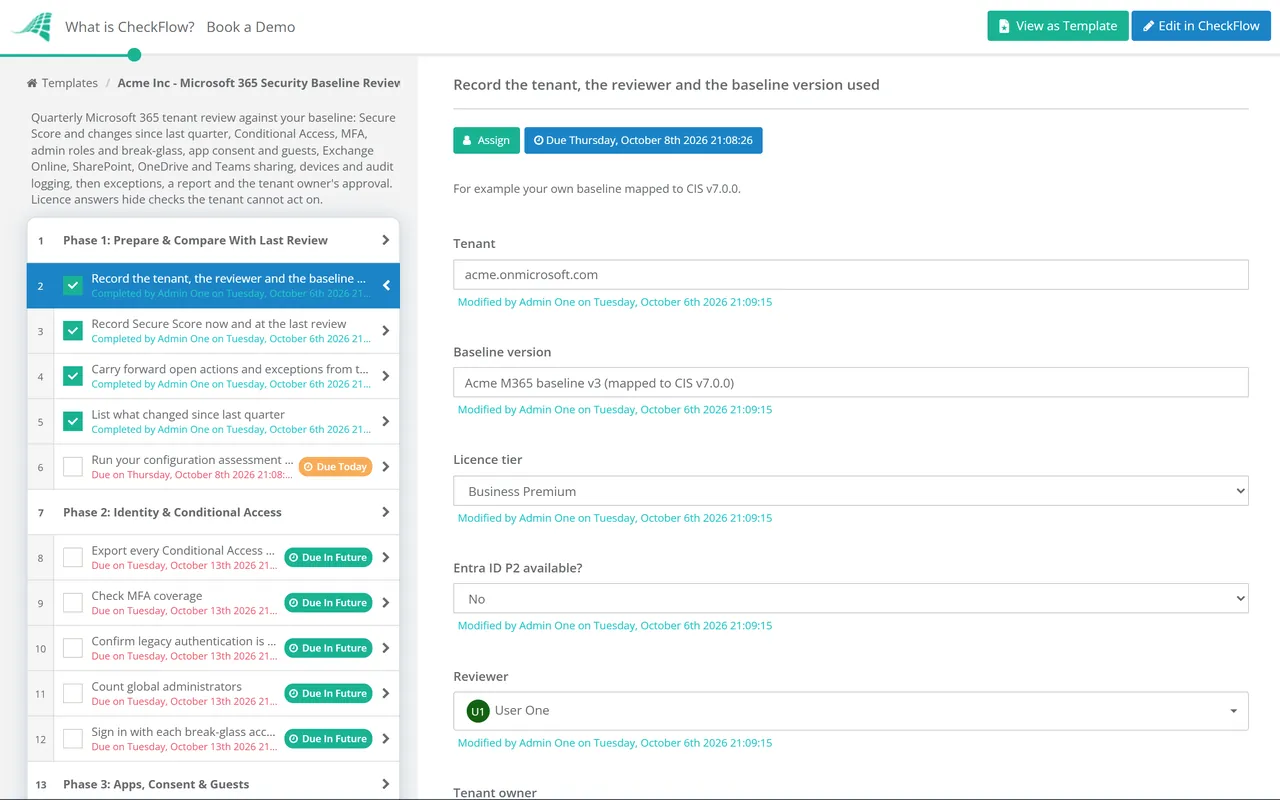
Seven phases take one tenant from last quarter’s record to a signed review. The licence tier recorded in Phase 1 decides which identity and device tasks appear.
Phase 1 records the licence tier (Business Standard, Business Premium, E3, E5 or other) and whether Entra ID P2 is available. Those answers show or hide later tasks.
The PIM task appears only when Phase 1 records Entra ID P2 or E5. Without P2, the global admin and break-glass tasks carry the weight.
The Intune and device tasks appear only when Phase 1 records Business Premium, E3 or E5. The audit tasks appear for every tenant.
Sign-off is an approval task for the tenant owner: the IT manager in-house, or the client’s nominated contact for an MSP. The review is not complete until it is Approved.
You need a baseline to review against, and it should be written down, versioned and agreed with whoever owns the tenant. The sources below are the ones most teams build from. Each covers different ground, so many organisations use CIS as the backbone and borrow from SCuBA, and treat Secure Score as a change detector. Versions move, so check them before each annual baseline refresh; treat this as a starting point, not audit advice.
| Source | What it is | How to use it in the review | Evidenced in |
|---|---|---|---|
| CIS Microsoft 365 Foundations Benchmark v7.0.0 (May 2026) | Consensus configuration benchmark, with Level 1 and Level 2 recommendations across the admin centres | Map each baseline setting to a CIS recommendation number so findings can be cited in audits | Phases 1–6 |
| CISA SCuBA secure configuration baselines | Baselines for Entra ID, Exchange Online, Defender, SharePoint and OneDrive, Teams and Power Platform, assessed by the free ScubaGear tool | Run ScubaGear each quarter and attach the report; mandatory for US federal civilian agencies under BOD 25-01 | Phase 1 |
| Microsoft Secure Score | Microsoft’s own score of recommended settings for the services you license | Use the history to spot drift between reviews, not as a pass mark | Phase 1 |
| Microsoft mandatory MFA | MFA enforced by Microsoft for the Azure, Entra, Intune and Microsoft 365 admin centres and, since October 2025, Azure command-line and automation tools | Confirm every admin and break-glass account can satisfy it | Phase 2 |
| Cyber Essentials v3.3 | UK scheme requiring MFA on every cloud service that offers it, with an automatic fail since 27 April 2026 when it is missing | Use Phase 2’s MFA coverage as the evidence | Phase 2 |
Binding Operational Directive 25-01, issued by CISA in December 2024, requires US federal civilian agencies to inventory their cloud tenants, deploy the SCuBA assessment tools and implement the mandatory SCuBA policies. It does not apply to private companies, but CISA encourages everyone to use the baselines, and they are a practical, free second opinion alongside CIS.
For MSPs, run one review per client tenant from the same template, through your granular delegated admin (GDAP) relationships rather than a standing global admin account. Multi-tenant tools such as Microsoft 365 Lighthouse can show where Business Premium tenants differ from a baseline across your client base, but the client still needs a record of the decisions taken in their tenant. That record, with the client contact’s approval, is what belongs in the quarterly business review.
Conditional logic driven by the licence tier recorded in Phase 1 hides PIM tasks from tenants without Entra ID P2 and device tasks from tenants without Intune, so a Business Standard client gets a shorter review that is still accurate.
Recurring quarterly schedules create the next review automatically. Open actions and expiring exceptions are carried forward in a table inside the first task, so drift is measured against a record rather than memory.
The final phase is an approval assigned to the tenant owner, and the audit trail shows who checked each area and when. Exports and screenshots are attached to the task they support, ready for the auditor or the QBR.
CheckFlow is not a Microsoft 365 management or configuration-scanning tool. It runs the human side around those tools: the schedule, the checks, the decisions and the evidence. CheckFlow for MSPs shows how one template runs per client on a recurring schedule, and the guide to recurring compliance checklists for IT teams explains how to set review cadences that stick.
If MFA coverage in Phase 2 is still patchy, run the MFA Rollout Checklist as a project before the next review. Admin roles found in Phase 2 deserve a deeper look with the Privileged Access Review Checklist, and the review’s summary feeds straight into the MSP Quarterly Business Review Checklist.

SharePoint Migration Checklist

Client Cybersecurity Risk Assessment Checklist
Microsoft 365 Tenant Onboarding Checklist
User Access Review Checklist

Cyber Insurance Readiness Checklist
Describe the process in a sentence and the AI checklist generator drafts the phases and tasks for you.
It is the written list of security settings your tenant should have: which Conditional Access policies exist, how many global admins are allowed, whether external forwarding is blocked, how far files can be shared, and so on. Most organisations build theirs from the CIS Microsoft 365 Foundations Benchmark or CISA’s SCuBA baselines, then adjust for their licences and risk. A review compares the live tenant with that list.
Quarterly is the usual cadence. It is frequent enough to catch drift such as new admins, apps and sharing changes before they become normal, and it fits the quarterly reporting rhythm most MSPs already run with clients. Review sooner after a security incident, a merger, a major licence change or a large Microsoft change to defaults.
It is a good signal, not a baseline. Secure Score reflects Microsoft’s recommendations for the products you license, gives points for some settings you may have decided against, and does not record why you accepted a gap. Use its history to see what changed since the last review, and use your own baseline, recorded decisions and exceptions as the actual standard.
Microsoft recommends fewer than five, and the CIS benchmark asks for between two and four. At least two avoids a single point of failure; more than that widens the target. Most admin work can be done with narrower roles such as Exchange, User or Helpdesk administrator. Break-glass accounts hold global admin too, so include them in the count and protect them with phishing-resistant credentials.
It works with any licence; the tasks change. Business Premium includes Conditional Access, Intune and Defender for Office 365 Plan 1, which covers most of the baseline. Privileged Identity Management needs Entra ID P2 or Entra ID Governance, which come with E5 or as an add-on. The checklist records your licence tier at the start and shows only the checks you can act on. Confirm current licence contents with Microsoft or your reseller, as they change.
Start one review per client from the same template on a quarterly schedule, assign it to the engineer who looks after that client, and access each tenant through GDAP roles rather than standing global admin. Multi-tenant tools can flag where tenants differ from the baseline, but each client still needs their own record of findings, exceptions and approval. That record also gives the account manager something concrete for the QBR.
14-day free trial, no card required. The Business plan is $10 per user per month after the trial. Full details at checkflow.io/pricing.
14-day free trial, no credit cardFull refund in your first 30 daysUS hosting, EU on request