Email Migration Checklist Template for Google Workspace & Microsoft 365

Copying the mailboxes is the easy part. The calls come from the shared inbox nobody listed, the invoicing system that sends as your domain and now fails DMARC, and the old tenant deleted with a legal hold still on it.

This free email migration checklist moves a domain’s mail, calendars and contacts between Google Workspace and Microsoft 365, in either direction, or from one Microsoft 365 tenant to another. MSPs and IT teams use it for client switches, mergers and splits. It covers inventory, licensing and identity, staged or cutover approach, TTL and MX changes, SPF, DKIM and DMARC, the final sync, client setup, and keeping the source’s data until retention allows it to go.

Use This Template Free See Live Example
No Credit Card Required

Three Directions, Three Different Toolsets

The DNS work at the end is the same whichever way you move. The preparation is not: each direction has its own native tool, prerequisites and gaps, so the checklist asks for the direction first.

Google Workspace to Microsoft 365

Batches in the Exchange admin center

Prerequisites: a mail-routing subdomain on each side, and every user provisioned as a mail user before the batch runs.

Comes across: mail, rules, calendar and contacts. Rules arrive turned off.

Does not: vacation replies, room bookings, shared calendars and event colours.

Microsoft 365 to Google Workspace

Google’s data import

Default method: up to 1,000 Exchange Online users at a time on Google’s shared quota.

Advanced method: your own Azure app, batches of up to 5,000 users, delta imports.

Watch for: Outlook rules become Gmail filters, but categories, flags and header conditions do not.

Microsoft 365 tenant to tenant

Cross-tenant mailbox migration

Licence: a Cross Tenant User Data Migration add-on per user, assigned in either tenant.

Domain: verified in one tenant at a time, so it has to be removed from every object in the source first.

Watch for: the domain move is the outage; plan it inside the window.

Two tooling changes matter this autumn. Google Workspace Migrate is no longer available for Exchange Online sources from October 2026, and Google points to its advanced data import instead. Microsoft began switching off Exchange Web Services in Exchange Online tenants in October 2026 unless admins had set an allow list, and retires it completely on 1 April 2027. If a third-party tool uses EWS for Exchange Online, confirm it has moved to Microsoft Graph. Files in Drive or OneDrive are a separate workstream.

What the Email Migration Checklist Covers

Seven phases take a domain from inventory to a retired source. The direction chosen first decides which Phase 3 and 5 tasks appear, the plan approval halts the checklist before data moves, a failed pilot adds a repeat task, and held data gets a retention task.

Phase 1

Phase 1: Direction & Inventory

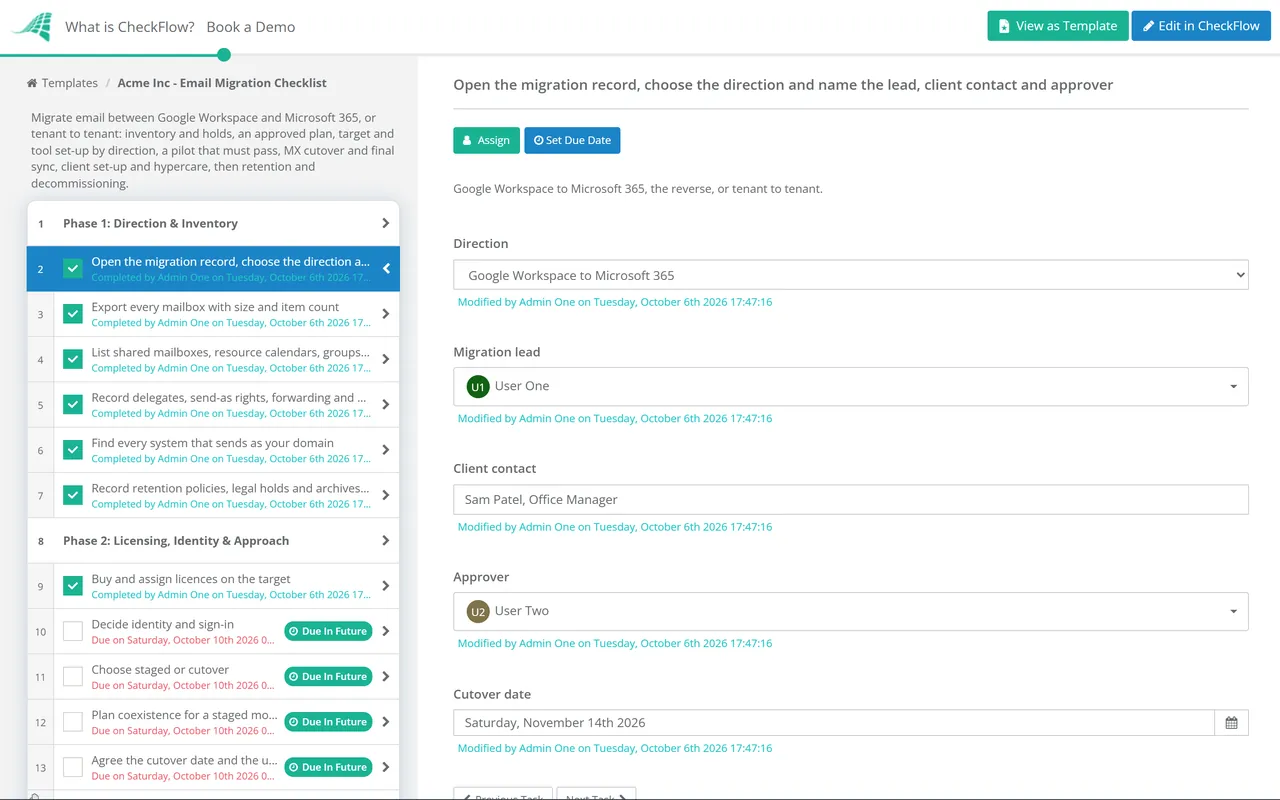
The Direction dropdown on the first task shows the matching tool tasks in Phase 3. The Yes/No answer on the last task decides whether the retention task appears in Phase 7.

  • Open the migration record, choose the direction and name the lead, client contact and approver — Google Workspace to Microsoft 365, the reverse, or tenant to tenant
  • Export every mailbox with size and item count — the largest set the timeline
  • List shared mailboxes, resource calendars, groups and aliases — and decide what each becomes on the other side, since the platforms model them differently
  • Record delegates, send-as rights, forwarding and mail-flow rules — permissions rarely migrate cleanly
  • Find every system that sends as your domain — CRM, invoicing, marketing tools, scanners and web forms
  • Record retention policies, legal holds and archives in the source — Yes or No; before anything is deleted, someone has to know they exist
Phase 2

Phase 2: Licensing, Identity & Approach

The approver named on the first task records Approved or Not approved on the last task. The checklist halts there, and no data moves until they decide.

  • Buy and assign licences on the target — plus migration licences for tenant to tenant; Microsoft 365 shared mailboxes need no licence up to 50 GB
  • Decide identity and sign-in — which platform is the identity provider afterwards, SSO, and how users enrol MFA on day one
  • Choose staged or cutover — a single weekend suits small domains; larger ones move in batches with mail routing between platforms
  • Plan coexistence for a staged move — mail routing subdomains, and how people check availability across two calendars in the meantime
  • Agree the cutover date and the user communications — what changes, what users must do on the first morning and where to get help
  • Approve the migration plan — the approver records the decision, with the inventory and schedule attached
Phase 3 — By direction

Phase 3: Prepare the Target & Tool

The second, third and fourth tasks appear only for the direction chosen in Phase 1.

  • Add and verify the domain on the target and create the users — without touching MX, so mail keeps flowing to the source
  • Google Workspace to Microsoft 365: create both routing subdomains and provision mail users — Microsoft’s documented prerequisites before a migration batch
  • Microsoft 365 to Google Workspace: set up data import — the advanced method needs an Azure app registration and gives you delta imports
  • Tenant to tenant: set up cross-tenant migration and plan the domain move — list every object that uses the domain in the source, because each must be changed first
  • Pause retention or archive policies that move items during the copy — Microsoft warns they make items show as missing in migration reports
  • Confirm any third-party tool uses supported APIs — Microsoft Graph rather than EWS for Exchange Online
Phase 4

Phase 4: Pilot, Bulk Copy & DNS Prep

If the pilot result is recorded as Fail, the last task appears and the bulk copy waits.

  • Migrate a pilot group that includes a shared mailbox and a delegate — the awkward cases, not just IT staff
  • Check the pilot in detail — item counts per folder, calendar series, contacts and rules, compared against the source
  • Run the bulk copy for all mailboxes days before cutover — so the final sync only has to catch recent changes
  • Publish SPF and DKIM for the target before MX changes — turn on DKIM signing once the records resolve
  • Lower the TTL on MX and related records — to around 300 seconds, 24 to 48 hours before cutover
  • Record the pilot result — Pass, or Fail with the cause
  • Fix the cause and repeat the pilot — the bulk copy waits until a pilot passes
Phase 5

Phase 5: Cutover & Final Sync

The domain move task appears only for tenant to tenant, and the Autodiscover task only when the target is Microsoft 365.

  • Freeze changes to mailboxes, groups and rules on the source — anything changed after this point has to be changed twice
  • Tenant to tenant: move the domain — reset addresses in the source to the onmicrosoft.com domain, remove the domain, then verify it in the target
  • Switch MX to the target and remove the old MX records — a leftover record with a lower priority keeps delivering to the old platform
  • Update SPF to cover the target and every third-party sender — and stay within the 10 DNS lookups SPF allows
  • Point Autodiscover at the target when moving to Microsoft 365 — a CNAME to autodiscover.outlook.com
  • Run the final incremental sync after the MX switch — it picks up mail delivered to the source while DNS caches expired
  • Watch DMARC reports for new failures — usually a third-party sender missed in the inventory
Phase 6

Phase 6: Clients & Hypercare

  • Set up desktop mail clients against the target — a new Outlook profile rather than editing the old one
  • Remove and re-add accounts on phones and tablets — including the native mail apps people forget they use
  • Recreate delegates, shared mailbox access and send-as rights — from the Phase 1 list, then ask the people affected to test
  • Re-point scanners and apps that send mail — new SMTP host, port and authentication
  • Have users check rules, signatures and out-of-office settings — rules migrated to Microsoft 365 arrive turned off
  • Run a hypercare desk for the first week — with its own ticket category
Phase 7

Phase 7: Retain, Decommission & Close

The retention task appears only when Phase 1 recorded a hold or retention requirement in the source.

  • Keep the source read-only for an agreed period — 30 days is common, for late delta syncs and missing-email queries
  • Preserve held data before removing anything — in Microsoft 365, apply the hold before deleting the account; in Google Workspace, deleting a user deletes their Vault data, so use Archived User licences
  • Export and store anything the retention schedule still requires — with the location recorded on the task
  • Cancel source licences at the right point in the billing cycle — after retention is settled, not before
  • Remove the source’s DNS records — old DKIM keys, the old SPF include and verification records
  • Sign off and close the migration — the approver confirms the result, with the final sync report and retention evidence attached

DNS Records That Change at Cutover

Most migration outages are DNS mistakes, not copy failures. These are the records Phases 4, 5 and 7 touch. Take exact values from each platform’s admin console.

Record Google Workspace target Microsoft 365 target When
MXsmtp.google.com at priority 1, the single record for newer setupsThe value in the admin center; domains added from July 2026 get a host under mx.microsoft, earlier ones mail.protection.outlook.comAt cutover, with the old MX records removed
SPF (TXT)include:_spf.google.cominclude:spf.protection.outlook.comAdd the target before cutover; remove the source’s include at close
DKIMA TXT record at google._domainkey with a 2048-bit key from the Admin consoleTwo CNAMEs, selector1._domainkey and selector2._domainkey, pointing at the tenantBefore cutover, then turn signing on
DMARC (TXT at _dmarc)Unchanged by the platform; keep the current policy through the moveReview reports after cutover before tightening the policy
AutodiscoverNot usedCNAME to autodiscover.outlook.comAt cutover
TTL on the aboveAround 300 seconds during the move, restored afterwards24 to 48 hours before cutover

The authentication records matter more than they used to. Since February 2024, Gmail and Yahoo require anyone sending more than 5,000 messages a day to personal accounts to pass SPF, DKIM and DMARC, with at least a p=none policy aligned to the From domain. Outlook.com has required SPF, DKIM and DMARC from senders of more than 5,000 messages a day since 5 May 2025. A domain that sends invoices or newsletters can cross them, so a day of broken DKIM can put a billing run in spam.

Every include, a, mx and redirect term in an SPF record counts towards a limit of 10 DNS lookups. Adding the new platform while the old one and four marketing tools are still listed is how SPF quietly starts failing.

Why Run Email Migrations in CheckFlow?

1

One template, three directions

The direction dropdown on the first task shows the Microsoft batch tasks, the Google data import tasks or the cross-tenant tasks, and hides the rest. Your technicians follow one checklist whichever way a client is moving.

2

Every mailbox and sender on a row

Tables inside the inventory tasks hold one row per mailbox batch and one per third-party sender, with owner and status. A data set keeps each client’s domains in one place, and tags keep every client’s migration separate.

3

Nothing deleted while it is on hold

A Yes on the retention question shows the preservation task before decommissioning, assigned and dated. The audit trail shows who approved the move and who confirmed the data was kept.

Email migrations are a staple MSP project. CheckFlow’s MSP process management software shows how to run them per client with tags, data sets and approvals, and the MSP process management guide covers standardising them. The MSP Client Onboarding Checklist covers the rest of a new client’s takeover.

The MX, SPF and DKIM changes follow the DNS Change Checklist. Licences and access for other SaaS tools that leave with the old platform are removed with the SaaS Offboarding Checklist, and what you keep from the source is governed by the Data Retention Review Checklist.

Frequently Asked Questions

Should you migrate in stages or in a single cutover?

+

A single cutover over a weekend is simpler for small domains: everyone moves at once and there is no coexistence to manage. Larger organisations usually move in batches, which needs mail routing between the platforms so migrated and unmigrated users can still email each other. Microsoft’s Google Workspace migration uses a routing subdomain on each side for exactly this.

What happens to email sent during the MX change?

+

Some of it reaches the old platform until sending servers’ DNS caches expire. So the TTL is lowered a day or two ahead, every mailbox exists on the target before MX changes, and a final incremental sync afterwards copies anything that landed on the source.

Do you need to change SPF, DKIM and DMARC when migrating email?

+

SPF and DKIM, yes. SPF has to authorise the new platform, and DKIM needs new keys published and signing turned on before MX moves. DMARC usually stays as it is, but watch its reports after cutover, because a missed third-party sender shows up there first.

How do you move a domain between Microsoft 365 tenants?

+

A custom domain can be verified in only one tenant at a time. Before the target tenant can verify it, the domain must be removed from every user, group, shared mailbox, resource and alias in the source, usually by resetting addresses to the onmicrosoft.com domain. Mail for the domain cannot be delivered in between, so plan the move inside the cutover window.

Can you delete the old tenant once the migration is finished?

+

Only once retention is dealt with. In Google Workspace, deleting a user also deletes their data held by Vault, so Google recommends Archived User licences for data you must keep. In Microsoft 365, a mailbox becomes inactive and is kept only if a hold was applied before the account was deleted; without one, it is recoverable for 30 days and then gone. Check legal holds and the retention schedule first.

Is CheckFlow free for this template?

+

14-day free trial, no card required. The Business plan is $10 per user per month after the trial. Full details at checkflow.io/pricing.

Move Every Mailbox, Lose No Mail

Free trial — no credit card required.