Microsoft 365 Tenant Onboarding Checklist Template
Every tenant you take on already has admins, apps and forwarding rules you didn’t create. Record them before you change anything, or you will never be sure which ones are yours to explain.
When an MSP takes on a client’s Microsoft 365 tenant, the first job is not hardening it. It is finding out who can already get in. Inherited tenants often carry an old provider’s partner access, Global Administrators nobody can name, an app with permission to read every mailbox, and an inbox rule copying the finance mailbox to a personal address. This free Microsoft 365 tenant onboarding checklist takes one tenant from first access to a documented starting point. It sets up GDAP with least-privileged roles, creates two emergency access accounts, cuts back standing admin rights, enforces MFA, switches on audit logging and closes the usual Exchange Online, SharePoint and Teams gaps. A conditional phase removes what a previous provider left behind, and nothing is enforced until the service manager approves the Conditional Access rollout plan.
Onboarding Sets the Starting Point. The Quarterly Review Measures Drift From It.
This checklist runs once per tenant, at the start of an agreement or when a client adds Microsoft 365 to one. Its output is a tenant you can account for: your access arranged through GDAP, the old access gone, MFA enforced, logging on and a list of every setting you decided not to apply. That list is what the Microsoft 365 Security Baseline Review Checklist compares against each quarter afterwards. Without it, the first review mixes what you inherited with what changed on your watch.
Two neighbouring checklists cover the rest of a takeover. The MSP Client Onboarding Checklist is the whole-client project, and it treats the tenant as one line in its credentials phase. This page is the detail behind that line. DNS records for the client’s domains belong to the Email Authentication Setup Checklist. This checklist starts that project for each domain rather than repeating it.
Tenant onboarding
Once, at takeover
Starts from: whatever the client or the last provider left.
Main work: access, clean-up and first enforcement of MFA.
Decisions: security defaults or Conditional Access, sharing levels, exceptions.
Leaves behind: a documented starting point and a Secure Score baseline.

Quarterly baseline review
Every quarter after
Starts from: the onboarding record and the last review.
Main work: spotting settings that moved and admins who appeared.
Decisions: fix, raise a ticket or renew an exception.
Leaves behind: a signed review and an updated exception register.
What the Microsoft 365 Tenant Onboarding Checklist Covers
From the GDAP request to a documented handover, in seven phases. Phase 2 appears only when another provider managed the tenant before you.
Phase 1
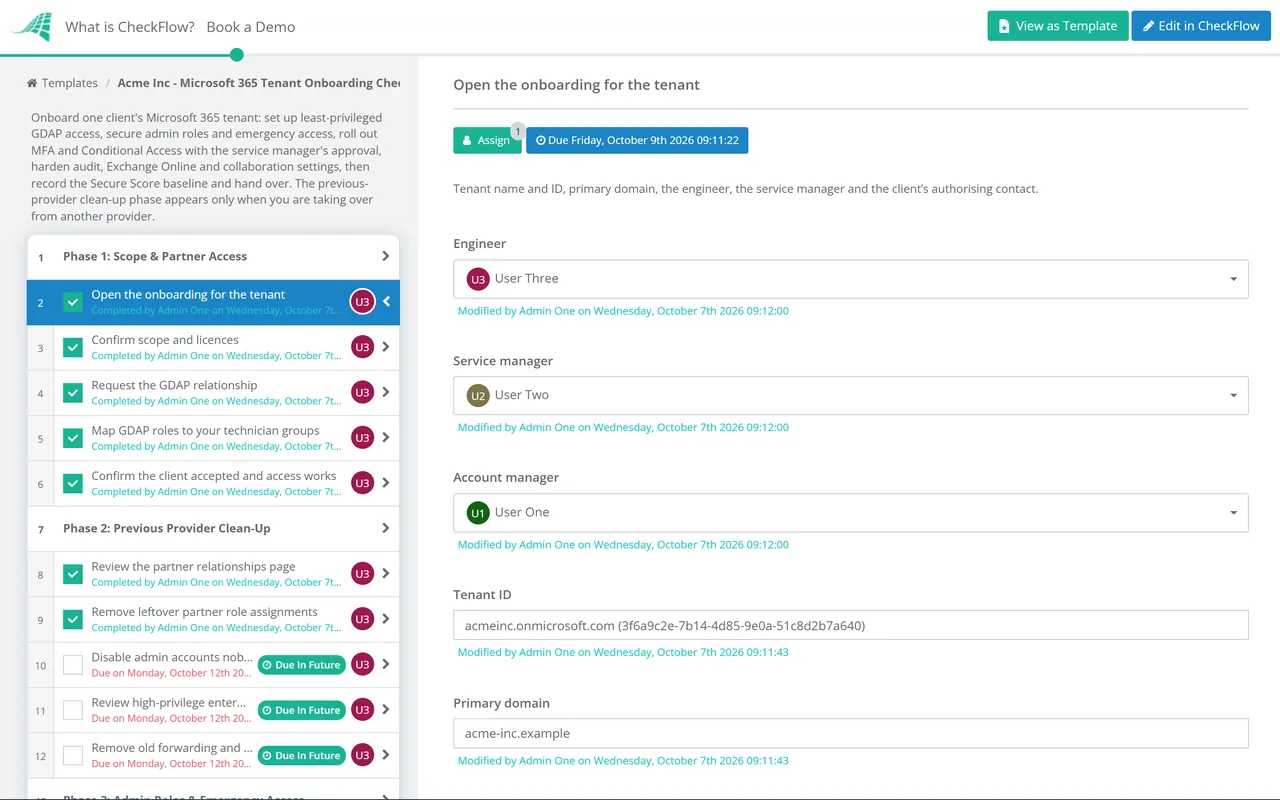
Phase 1: Scope & Partner Access
The scope answer in task 2 decides whether the previous-provider phase appears. Complete it before anyone signs in to change things.
Open the onboarding for the tenant — tenant name and ID, primary domain, the engineer, the service manager and the client’s authorising contact
Confirm scope and licences — licence types and counts, whether Entra ID P1 or P2 is present, whether Intune is in scope, and whether a previous provider managed the tenant
Request the GDAP relationship — least-privileged roles for each technician tier, a set duration, the auto-extend decision and no Global Administrator unless there is a written reason
Map GDAP roles to your technician groups — one group per tier or job, so access follows group membership, never named technicians directly
Confirm the client accepted and access works — test each group and record the end date in the PSA and the documentation platform
Phase 2 — Previous Provider Only
Phase 2: Previous Provider Clean-Up
Shown only when another provider managed the tenant. Confirm which partners the client still uses before removing anything.
Review the partner relationships page — every partner listed under Settings > Partner relationships, with the roles each holds, and remove the old provider’s roles
Remove leftover partner role assignments — Partner Tier1 and Tier2 Support roles and guest admin accounts from the old provider’s domain
Disable admin accounts nobody can explain — generic and provider-named admin accounts, deleted after the agreed hold period
Review high-privilege enterprise apps and app registrations — tenant-wide mail, file or directory permissions, the old provider’s tools and secrets nobody owns
Remove old forwarding and mail flow changes — mailbox forwarding, external inbox rules, transport rules and connectors the old provider created
Phase 3
Phase 3: Admin Roles & Emergency Access
Create two emergency access accounts — cloud-only on the onmicrosoft.com domain, not tied to a person, Global Administrator permanently active, signed in with a passkey (FIDO2) or certificate
Agree where the break-glass credentials live — separate secure locations the client can reach without your tools, with the named people allowed to use them
Alert on every break-glass sign-in — to a monitored mailbox or a PSA ticket, tested with a deliberate sign-in
Review every admin role assignment — remove standing Global Administrators who don’t need it and move them to the narrowest role that does the job
Separate admin accounts from daily accounts — client staff who keep an admin role get a separate admin identity, not admin rights on their mailbox account
Make privileged roles eligible where PIM is licensed — Entra ID P2 or Entra ID Governance, activated just in time with a justification; record N/A otherwise
Phase 4
Phase 4: MFA & Conditional Access
Check MFA registration for every user — users with no method, shared accounts and user accounts used by scripts or devices
Choose security defaults or Conditional Access — security defaults without Entra ID P1; Conditional Access with P1 or above, with security defaults off only once policies are ready
Find legacy authentication in the sign-in logs — scanners, line-of-business apps and old mail clients still using basic authentication over SMTP, POP or IMAP
Build the Conditional Access policies in report-only mode — MFA for all users, stronger methods for admins, legacy authentication blocked and the break-glass group excluded
Approve the Conditional Access rollout plan — the service manager answers Approved or Not approved, with the client’s written agreement to the enforcement date attached
Enforce the policies and watch sign-ins — switch each policy on as planned and review failed sign-ins daily for a week
Phase 5
Phase 5: Audit, Licences & Exchange Online
Turn on unified audit logging — check UnifiedAuditLogIngestionEnabled in Exchange Online PowerShell, because Business plans don’t have it on by default
Confirm mailbox auditing is on — AuditDisabled is False at organisation level and no account has an audit bypass set
Block automatic external forwarding — set the outbound spam policy explicitly to Off, and allow named exceptions through remote domains only
Apply the preset security policies — the Standard preset as a minimum for mail filtering, and the Defender for Office 365 protections the licence includes
Reconcile licences against the agreement — purchased, assigned and billed counts, and licences held by departed users
Start an email authentication checklist per domain — SPF, DKIM and DMARC are handled there, not in this onboarding
Phase 6
Phase 6: Collaboration & Devices
Set SharePoint and OneDrive external sharing — the tenant level agreed with the client, Anyone links off or set to expire, and the default link type
Set Teams external and guest access — all domains or an allow list, unmanaged Teams accounts, and guest permissions
Restrict user consent to apps — users can’t grant broad permissions themselves, and requests go to an admin for review
Confirm Intune enrolment and compliance if in scope — the enrolment method, compliance policies and the date Conditional Access will require a compliant device
Phase 7
Phase 7: Baseline & Handover
Record the Secure Score baseline — the score at takeover and at handover, each recommended action marked done, planned or covered elsewhere
Record every setting not applied — the setting, the reason, who at the client accepted it and when it is next reviewed
Document the tenant — GDAP end date and groups, break-glass storage and Conditional Access policies in the documentation platform
Schedule the first quarterly baseline review — and a reminder well before the GDAP relationship ends
Close the onboarding — summary to the client, open actions raised as service desk tickets
Least-Privileged GDAP Roles and the Dates That Shape Onboarding
Microsoft publishes guidance on the least-privileged Microsoft Entra role for each task a partner performs. Build GDAP security groups around the jobs your technicians do, and request a time-bound Global Administrator relationship only for the rare task nothing narrower can perform. The grouping shown is common practice, not a Microsoft rule.
Job
Least-privileged role
Typical group
Reset a user’s password
Password Administrator or Helpdesk Administrator
Service desk tier 1
Reset MFA methods for a non-admin user
Authentication Administrator
Service desk tier 1
Create, update or block users and groups
User Administrator
Service desk tier 1
Assign or remove licences
License Administrator
Service desk tier 1
Raise a Microsoft support request
Service Support Administrator
All tiers
Manage shared mailboxes and mail flow rules
Exchange Administrator
Tier 2 or messaging
Enrol and troubleshoot devices
Intune Administrator
Tier 2 or endpoint
Read configuration without changing it
Global Reader or Security Reader
Reviewers and vCIOs
Facts to put in the onboarding record
GDAP duration. A relationship lasts between 1 and 730 days. There is no permanent option.
Auto-extend. When enabled, a relationship extends by six months at a time until someone ends it or switches auto-extend off. A relationship that includes Global Administrator can’t auto-extend, which is another reason to keep it separate and short.
Unanswered requests. A GDAP request the client never accepts expires after 90 days.
DAP. Microsoft stopped granting DAP to new customers on 25 September 2023 and is replacing it with GDAP. Older tenants can still show legacy partner access, so Phase 2 checks.
Partner tier roles. From August 2026 Microsoft Entra blocks new assignments of the Partner Tier1 and Tier2 Support roles. Existing assignments keep working until someone removes them.
Mandatory MFA. Microsoft requires MFA for the Azure portal, Entra admin center and Intune admin center (from October 2024) and the Microsoft 365 admin center (from February 2025). Enforcement for Azure CLI, PowerShell and other management tools began on 1 October 2025, with postponements allowed only to 1 July 2026. Break-glass accounts are not exempt.
SMTP AUTH. Microsoft intends to disable basic authentication for SMTP client submission by default in existing tenants from the end of December 2026. Move the scanners and apps found in Phase 4 to OAuth or another sending method first.
These details change. Check them against Microsoft’s documentation at the start of each onboarding.
Why Run Tenant Onboarding in CheckFlow?
1
The same order, whoever runs it
Every tenant goes through the same phases in the same order, so nobody enforces Conditional Access before the break-glass accounts exist. Conditional logic adds the previous-provider phase only for tenants that need it.
2
Enforcement waits for a decision
The rollout plan is an approval task assigned to the service manager. Nothing after it can be completed until the answer is Approved, and the client’s written agreement sits on the same task as the decision.
3
Proof of what you inherited
Admin accounts, apps and forwarding rules found in the first week are recorded with screenshots against the task that found them, so when a client later asks who created an account, the record answers.
The MSP process management guide counts security baseline configuration and access provisioning among the onboarding steps that suffer when each technician does them differently. See how CheckFlow for MSPs runs projects like this for every client from one place.
If MFA registration in Phase 4 shows a long tail of unregistered users, hand them to the MFA Rollout Checklist, which handles communication and registration. Once the tenant is handed over, the Privileged Access Review Checklist keeps the admin roles you cut back from growing again.
What does Microsoft 365 tenant onboarding involve for an MSP?
+
It is the one-off work of taking responsibility for a client’s tenant. You set up delegated access through GDAP, remove access left by anyone before you, create emergency access accounts, reduce standing admin rights, enforce MFA and switch on audit logging. Then you set the main Exchange Online, SharePoint and Teams controls, record a Secure Score baseline and document every exception, giving your recurring reviews a starting point.
How long should a GDAP relationship last?
+
Microsoft allows anything from 1 to 730 days. A common approach is to request the maximum for day-to-day roles and enable auto-extend, which adds six months at a time, so access doesn’t lapse in the middle of an agreement. Keep any Global Administrator relationship separate and short, because it can’t auto-extend and should be the exception. Record the end date in the PSA either way.
Should we use security defaults or Conditional Access?
+
It depends on the licence. Security defaults are free, require MFA registration for everyone and block legacy authentication, but they can’t be customised. Conditional Access needs Entra ID P1, which Microsoft 365 Business Premium includes, and lets you exclude break-glass accounts, require stronger methods for admins and add device rules. You can’t run both, so build the policies in report-only mode first and switch security defaults off only when they are ready.
Does Microsoft’s mandatory MFA mean we don’t need to enforce MFA ourselves?
+
No. Microsoft’s enforcement covers sign-ins to its admin portals and Azure management tools, not users opening Outlook, Teams or SharePoint. Staff can still be reading mail with only a password, so enforce MFA for every user with security defaults or Conditional Access. Make sure emergency access accounts use a passkey or certificate, as they are not exempt.
Who should hold the break-glass account credentials?
+
The client should be able to use them without you. Microsoft’s guidance is that emergency access accounts aren’t tied to one person and their credentials are kept in separate secure locations available to the people authorised to use them. For a managed client, a common arrangement is one passkey held by the client’s nominated contact and one held by the MSP, with sign-in alerts going to both. Agree it in writing.
Is CheckFlow free for this template?
+
14-day free trial, no card required. The Business plan is $10 per user per month after the trial. Full details at checkflow.io/pricing.
Take On Every Microsoft 365 Tenant the Same Way
Free trial — no credit card required.
Do you like cookies? 🍪 We use cookies to ensure you get the best experience on our website. Learn more