CRM Implementation Checklist Template

Roll out one CRM to your sales and customer success teams: design the pipeline, clean and move the data, check the contacts you bring across, pilot it with one team and train each role, then go live with the old system read-only.

Last reviewed: November 2026

Printed from checkflow.io/templates/sales/crm-implementation-checklist

This free CRM implementation checklist is for sales operations leads, CRM admins and sales leaders rolling out a CRM to a sales and customer success team, whether it replaces spreadsheets or another CRM. One run covers one CRM, counted back from the go-live date. It records why you are changing and the measures of success, confirms the owner and the admin and checks the vendor’s data processing terms, then designs the pipeline stages, fields and reports. The data lead lists every source, cleans and de-duplicates what moves, and the data protection contact checks the personal data you bring across before the trial load. Then come the integrations, roles and permissions, a pilot with one team, training by role and the executive sponsor’s go or no-go. Go-live makes the old system read-only, and the 30-day adoption review compares the measures with their targets.

A CRM Rollout, Not a Readiness Run or a Data Move

A CRM implementation, in this template, is the one-off rollout of a sales system to a sales and customer success team, owned by sales operations. One run covers one CRM and one go-live date: why you are changing and how you will measure it, the stages, fields and reports, cleaning and moving the data, the data protection checks on the contacts you bring across, the integrations and permissions, a pilot with one team, training by role, the sponsor’s go or no-go, and go-live with the old system read-only. It ends at the 30-day adoption review.

The stage design itself is covered in more depth by the Sales Pipeline Stages Checklist, and a large or complex move of data by the Data Migration Checklist. A finance system has its own ERP Implementation Checklist, and a software vendor bringing its own customers on board uses the SaaS Customer Onboarding Checklist.

This checklist

One CRM, from plan to adoption

Asks: is the new CRM built, filled with clean data the teams are allowed to hold, and used by everyone 30 days after go-live?

Covers: goals, stages and fields, data clean-up and data protection, migration, integrations, permissions, a pilot, training, the go or no-go and the 30-day review.
One change

Sales Readiness

Asks: is every rep ready to sell a launch or a pricing change on its go-live date?

Covers: messaging, prices, the playbook, certification and the CRM changes one offer needs. Sales Readiness Checklist.

The data move

Data Migration

Asks: did every record that should move arrive whole and reconciled?

Covers: inventory, field mapping, trial loads, reconciliation, cutover and the old system’s archive, for any data set. Data Migration Checklist.

What the CRM Implementation Checklist Covers

Nine phases take one CRM from the plan to the 30-day adoption review. The first task records the go-live date, which sets every due date, what the CRM replaces and the people, from the CRM project owner to the executive sponsor. Another CRM adds a contract check and a full export; spreadsheets add a task to collect them. Each tool you connect adds its own task, and the places your contacts are add the UK, US or other-country data protection checks. The sponsor’s go or no-go is the gate: Go with conditions adds a task to meet them, and No-go hides the go-live phase and adds a rework task.

  1. Phase 1

    Phase 1: Set Up the Rollout

    5 tasks

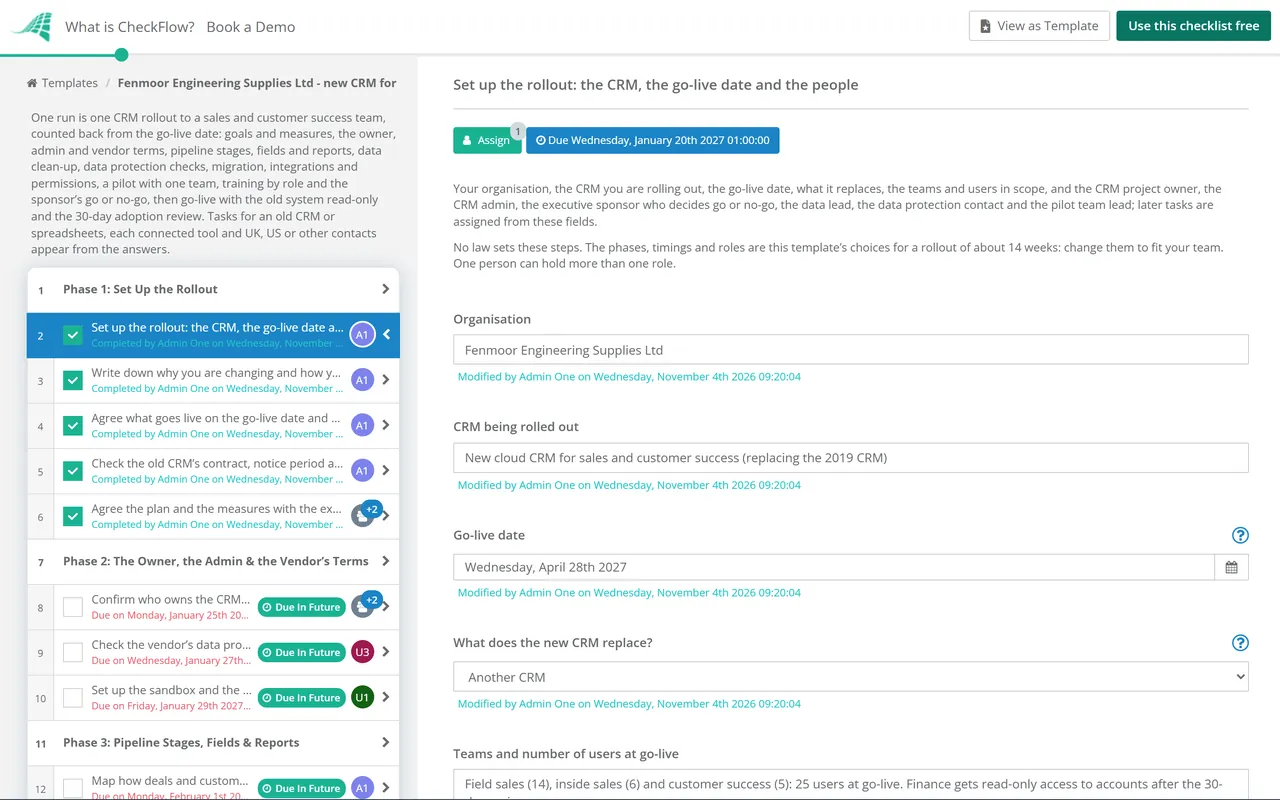
    Owned by the CRM project owner in sales operations. Enter the go-live date on the first task: every due date counts back from it in working days, and the go-live week and the 30-day adoption review count forward. Say what the CRM replaces, write down why you are changing and how you will measure success, and agree the plan with the executive sponsor.

    • Set up the rollout: the CRM, the go-live date and the people — your organisation, the CRM you are rolling out, the go-live date, what it replaces, the teams and users in scope, and the CRM project owner, the CRM admin, the executive sponsor who decides go or no-go, the data lead, the data protection contact and the pilot team lead; later tasks are assigned from these fields
    • Write down why you are changing and how you will measure success — the problems with the current way of working, what the CRM must do better, and three to six measures with today’s figure and the target for the 30-day adoption review, such as people using it each week, open deals with a next step and close date, or pipeline reviews run from the CRM
    • Agree what goes live on the go-live date and what waits — the teams, pipelines, record types and integrations in scope at go-live, and what is left for later, so the first release stays small enough to finish
    • Check the old CRM’s contract, notice period and export rights — the old CRM’s renewal date, the last day to give notice, how you can export the data and in what formats, and whether attachments, activities and notes can be exported; keep the subscription, or a read-only licence, until the final export and the 30-day review
    • Agree the plan and the measures with the executive sponsor — walk the sponsor through the go-live date, the scope, the measures and the people, record the day they agreed it, and set a weekly check-in until the 30-day review
  2. Phase 2

    Phase 2: The Owner, the Admin & the Vendor’s Terms

    3 tasks

    Decide who owns the CRM after go-live and who runs it day to day, check the vendor’s data processing terms before any personal data goes in, and set up the sandbox and the admin accounts the build will use.

    • Confirm who owns the CRM and the admin’s time — who decides on new fields, stages and access after go-live, how many hours a week the admin has, and the vendor’s admin training the admin needs before the build
    • Check the vendor’s data processing terms and where the data is stored — the CRM vendor will hold your contacts’ personal data for you: check the contract or data processing agreement, the country or region where the data is stored, the vendor’s security documents and the sub-processors it uses, before any real data goes in
    • Set up the sandbox and the admin accounts — a sandbox or test account for the build and the trial load, admin rights held by the admin and one named back-up, and the sign-in method every user will have, such as single sign-on or two-step verification
  3. Phase 3

    Phase 3: Pipeline Stages, Fields & Reports

    6 tasks

    Design the CRM around how your teams sell and look after customers, not around the old system’s quirks. Keep the stages, fields and reports to what someone will use, build them in the sandbox and walk them through with the pilot team lead.

    • Map how deals and customers move today — talk to reps, sales managers and customer success: how a lead becomes a deal, how a won deal is handed to customer success, what each team records and where, and what slows them down
    • Design the pipeline stages and their exit rules — the stages a deal moves through, what must be true for a deal to leave each one, the fields that must be filled in by then, and any separate pipeline for renewals or partners
    • Define the records, required fields and picklists — the record types (accounts, contacts, deals, activities and any others), which fields are required and at which stage, the values in each picklist and the naming rules; every field should have someone who uses it
    • Set the rules for who owns each account, contact and deal — territories or named accounts, how new leads are routed, who owns a customer after the sale, and what happens to records when someone leaves
    • Agree the reports and views each role needs — reps’ own deals and tasks, managers’ pipeline and forecast and deals with no next step, customer success’s accounts and renewals, and the measures from Phase 1 for the sponsor
    • Build it in the sandbox and walk it through with the pilot lead — the stages, fields, picklists, ownership rules and reports built in the sandbox, then walked through with the pilot team lead on two or three real deals
  4. Phase 4

    Phase 4: Data Clean-Up & De-duplication

    7 tasks

    Owned by the data lead. List every place customer data lives today, decide what moves and what is archived, then clean and de-duplicate what moves before it is mapped and loaded. Tick where the people in the data are: each tick adds the matching check in Phase 5.

    • List every source of customer data — the old CRM or the spreadsheets, shared inboxes, the marketing tool, billing, the support desk and any lists people keep themselves, with who owns each, roughly how many records it holds, and where the people in it are
    • Collect every spreadsheet and choose the master copy — ask each rep, manager and customer success manager for the lists they keep, choose one master copy of each set of data, and write down what each column means
    • Export everything from the old CRM — accounts, contacts, deals, activities and notes, attachments, users and owners, picklist values and every opt-out or unsubscribe flag, with a dated copy of the full export kept where only the project team can reach it
    • Decide what moves, what is archived and what is left behind — open deals and active accounts move; decide how far back closed deals, activities and old contacts go, what is kept in an archive outside the CRM, and what is left behind
    • Clean up the data that moves — standardise company names, countries, phone numbers and stage names, fill in missing owners and required fields, and remove test records, bounced email addresses and junk
    • De-duplicate accounts and contacts — the match rules (for example the email address for contacts and the company name and website domain for accounts), which record wins, and how notes, activities and opt-outs from the losing record are kept
    • Give every record a current owner — records owned by people who have left and records with no owner, reassigned by the ownership rules from Phase 3
  5. Phase 5

    Phase 5: Data Protection Checks on the Contacts

    7 tasks

    Owned by the data protection contact, before the trial load. A new CRM is a good moment to bring across only the personal data you need, leave out what you have no reason to keep and carry every opt-out with its contact. The ticks on Phase 4’s first task add the checks for the UK, the US and other countries.

    • Check you need every piece of personal data you bring across — drop fields kept just in case, such as personal mobile numbers or birthdays nobody uses, and check free-text notes for details about people that the relationship does not need
    • Leave out contacts you have no reason to keep — contacts with no activity and no open deal for longer than your retention period, people who have left the customer’s organisation, and anyone whose record you agreed to erase; set the same rule in the new CRM so it carries on after go-live
    • Carry across every opt-out and marketing permission — unsubscribes, objections to marketing and any do-not-contact or suppression list, with the date and source of each, then test that an opted-out contact is left out of marketing in the new CRM
    • Check the UK GDPR and PECR rules for UK contacts — a lawful basis for each way you use the data, a privacy notice that tells business contacts how you use their details, and for email marketing to individual subscribers (including sole traders and ordinary partnerships) consent or a soft opt-in; corporate subscribers need neither, but every message needs a way to opt out
    • Check the US rules for US contacts — whether the California Consumer Privacy Act applies to your business (its exemption for business-to-business contacts ended on 31 December 2022), any other state privacy law that applies to you, and that an opt-out from your commercial email is honoured within 10 business days, as the CAN-SPAM Act requires
    • Check the rules for contacts in other countries — the data protection and email marketing rules that may apply where those contacts are (for contacts in the EU, the EU GDPR and each country’s own rules on email marketing); take advice where you are not sure
    • Record the data protection checks — the data protection contact records what was checked, what changed and whether the data is ready for the trial load; anything not ready is fixed before Phase 6 loads it
  6. Phase 6

    Phase 6: Migration, Integrations & Permissions

    8 tasks

    Map the old fields to the new ones, run a trial load into the sandbox and check it record by record, connect email and calendar and the other tools you ticked in Phase 1, set who can see, change and export what, then test a whole customer journey.

    • Map each old field to its new field — every column or field that moves, the field it goes to, and the rule for anything converted, split, merged or given a default; users and owners mapped to their new accounts
    • Run a trial load into the sandbox and check it — load the cleaned data into the sandbox, compare record counts with the source by type, and have owners check a sample of their own accounts and deals, with activities, notes, attachments and opt-outs
    • Connect email and calendar — each user’s mailbox and calendar, what is logged to the CRM automatically and what stays private, tested first with the pilot team
    • Connect the marketing tool — which records and fields sync, in which direction, how leads pass from marketing to sales, and that opt-outs sync both ways
    • Connect billing or accounting — which customer, invoice and subscription data shows in the CRM, and which system is the master for company names and addresses
    • Connect the support desk — open and recent tickets shown on the account for sales and customer success, and how a ticket links to its contact
    • Set up roles and permissions — who can see, edit, delete and export which records, kept to the access each role needs; export and delete rights for few people, and field and stage changes for the admin only
    • Test a whole customer journey end to end — as a pilot user: a new lead becomes a deal, moves through every stage, is won and handed to customer success, with emails logged and each connected tool updating
  7. Phase 7

    Phase 7: Pilot With One Team

    4 tasks

    One team works in the new CRM for about two weeks before everyone else. The pilot team lead logs what they find, the admin fixes it or parks it for later, and the pilot lead’s view goes to the go or no-go.

    • Brief the pilot team and start the pilot — what to try, how to report problems and when, and whether the pilot works in the sandbox or in the live CRM; if it is the live CRM, plan the final load so the pilot team’s records are not loaded twice
    • Log what the pilot team finds — every problem, question and request from the pilot team, who raised it and what was decided
    • Fix what the pilot found, or park it for later — fixes made in the sandbox and checked with the pilot team, and anything parked written down with a reason and a date to look at it again
    • Record the pilot lead’s view — whether the pilot team could do its job in the CRM, what still gets in the way, and anything the other teams need to know before go-live
  8. Phase 8

    Phase 8: Training by Role & the Go or No-Go

    7 tasks

    Train each role on its own day in the CRM, check every user can sign in and sees the right records, then the executive sponsor decides go or no-go. The checklist halts at that decision: nothing in Phase 9 can be completed until the sponsor completes it, and a No-go hides Phase 9 and adds a rework task.

    • Plan the training by role — who is trained on what, when and by whom, with a short quick-reference guide for each role and one place to ask for help
    • Train the sales reps — their day in the CRM: logging calls, emails and meetings, moving deals through the stages and their exit rules, next steps and close dates, and the mobile app if you use one, practised on their own records in the sandbox
    • Train the sales managers — running pipeline reviews and forecasts from the CRM’s reports, finding deals with no next step, coaching from activity, and reassigning records
    • Train customer success — accounts and contacts after the sale, the handover from sales, renewals, and the support desk information where it is connected
    • Check every user can sign in and sees the right records — every user account created with the right role, sign-in tested, email and calendar connected, and each user’s own records visible to them
    • Rework the rollout after a No-go — what the sponsor said must change, who fixes it, and the new go-live date if it has to move; change the date on the first task and every due date moves (complete the first task again if that un-completes it), then the sponsor changes the decision and completes the go or no-go
    • Decide go or no-go for go-live — the executive sponsor reviews the pilot lead’s view, the data protection record, the trial load checks, the training and the readiness check, and records Go, Go with conditions or No-go with the reasons
  9. Phase 9

    Phase 9: Go-Live & the 30-Day Adoption Review

    8 tasks

    Applies only when the go-live has not been stopped: a No-go in Phase 8 hides this phase until a new decision is recorded. Make the old system read-only, run the final load, go live and support the teams in the first week. Thirty days after go-live, the project owner and the sponsor compare the measures from Phase 1 with their targets.

    • Meet the go-live conditions — each condition the sponsor set, who met it and how, before or on the go-live date
    • Make the old system read-only — at the end of the working day before go-live, set every user in the old CRM to read-only, or lock the spreadsheets and move them to an archive folder, so nothing new is written there after the final export; tell everyone the time, and keep it available for look-ups until the 30-day review
    • Run the final load and reconcile it — overnight or first thing on the go-live day, before the teams start, load the changes since the trial load (or a fresh full export) and check them against the source: counts by record type, a sample checked by owners, and the opt-outs
    • Go live and tell everyone where to work — the CRM is now the only place to record customers and deals; send the announcement with the quick-reference guides and where to get help
    • Support the teams daily in the first week — a daily drop-in or chat channel, problems logged and fixed, and each connected tool checked after the first real use
    • Run the first pipeline review from the CRM — every sales manager runs their pipeline review from the CRM’s reports, not a spreadsheet, and deals with no next step or close date are put right
    • Hold the 30-day adoption review — the measures from Phase 1 against their targets, use by team, data quality, what people still do outside the CRM, and what to change next, agreed with the sponsor
    • Decide what happens to the old system — for an old CRM, keep a final archived export for your retention period and end the subscription by its notice date; for spreadsheets, keep the archived copies read-only and delete them when the retention period ends; record who keeps the archive

What Changes With the Old System and Where Your Contacts Are

Replacing spreadsheets or another CRM

The first task asks what the new CRM replaces. The answer adds one or two tasks before the build, and the go-live and retirement tasks say what to do with each.

The CRM replaces Phase 1 Phase 4 At go-live (Phase 9) After the 30-day review
Spreadsheets, or no shared systemNo extra taskCollect every spreadsheet and choose the master copyLock the spreadsheets read-only in an archive folderKeep the archived copies read-only and delete them when your retention period ends
Another CRMCheck the old CRM’s contract, notice period and export rightsExport everything, including activities, notes, attachments and opt-outsSet every user in the old CRM to read-onlyKeep a final archived export and end the subscription by its notice date

The data protection checks, by where your contacts are

The data lead ticks where the people in the data are when the sources are listed in Phase 4, and each tick adds a check in Phase 5. This is a summary for planning, not legal advice.

Where the contacts are What this template checks Source, as read on 3 November 2026
Every runOnly the personal data you need, contacts you have no reason to keep left out, every opt-out carried across, and the vendor’s data processing termsThis template’s choices, with the UK GDPR’s Article 28 for the vendor’s terms
United KingdomA lawful basis and a privacy notice; consent or a soft opt-in for email marketing to individual subscribers, including sole traders and ordinary partnerships; an opt-out in every messageUK GDPR Articles 5, 6, 13 and 14, PECR regulation 22, and the ICO’s guidance (updated 28 April 2026)
United StatesWhether the CCPA applies to your business (its business-to-business exemption ended on 31 December 2022), other state privacy laws, and opt-outs honoured within 10 business daysThe California Attorney General’s CCPA page and the CAN-SPAM Act, 15 U.S.C. 7704(a)(4)
Other countriesThe data protection and email marketing rules where the contacts are, such as the EU GDPR for contacts in the EUTake advice where you are not sure

Why Run Your CRM Rollout in CheckFlow?

1

No go-live until the sponsor says go

The go or no-go is assigned to the executive sponsor alone, and the checklist halts there: the read-only switch, the final load and go-live cannot be completed until the sponsor completes the go or no-go. Go with conditions adds the task to meet them. No-go hides the go-live phase and adds the task to rework the rollout. See how approvals that halt a checklist work.

2

The data protection checks come before the data moves

The data protection contact’s phase sits between the clean-up and the trial load, so only the data you need is loaded, contacts you have no reason to keep are left out and every opt-out comes across. Ticking where your contacts are adds the UK, US or other-country check, and the data protection contact records whether the data is ready to load.

3

One date moves the whole rollout

Due dates count back from the go-live date, so when the date moves, one change on the first task moves every step, and the 30-day review moves with it. Overdue alerts go to the people assigned, and the Reports Grid lists every rollout with its answers, while Analytics shows where tasks are waiting.

CheckFlow does not replace your CRM: the accounts, contacts and deals live there. CheckFlow makes sure the rollout gets the same steps in the same order, with an owner and a due date for each, a go or no-go before go-live, and a record of who did what and when. See how a checklist runs.

Design the stages with the Sales Pipeline Stages Checklist, run a large data move with the Data Migration Checklist and review the vendor’s terms with the Data Processing Agreement (DPA) Review Checklist. New reps who join after go-live follow the Sales Rep Onboarding Checklist.

AI generator

Didn’t find what you need? Describe it.

Describe the process in a sentence and the AI checklist generator drafts the phases and tasks for you.

Frequently Asked Questions

What should a CRM implementation checklist include?

Why you are changing and how you will measure success, who owns and administers the CRM, the vendor’s data processing terms, the pipeline stages, fields and reports, data clean-up and de-duplication, data protection checks on the contacts you bring across, the field mapping and a trial load, integrations, roles and permissions, a pilot with one team, training by role, a go or no-go, go-live with the old system read-only, and a review about 30 days later.

How long does a CRM implementation take?

It depends on the number of users, how much data moves and how many tools connect. This template plans about 14 weeks: it starts 70 working days before the go-live date, pilots with one team about five weeks before it, and holds the adoption review 30 days after. Those timings are this template’s choices. Change the go-live date on the first task and every due date moves with it.

What is the difference between CRM implementation and CRM onboarding?

People use the terms in different ways. In this template, implementation is the whole rollout: the design, the data, the integrations, the pilot and go-live. Onboarding is the part that gets people using it: training by role, sign-in checks, the first week’s support and the 30-day adoption review. Both are in one checklist, because a CRM nobody uses has not been implemented.

How do you de-duplicate contacts before moving them into a new CRM?

Agree the match rules first, for example the email address for contacts and the company name and website domain for accounts. Decide which record wins when two match, and keep the notes, activities and opt-outs from the record that loses. This template de-duplicates in Phase 4, after the clean-up has standardised names and formats, so fewer duplicates slip through on spelling.

Do you need consent to move contacts into a new CRM?

In the UK, you need a lawful basis under the UK GDPR for each way you use the data, and consent is only one of the lawful bases. Email marketing has its own rule under PECR: individual subscribers, including sole traders and ordinary partnerships, need consent or a soft opt-in, while corporate subscribers need neither but must be able to opt out. In the US, check whether the CCPA applies to your business, and honour email opt-outs within 10 business days under the CAN-SPAM Act.

Why pilot a new CRM with one team first?

A pilot finds the problems while they affect one team instead of everyone. In this template the pilot team works in the CRM for about two weeks, its lead logs every problem and request, the admin fixes or parks each one, and the pilot lead’s view goes to the sponsor’s go or no-go. If the pilot works in the live CRM, plan the final load so its records are not loaded twice.

When should you switch off the old CRM?

This template makes the old system read-only just before the final load, so nothing new is written there, and keeps it for look-ups until the 30-day adoption review. Then it keeps a final archived export for your retention period and ends the subscription by its notice date. Check the old CRM’s notice period in Phase 1, so the contract does not run out before the review.

What should you measure in a 30-day CRM adoption review?

The measures you chose before the build, against their targets: for example how many people use the CRM each week, how many open deals have a next step and a close date, and whether managers run pipeline reviews from it. This template also looks at use by team, data quality and what people still do outside the CRM, and agrees with the sponsor what changes next.

Who should own a CRM implementation?

In this template, a CRM project owner in sales operations runs the rollout, a CRM admin builds it, a data lead cleans and moves the data, a data protection contact checks the contacts brought across, a pilot team lead runs the pilot, and an executive sponsor decides go or no-go. One person can hold more than one role. Decide early who owns the CRM after go-live.

Is CheckFlow free for this template?

14-day free trial, no card required. The Business plan is $10 per user per month after the trial. Full details at checkflow.io/pricing.

Roll Out Your CRM One Step at a Time

Free trial — no credit card required.

14-day free trial, no credit cardFull refund in your first 30 daysUS hosting, EU on request