Making Tax Digital for Income Tax Quarterly Update Checklist Template

Each quarterly update is a summary of the tax year so far for every business your client has. Get the digital records complete, clear the questions, have the client approve the totals and send each update by the 7th.

Last reviewed: November 2026

Printed from checkflow.io/templates/professional-services/making-tax-digital-for-income-tax-quarterly-update-checklist

This free Making Tax Digital for Income Tax checklist is for accountants and bookkeepers who send quarterly updates for sole traders and landlords. One run is one client’s update for one period. It checks the client must use the service this tax year, records whether your firm is the main or a supporting agent, confirms the update periods and the software, and then gets the digital records complete for the period: bank feeds, the transactions the feeds miss, categories, and self-employment and property income kept in their own businesses. The reviewer reads the year-to-date totals, the client answers the questions in one list and approves the totals, and only then is each update sent from the compatible software. The confirmation is saved, the query log updated and the next update, or after the fourth update the end-of-year steps, planned. Answers on the first task add the record checks and the update for each kind of income the client has: self-employment, UK property and foreign property.

One Client’s Quarterly Update, Not VAT or the Annual Return

Making Tax Digital for Income Tax adds four updates a year to a sole trader’s or landlord’s Self Assessment. This checklist is one of those updates for one client: the records for the period, the review, the client’s approval and the update sent for each business. It does not cover VAT or the annual tax return.

VAT under Making Tax Digital has its own returns, covered by the VAT Return Checklist. The year’s documents and the annual return stay with the Tax Season Client Intake Checklist, which a UK practice can run alongside this one. Taking on a new client, including the authorisation to act for them, belongs in the Accounting Firm Client Onboarding Checklist, and the month’s bookkeeping in the Monthly Bookkeeping Checklist.

This checklist

One client’s quarterly update

Covers: the client’s scope and your agent role, the update periods and software, the digital records to the period end, self-employment, UK property and foreign property records, the review, the client’s questions and approval, each update sent and HMRC’s confirmation, and the next update or the end-of-year steps.

When: four times a year for each client in Making Tax Digital for Income Tax, starting about fourteen weeks before each deadline.

Output: an update for each business sent after the client approved its totals, with the confirmation and a query log for the year end.
VAT

The VAT Return Checklist

Covers: a VAT return under Making Tax Digital for VAT: the records, the box figures, the submission and the payment.

Use it: for a VAT-registered business, alongside this checklist when the client is also a sole trader or landlord. VAT Return Checklist.

Year end

The Tax Season Client Intake Checklist

Covers: the annual return season: engagement, the document chase, preparation, review and filing.

Use it: for the year’s documents and the return after the fourth update. Tax Season Client Intake Checklist.

What the Making Tax Digital for Income Tax Quarterly Update Checklist Covers

Nine phases follow one client’s update from the set-up, about fourteen weeks before the deadline, to the update sent and the next one planned. The answers on the first task assign every task, set each due date from the update deadline and decide what else appears: a phase of record checks and an update to send for each kind of income the client has (self-employment, UK property, foreign property), a check of the digital links when the records sit in more than one software product, and the end-of-year steps after the fourth update. Review points and a client who does not approve each add their own task. The client’s approval is the gate: the updates wait until it is done.

  1. Phase 1

    Phase 1: Client, Update & Roles

    5 tasks

    The preparer starts the run about fourteen weeks before the update deadline, while the update period is still running. The answers on the first task assign every task, set each due date from the deadline and add the phases this client needs.

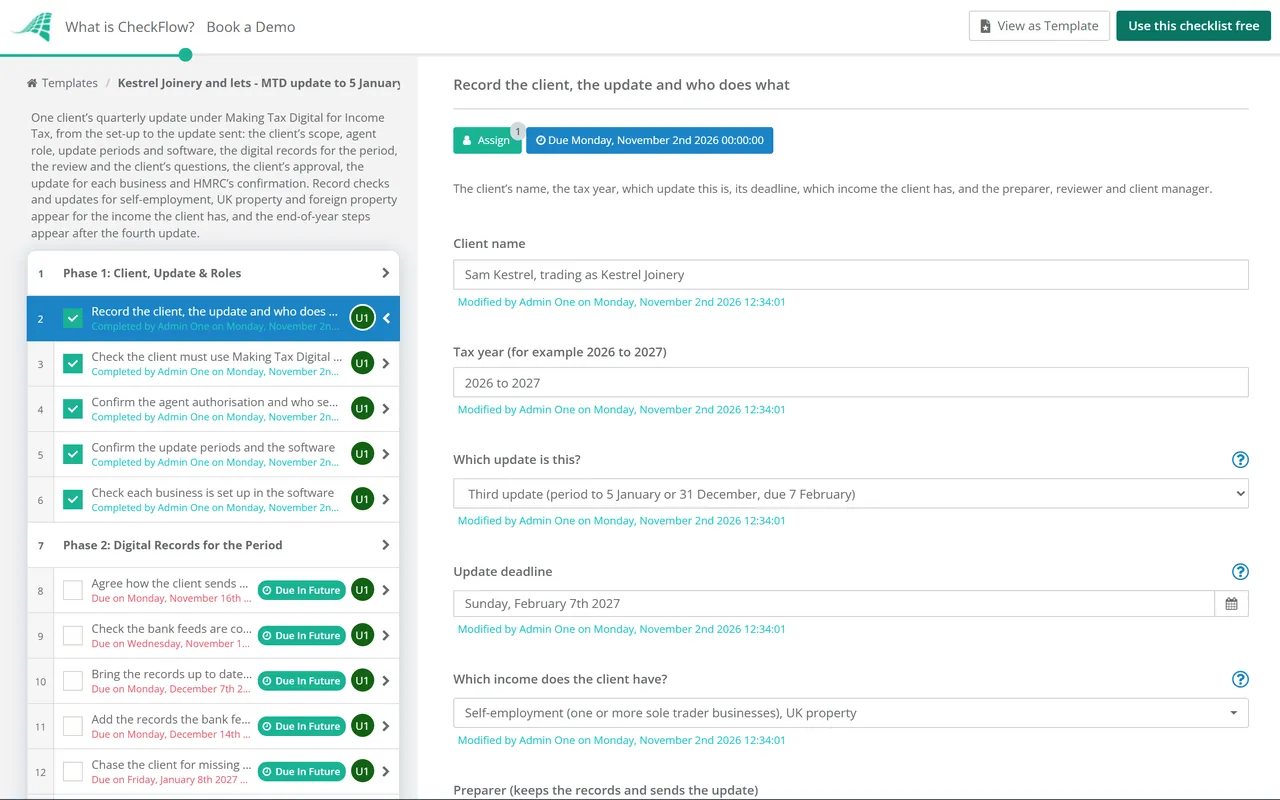
    • Record the client, the update and who does what — the client’s name, the tax year, which update this is, its deadline, which income the client has, and the preparer, reviewer and client manager
    • Check the client must use Making Tax Digital this tax year — the qualifying income on the last tax return against the threshold for this tax year, any letter from HMRC, any exemption, and the client signed up
    • Confirm the agent authorisation and who sends the update — whether your firm is the client’s main agent or a supporting agent, any other agent working on the same business, and who sends the one combined update for the period
    • Confirm the update periods and the software — standard update periods (from 6 April) or calendar update periods (from 1 April), chosen in the software before the first update of the tax year, and the compatible software for each business
    • Check each business is set up in the software — one self-employment business for each trade, one UK property business for all the UK lets and one foreign property business, each with its own digital records and its own update
  2. Phase 2

    Phase 2: Digital Records for the Period

    9 tasks

    The preparer keeps the digital records current while the period runs, then checks them to the period end. A gap found now is cheaper to close than one found the week the update is due.

    • Agree how the client sends records this period — bank feeds, a receipts app, sales invoices, letting agent statements or a linked spreadsheet, and the date the client sends anything the feeds do not hold
    • Check the bank feeds are connected and importing — every bank account and card the businesses use connected to the software and importing without gaps since the start of the tax year
    • Check the digital links between the software products — every transfer from the record-keeping product to the product that sends the update made by a digital link, with no record retyped or copied and pasted
    • Bring the records up to date mid-period — the transactions so far recorded and categorised as they come in, so the period end is a check rather than a catch-up
    • Add the records the bank feed misses — cash takings, expenses paid personally, transactions that come through in part and rent a letting agent pays over after its fees, added as their own digital records
    • Chase the client for missing records — one list of what is still missing sent to the client, with the date you need it by to keep the approval date
    • Confirm every transaction to the period end is recorded — the last day of the update period checked in the software, with every transaction up to that date recorded and nothing after it
    • Reconcile each bank account to the period end — the balance in the software agreed to the bank statement at the period end for each account, with any difference explained
    • Check every record has the right category — every record in a Self Assessment income or expense category, nothing left uncategorised, and personal items left out or recorded as disallowable
  3. Phase 3

    Phase 3: Self-Employment Records

    3 tasks

    Applies only when the client has self-employment income (ticked on the first task). Each trade keeps its own digital records and sends its own update.

    • Check each trade has its own records — a separate set of digital records for each sole trader business, so each trade sends its own update
    • Check each trade’s income for the period — sales, takings and fees for the tax year to date, matched to the invoices issued and the money received
    • Check each trade’s expenses for the period — stock, travel, office and financial costs in the right categories, with any personal share left out or recorded as disallowable
  4. Phase 4

    Phase 4: UK Property Records

    3 tasks

    Applies only when the client has UK property income (ticked on the first task). Every UK let, including the client’s share of a jointly let property, is one UK property business with one update.

    • Check the rent for every UK property is recorded — rent and other property income for each UK property, including the client’s share of any jointly let property, all in the one UK property business
    • Check the UK property expenses — repairs, maintenance, letting agent fees and other property costs in the right categories, with personal or capital items queried
    • Record how jointly let property is reported — whether the updates include income and expenses or income only for any jointly let property, as the guidance allows
  5. Phase 5

    Phase 5: Foreign Property Records

    2 tasks

    Applies only when the client has foreign property income (ticked on the first task). The records are kept for each foreign property, and the software adds them into one foreign property update.

    • Check there are separate records for each foreign property — a set of digital records for each foreign property, and for the client’s share of any jointly let one, all in the one foreign property business
    • Check foreign property income and expenses — rent and costs for each foreign property recorded for the tax year to date, in the right categories
  6. Phase 6

    Phase 6: Review & Client Questions

    5 tasks

    The reviewer reads the year-to-date totals before the client sees them, and the client answers the questions the records raised in one list.

    • Check corrections to earlier periods are in the records — errors found since the last update corrected in the records, so the year-to-date totals in this update include them
    • Review the year-to-date totals for each business — the totals from the start of the tax year to the period end for each business, compared with the last update and the same period last year, with anything unusual queried
    • Clear the review points — each point the reviewer raised answered or corrected in the records, and the reviewer told
    • Send the client the questions — the questions the records raised (unknown receipts, personal items, missing invoices) sent to the client in one list, with the date the answers are needed
    • Record the client’s answers and update the records — each answer recorded beside its question and the records changed where the answer needs it, with any open item noted
  7. Phase 7

    Phase 7: Client Approval

    3 tasks

    The client sees the totals for each business and approves them before anything is sent. The approval is the gate: the updates in Phase 8 cannot be ticked off until it is done.

    • Send the client the totals to approve — the income and expense totals for each business for the tax year so far, with the changes the answers made, sent to the client with the date you need approval by
    • Record the client’s approval of the update — the client confirms the totals for each business are right before the update is sent; nothing after this task can be ticked off until it is done
    • Correct the totals and go back to the client — the records changed as the client asked, the new totals sent back, and the approval task changed to Approved once the client confirms, or un-completed and completed again
  8. Phase 8

    Phase 8: Send the Update & HMRC Acknowledgement

    6 tasks

    One update for each business, sent from the compatible software after the client’s approval and before the deadline. Only the updates for the income ticked on the first task appear.

    • Send the self-employment update for each trade — one update for each trade, covering the tax year to the period end, sent from the compatible software
    • Send the UK property update — one update for the UK property business, covering the tax year to the period end, sent from the compatible software
    • Send the foreign property update — one update for the foreign property business, covering the tax year to the period end, sent from the compatible software
    • Check HMRC received each update — the software’s confirmation saved for each update sent, and the client asked to check their HMRC online account where you cannot see it
    • Send the client the tax estimate — the estimate of the tax bill for the year so far, from the software or HMRC online services, sent to the client with what it leaves out
    • Update the query log for the year end — open questions, items to adjust at the year end and anything HMRC asked about, written in the log the next update and the tax return start from
  9. Phase 9

    Phase 9: Next Update & End-of-Year Steps

    6 tasks

    The run ends by setting up the next one. After the fourth update, three more tasks appear for the end-of-year steps that lead to the tax return.

    • Set the reminder for the next update — the next deadline and the date its checklist starts, set in your practice calendar or on a CheckFlow schedule
    • Note the adjustments for the year end — disallowable or personal shares, capital items, simplified expenses, allowances and accounting adjustments seen this period, noted for the work after the fourth update
    • Send the fourth update again if the records change — the fourth update sent again before any tax adjustments when an error is corrected, jointly let property expenses are added or Rent-a-Room income is recorded
    • Make the year-end adjustments in the software — reliefs, allowances, tax and accounting adjustments and capital allowances made to the annual totals, agreed with the client
    • Plan the tax return before 31 January — other income and gains added, HMRC’s figures checked, the calculation agreed with the client and the return submitted from the software by the main agent
    • File the evidence and close the run — the reconciliations, questions, approval and confirmations kept with the client’s records, and the run closed

Thresholds, Update Periods and Deadlines

Who must use it, and from when

gov.uk’s Find out if and when you need to use Making Tax Digital for Income Tax (updated 26 March 2026) says Making Tax Digital for Income Tax applies to sole traders and landlords registered for Self Assessment whose qualifying income is over the threshold. Qualifying income is self-employment and property income before expenses, from the tax return for the year shown. HMRC writes to people over the threshold, but the guidance says it is still the taxpayer’s responsibility to check. Partnerships will follow at a date HMRC has not yet set, and some people are exempt (Find out if you can get an exemption).

Qualifying income In the tax year Must use it from
Over £50,0002024 to 20256 April 2026
Over £30,0002025 to 20266 April 2027
Over £20,0002026 to 20276 April 2028

Update periods and deadlines

Each update covers the tax year so far, from the start of the tax year to the end of its period. Standard update periods are the default; calendar update periods are for an accounting period of 1 April to 31 March, chosen in the software before the first update of the year. The deadlines are the same for both (Send quarterly updates, updated 16 October 2026).

Update Standard update period Calendar update period Deadline
First6 April to 5 July1 April to 30 June7 August
Second6 April to 5 October1 April to 30 September7 November
Third6 April to 5 January1 April to 31 December7 February
Fourth6 April to 5 April1 April to 31 March7 May (the following tax year)

An update can be sent any time after its period ends, up to and including the deadline day. The guidance does not say a deadline moves when it falls at a weekend: 7 February 2027 is a Sunday, so this template counts its dates back in working days and plans to send on the Wednesday before. HMRC will not apply penalty points for late quarterly updates in the 2026 to 2027 tax year; after that, each missed deadline earns a point, and 4 points bring a £200 penalty; volunteers get no points for late quarterly updates (Penalties for Making Tax Digital for Income Tax, updated 30 March 2026). This is not tax advice.

Why Run Quarterly Updates in CheckFlow?

1

No update sent before the client approves

The client manager is chosen on the first task and records the client’s approval of the totals. The approval is a gate: the update tasks cannot be ticked off until it is done, and a client who does not approve adds a task to correct the totals. See how approval steps work.

2

Only the businesses the client has

One question on the first task adds the record checks and the update for self-employment, UK property or foreign property, and nothing the client does not have. Every task is assigned from the first task and dated from the deadline, and rules add the end-of-year steps after the fourth update.

3

Every client’s quarter in one view

Start a run for each client each quarter, or put them on a schedule. The Reports Grid lists every client’s update with its deadline and progress, and Analytics shows where the work waits, so a client whose records are late is seen before the 7th.

CheckFlow does not keep digital records or send updates to HMRC; your compatible software does (Find software that works with Making Tax Digital for Income Tax). CheckFlow runs the work around it: who prepares, who reviews, what the client was asked, when the client approved and when each update went. It gives no advice on tax treatment.

Run VAT returns through the VAT Return Checklist, the year’s documents and return through the Tax Season Client Intake Checklist, new clients through the Accounting Firm Client Onboarding Checklist, and the month’s books and bank reconciliations through the Monthly Bookkeeping Checklist and the Bank Reconciliation Checklist.

AI generator

Didn’t find what you need? Describe it.

Describe the process in a sentence and the AI checklist generator drafts the phases and tasks for you.

Frequently Asked Questions

What is a Making Tax Digital for Income Tax quarterly update?

It is a summary of a sole trader’s or landlord’s income and expenses, sent to HMRC from compatible software every three months for each self-employment and property business. gov.uk calls the updates summaries, not tax returns, and says each one covers the tax year so far, from the start of the tax year to the end of the update period. No accounting or tax adjustments are needed before one is sent; those come after the fourth update (Send quarterly updates, updated 16 October 2026).

Who has to use Making Tax Digital for Income Tax, and from when?

Sole traders and landlords registered for Self Assessment whose qualifying income, from self-employment and property before expenses, is over the threshold. gov.uk (updated 26 March 2026) sets the dates: over £50,000 in the 2024 to 2025 tax year, from 6 April 2026; over £30,000 in 2025 to 2026, from 6 April 2027; over £20,000 in 2026 to 2027, from 6 April 2028. Partnerships will follow at a date HMRC has not yet set, and some people are exempt.

When are the quarterly update deadlines?

7 August, 7 November, 7 February and 7 May, for standard update periods (ending 5 July, 5 October, 5 January and 5 April) and calendar update periods (ending 30 June, 30 September, 31 December and 31 March) alike. An update can be sent any time after its period ends, up to and including the deadline day. The guidance does not say a deadline moves at a weekend: 7 February 2027 is a Sunday, so this template plans to send on the Wednesday before.

Is there a penalty for a late quarterly update?

Not for the 2026 to 2027 tax year: HMRC says it will not apply penalty points for late quarterly updates in that year, though updates must still be sent before the tax return. After that, each missed deadline earns one point, however many businesses were late, and 4 points bring a £200 penalty, then £200 for each further missed deadline. Volunteers get no points for late quarterly updates. Late tax returns earn points in every year (Penalties for Making Tax Digital for Income Tax, updated 30 March 2026).

Does a landlord send a separate update for each property?

Not for UK property. gov.uk treats all of a landlord’s UK lets, including their share of jointly let ones, as one UK property business with one update. Foreign properties are one foreign property business with one update too, but the records are kept for each foreign property. A sole trader with two trades keeps separate records and sends an update for each (Create digital records, updated 16 July 2026). This template adds a phase and an update task for each kind of income ticked on the first task.

Can an accountant send quarterly updates for a client?

Yes, once authorised. A client can have one main agent and any number of supporting agents; HMRC’s example of a supporting agent is a bookkeeper who completes quarterly updates, and only the main agent can submit the client’s tax return. Where several agents work on the same business, the guidance says one combined update must be sent for each period (Choose agents for Making Tax Digital for Income Tax, updated 28 August 2025). The first tasks here record your firm’s role and who sends the update.

Should the client approve a quarterly update before it is sent?

gov.uk’s guidance on sending updates does not mention a client approval, but its guidance on Create digital records says it is the taxpayer’s responsibility to check the records are accurate before an update is sent. So this template makes the client’s approval of the totals its one gate: the client manager records it, and the update tasks cannot be ticked off until it is done. A Not approved answer adds a task to correct the totals and go back to the client.

What happens after the fourth quarterly update?

The end-of-year steps. The fourth update is sent again if the records change, before any tax adjustments. Then the adjustments are made in the software (reliefs and allowances, disallowable expenses, accounting adjustments, capital allowances), other income and gains are added, and the tax return is submitted from the software by 31 January after the tax year. When the first task says this is the fourth update, three tasks for those steps appear in the last phase.

Is CheckFlow free for this template?

14-day free trial, no card required. The Business plan is $10 per user per month after the trial. Full details at checkflow.io/pricing.

Send Every Client’s Update by the 7th

Free trial — no credit card required.

14-day free trial, no credit cardFull refund in your first 30 daysUS hosting, EU on request