DSE Workstation Assessment Checklist Template

Most DSE assessments stop at the self-assessment form. Nobody follows up the No answers, the aching wrist the user mentioned is never referred, and the footrest that was promised is never ordered.

Last reviewed: October 2026

Every employer in Great Britain must analyse the workstations their display screen equipment users work at and reduce the risks they find. This free DSE workstation assessment checklist is for health and safety leads, HR teams, office managers and trained DSE assessors. One run is one assessment of one user, at every place they do their screen work. Phase 1 confirms the person is a DSE user under the regulations and trains them. The user then completes their own self-assessment, and the assessor checks the display screen, keyboard and mouse, desk and chair, the environment, the software and the user’s breaks with them. Eye tests, training gaps and an action plan follow, and the manager approves the actions before anything is ordered. Homeworking checks appear for home and hybrid workers, laptop checks for laptop users, and an occupational health referral when the user reports discomfort.

A DSE Assessment Looks at One Person at Their Screen

Regulation 2 of the Health and Safety (Display Screen Equipment) Regulations 1992 requires every employer to perform a suitable and sufficient analysis of the workstations their DSE users work at, to assess the risks to their health and safety, and then to reduce those risks to the lowest extent reasonably practicable. The HSE sums up the rest of the law in four duties: do a workstation assessment, reduce the risks (including breaks or changes of activity), provide an eye test if a user asks for one, and give users training and information. This checklist covers all four for one user.

It is not the only assessment a screen worker needs. The health and safety risk assessment covers every hazard in the workplace, and the DSE assessment goes deeper on one of them for one person. The home office setup checklist gets a remote worker’s equipment, network and security in place. Someone coming back after an injury or long illness starts with the return-to-work checklist, and their DSE assessment is often one of its adjustments.

DSE assessment

One user, at every place they work

Asks: is this person a DSE user, and do their screen, keyboard, desk, chair, environment, software and routine put their health at risk?

When: a new user or workstation, a change to the equipment or the work, a report of discomfort, and a review when the assessment may no longer be valid.

Output: the findings, an action plan with owners and dates, the eye test arrangements and the manager’s sign-off.

Workplace risk assessment

Every hazard, every person, one site

Asks: what could harm anyone at this workplace or in this activity, and what further action is needed?

When: before new work starts, after a significant change, and at the review date.

Output: the significant findings for the whole workplace. Screen work appears as one hazard, with DSE assessments for each user.

Home office setup

Getting a remote worker up and running

Asks: does the home worker have the space, equipment, connection and security to do the job?

When: at the start of a remote role or after a move.

Output: a working home office. The DSE assessment then checks that the set-up is safe for this user, and records it.

What the DSE Workstation Assessment Checklist Covers

Eight phases take one assessment from planning to review. The user answers the self-assessment in Phase 2, and the assessor checks each part of the workstation with them. Phase 6 appears only for home and hybrid workers, the laptop checks only for laptop users, and the eye test and occupational health tasks only when they are needed.

  1. Phase 1

    Phase 1: Plan the Assessment

    5 tasks

    Decide who is assessed and why, and train the user before they look at their own workstation. The HSE accepts a self-assessment only from a user who has been given suitable training.

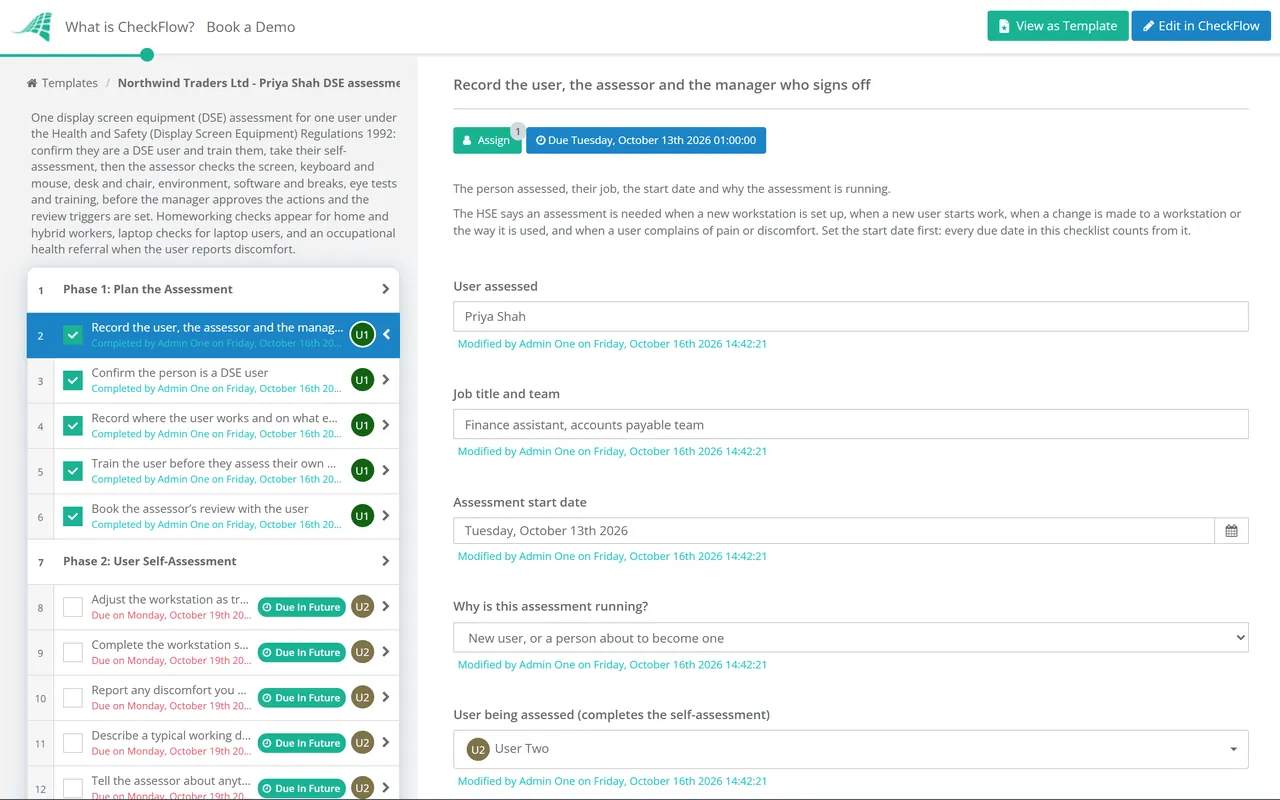
    • Record the user, the assessor and the manager who signs off — the person assessed, their job, the start date and why the assessment is running
    • Confirm the person is a DSE user — an employee who habitually uses display screen equipment as a significant part of their normal work, as regulation 1 defines a user
    • Record where the user works and on what equipment — each place they do screen work, such as an office desk, a shared desk or home, and each device they use
    • Train the user before they assess their own workstation — good posture, adjusting the chair and furniture, arranging the desk, adjusting the screen and lighting to avoid glare, breaks, and how to report problems
    • Book the assessor’s review with the user — at the workstation, or on a video call for a home worker, once the self-assessment is back
  2. Phase 2

    Phase 2: User Self-Assessment

    5 tasks

    The user answers first, at the desk where they normally work. The HSE’s legal guidance calls the user’s information an essential part of the assessment.

    • Adjust the workstation as trained before answering — chair height and back, screen height and distance, keyboard and mouse position, so the answers describe the best set-up the equipment allows
    • Complete the workstation self-assessment — Yes or No for each risk factor on the keyboard, mouse, screen, software, furniture and environment, with a note against every No
    • Report any discomfort you put down to your screen work — aches or pain in the neck, shoulders, back, arms, wrists or hands, tired eyes or headaches, and when they happen
    • Describe a typical working day at the screen — how long you spend at the screen, the longest spell without a break or a change of task, and what keeps you there
    • Tell the assessor about anything the checklist did not cover — a health condition or disability to take into account, glasses or contact lenses, or equipment of your own you use for work
  3. Phase 3

    Phase 3: Display Screen, Keyboard & Mouse

    8 tasks
    • Go through the self-assessment with the user — every No answer and every symptom reported, at the workstation or on a video call with the camera showing the set-up
    • Check the display screen — characters sharp and stable, text a comfortable size, brightness and contrast easy to adjust, and a screen that swivels and tilts
    • Check the screen position — top of the screen level with the eyes, about an arm’s length away, directly in front of the user so they do not twist
    • Check the keyboard — separate from the screen and able to tilt, with a matt surface, legible keys and space in front to rest the hands and wrists
    • Check the mouse or other input device — suitable for the task, close beside the keyboard and in line with the elbow, with support for the wrist and forearm and pointer settings the user can adjust
    • Watch the user type and use the mouse — wrists straight, a soft touch on the keys, no overstretching, and the hand off the mouse when it is not in use
    • Check the laptop set-up — shown when the user works on a laptop for long spells: a separate keyboard and mouse, and the screen raised on a riser or replaced by a separate screen
    • Check what the user carries between locations — shown for laptop users: the weight of the laptop, chargers and papers, and whether a second charger or a docking station at each base would reduce it
  4. Phase 4

    Phase 4: Desk, Chair & Environment

    6 tasks
    • Check the desk or work surface — large enough for the screen, keyboard, documents and other equipment, low-reflectance, with frequently used items in easy reach and a document holder if one is needed
    • Check the chair — stable, with a seat height and a back height and tilt that adjust and work, and castors or glides in good order
    • Check how the user sits — lower back supported, shoulders relaxed, forearms roughly horizontal, a gap of 2–3 cm behind the knees, and feet flat on the floor or on a footrest
    • Check the space around the workstation — room to change position and stretch, nothing stored under the desk, and cables tidy so they are not a trip hazard
    • Check lighting, glare and reflections — lighting neither too bright nor too dim, no glare or reflections on the screen from windows or lights, and blinds that work
    • Check heat, humidity and noise — the air feels comfortable, equipment does not give off excess heat, and noise from printers or other equipment does not distract the user
  5. Phase 5

    Phase 5: Software, the Task & Breaks

    5 tasks

    Regulation 4 requires the employer to plan the user’s work so that time at the screen is broken up by breaks or changes of activity. The law sets no length or frequency for them.

    • Check the software suits the task — easy to use, quick to respond with clear feedback and help messages, and the user trained to use it
    • Check the user knows about any checking of their work — keystroke counts, activity tracking or quality checks built into the systems, which the Schedule says may not be used without their knowledge
    • Look at the pace and demands of the work — deadlines and peaks, how much say the user has over the order and pace of their tasks, and whether information arrives at a pace that suits them
    • Check how the working day is broken up — natural changes of activity such as calls, meetings and filing, and how often the user stands up and moves away from the screen
    • Agree breaks where the job has no natural ones — short, frequent breaks away from the screen, taken before the user gets tired, with as much choice over timing as the work allows
  6. Phase 6 — If Needed

    Phase 6: Home & Hybrid Working

    5 tasks

    Shown only when the user works at home some or all of the time. The regulations apply to home workers, and where a user works both at home and in the office, the HSE says the assessment covers both.

    • Assess the home workstation — the same screen, keyboard, desk, chair and environment checks, from photos or a video call; the HSE says a visit is not usually needed
    • Check the user can work in a comfortable posture at home — they may not need office furniture at home, but their own chair, table and equipment must let them achieve a comfortable, sustainable posture
    • Decide what equipment the user needs at home — a screen, keyboard, mouse, chair, footrest or riser where the assessment shows a need; the user cannot be charged for it
    • Agree how the user reports problems from home — who to contact about aches, pains or faulty equipment, and how quickly they will hear back
    • Check how the user keeps in touch with the team — regular contact with their manager and colleagues, since the HSE’s guidance notes home workers may face isolation, stress and less supervision
  7. Phase 7

    Phase 7: Eyesight, Discomfort & Training

    5 tasks
    • Tell the user how to get an eye and eyesight test — the employer must arrange and pay for one when a user asks, including when they have visual difficulties that may be caused by DSE work
    • Arrange the eye test and record the outcome — shown when the user asks for a test: a full test by an optometrist or doctor, with a report saying whether glasses are needed for screen work and when to retest
    • Provide glasses for screen work where the test shows a need — shown when the user asks for a test: the employer pays for a basic pair of frames and lenses prescribed for screen work, not for ordinary glasses
    • Refer the user to occupational health — shown when the user reports discomfort: with their agreement, with specific questions about the symptoms and the workstation
    • Fill any training gaps the assessment found — posture, adjusting the chair, keyboard and mouse technique, or the software, so the fix does not depend on the assessor being there
  8. Phase 8

    Phase 8: Actions, Sign-Off & Review

    7 tasks
    • Write the action plan — each problem found, the action that fixes it, who carries it out and by when, the biggest problems first
    • Record the significant findings — what was checked, what was found and what will be done; the HSE says an employer with five or more employees must write them down
    • Manager approves the actions and signs off the assessment — before equipment is ordered or changes are made, with the decision and any conditions recorded
    • Tell the user what was found and what will change — the risks at their workstation, the measures agreed, the arrangements for breaks, eye tests and training, and who to contact if a problem comes back
    • Order the equipment and make the changes — the chair, footrest, riser, keyboard, mouse, blinds or lighting the plan names, delivered to the place the user works
    • Check with the user that the changes have worked — a few weeks after the last action, ask whether the problem or the discomfort has gone, and act if it has not
    • Record what will trigger a review of this assessment — a new workstation or a move, new equipment, furniture or software, a big change in screen time or the task, new lighting, or new discomfort

What the DSE Regulations Require, Duty by Duty

The DSE Regulations are short: regulations 1 to 7 set the duties, and a Schedule sets the minimum requirements for the workstation. The table maps each duty to the phase that meets it, so you can show an inspector, or a user who raises a concern, where each one was done for this person. The wording follows the regulations as amended in 2002, which apply in England, Scotland and Wales.

Duty What the regulations say Where the checklist covers it
Who is coveredA user is an employee who habitually uses display screen equipment as a significant part of their normal work (regulation 1). The regulations do not apply to portable systems not in prolonged use, among other exclusions.Phase 1 records whether the person is a user, or treated as one under your policy, and why.
Assess the workstationEvery employer shall perform a suitable and sufficient analysis of the workstations used by their users, review it if it may no longer be valid or there has been a significant change, and reduce the risks found to the lowest extent reasonably practicable (regulation 2).Phases 2 to 6 for the analysis, Phase 8 for the actions and the review triggers.
Meet the ScheduleEvery workstation must meet the minimum requirements in the Schedule, for the screen, keyboard, desk, chair, space, lighting, glare, noise, heat, humidity and software, to the extent each part is present and the task makes the requirement appropriate (regulation 3).Phases 3, 4 and 5, one task per part of the workstation.
BreaksThe employer shall plan users’ activities so that their daily work at the screen is periodically interrupted by breaks or changes of activity (regulation 4).Phase 5: how the day is broken up, and breaks agreed where the job has none.
Eyes and eyesightOn request, the employer shall ensure an appropriate eye and eyesight test by a competent person, at regular intervals afterwards, and when a user has visual difficulties that may be caused by DSE work. Special corrective appliances for the work are provided where normal ones cannot be used and the test shows they are needed (regulation 5).Phase 7: how to ask for a test, arranging it, and glasses for screen work.
TrainingAdequate health and safety training in the use of any workstation the user may work at, before a new user starts, and again when the workstation is substantially modified (regulation 6).Phase 1 before the self-assessment, and Phase 7 for gaps the assessment found.
InformationAdequate information on all aspects of health and safety relating to their workstation, and on the measures taken under the regulations (regulation 7).Phase 8: what was found, what will change, and the arrangements for breaks, eye tests and training.

When an assessment is needed. The HSE says employers must assess when a new workstation is set up, when a new user starts work, when a change is made to a workstation or the way it is used, and when users complain of pain or discomfort. Its leaflet INDG36 adds a review when the user changes workstation, the work changes considerably, or the controls in place may be causing other problems. The law sets no fixed interval.

What has to be written down. INDG36 says that with five or more employees you must record the significant findings, and that the record should be simple and focused on controls. With fewer than five there is no duty to write it down, but a record makes the next review easier. Northern Ireland has its own Health and Safety (Display Screen Equipment) Regulations (Northern Ireland) 1992.

Why Run DSE Assessments in CheckFlow?

1

The user answers, the assessor checks

The user, the assessor and the manager are chosen on the first task. The self-assessment is assigned to the user, the checks to the assessor, and a home worker’s photos are uploaded to the task they belong to. When the user reports discomfort, the occupational health referral appears for the assessor with its own due date.

2

The manager approves the actions before anything is ordered

The sign-off is assigned to the manager alone, and nothing after the approval step can be completed until they record a decision. The chair, riser or footrest is then ordered against an approved plan, and the follow-up checks that it worked.

3

Every user’s assessment in one place

The Reports Grid shows each assessment in progress and the tasks that are overdue, so a promised footrest does not wait six months. If your policy checks in with users on a fixed date, a recurring schedule starts each one, and a move, new equipment or a report of discomfort starts its own run the same day.

CheckFlow does not judge whether a workstation is safe. That judgement is the assessor’s, recorded on each task with the user’s answers beside it. It runs the assessment around it: who answers, who checks, by when, and who approved the actions. CheckFlow’s HR checklist software shows how the same approach runs onboarding, leave and returns.

Start a new user’s assessment from the Employee Onboarding Checklist or, for someone who will work from home, the Remote Employee Onboarding Checklist. The Home Office Setup Checklist covers equipment, connection and security, and the Health & Safety Risk Assessment Checklist covers the rest of the workplace.

AI generator

Didn’t find what you need? Describe it.

Describe the process in a sentence and the AI checklist generator drafts the phases and tasks for you.

Frequently Asked Questions

What is a DSE assessment?

It is the analysis of a workstation that regulation 2 of the Health and Safety (Display Screen Equipment) Regulations 1992 requires for every DSE user. It looks at the whole workstation, including the screen, keyboard, mouse, desk, chair and the environment around them, the job being done and any special requirements of the person, such as a disability. Where there are risks, the employer must reduce them to the lowest extent reasonably practicable. The HSE’s DSE workstation checklist (CK1) is a free aid to doing one.

Who counts as a DSE user?

The regulations define a user as an employee who habitually uses display screen equipment as a significant part of their normal work. They set no number of hours. The HSE describes users as people who use DSE daily, for continuous periods of an hour or more, and its legal guidance says hard-and-fast rules based on hours of use are impossible because several factors combine. Part-time workers are judged the same way. Some employers simply treat everyone with access to DSE as a user.

Do employers have to do DSE assessments for home workers?

Yes, where the home worker is a DSE user. The HSE says the regulations can apply to people who work at home permanently or long term, and to hybrid workers who split their time between the workplace and home. You do not usually need to visit: a trained worker can complete a self-assessment. Where someone works both at home and in the office, the assessment should cover both. If it shows they need equipment, such as a screen or a chair, they cannot be charged for it.

How often should a DSE assessment be done?

The regulations set no fixed interval. Regulation 2(2) requires a review when there is reason to suspect the assessment is no longer valid, or there has been a significant change. The HSE lists the triggers: a new workstation, a new user, a change to the workstation or the way it is used, a user complaining of pain or discomfort, a change of workstation, or a big change in the work. Some employers also check in with users on a fixed date as policy. The last task in this checklist records the triggers.

Does my employer have to pay for an eye test and glasses?

If you are a DSE user, yes for the test. Your employer must arrange an eye and eyesight test when you ask for one, and pay for it. The HSE says it should be a full test by an optometrist or doctor. Your employer only has to pay for glasses if the test shows you need special glasses prescribed for the distance you view the screen at, and then only for a basic pair of frames and lenses. If your ordinary glasses are suitable, they do not have to pay.

Can employees carry out their own DSE assessment?

Yes, if they have been trained to. The HSE says users can fill in the workstation checklist themselves when suitably trained, and that their information is an essential part of the assessment. But the self-assessment is not the end of it. A trained assessor should look at the results, clear up doubtful points, give the user feedback and make sure problems are put right. The HSE says the same of assessment software: it can help, but it is not an assessment on its own.

Do the DSE Regulations cover laptops?

They exclude only portable systems not in prolonged use. The HSE’s legal guidance says a laptop that a DSE user works on habitually, for a significant part of their normal work, is covered. Some of the Schedule’s detailed requirements may not suit a portable, but the work must still be assessed. The HSE recommends a separate keyboard and mouse, and a raised or separate screen, for prolonged laptop use. Think about the weight users carry between locations too.

Is CheckFlow free for this template?

14-day free trial, no card required. The Business plan is $10 per user per month after the trial. Full details at checkflow.io/pricing.

Assess Every Screen User, Then Fix What You Find

Free trial — no credit card required.

14-day free trial, no credit cardFull refund in your first 30 daysUS or EU hosting