73% of remote workers experience musculoskeletal discomfort from inadequate home office setups. Most of it is preventable by getting the chair, desk, and monitor positioning right — and by treating the home office as a proper workplace, not a temporary arrangement.
Remote work has evolved from an emergency measure to a permanent feature of modern working life. In 2025, 52% of US remote-capable employees worked in hybrid arrangements and 26% fully remotely — and the trend toward flexibility continues. But the physical workspace that supports this work mode matters more than most remote workers acknowledge. The kitchen table that seemed fine for a week produces chronic back and neck pain over months. The laptop screen at desk height forces the neck into a sustained downward angle that physiotherapists treat as an occupational injury. The video calls conducted with a bright window behind the speaker make every meeting a silhouette experience for colleagues. A properly set up home office is not a luxury — it is the physical foundation for productivity, health, and professional presence in a role that demands sustained, high-quality output. This free checklist gives remote workers, hybrid employees, and the HR and IT teams who support them a structured framework for the complete home office setup.
Chair, desk height, monitor position, keyboard and mouse placement. This prevents the physical injuries that are the most common and most costly consequence of poor home working environments.
2
Internet Connectivity
A fast, reliable connection is the remote worker’s infrastructure. Poor internet affects every hour of every working day.
3
Hardware
The devices, peripherals, and accessories that make work possible — and the quality of which directly affects output speed and quality.
4
Security
VPN, 2FA, screen lock, and router security protect both the employee and the organisation. Non-negotiable for any corporate remote worker.
5
Professional Presence
Webcam, microphone, lighting, and background quality determine how the worker is perceived in the increasing proportion of work that happens on video.
What the Home Office Setup Checklist Covers
This checklist covers seven phases of the complete home office setup — from choosing the right space through to professional video presence. Use it for initial setup, after a move, or as an annual review.
Phase 1
Phase 1: Workspace Selection
Choose a dedicated workspace — a room or defined area used exclusively or primarily for work; not a shared surface used for other purposes during the working day
Minimise distractions — away from high-traffic areas of the home; door that can close for calls and deep work sessions
Adequate space — enough room for a proper desk, a chair that reclines, and any necessary reference materials; the laptop-on-a-lap setup is not a workspace
Natural light available — ideally from the side (not behind the monitor, which causes glare; not behind you during video calls, which makes you a silhouette)
Temperature and ventilation adequate — comfortable working temperature year-round; ventilation sufficient for sustained concentration
Phase 2
Phase 2: Ergonomic Setup
Ergonomics is the most important and most commonly underprioritised dimension of home office setup. The physical effects of poor ergonomics accumulate slowly — months before the pain becomes severe enough to seek treatment. A proper setup prevents the problem that a physiotherapist treats.
Chair setup — seat height adjusted so feet rest flat on the floor (or a footrest is used); knees at approximately 90 degrees; lumbar support positioned at the natural curve of the lower back; armrests at elbow height; backrest reclined to 100–110 degrees (not 90; that strains the spine)
Desk height — elbows at approximately 90 degrees when hands are on the keyboard; for standing desk users, the same elbow angle applies when standing
Monitor position — top of the screen at eye level or slightly below (not a laptop on a desk surface — the screen is then 30–40cm below eye level, forcing the neck down for 8 hours); 50–70cm from the face; tilted back 10–20 degrees
Keyboard and mouse placement — keyboard directly in front of the monitor; mouse close to the keyboard; both within easy reach without shoulder abduction; wrists neutral (not bent up or down)
Second monitor (if applicable) — if using two monitors of equal size: side by side, the seam directly in front; if primary and secondary: primary centred, secondary at the side at the same height
Laptop users (critical): external keyboard and mouse required — the laptop should be on a stand at eye level; an external keyboard and mouse allow correct arm and wrist positioning; without these, ergonomic laptop use is not achievable
Phase 3
Phase 3: Lighting Setup
Primary light source — ideally from the side (neither directly in front glaring into eyes nor from behind creating screen glare)
Avoid backlight during video calls — windows or bright light sources behind the worker make them appear as a silhouette on video; face the window or use a ring light/desk lamp facing the worker
Supplementary lighting — desk lamp for task lighting; warm white light (2700–4000K) for video calls; harsh cool overhead lighting on its own creates fatigue
Screen brightness — calibrated to match ambient light; screen much brighter than the room causes eye strain; enable night mode after dusk
Phase 4
Phase 4: Internet & Network Setup
Minimum speeds confirmed — 25 Mbps download / 5 Mbps upload for HD video calls; test at speedtest.net; 100 Mbps download for large file uploads and heavy video streaming
Wired ethernet connection preferred — dramatically more reliable and lower-latency than Wi-Fi; run an ethernet cable to the desk if possible; a USB-C ethernet adapter for laptops without ethernet port costs under £15/$15
Wi-Fi quality confirmed — if wired is not possible; strong signal at the workspace; 5GHz band preferred over 2.4GHz for stability; mesh Wi-Fi system for larger homes with dead zones
Router security — default router password changed; WPA3 or WPA2 encryption enabled; router firmware up to date
Phase 5
Phase 5: Hardware Setup
Computer — adequate for the role’s requirements; sufficient RAM (16GB minimum for most professional work in 2026); processor capable of running video conferencing alongside other applications without degradation
External monitor — for ergonomically correct screen height; 24” minimum for comfortable work; full HD (1080p) minimum; correctly positioned as per ergonomics phase
Keyboard and mouse — ergonomic full-size keyboard (not laptop keyboard); mouse at elbow height; wired or wireless with reliable battery
Webcam — dedicated external webcam preferred over built-in laptop camera; 1080p minimum; positioned at eye level (on top of the external monitor)
Microphone — dedicated microphone or quality headset preferred over laptop built-in; echo cancellation; clear speech pickup; background noise reduction
Headset or headphones — for calls and focus work; noise-cancelling for environments with background noise
Uninterruptible Power Supply (UPS) — for critical roles where power outages would cause work loss or meeting disruption
Phase 6
Phase 6: Security Setup
Home network security is the most commonly neglected dimension of home office setup — and the most consequential for the organisation. A corporate device on an insecure home network is a potential breach vector for the entire organisation.
VPN configured — corporate VPN installed and tested; connects automatically or as required by policy; used when accessing corporate systems
Two-factor authentication (2FA) enabled — on all corporate accounts; authenticator app preferred over SMS
Screen lock configured — automatic lock after 5 minutes of inactivity; strong password or biometric unlock
Device encryption enabled — BitLocker (Windows) or FileVault (Mac); full disk encryption protects data if device is lost or stolen
Corporate device policy understood — no personal use on corporate devices unless policy permits; no unapproved software installed
Clear-desk policy for sensitive materials — any physical documents containing sensitive information stored securely; not visible during video calls
Phase 7
Phase 7: Professional Video Presence
Webcam at eye level — not below (looking up at the camera gives an unflattering angle and reveals the ceiling); on top of the external monitor is the correct position
Light source facing you — a window in front of you, or a ring light/desk lamp facing your face; not behind you
Background tidy and professional — what is behind you on camera; ideally a plain wall or an organised bookshelf; avoid backgrounds with beds, laundry, or significant clutter
Virtual background option — if the physical background cannot be made acceptable; a good virtual background requires a plain physical background and adequate lighting to key correctly
Microphone quality tested — listen back to a recording; clear speech, no echo, no background hum
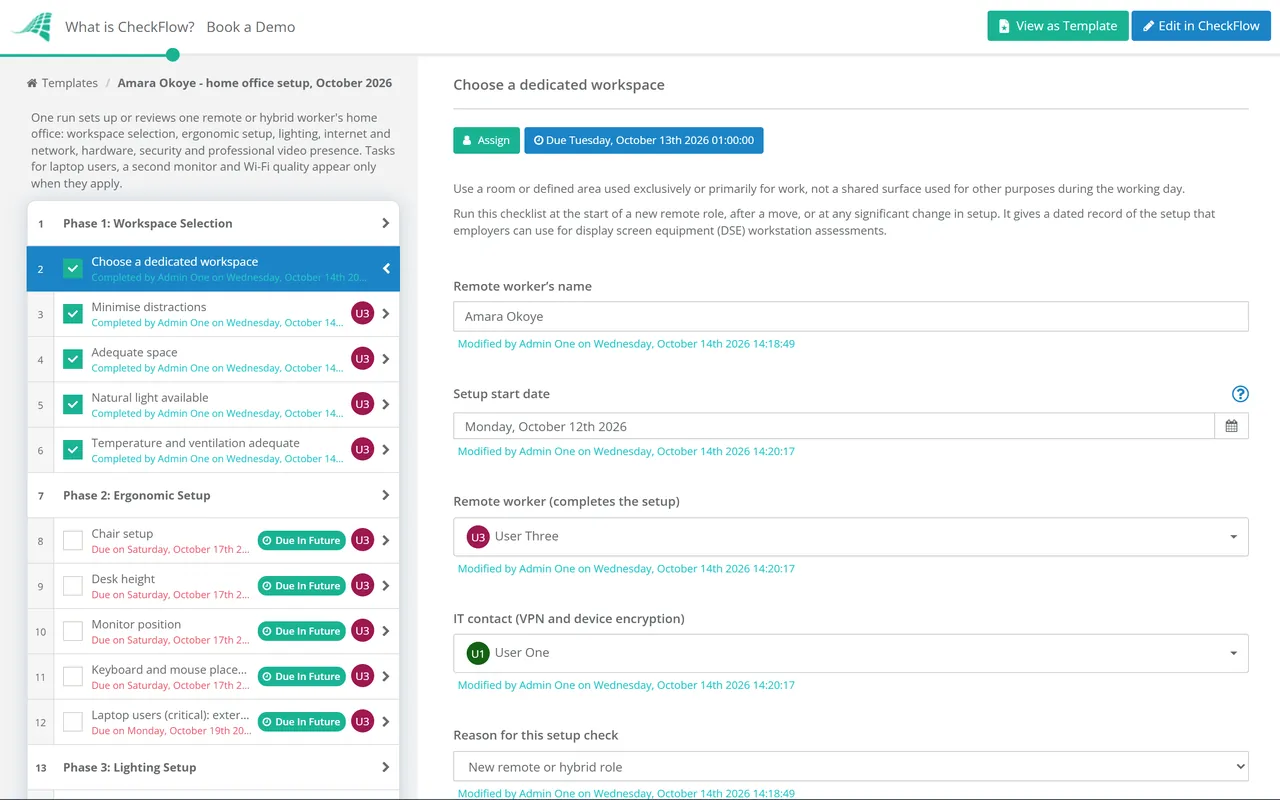
This checklist is available as a free, runnable template in CheckFlow — giving remote workers and the HR and IT teams who support them a structured, documented record of home office setup completion.
What Employers Are Responsible For — and What Employees Are Responsible For
The employer’s duty of care for employees extends to home offices in most jurisdictions. In the UK, the Health and Safety at Work Act 1974 and the Display Screen Equipment (DSE) Regulations 1992 require employers to assess workstations used by employees — including those at home — and take action to reduce any identified risks. Many employers provide a home office allowance or stipend, supply IT equipment, and require a self-assessed or employer-reviewed DSE assessment for remote workers.
For employees, the responsibility is to perform their home office setup conscientiously, use the equipment and guidance provided, and raise any ergonomic concerns with HR or their manager rather than enduring discomfort until it becomes injury. A structured setup checklist — used at the start of a new remote role, after a move, or at any significant change in setup — is the practical mechanism by which both parties meet their responsibilities.
Why Run Home Office Setup in CheckFlow?
1
A consistent home office setup standard across the team
Remote teams that have some employees with well-configured professional setups and others on kitchen tables with laptop screens at desk level have visible quality differences in video calls and less visible but real differences in health outcomes and sustained productivity. CheckFlow’s home office setup checklist gives every new remote or hybrid employee the same structured guidance — and gives HR visibility of completion.
2
A DSE compliance record for each employee
UK employers with remote workers are required to carry out workstation assessments for display screen equipment users. CheckFlow’s setup checklist creates a dated, attributed completion record for every employee — the DSE assessment evidence that employer compliance requires.
3
A recurring setup review trigger
The setup that was correct when established can degrade over time — chairs lose lumbar support, desks get reorganised, monitors get pushed to the side. CheckFlow’s recurring feature triggers an annual home office setup review for all remote employees.
Home office setup is the first step of remote employee onboarding. CheckFlow’s Remote Employee Onboarding Checklist covers the structured process for setting up new remote employees for success. See the Remote Employee Onboarding Checklist →
Most home office setups require IT equipment. CheckFlow’s IT Equipment Request Process covers the structured equipment provisioning workflow. See the IT Equipment Request Process →
What should a home office setup checklist include?
+
A home office setup checklist covers seven areas: workspace selection (dedicated space, minimised distractions, natural light from the side), ergonomics (chair height and lumbar support, desk height for 90-degree elbows, monitor at eye level 50–70cm away, external keyboard and mouse for laptop users), lighting (side light source, no backlight during calls, supplementary desk lamp), internet connectivity (25+ Mbps speeds, wired ethernet preferred, router security), hardware (monitor for ergonomic height, quality webcam and microphone), security (VPN, 2FA, screen lock, device encryption), and professional video presence (webcam at eye level, front-facing light, tidy background).
What ergonomic adjustments matter most for remote workers?
+
The three most impactful ergonomic adjustments for remote workers are: monitor height (the top of the screen should be at or slightly below eye level, 50–70cm away — a laptop screen on a desk is typically 30–40cm below this, forcing sustained neck flexion that causes the most common remote work injury), chair setup (seat height so feet are flat, lumbar support at the lower back curve, backrest reclined to 100–110 degrees rather than 90 to reduce spinal load), and keyboard and mouse position (elbows at approximately 90 degrees, wrists neutral, mouse close to keyboard). Laptop users should always use a laptop stand with an external keyboard and mouse — using a laptop flat on a desk makes ergonomically correct posture impossible.
How fast does my home internet need to be for remote work?
+
For standard remote work including HD video calls (Zoom, Teams, Google Meet), a minimum of 25 Mbps download and 5 Mbps upload is required. For roles involving frequent large file uploads, screensharing, or multiple simultaneous video streams, 100 Mbps download and 10+ Mbps upload is recommended. Wired ethernet connections are significantly more reliable and lower-latency than Wi-Fi, especially important for video calls where packet loss causes the “frozen screen” effect. If wired ethernet is not possible, use the 5GHz Wi-Fi band and position the desk within strong signal range of the router.
Is an employer required to provide home office equipment?
+
Legal requirements vary by jurisdiction. In the UK, the Display Screen Equipment (DSE) Regulations 1992 require employers to assess the workstations of all habitual display screen users, including those working from home, and provide equipment, training, or eye tests where assessments identify a need. Many UK employers provide a home office allowance or equipment stipend. In the US, requirements vary by state — California requires employers to reimburse necessary work expenses, which may include home office equipment for remote workers. Regardless of legal requirements, providing remote workers with the equipment they need to work productively and safely is standard practice and directly affects the productivity return the employer receives from remote arrangements.
Is CheckFlow free for this template?
+
14-day free trial, no card required. The Business plan is $10 per user per month after the trial. Full details at checkflow.io/pricing.
Set Every Remote Worker Up Correctly From Day One — Ergonomics, Tech, Security, and Professional Presence
Free trial — no credit card required.
Do you like cookies? 🍪 We use cookies to ensure you get the best experience on our website. Learn more