
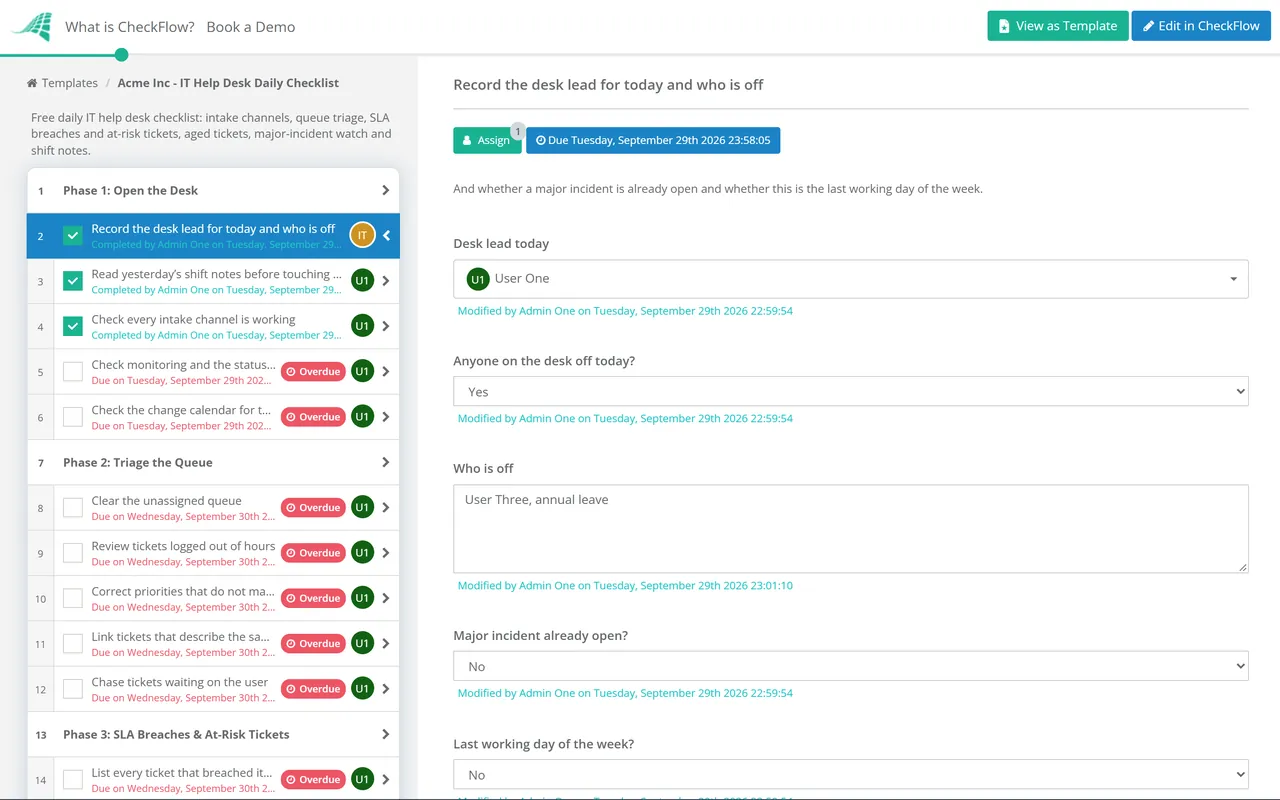
One request, start to finish
Who: the agent who owns the ticket.
Looks at: the user, the fault, the fix and the confirmation.
Misses: tickets nobody has picked up, clocks paused for no reason, owners who are off today.
Output: a resolved ticket.
Every agent works their own tickets. Somebody has to look after the queue as a whole. This free IT help desk daily checklist gives service desk leads, IT support teams and MSP help desks a routine for each working day: open the desk and check every intake channel, triage what arrived overnight, catch SLA breaches before they happen, chase aged and escalated tickets, watch for the cluster of calls that means a major incident, and close the day with shift notes the next shift can act on. A weekly queue review appears on the last working day. Each day leaves a dated record of the queue and who looked after it.
A ticket process tells an agent how to handle the request in front of them: acknowledge, diagnose, fix, confirm, close. It says nothing about the forty tickets nobody has opened yet. Queues go wrong in the gaps between tickets. A form on the portal breaks and the day looks quiet. A priority set at 07:50 by an auto-rule is never corrected. A ticket assigned to someone on annual leave waits a week. None of these shows up while you work a single ticket, and all of them show up in the monthly SLA report.
The ITIL 4 practice guides treat the service desk as the point of contact between the service provider and its users, alongside separate practices for incident management and service level management. The daily checklist sits where those three meet: it is the service desk checking, once a day and at the same times, that incidents are being picked up and that service level targets will be met.
Who: the agent who owns the ticket.
Looks at: the user, the fault, the fix and the confirmation.
Misses: tickets nobody has picked up, clocks paused for no reason, owners who are off today.
Output: a resolved ticket.
Who: the desk lead for the day, which can rotate.
Looks at: intake channels, unassigned and misprioritised tickets, breaches, age, escalations and clusters.
Misses: the detail of any single fix, which stays in the ticket.
Output: a queue with an owner and a next step for every ticket, and shift notes for tomorrow.
Three things are left out on purpose. Handling a single ticket belongs to the ticket process. Restoring service in a major incident belongs to the incident process; the desk spots the pattern, raises it and keeps callers informed. Out-of-hours cover is a separate hand-off between engineers, which the desk feeds but does not run.
Phases 1 to 6 run every working day. Phase 7 appears on the last working day of the week. Two tasks appear only when they apply: one when someone on the desk is off, one when a major incident is already open at the start of the day.
Done before the phones open. The answers recorded on the first task decide which conditional tasks appear later in the day.
The third task appears only when someone on the desk is off today.
The first task appears only when a major incident was already open at the start of the day. The rest run every day.
Appears only when the first task records that today is the last working day of the week.
The checks work best at fixed times, so nobody has to decide when to look at the queue in the middle of a busy morning. The times below assume an 08:30 to 17:00 desk. Treat them as a starting point and move the cluster checks to your own peaks.
| Example time | Check | Phase | Why then |
|---|---|---|---|
| 08:00 | Channels, shift notes, monitoring, change calendar | 1 | Before the first call, so problems are found by the desk and not by users |
| 08:30 | Unassigned and out-of-hours tickets, priorities | 2 | The overnight pile is largest and the day’s SLA clocks are starting |
| 10:00 | Breaches and the at-risk list | 3 | Early enough to save tickets due today |
| 11:30 and 15:00 | Cluster check | 5 | Just after the usual peaks, when a pattern has had time to form |
| 14:00 | Aged tickets, escalations, absent owners | 4 | The quieter part of the day, with time to chase other teams before they leave |
| 16:30 | Knowledge, numbers, shift notes, out-of-hours hand-off | 6 | Before the desk empties and while the day is still fresh |
| Friday 15:00 | Weekly queue review | 7 | Enough of the week has passed to see trends, with time left to fix next week’s rota |
What counts as an aged ticket is your call. Many desks start with a flat threshold, such as anything open for more than 10 working days, then set separate limits per priority once they see where tickets really stall. The number matters less than the rule behind it: every ticket past the threshold has either a dated next action or a written reason why it cannot move.
Knowledge follows the same logic. The Knowledge-Centered Service (KCS) method from the Consortium for Service Innovation has agents capture articles while solving the issue and treats each reuse of an article as a review of it. Phase 6 applies that daily: capture today’s fixes and flag the articles that failed, while the details are fresh.
A recurring schedule starts the checklist each working day and assigns it to the service desk group, so whoever is leading the desk that day picks it up. Due dates on each phase follow the run’s start, and conditional logic adds the weekly review only on the last working day.
Breached and at-risk tickets go into tables inside the tasks, with ticket number, priority and reason. After a month you have a daily record of why SLAs were missed, which is the part a ticketing system’s breach report leaves out.
The shift notes are a field on a task in a dated run, not a message lost in a chat channel. The first task of the next day points straight at them, comments carry any follow-up, and the activity trail shows who led the desk and when each check was done.
This routine looks after the queue; the work on each ticket follows its own process. The IT Support Checklist sets up tiers, routing and SLAs for the desk, and the Support Ticket Response Checklist covers a single ticket from acknowledgement to confirmed close. When the cluster check finds a real outage, the Incident Management Checklist takes over.
At the end of the day the desk hands out-of-hours risks to whoever holds the pager. That rotation has its own routine in the On-Call Handover Checklist, run each time the pager changes hands. CheckFlow’s recurring checklist software shows how daily and weekly schedules, group assignment and reminders work across both.
IT Support Checklist
Support Ticket Response Checklist

On-Call Handover Checklist

Incident Management Checklist
IT Service Request Fulfilment Checklist
Describe the process in a sentence and the AI checklist generator drafts the phases and tasks for you.
The checks that protect the queue as a whole: that every intake channel works, that yesterday’s shift notes were read, that nothing is unassigned or wrongly prioritised, which tickets breached or are about to breach their SLA, which are old or stuck at another team, whether a cluster of calls points to a major incident, and what the next shift needs to know. Individual ticket steps belong in the ticket process, not the daily list.
New tickets should be triaged continuously, within your response target, by whoever is on intake. The daily checklist adds fixed sweeps on top: a full pass through the unassigned queue at the start of the day, an SLA check mid-morning and cluster checks after the usual peaks. The sweeps catch what continuous triage misses when the desk is busy, such as a ticket categorised by an auto-rule and never looked at by a person.
There is no standard figure. A common starting point is 10 working days, with shorter limits for high-priority tickets. What makes the threshold useful is the rule attached to it: an aged ticket must have a dated next action or a written reason it is blocked. Tickets that sit past the threshold with neither are the ones that turn into complaints.
Only what the next shift has to act on. Tickets at risk of breaching and when they are due, anything promised to a user such as a call back at 09:00, any open or suspected major incident, changes scheduled overnight or first thing, and faults the on-call engineer has been warned about. A list of everything that happened today is a report, not a handover, and the useful items get lost in it.
Look at breaches before they happen, not after. A daily at-risk list of tickets due before close of business, each with a named person and a time, saves more tickets than a monthly breach report. Then record the reason for every breach that does happen and group them weekly. Breaches caused by slow triage, suppliers, wrong priorities and absent owners each need a different fix, and the pattern only shows once the reasons are written down.
14-day free trial, no card required. The Business plan is $10 per user per month after the trial. Full details at checkflow.io/pricing.
14-day free trial, no credit cardFull refund in your first 30 daysUS hosting, EU on request