Your onboarding checklist is running. Your month-end close is running. Every step of every process has an owner, a due date and a record. And then a client rings, asks for one extra thing, and that one thing goes on a sticky note — because it does not fit a template, and until now a template was the only way into CheckFlow.
That is the gap standalone tasks close. Everything else in CheckFlow starts as a template: you write the process once and run it as a checklist every time the work needs doing. It is the right model for work that repeats. It is the wrong model for work that happens once. Before standalone tasks, giving somebody a one-off job in CheckFlow meant building a single-task template, running a checklist from it, and leaving a template in the list for something that will never run again. Most people did not bother. They put the job in a to-do app, a chat thread or an email flag instead, and the team ended up with two lists: the process work in CheckFlow, and everything else somewhere it could not be seen, assigned or chased.
A standalone task is a task raised on its own, with no template and no checklist above it. It takes assignees, a due date, a description, subtasks and files. It appears on the Tasks grid next to every checklist task, it notifies the people you assign, and it chases them when it goes overdue. This guide covers what a standalone task is, how to raise one, the rules that decide who can see and complete it, six situations where teams use them, and how they show up in the rest of CheckFlow.
What Is a Standalone Task?
In CheckFlow a task is one completable step of work: it has a status, optional assignees, an optional due date, and a set of controls holding its instructions and its answers. Most tasks arrive through a process. Running a checklist creates one task for every task defined on its template, and those tasks inherit everything the template says about them.
Definition: A standalone task is a task you raise directly, with no template and no checklist behind it, for a piece of work that does not belong to a process. It behaves like any other task — assignees, due date, comments, attachments, activity and overdue reminders — but it is edited from its own editor rather than from a template.
A standalone task can also be attached to a running checklist, so that a one-off piece of work sits with the process it relates to. That gives three kinds of task in CheckFlow, and the difference between them is what the task belongs to.
| Checklist task | Attached task | Unattached standalone task | |
|---|---|---|---|
| Created by | Running a checklist | Raising a standalone task and attaching it | Raising a standalone task |
| Appears in a checklist | In the task list | Under Attached Tasks at the bottom | No |
| Who sees it on the Tasks grid | People the checklist's permissions admit | The same, while its checklist exists | Everybody on the team |
| Counted in Analytics as | Its template | Its checklist's template | A standalone task |
| Edited from | The template | The Tasks grid side panel, or the checklist page | The Tasks grid side panel |
The rest of this article is about the third column. Attaching gets its own guide, because what changes when a task joins a checklist deserves more than a paragraph.
Why Teams Needed This
The case for standalone tasks is really three complaints that every process team recognises.
The single-task template graveyard. Someone needs a colleague to renew a domain certificate by Friday. The only way to track it in CheckFlow was to create a template called "Renew certificate", run it once, and forget about it. Six months later the template list is full of one-off jobs dressed up as processes, and the real templates are harder to find.
The shadow to-do list. More often, the one-off job did not go into CheckFlow at all. It went into a personal task app, a Slack message or a flagged email. The checklist work was visible, assigned and reported on; the ad-hoc work was invisible, unowned and forgotten until somebody asked about it.
"What's due today?" takes two tools. With work split across CheckFlow and a to-do app, nobody could see a whole day's work on one screen. A manager wanting to know what the team had on had to check every checklist and then ask each person what else they were carrying.
Standalone tasks fix all three by letting the one-off job live where the process work already lives. Raise it from the same menu, see it on the same grid, and give it the same owner, due date and reminders as everything else.
How to Raise a Standalone Task
You need to be an Administrator, or a Member with the Task.Creator permission — which is in the default permission set every Member starts with. Raising a task is one dialog, and only the name is compulsory.
Open the Create Task dialog
Click the + button in the navigation bar and choose Task under Create New. The same button is where you start a checklist or a template, so a standalone task is raised from exactly the place your team already goes to start work.
Name it
Type the task name into the Task Name box. This is the only thing the task must have; you can create it with nothing else filled in and come back later. Keep it short — a task name is capped at 100 characters — and lead with the verb, because the name is what everybody sees on the grid.
Assign it and give it a due date
Click Assign Task and pick the people and groups responsible. Leave it empty and the task is unassigned, which is a perfectly good state for work waiting for an owner. Click Set Due Date to pick a date and time from the calendar. A due date is what turns a task from a note into a commitment: it decides when the task shows as Due Today, when it goes Overdue, and when the reminder email goes out.
Describe it, break it down, attach what they need
Type into Task Description to give whoever picks the task up the detail they need. The box takes formatting, links and images. Click Add Subtask for each item you want ticked off inside the task, and drag them to reorder. Click Add File to upload anything the assignee needs to read; each file uploads as you choose it.
Tag it, optionally attach it, and create it
Type into Tags to tag the task, picking an existing tag from the suggestions or pressing Enter on a new name. If you hold the Task.Attacher permission you will also see an Attach Task to an Existing Checklist switch; leave it off for a task that stands on its own. Click Create Task. A Task Created message confirms it, and the task exists immediately.
Under the hood, the dialog builds the task out of the same controls a template designer uses, so what you produce is an ordinary task rather than a special case:
| Part of the dialog | Control it creates | How it behaves |
|---|---|---|
| Task Description | Text | Read-only detail shown at the top of the task. Leave it empty and no description control is added. |
| Subtasks | Sub-Tasks | Every item must be ticked before the task can be completed. |
| Files | File | Files to download. Whoever works the task cannot add to them here, but can attach files to a comment. |
Each of the three appears at most once. The tags are not part of the task's content: they are applied to the task once it exists, and they stay with the task whether or not it is later attached to a checklist.
What a Standalone Task Leaves Out
A checklist task can hold any of CheckFlow's nineteen controls. A standalone task is deliberately narrower, because it has no template designer behind it. Conditional logic, dynamic values, template parameters and halt tasks are all template features, and none of them applies to a standalone task.
That is a feature, not a limitation. The moment a piece of work needs a rule — show this step only when that answer is "yes", fill this field from that one, hold everything until the approval lands — it has stopped being a one-off and started being a process. Build it in the template designer, where those tools live, and run it as a checklist. The test is simple: if you would want the same structure the next time this work comes up, it is a template. If you would not, it is a standalone task.
A useful rule of thumb: a standalone task is for work you can describe in a sentence, a few subtasks and a file. If you find yourself wanting a second description block or a conditional subtask, you are describing a template.
Assignment, Visibility and Notifications
This is the part people get wrong most often, so it deserves the most space. Three rules govern a standalone task, and they interact.
Everybody can see an unattached task
A checklist task is visible only to the people its checklist's permissions admit, because the template it came from decides who can see its runs. A standalone task has no template, so there is nothing to permission it by. While it is unattached, everybody on the team can see it on the Tasks grid, whatever their template permissions, as soon as Show Standalone Tasks is selected in the Templates filter. Anybody looking at a grid the task belongs in sees the row arrive without reloading.
Attach it to a checklist and that changes: the task follows the checklist and is listed only for the people the checklist admits. If a task carries something only some of the team should see, attach it to a checklist with the right permissions, or keep the sensitive detail in a comment on a task assigned to the right people.
Assignees own the task by default
A standalone task is created with Only Assignees Can Complete This Task already switched on. That matters as soon as you assign it. The people and groups you picked own the task: everybody else still sees the row on the grid, so the work stays visible and nothing goes missing from the counts, but they cannot open, complete, snooze or reassign it. Administrators are the one exception. Leave the task unassigned and anyone can pick it up.
To open an assigned task up to the whole team, click the reassign icon on its row and untick the box. One thing to know: saving the task from its editor switches the setting back on, so if you have opened a task up and then edit its description, check the reassign icon afterwards.
Assignees are told, and chased
Everybody you assign is notified as soon as the task is created, the same way a checklist task's assignees are: by email, and in Slack if the Slack integration is connected, with the task's details and a direct link to it. Assigning a group notifies every member of it. Reassign the task later and anyone newly added is told in the same way; people already on the task are not told again.
When the due date passes, CheckFlow emails the task's assignees, or every Administrator on the team when it has none. So an unassigned standalone task with a due date is not silent — it escalates to the administrators, which is exactly what you want for work that was raised in a hurry and never picked up.
Editing and Deleting a Task
A standalone task can be reworded, reassigned, given a new due date, attached to a checklist or deleted outright. Editing is limited to Administrators and the person who created the task, and that is checked against who actually created it, not against anything the editor sends.
There are two routes into the same editor. From the Tasks grid, click the chevron in the Open column to open the task in the side panel, then click Edit / Delete beside the task name; the panel is replaced by the task's editor. For a task that is attached to a checklist, you can also open it from the Attached Tasks section on the checklist page and click Edit / Delete Task. Either way, change what you need and click Update Task. Everybody looking at the checklist or the grid sees the change without reloading.
An edit is a change to the task, not a replacement for it, so it is worth knowing what survives:
- Ticks already made on subtasks are kept, so somebody working the task does not lose their progress when you reword the items.
- Comments, attachments and activity are kept. They belong to the task, not to the edit.
- A task that was already complete stays complete, and personal snoozes survive.
- Created by and the creation date are unchanged, whoever makes the edit.
Two things do not survive. Assign Task replaces the assignees with whoever is in the box when you save, so clearing it makes the task unassigned. And files can only be added from the editor, never removed; if a file must go, the task has to go with it.
Delete is immediate. Clicking Delete Task in the editor deletes the task at once, with no confirmation step and no undo. The description, subtasks, uploaded files, comments, attachments and activity all go with it, and no report or export keeps a copy. If you want a second look before things disappear, select the rows on the Tasks grid and use Delete Selected Tasks instead, which shows a confirmation listing every task and what will happen to it.
Deleting the checklist a task is attached to is a different matter: the task loses the attachment and carries on as an unattached standalone task, still editable from the Tasks grid.
Try It on Your Own Team
Raise a standalone task in under a minute, assign it, and see it land on the Tasks grid next to your checklist work. Free trial, no credit card required.
Start free trial See the Tasks FeaturesSix Scenarios for Standalone Tasks
The pattern is always the same: work with an owner and a deadline that does not belong to a template. Here is how six teams use it.
IT: the certificate that expires on Friday
A monitoring alert lands in a Slack channel: the wildcard certificate expires in five days. It is not part of any checklist, and it needs an owner now. The on-call engineer raises "Renew the wildcard certificate", assigns it to the infrastructure group, sets the due date to Thursday, pastes the alert into the description and adds two subtasks: request the certificate, deploy to the load balancer. Every member of the group is notified. The task sits on the grid under My Open Tasks for each of them, and if Thursday passes it emails them all.
Client services: the extra thing the client asked for
Halfway through an onboarding call the client asks whether you can also migrate their DNS. That is not a step in the onboarding template, and it should not become one for a single client. The account manager raises "Migrate Northwind DNS", assigns it to the engineer on the account and attaches it to Northwind's running onboarding checklist, so the checklist cannot complete until the DNS is done. The attached tasks guide covers this route in full.
Compliance: actions raised during an audit
An internal ISO 27001 audit produces eleven findings. Each becomes a standalone task tagged audit-2026, assigned to the control owner, with the finding text in the description and the evidence required as subtasks. The compliance lead filters the Tasks grid by Show Standalone Tasks, searches the tag, and has the whole remediation list on one screen. When the auditor returns, the completed tasks and their comments are the evidence.
HR: the handover that starts before offboarding does
Someone resigns with six weeks' notice. The offboarding checklist is scheduled for their last week, but the handover has to start now and looks different for every leaver. The manager raises three standalone tasks — document the client list, record the monthly reporting process, introduce the successor to the vendor contacts — assigned to the leaver with staggered due dates. When the offboarding checklist starts, whatever is still open can be attached to it.
Facilities: the follow-up from a site inspection
A site inspection checklist turns up a cracked fire door. The inspection itself is a recurring process; the repair is a one-off. The inspector raises "Replace fire door, Unit 4", attaches a photo, assigns it to the facilities contractor group and sets the due date two weeks out. It appears on the contractor's grid immediately, and the photo is right there in the task rather than in an email they have to find.
Management: the triage queue
Not every task needs an owner on the day it is raised. Some teams treat unassigned standalone tasks as a triage queue: anyone can raise work into it, and the team lead reviews it each morning using the Show Unassigned Tasks option in the Assignees filter. Because an unassigned task is nobody's exclusively, whoever picks it up can complete it, and because it still has a due date, the administrators are emailed if it is left too long.
Where Standalone Tasks Show Up
A standalone task is a first-class task, so it appears everywhere tasks do. A few of those places treat it slightly differently, and it helps to know how.
The Tasks grid
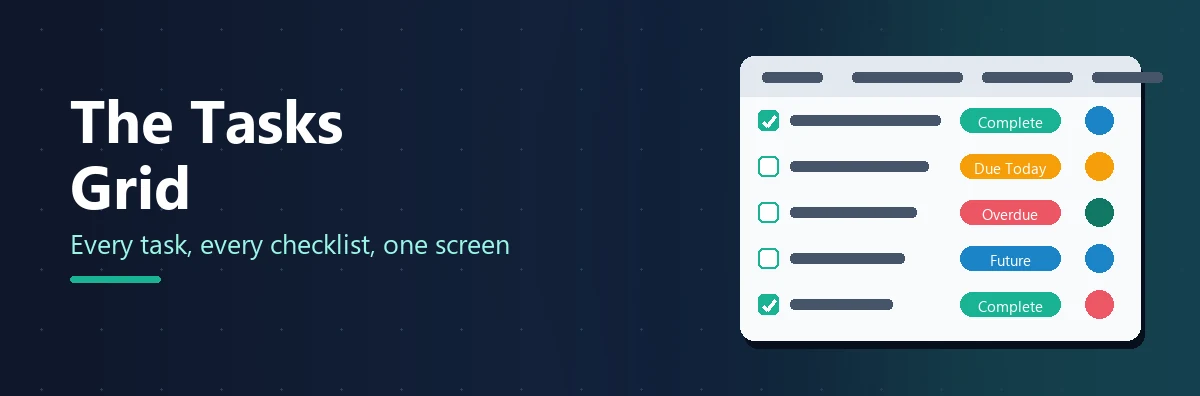
The Tasks grid lists one row per task across every checklist you can see, plus the standalone tasks on your team. Standalone tasks are listed when Show Standalone Tasks is selected in the Templates filter, which sits at the top of both the Templates and Tasks tabs. An unattached task has empty Checklist and Template columns. To see only the one-off jobs, open the Templates filter, click Deselect All, and tick Show Standalone Tasks on its own. A standalone task is never Halted, attached or not, because a halt only ever holds up a checklist's own tasks.
Analytics
In Analytics, an unattached standalone task belongs to no template, so these tasks are grouped into a single Standalone Tasks row at the bottom of the By Template table, where Tasks and Overdue % are counted as normal and the checklist columns show a dash. They are dated by when the task was created rather than by a checklist start. Applying a Templates or Tags filter removes the row entirely, because there is nothing for those filters to match. In the Bottleneck Tasks table a standalone task always has an Occurrences of 1, since it exists only once.
Webhooks
The task_completed webhook fires for a standalone task like any other. For a task that is not attached to a checklist, the checklist and template objects in the payload are sent in full but empty — checklistKey and templateKey read as null — so a handler that reads checklist.checklistName still finds the property. A subscription scoped to a template never fires for such a task; use a team-wide subscription to receive them.
Permissions
| Action | Who can do it |
|---|---|
| Open the Tasks grid | Administrator or Member. Guests are sent to their own dashboard instead. |
| Create a standalone task | Administrator, or Member with Task.Creator |
| Edit or delete a standalone task | Administrator, or the Member with Task.Creator who created it |
| Attach a task to a checklist, move it or detach it | Administrator, or Member with Task.Creator and Task.Attacher |
| Complete, snooze or reassign a task | Anyone who can see it — unless Only Assignees Can Complete This Task is set, in which case its assignees and Administrators only |
One detail catches people out. The + button itself only appears for someone who can create something with it, so a Member who holds Task.Creator and nothing else will not see it. Grant Checklist.Creator, Template.Creator or Schedule.Creator alongside Task.Creator and the button, and the Task entry under it, appear. Task.Creator, Task.Attacher and the other task permissions are all part of the default set a new Member receives, so for most teams this only comes up when permissions have been trimmed by hand.
Standalone Task vs Single-Task Template vs To-Do App
If you have been tracking one-off work another way, here is how the three options compare.
| Separate to-do app | Single-task template | Standalone task | |
|---|---|---|---|
| Visible next to checklist work | No — two lists, two tools | Yes, but as a checklist | Yes, on the same grid |
| Effort to raise | Low | High — build, save, run | Low — one dialog |
| Leaves clutter behind | In another tool | A template that never runs again | Nothing |
| Assignees notified and chased | Depends on the app | Yes | Yes |
| Can join a running checklist | No | No | Yes — attach it |
| Counted in Analytics | No | As a template of its own | In the Standalone Tasks row |
| Conditional logic and dynamic values | No | Yes | No — build a template |
The single-task template still has a place: work that happens once but needs the full template toolkit. For everything else that used to leak out into another tool, the standalone task is the answer. Standalone tasks, along with the Tasks grid, saved views, snooze and bulk actions, are included on the Business plan at $10 per user per month, or $9 on annual billing — see pricing.
One List for All Your Work
Stop keeping the one-off jobs in a different tool from the processes. Raise them in CheckFlow, assign them, and see everything due today on one screen.
Start free trial Book a DemoFrequently Asked Questions
Do I need a template to create a task in CheckFlow?
No. A standalone task is raised from the + button in the navigation bar in a single dialog, with no template behind it. Only the task name is required. You can add a rich-text description, subtasks and files, then set assignees, a due date and tags. Creating a standalone task needs the Task.Creator permission, which every Member has by default.
Who can see a standalone task?
While it is unattached, everybody on the team can see it on the Tasks grid, whatever their template permissions, because there is no template to permission it by. Once it is attached to a checklist it follows that checklist's permissions instead. Seeing a task and being able to work it are different things: a task assigned exclusively to somebody else is visible but inert for everyone but its assignees and Administrators.
Does anyone get notified when I raise a standalone task?
Everybody you assign is notified when the task is created, by email and in Slack if the Slack integration is connected, with the task's details and a link to it. Assigning a group notifies every member. A task with no assignees tells nobody until it goes overdue, at which point CheckFlow emails every Administrator on the team.
Can I add conditional logic or dynamic values to a standalone task?
No. Conditional logic, dynamic values, template parameters and halt tasks are template features, and a standalone task has no template. A standalone task holds a description, subtasks and files, each at most once. If the work needs rules, build it as a template in the template designer and run it as a checklist.
Can I delete several standalone tasks at once?
Yes. Select the rows on the Tasks grid with Shift or Ctrl click, open the actions menu and choose Delete Selected Tasks. The confirmation lists every selected task and whether it will be deleted or skipped: you can delete the standalone tasks you created, an Administrator can delete anyone's, and a checklist's own tasks are always left alone. Deletion is immediate and cannot be undone.
How do standalone tasks appear in Analytics?
Unattached standalone tasks are grouped into a Standalone Tasks row at the bottom of the By Template table, dated by when each task was created, with task counts and overdue percentage but no checklist figures. Selecting any Templates or Tags filter removes them from the dashboard, because they have no template or tag to match. A task attached to a checklist is reported under that checklist's template instead.