The onboarding checklist completed on Tuesday. Every step ticked, every sign-off recorded. On Wednesday the client emailed to ask when the DNS migration they had requested on the kickoff call was going to happen. Nobody had forgotten it, exactly. It was in someone's notes. It just was not in the checklist, so the checklist did not know the job was still open.
Templates are rigid on purpose. A template says what a process is, every run of it looks the same, and that is what makes the record auditable and the analytics meaningful. But real runs have exceptions. A client asks for something extra. An auditor raises an action. A change goes through and needs a verification step that only this change needs. Until now there were two ways to deal with that, and both were bad. You could edit the template, which creates a new version and changes every future run for the sake of one. Or you could track the extra somewhere else, which is how a checklist ends up complete while the work it represents is not.
Attached tasks give you a third way. Raise a standalone task and attach it to the running checklist it belongs to. The task sits with that run, counts toward its progress, inherits its permissions and shows up in its reports — and the template is never touched. This guide covers what attaching changes, the three ways to do it, the setting and permissions behind it, what deliberately does not follow the task onto the checklist, and where teams use it.
What Is an Attached Task?
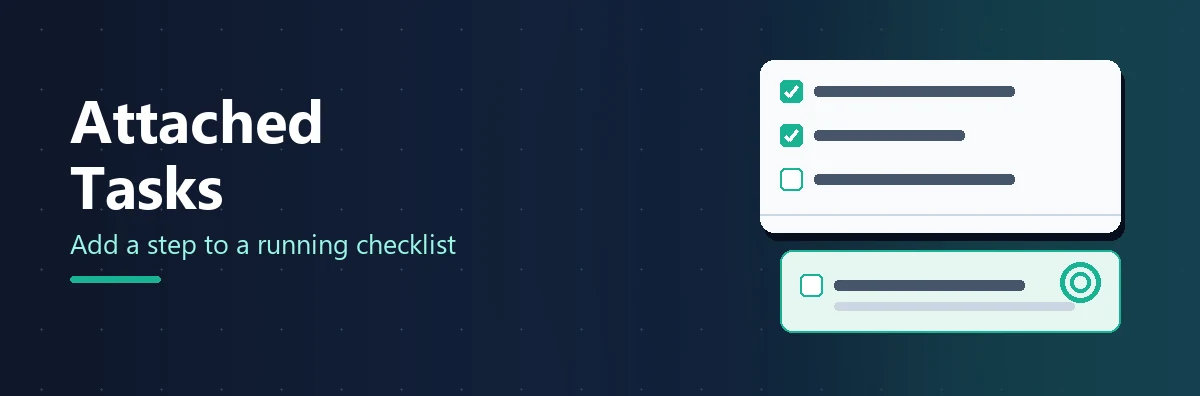
Definition: An attached task is a standalone task linked to a checklist that is already running. It is listed under Attached Tasks at the bottom of that checklist, numbered separately from the checklist's own tasks and marked with a paperclip. It is still a standalone task — edited from its own editor, with its own tags — but it is worked, counted and permissioned as part of the checklist for as long as it is attached.
The distinction to hold onto is between what the task is and what it belongs to. A checklist's own tasks were defined on the template and are reproduced in every run. An attached task was raised by a person for this run alone. Attaching never moves it onto the template: the template it now shows on the Tasks grid is the one its checklist came from, not one it came from itself, and the other checklists running from that template are unaffected.
Because it is a standalone task, it carries what a standalone task carries — a name, assignees, a due date, a rich-text description, subtasks and files — and not what a template task can carry. Conditional logic, dynamic values, parameters and halt tasks do not apply to it. If the extra step needs any of those, it is a template change, not an attachment.
What Changes the Moment You Attach
Attaching is a small action with a long list of consequences, and every one of them is the reason to do it rather than track the work elsewhere.
- The task appears on the checklist, under Attached Tasks at the bottom, with the same checkbox, due badge, comment count and assignee avatars as any other task. Anybody with the checklist open sees it arrive without reloading.
- It counts toward completion. The task is added to the progress bar and the completed count, and the checklist is not complete until the task is done or marked not applicable. A checklist that had already completed reopens when an open task is attached to it.
- It is in the printed view and the share link, listed under the same Attached Tasks heading, and it is included in the task figures on Reports.
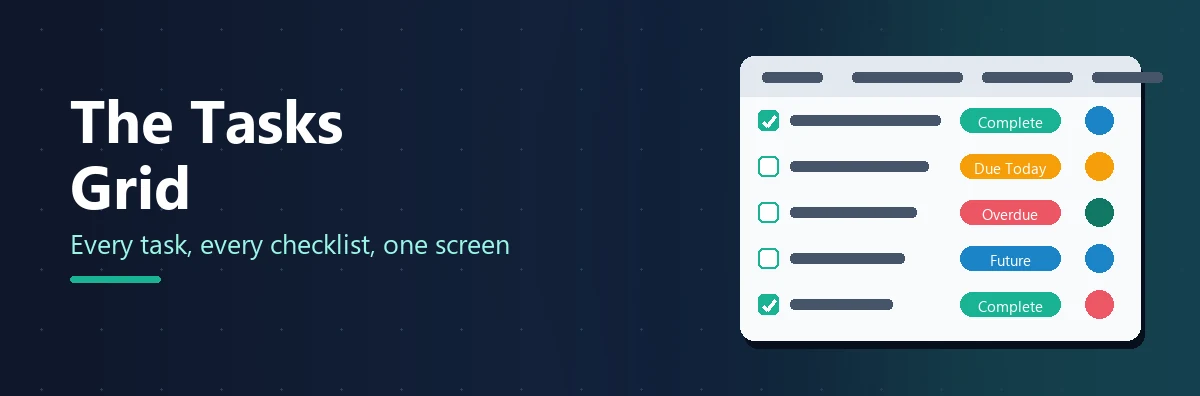
- The Tasks grid fills in the Checklist and Template columns, and the task is listed for anyone who has that template selected in their Templates filter, not only under Show Standalone Tasks.
- Analytics moves it. It is reported under the checklist's template rather than in the Standalone Tasks row, it is scoped by the checklist's dates rather than by its own creation date, and the Tasks detail grid names the checklist followed by "(attached)".
- Visibility narrows. An unattached standalone task is visible to everybody on the team. Once attached, the task follows its checklist and is listed only for the people that checklist's permissions admit.
- The activity feed records it. Attaching and detaching are both written to the checklist's activity feed, so the history of the run shows when the extra step arrived and who added it.
- The task gains an Edit / Delete Task button on the checklist page, for its creator and for Administrators, so it can be changed without going back to the grid.
The visibility change is the one to think about before you attach. If the person who raised the task is not admitted by the checklist's permissions, they will lose sight of the task on their own grid the moment they attach it. That is correct behaviour — the task now belongs to the run — but it surprises people the first time.
Three Ways to Attach a Task
Which route you use depends on where you are standing when the extra work comes up.
From the checklist, when you are already looking at it
Open the checklist and scroll to Attached Tasks at the bottom of the task list. Click the + button beside the heading and the Create and Attach Task dialog opens. Fill in the task — only Task Name is required — and click Create Task. This dialog has no template or checklist choice, because the task attaches to the checklist you opened it from. It is the quickest route, and the one most people use for a request that comes up mid-run.
From the + menu, when you know where it belongs
Click the + button in the navigation bar, choose Task, and fill in the task as usual. Switch Attach Task to an Existing Checklist on; the Template list loads. Choose the template, then choose the checklist from the list that appears, and click Create Task. The Template list holds only templates you can see that have attached tasks enabled. The Checklist list holds every checklist running from that template, complete or not, but not archived ones.
From the Tasks grid, for a task that already exists
A task raised on its own can be attached later, moved to another checklist, or detached again. Open it from the Tasks grid side panel and click Edit / Delete. The editor carries the same Attach Task to an Existing Checklist switch: turn it on and choose a template and checklist to attach or move the task, or turn it off to detach it and leave it standing alone. Click Update Task. Attaching, moving or detaching changes the progress of every checklist involved, and is recorded on each of their activity feeds.
Whichever route you take, the task appears under Attached Tasks numbered separately from the checklist's own tasks and marked with a paperclip, and the checklist's completion is recalculated immediately.
The Template Setting
Every template has a setting called Tasks Can Be Attached. It is on by default for every template, so most teams never need to touch it. It exists for the processes where an ad-hoc addition would be a problem — a regulated procedure where every step must come from the approved template, say — and turning it off keeps those runs exactly as designed.
To change it, open the template in the Template Designer, click Settings in the top right, click Tasks Can Be Attached so the tick appears or disappears, and click Save Changes. You need to be an Administrator or hold the Template.Creator permission.
Saving creates a new version of the template, which has a consequence worth knowing. Checklists already running carry on with the setting they were created from, so switching attached tasks on does not reach an open checklist until that checklist is updated to the latest version. Equally, a template with the setting off is filtered out of the Template list in the attach dialog rather than shown greyed out, which is why the list can look shorter than you expect.
Turning the setting off hides the whole section. Switch Tasks Can Be Attached off and every checklist on that version of the template loses its Attached Tasks section — tasks included. The tasks are not deleted and stay on the Tasks grid, but nobody can reach them from the checklist until the setting is switched back on. If a checklist stopped counting as complete or an attached task seems to have vanished, this setting is the first thing to check.
Permissions
Two permissions are involved, and they do different jobs. Task.Creator raises the task. Task.Attacher is what lets you attach it, move it between checklists, or detach it. Administrators hold both implicitly, and both are in the default set every new Member receives.
Without Task.Attacher the attach controls are not shown at all, rather than shown and then refused. The + button beside Attached Tasks is missing, and the switch is absent from the task dialog and the editor. Everything else still works: a Member without the permission can raise a standalone task and edit one, they just cannot change what it is attached to.
Losing the permission detaches nothing. Tasks already attached stay on their checklists, everybody who can see the checklist still works them as normal, and whoever raised one can still edit it. The attachment is simply fixed until somebody who holds the permission moves it. Editing an already-attached task does not require Task.Attacher either, because the attachment comes back unchanged.
| Action | Who can do it |
|---|---|
| Raise a standalone task | Administrator, or Member with Task.Creator |
| Attach a task to a checklist, move it or detach it | Administrator, or Member with Task.Creator and Task.Attacher, on a template with Tasks Can Be Attached switched on |
| Edit or delete an attached task | Administrator, or the Member who created it |
| Turn Tasks Can Be Attached on or off for a template | Administrator, or Member with Template.Creator |
| Complete an attached task | Anyone who can see the checklist — unless the task is assigned exclusively, in which case its assignees and Administrators only |
What Attaching Does Not Do
Attaching puts a task with a checklist. It does not put the task in the checklist's running order, and three things follow from that.
It is never halted. A halt task blocks the tasks that come after it in the checklist. An attached task has no place in that sequence, so a halt earlier in the checklist does not hold it up, and completing an attached task does not release anything held behind a halt. If a task must wait for an approval, it belongs in the template.
Dynamic due dates do not reach it. A template task can have its due date counted from another task's completion or from a date control. An attached task has a due date of its own, set when it was raised or edited, and nothing in the checklist moves it.
It never edits the template. Attaching a task to a checklist does not add a step to the template or to any other checklist running from it. Ten runs of the same template can each carry different attached tasks, and the eleventh run starts clean. If you find the same task being attached to every run, that is the signal to add it to the template properly.
One more thing to expect: a standalone task is created with Only Assignees Can Complete This Task switched on, so an attached task assigned to one person is greyed out for everybody else on the checklist. That is usually right. If it is not, click the reassign icon on the task and untick the box so anyone on the run can complete it.
Archiving, Deleting and Moving
An attached task has two lives — its own and its checklist's — so it is worth knowing what happens when the checklist changes state.
| What happens to the checklist | What happens to the attached task |
|---|---|
| Archived | The task disappears from the Tasks grid along with the checklist's own tasks; the attachment is kept. Restore the checklist and the task comes back. |
| Deleted | The task is not deleted. It loses the attachment and carries on as an unattached standalone task, visible to the whole team and still editable from the Tasks grid. |
| Updated to a newer template version | Nothing. The task is not part of the template, so a version change does not touch it — unless the new version has Tasks Can Be Attached switched off, in which case the section is hidden. |
| Completed by its own tasks | The checklist is not complete while the attached task is open. Complete the task, mark it not applicable, or detach it. |
Going the other way, deleting an attached task changes its checklist's progress and is recorded on that checklist's activity feed. Moving a task from one checklist to another settles both: the one it came off is recalculated and may complete, the one it went onto is recalculated and may reopen.
See Attached Tasks on Your Own Checklists
Start a checklist, press + under Attached Tasks, and watch the progress bar change. Free trial, no credit card required.
Start free trial See the Tasks FeaturesFive Scenarios
Every one of these is the same shape: a process is running, something comes up that belongs to this run and no other, and the run must not close until it is done.
Client onboarding: "can you also migrate our DNS?"
The canonical case, and the one that started this article. Northwind's onboarding checklist is running from the standard template. On the kickoff call the client asks for a DNS migration that is not part of the standard service. The account manager opens the checklist, presses + under Attached Tasks, raises "Migrate Northwind DNS to our nameservers" with the zone file attached, and assigns it to the engineer on the account. The onboarding cannot complete until the migration is done, the client's request is on the record in the activity feed, and the onboarding template is exactly as it was.
Change management: the verification step the CAB asked for
A change request goes to the change advisory board, which approves it on one condition: after the deployment, someone must confirm that the replication lag has returned to normal. That is not a standard step, and adding it to the template would impose it on every change. The change owner attaches "Confirm replication lag under 5 seconds" to this change's checklist, assigned to the DBA, due an hour after the deployment window. The change record shows the condition and who met it.
Month-end close: this month's one-off accrual review
The close checklist runs every month from the same template. This month, finance has been asked to review a disputed accrual before the numbers are released. The controller attaches "Review Q3 marketing accrual with the FD" to September's close, with the supporting spreadsheet as a file. October's close will not carry it. The audit trail for September shows exactly why the close took a day longer.
Property inspection: the repair found on the walk-round
A quarterly inspection checklist turns up a cracked fire door in Unit 4. The inspection is a recurring process and the repair is a one-off, but the inspection should not be signed off as complete while a fire safety defect is open. The inspector attaches "Replace fire door, Unit 4" with a photo, assigned to the contractor group, and the inspection stays open until the contractor completes the task. When the repair is done, the inspection completes, and the evidence is in one place.
Employee onboarding: the role-specific extra
Every new starter runs the same onboarding checklist. One of this month's starters is joining the finance team and needs an anti-money-laundering course that nobody else does. HR attaches "Complete AML foundation course" to that starter's onboarding, assigned to the starter with a due date at the end of week two. The onboarding for that person is not complete until the course is, and the template stays generic for the next starter in marketing.
Attach a Task, or Change the Template?
The mistake to avoid in both directions is using the wrong tool for how often the step recurs. Here is the decision in one table.
| How often does this step come up? | Do this | Why |
|---|---|---|
| Once, for this run | Attach a standalone task | The run stays open until it is done, the template stays clean, and no other run is affected. |
| Every run | Add the task to the template | It is part of the process. Every future run gets it, it can carry controls and rules, and it is reported as a template task in Analytics. |
| Some runs, depending on an answer | Add it to the template with conditional logic | The step appears only when the condition is met, so the template stays right for every run without anyone having to remember to attach it. |
| Once, but it needs a halt, a dynamic value or a required field | Add it to the template, or run a separate checklist | An attached task cannot carry template features. If the extra step needs them, it has outgrown a standalone task. |
A practical signal: if you notice the same task being attached to run after run, that is your process telling you it has a new step. Open the template, add it, and stop attaching it. The Bottleneck Tasks breakdown in Analytics will not group attached tasks the way it groups template tasks, because each is its own task, so recurring attached work is also easier to spot in the Tasks detail grid than in the aggregates.
Run the Process. Handle the Exception. Keep the Record.
Attached tasks let every run carry what it needs without bending the template. Try them on your next onboarding, change or close.
Start free trial Book a DemoFrequently Asked Questions
Does an attached task count toward checklist completion?
Yes. From the moment it is attached, the task is added to the checklist's progress bar and completed count, and the checklist is not complete until the task is completed or marked not applicable. Attaching an open task to a checklist that had already completed reopens it. That is the point of attaching: an extra step raised during a run cannot be forgotten, because the run stays open until it is done.
Can I detach a task later, or move it to a different checklist?
Yes, from the task's editor in the Tasks grid side panel. Switch Attach Task to an Existing Checklist off to detach the task, or leave it on and choose a different template and checklist to move it. You need the Task.Attacher permission. Moving or detaching recalculates the completion of every checklist involved and is recorded on each activity feed.
Who can see an attached task?
The people the checklist's permissions admit. An unattached standalone task is visible to the whole team because it has no template to be permissioned by; once attached, it follows its checklist and disappears from the Tasks grid of anyone that checklist does not admit. Administrators see everything. On the checklist page, a Guest sees an attached task only if it is assigned to them.
Does attaching a task change the template?
No. Attaching never edits the template or any other checklist running from it. The task is still a standalone task, edited from its own editor, and the template it shows on the Tasks grid is its checklist's template, not one it came from. If the same task keeps being attached to every run, add it to the template instead.
Why can't I see the Attached Tasks section on a checklist?
The template version that checklist runs on has Tasks Can Be Attached switched off. Switch it on in the template's Settings menu and update the open checklist to the latest version. If the section is there but the + button beside it is missing, you do not hold the Task.Attacher permission; ask an Administrator to grant it.
How does an attached task appear in webhooks and Analytics?
An attached task is reported against its checklist and that checklist's template, so the task_completed webhook payload carries both objects populated and a template-scoped subscription fires for it. In Analytics it is counted under the checklist's template, scoped by the checklist's dates, and the Tasks detail grid names the checklist followed by "(attached)". Only a task attached to nothing lands in the Standalone Tasks row.