"What's due today?" used to be a five-screen question. You opened each running checklist in turn, scanned for your name, added it up in your head, and by the time you had checked the last one the first had changed. The Tasks grid answers it on one screen — for you, for a colleague, or for the whole team.
The Tasks grid is the Tasks screen in CheckFlow's left-hand navigation. It lists one row per task across every checklist you can see, plus the standalone tasks on your team, and it is where most people work from day to day. It is not a report and it is not a dashboard. It is a working surface: you filter it, sort it, complete tasks on it, reassign them, snooze them, and open any one of them in a side panel without leaving the list.
Two things make it more than a list. First, it enforces the same rules the checklist page does — required fields, exclusive assignment, halts — so completing a task from the grid is exactly as safe as completing it from the checklist. Second, it stays live: when somebody else completes a task, reassigns it or starts a checklist, your grid changes without a reload. This guide walks the whole screen from the columns to the bulk actions, then turns it into eight recipes you can save as views.
What the Grid Shows
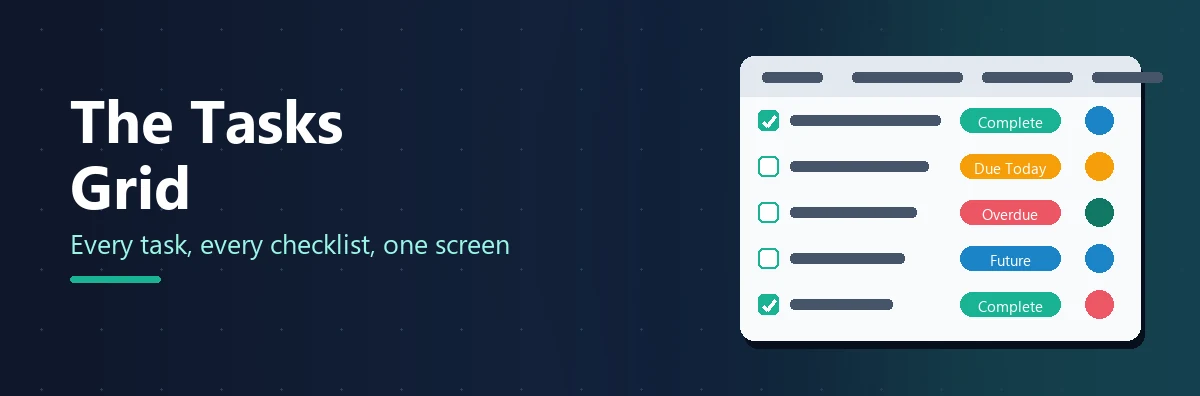
Everything on the screen narrows the same list: the view selector at the top left, the three filters beside it, and the search box above the grid. Each row is one task, with these columns.
| Column | What it shows |
|---|---|
| Open | The chevron that opens the task in the side panel. Click it again to close. Empty on a task you cannot work on. |
| Task | A checkbox that completes or uncompletes the task where it sits, then the task name, with a snooze icon that appears when you hover over the row. |
| Status | The task's current status — one of the eight below. |
| Due | The due date and time, in your own time zone. Empty when the task has no due date. |
| Checklist | The checklist the task belongs to, linking through to it. Empty for an unattached standalone task. |
| Template | The template that checklist came from, linking through to it. Empty for an unattached standalone task. |
| Assignees | An avatar per assignee, and a reassign icon. Empty when nobody is assigned. |
| Comments | The number of comments on the task. Empty when there are none. |
| Tags | The tags on the task, one label each. |
Drag a column heading sideways to reorder the columns. The order is for the current session only; it is not kept when you reload, and a saved view does not record it. Above the grid, Copy, CSV, Excel, PDF and Print export what is currently listed, respecting the filters, the search text and the column order, with the file named after the view you are on.
The Eight Statuses, and the One Rule That Picks Them
A task has exactly one status at a time. Knowing how it is chosen explains most of what the grid does when you filter it.
| Status | Meaning |
|---|---|
| Incomplete | Open, with no due date. |
| Due In Future | Open, due after the end of today. |
| Due Today | Open, due before the end of today — your own day, in the time zone set on your profile. |
| Overdue | Open, and past its due date. |
| Complete | Completed. |
| Not Applicable | Marked not applicable. |
| Snoozed | You have snoozed it. Hover for the time it comes back, or click to end the snooze. |
| Halted | Blocked behind a halt task earlier in the same checklist that is not yet complete. |
The status is worked out from the bottom of that table up. Halted wins over everything; then a snooze; then Not Applicable; then Complete; then the three due-date states; and a task with no due date at all is Incomplete. So a snoozed task that goes overdue while it is hidden shows as Snoozed, not Overdue, until the snooze ends, and a completed task never shows as Overdue however late it was.
Due Today means your today. The day boundary is worked out in the time zone on your profile, not the server's, so a task due at 11pm your time is Due Today for you and may be Due In Future for a colleague three hours behind. It is the only status two people can honestly disagree about, and it is right for both of them.
A standalone task is never Halted, attached or not. A halt only ever holds up a checklist's own tasks, and an attached task has no place in the checklist's running order.
The Three Filters
Three filters sit beside the view selector. Each is a multi-select with a search box and Select All / Deselect All, and the grid reloads when you close a filter rather than as you tick each entry.
Templates, or Tasks
The first filter has two tabs, and only the tab that is open when you close the filter applies. On the Templates tab, tick a template and every task of every checklist run from it is listed. On the Tasks tab, those same templates' tasks are listed grouped under the template each belongs to; tick a task and that task is listed from every checklist run from its template, and nothing else from those checklists is. That is the trick for "Sign off the invoice, across every run of Month End": one task, every run, nothing in between.
The other tab keeps whatever you ticked on it but has no say in what the grid shows until you switch back. The filter's button always says which is in force — All Templates or 3 Templates on one tab, All Tasks or 3 Tasks on the other. Show Standalone Tasks sits at the top of both tabs and is one setting shared between them; on the Tasks tab it is the only thing that lists standalone tasks, because they have no template task behind them.
Assignees
Which people and groups a task must be assigned to, plus Show Unassigned Tasks, which adds the tasks nobody is assigned to. Ticking a group lists tasks assigned to the group itself, which is how a shared queue shows up.
Statuses
The eight statuses above. Because a task holds exactly one status, the ticks never overlap: unticking Overdue takes the overdue tasks out and leaves everything else where it was, and unticking all eight leaves the grid empty. The filter keeps applying as work goes on, so a task whose status changes to one you have not ticked leaves the grid where it stands.
Beneath the filters, the Search box narrows the rows to those matching the text across every column shown. Click a column heading to sort by it and again to reverse it; a task with no due date is held at the bottom of the Due column whichever way it is sorted. Display n tasks per page offers 25, 50, 100, 250 and All, defaults to 100, and remembers your choice in the browser you set it in.
Saved Views
A view saves the templates or tasks, assignees, statuses, search text and sort order currently set on the grid under a name, so you can return to that combination in one click. CheckFlow supplies five to start from.
| System view | Assignees it holds | Statuses it holds |
|---|---|---|
| All Open Tasks | Everyone, including unassigned tasks | Incomplete, Due In Future, Due Today, Overdue |
| All Due Tasks | Everyone, including unassigned tasks | Due In Future, Due Today, Overdue |
| My Open Tasks | You | Incomplete, Due In Future, Due Today, Overdue |
| My Due Tasks | You | Due In Future, Due Today, Overdue |
| Snoozed Tasks | Everyone, including unassigned tasks | Snoozed |
All five filter by template rather than by task, include every template plus standalone tasks, and sort by Due, soonest first. They cannot be edited, renamed or deleted. My Open Tasks is what loads when you have not set a default. The difference between the Open and Due views is worth noticing: All Open Tasks includes Incomplete, so it lists tasks with no due date at all, whereas All Due Tasks leaves Incomplete out and lists only the tasks that have one.
Saving your own
Set the grid up the way you want it
Set the Templates filter — on its Templates tab or its Tasks tab — and the Assignees and Statuses filters, type any search text, and sort by the column you want the view to open on.
Save it, and decide who sees it
Click Save above the grid. Type a name in the View Name box, choose Create New View or Update Existing View, and choose the visibility: Private (you only), Users & Groups (people and groups you pick), or Entire Team. Anyone can save a private view; sharing needs the Tasks.View.Creator permission, without which the two sharing options are greyed out.
Bookmark it, or make it your default
The view appears under Custom Views in the views dropdown at the top left, and its address becomes /Work/{view key}, so you can bookmark it or send the link to anyone who can see it. Hover over any view in the dropdown and click the bookmark icon to make it your default; it then loads every time you open the Tasks screen. The default is yours alone.
A view remembers which tab of the Templates filter was open and what is ticked on each, the Show Standalone Tasks setting, the Assignees and Statuses ticks, the search text, and the sort column and direction. It does not remember column order. A view saved with every template ticked means all of them, so templates added later are included the next time the view loads; a view saved with particular tasks ticked keeps exactly those. You can edit or delete a view you created, or any view if you are an Administrator, and deleting a shared view takes it away from everyone who has it.
Snooze
Snoozing hides a task from your own grid until a time you choose, so a long list comes down to what you can act on now. A snooze is yours alone — the task carries on as normal for everybody else. Hover over a row, click the snooze icon that appears beside the task name, and pick an option; each one shows the exact time it works out to.
| Option | When the task comes back |
|---|---|
| Later today | Two hours from now |
| Tomorrow | 8:00 am tomorrow |
| Later this week | 8:00 am on Thursday if today is Monday or Tuesday, Friday if it is Wednesday, Saturday if it is Thursday, and Sunday if it is Friday. Not offered at the weekend. |
| Next week | 8:00 am next Monday |
| Pick date and time | Whatever you choose in the calendar |
The task drops out of the grid immediately — unless Snoozed is one of the statuses your view shows, in which case the row stays put and its status changes to Snoozed. To bring a task back early, show snoozed tasks and click the row's Snoozed badge; hovering over it first tells you when the task would have returned on its own. The Snoozed Tasks system view lists everything you have snoozed.
What a snooze does and does not do:
- It applies to you only. Nobody else's grid changes, and nobody is told.
- It hides, it does not defer. The due date is untouched, so a snoozed task still goes overdue on time and still turns red when it comes back.
- Overdue emails still arrive. The daily overdue reminder does not check snoozes.
- It ends by itself. The task reappears at the time you set, with no action from you.
- It survives an edit. Changing the task, its assignees or its due date does not clear a snooze.
- It does not stop the work. Anyone else can still complete, comment on or reassign the task while it is hidden from you.
Snoozing is available on the Tasks grid only, not inside a checklist, and a task assigned exclusively to somebody else has no snooze icon.
Complete Inline, or Open the Side Panel
Every row carries a checkbox at the start of the Task column. Tick it to complete the task, and untick it to uncomplete the task again, without opening anything. It is the quickest way through a run of simple tasks — the ones that only need ticking off. The checkbox does exactly what Complete Task in the side panel does, checked by the server in the same way:
- Required controls are enforced. If the task has a required control that is not yet answered, the checkbox goes back to unticked, a message tells you, and the task opens in the side panel so you can answer it there.
- Exclusive assignment is enforced. A task with Only Assignees Can Complete This Task set is refused for anybody but its assignees and Administrators.
- Everything completion causes still happens. The assignees are notified, a dynamic due date counted from the task is worked out, and completing a halt task releases the tasks held up behind it.
- The row follows your status filter. Complete a task on a view that does not list Complete tasks and its row leaves the grid at once.
A task marked Not Applicable shows a dash in the box rather than a tick and cannot be changed from the grid; open it and click Mark Applicable in the side panel. If somebody else completed the task a moment before you clicked, the row reloads to show what they did and nothing else changes.
The side panel
Click the chevron in the Open column and the task opens in a panel on the right without leaving the grid. The panel holds the task name, its checklist if it has one, its assignees, its due date, its controls, its Task Tags box and its comments and activity — the same task you would see inside the checklist. From the panel you can answer the task's controls, including ticking off its sub-tasks; click Complete Task, Uncomplete Task, Mark Not Applicable or Mark Applicable; change the assignees and the due date; tag the task; and add comments and attachments. A standalone task opens with an Edit / Delete button beside the panel's title.
Controls that reach beyond the task still work from the panel. The panel holds one task rather than the whole checklist, but answering a control that affects the rest of the checklist does what it would do on the checklist page:
- A Dropdown or Multi-Choice linked to a Data Set offers the same records and fills in the fields bound to the record you pick, wherever on the checklist they sit.
- A Members control works out the dynamic assignments that read it, so the tasks it decides change hands and the people put on them are notified.
- A Date & Time control counts the due date of every task whose dynamic due date is anchored to it.
- A Mail-To control sends, after the same confirmation as the checklist page.
- A Linked Checklist control creates the child checklist and lets you complete its tasks from the panel.
Completing a task from the panel also does what completing it on the checklist page does to the rest of the checklist, including releasing tasks behind a halt. There is no bulk complete action, because completing a task can mean answering its controls first.
Bulk Actions
You can act on several tasks at once rather than opening each one. Click a row to select it; hold Shift and click another to take everything between the two; hold Ctrl and click to add or remove single rows. The actions button counts what you have — 1 Task Selected, 12 Tasks Selected — and its menu offers Select All, which takes every row matching the current search and filters across all pages, and Unselect All. Clicking the chevron in the Open column opens the side panel instead of selecting the row, so you can look at a task without losing your selection.
Three things can be done to a selection.
Snooze Selected Tasks and End Snooze on Selected Tasks apply a snooze, or end one, for all of them at once, with the same quick options and the same times as a single snooze. Both apply to you alone.
Reassign Selected Tasks opens a dialog where you pick the people and groups, then click Reassign Tasks. The new assignees appear in the Assignees column straight away, and anybody else with the grid open sees the change without reloading.
Reassign replaces, it does not add. The assignees you choose replace the existing assignees on every selected task, so a task assigned to somebody who is not in your selection loses them. And Only Assignees Can Complete This Task is ticked by default and applied to every task you selected, so tasks that anyone could complete before become restricted to the new assignees unless you untick it. Check both before you click Reassign Tasks.
Delete Selected Tasks deletes the standalone tasks in your selection, and the confirmation is the useful part. It lists every task you selected — not only the ones about to go — with an Action of Delete or Skip and the reason: you created this task, you are a team administrator, created by somebody else and only an administrator can delete it, or belongs to a checklist and is deleted with it. A selection holding a mixture is not refused; everything you may delete is deleted and everything else is left exactly as it was. Deletion is immediate and there is no undo.
Three things cannot be done in bulk: completing tasks, because each may need its controls answered first; changing due dates; and tagging, which is done one task at a time from the side panel.
What You See, and What You Cannot Touch
Which checklists' tasks you are shown is decided by the checklist permissions set on each template.
| Your permission on the template | Whose tasks are listed |
|---|---|
| Run and View, or View But Not Run | Every checklist created from the template |
| Run and View Assigned To, or View Assigned To But Not Run | Only checklists you have a task assigned to |
| Nothing set for you on the template | Treated as View Assigned To But Not Run |
One assigned task opens the whole checklist: if a checklist has work for you anywhere in it, every task on it is listed, not only the ones with your name on. An assignment through a group counts the same as one made to you directly, and so does an assignment on a task attached to the checklist. Administrators see everything. An attached task follows its checklist, and an unattached standalone task is visible to the whole team because there is nothing to permission it by. This is the same rule Reports applies, so the two screens agree about which checklists exist.
Grey rows
Two things leave a task listed but inert, drawn grey with a no-entry cursor. Either it belongs exclusively to somebody else — Only Assignees Can Complete This Task is set and you are not an assignee or an Administrator — or it is Halted behind an unfinished halt task, which applies to everybody including Administrators. On both, the Open column is empty, the checkbox is greyed, the snooze and reassign icons are not drawn, and clicking the row does not select it, so no bulk action reaches it. Hovering over the task name says which of the two applies, and the rule is enforced on the server rather than only in the grid, so reaching the task another way is refused in the same way.
The Grid Is Live
The grid stays current while it is open, and a Real-Time Synchronization indicator in the top bar tells you it is connected. When somebody else completes a task, changes a due date, reassigns it, edits a standalone task, or adds a comment or a file, the affected row reloads on your screen without a refresh. Whole checklists arrive the same way: a checklist started anywhere on the team — by a schedule, by a Linked Checklist control, through the API or from this grid's own side panel — puts its tasks into your grid without a reload. Your view's filters and your checklist permissions are applied first, so only the tasks that belong in your grid go into it.
Changes take rows away as well. A task that no longer matches your Statuses filter drops out of the grid, and the side panel closes if you had it open — which is what happens when somebody else's work puts a halt up in front of a task you were looking at. Conditional logic is kept in step both ways: a rule that fires on somebody's checklist page shows or hides the same tasks here, and a rule that fires from an answer given in this grid's side panel reaches the checklist pages other people have open.
Try the Grid on Your Own Work
Start a free trial, run a couple of checklists, and open the Tasks screen. Everything due, for everyone, on one page. No credit card required.
Start free trial See the Tasks FeaturesEight Recipes
Everything above is more useful as a set of views you save once and return to. Here are eight that cover most teams' days.
1. Group Backlog: everything overdue for one team
Open the Assignees filter, click Deselect All, tick the group. Open the Statuses filter, Deselect All, tick Overdue. Sort by Due, oldest first. Save it as Group Backlog, shared with the group's manager. This is the Monday morning view for anyone who runs a team.
2. Only the one-off jobs
Open the Templates filter, click Deselect All, and tick Show Standalone Tasks on its own. The grid lists standalone tasks and nothing else — the ad-hoc work that used to live in another tool, in one place.
3. One step, across every run
Open the Templates filter, click the Tasks tab, click Deselect All, find the task under its template and tick it. The grid lists that task from every checklist run from the template — every open "Sign off the invoice", say — and you can tick each one off from its row as it is done. Save it as a view for the person who does that step.
4. What nobody has picked up
Open the Assignees filter, click Deselect All, tick Show Unassigned Tasks. Every task waiting for an owner. Pair it with a Reassign Selected Tasks action to hand a batch out at once.
5. Sick-day cover
A colleague calls in sick with fifteen open tasks across eight checklists. Open the Assignees filter and tick only them; open the actions menu and choose Select All; choose Reassign Selected Tasks and pick whoever is covering. Untick Only Assignees Can Complete This Task if the tasks should stay open to the team. One action instead of fifteen.
6. Friday triage
Sort My Open Tasks by Due. Anything you will not get to this week, select it and Snooze Selected Tasks with Next week. Your Monday grid is exactly what it should be, nobody else's changed, and the due dates are where they were.
7. The manager's Monday
Set My Due Tasks as your default with the bookmark icon. Then save a second view — Assignees set to your team's group, Statuses set to Due Today and Overdue, sorted by Due — as Team Due This Week, shared with the Entire Team, so everyone starts the day looking at the same list.
8. Audit prep
Tick one template, tick Halted and Overdue in Statuses, and export to CSV or Excel. That file is every run of the process where a step is either blocked or late, which is exactly the list an auditor or a process owner wants to talk about.
Tasks Grid vs Reports vs Analytics
Three screens show you what is happening, and they answer different questions. Pick the one that matches yours.
| Tasks grid | Reports | Analytics | |
|---|---|---|---|
| One row is | A task | A checklist | An aggregate — a template, a person, a period |
| Answers | What do I, or we, need to do? | Which checklists are in this state, and what did people answer? | How are we doing over time, and where are the bottlenecks? |
| You can act on it | Yes — complete, reassign, snooze, delete | Open the checklist | Drill down, export |
| Saved views | Yes | Yes (Custom Report Views) | No — filters |
| Guests | No | Limited | No |
The Tasks grid and Reports apply the same permission rule, so they agree about which checklists exist. Analytics is the one to open when the question is about the process rather than the work in front of you.
Limits and the Fine Print
- Tasks per page: 25, 50, 100, 250, or all of them. Default 100, remembered per browser. Exports include everything currently listed, not only the current page.
- Saved views per team: no fixed limit.
- Tags: the Tags column lists a task's tags and the side panel tags it, but there is no tag filter and no bulk tag action.
- Guests have no access to the Tasks grid; they are sent to their own dashboard instead.
- Archived checklists are excluded, along with their tasks. Archiving a checklist takes its attached tasks out of the grid too, and restoring it brings them back.
- Tasks hidden by conditional logic are not listed, and neither are headings, which are not tasks.
- Times are local: due dates and snooze times are stored in UTC and shown in the time zone set on your profile, and Due Today is worked out against the end of the day in that zone.
The Tasks grid, saved views, snooze and bulk actions are all included on the Business plan at $10 per user per month, or $9 on annual billing — see pricing.
One Screen for the Whole Day's Work
Filter it, save it, share it, and work from it. The Tasks grid is where your team's day happens.
Start free trial Book a DemoFrequently Asked Questions
Does snoozing a task change its due date?
No. Snoozing only hides the task from your own grid until the time you choose. The due date is unchanged, so the task still goes overdue at the original time, the daily overdue reminder still emails its assignees, and nobody else's grid is affected. When the snooze ends the task reappears on its own, and the Snoozed Tasks system view lists everything you have snoozed in the meantime.
Can I share a saved view with my team?
Yes. When you save a view, choose Users & Groups to share it with chosen people and groups, or Entire Team to publish it to everyone. Anyone can save a Private view; the two sharing options need the Tasks.View.Creator permission. A shared view has its own address under /Work, so you can send the link, and everyone who has it sees the same filters, search and sort order with their own permissions applied.
Why is a row grey and impossible to click?
Either the task is assigned exclusively to somebody else, or it is Halted behind an unfinished halt task earlier in its checklist. Hover over the task name and the tooltip says which. In the first case an assignee or an Administrator can work it, or an assignee can untick Only Assignees Can Complete This Task from the reassign icon. In the second, nothing can be done by anyone until the halt is cleared.
Why did a task disappear from my grid?
Its status changed to one your view does not show. The grid is live, so when somebody completes a task, a halt goes up in front of it, or you snooze it, the row leaves a view whose Statuses filter does not include the new status. The task is still there: switch to a view that lists that status, or add it to the Statuses filter, and the row comes back. If a whole checklist vanished, it was probably archived.
Can I complete several tasks at once?
Not in one action. A task is completed one at a time, from the checkbox in its row or from the side panel, because completing it can mean answering its required controls first, and the checkbox sends you to the panel when it does. Bulk actions cover snoozing, ending a snooze, reassigning and deleting standalone tasks. Ticking down a column of simple tasks is still fast, because each tick completes without opening anything.
Can I filter the grid by tag?
Not with a filter, yet. The Tags column shows each task's tags and the search box matches on tag text, so typing a tag name into Search narrows the rows to tasks carrying it. Tags are applied and removed from the Task Tags box in the side panel, one task at a time. Analytics and Reports both offer a proper tag filter for questions about the process rather than the day's work.
Does the grid include standalone tasks?
Yes. Tick Show Standalone Tasks at the top of the Templates filter and every standalone task on the team is listed alongside the checklist tasks. An unattached standalone task has empty Checklist and Template columns and is visible to everyone; an attached one shows its checklist and template and follows that checklist's permissions. All five system views include standalone tasks by default.