The whole network, assessed
Trigger: an annual schedule or a compliance requirement.
Output: findings and a remediation plan.
Template: Network Security Audit.
No Credit Card Required
Printed from checkflow.io/templates/information-technology/network-upgrade-checklist
This free network upgrade checklist replaces or upgrades switches, firewalls, Wi-Fi or WAN and ISP circuits inside a planned maintenance window. Network engineers, IT teams and MSPs use it for end-of-life replacements, capacity upgrades and new circuits. It covers the site survey and as-built records, configuration backups, staging, change approval, user communications, a cutover with a rollback trigger and a time-box, testing after the cutover, monitoring and documentation updates, and disposal of the old kit.
Network checklists tend to be audits: is the configuration secure, are the rules still needed. A cutover asks a different question. Can you swap a device that everything depends on, in a few hours, with a known way back if it goes wrong? The reviews below are useful inputs to an upgrade, but they are not the upgrade.
Trigger: an annual schedule or a compliance requirement.
Output: findings and a remediation plan.
Template: Network Security Audit.
Trigger: a periodic review cycle.
Output: rules removed, tightened or re-justified.
Template: Firewall Rule Review.
Trigger: end-of-life hardware, a capacity limit or a new circuit.
Output: new kit in service, tested and documented, and old kit gone.
Rollback: the old device, kept ready until the window closes.
Run the rule review before a firewall replacement, not after. Every rule you carry across has to be translated, tested and documented on the new platform, so a replacement is the cheapest moment to drop the ones nobody can justify.
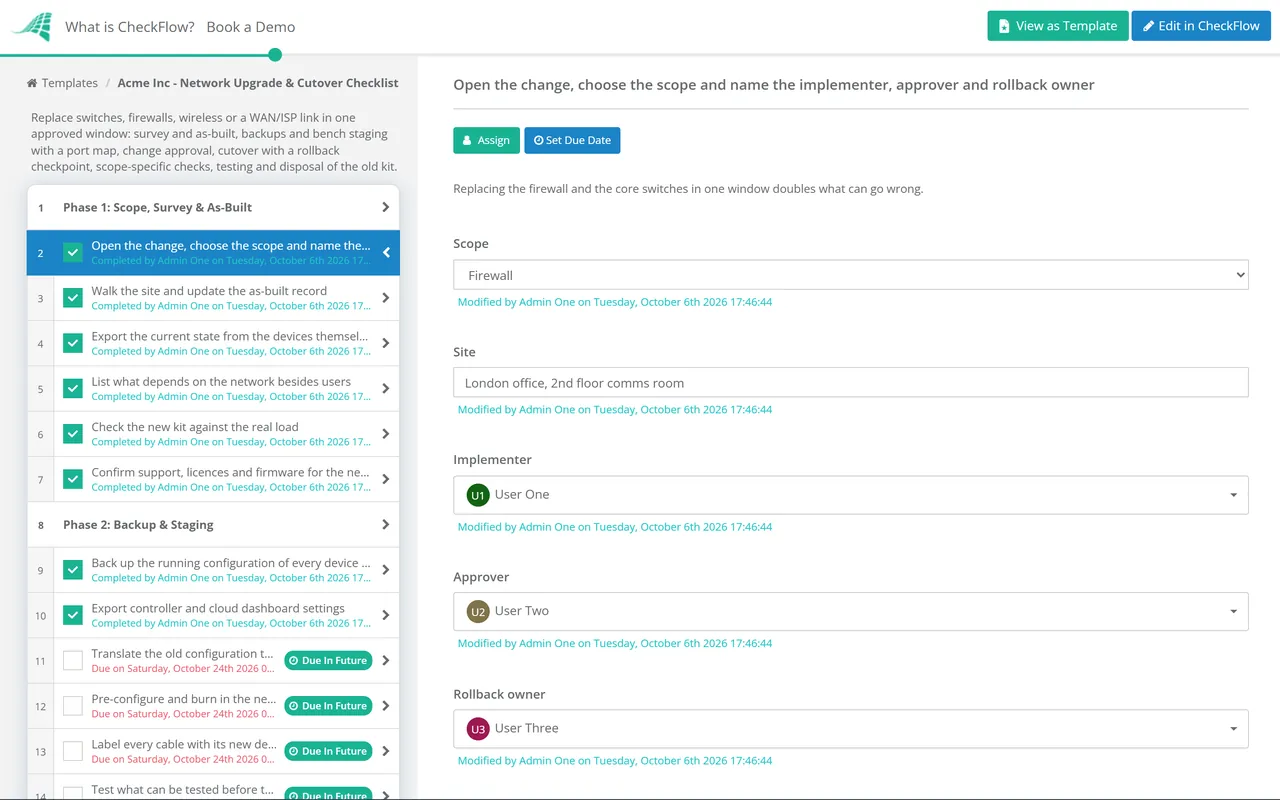
Seven phases take a network change from survey to disposal. The scope chosen on the first task decides which Phase 5 checks appear, the change approval halts the checklist before the window, and a rollback task appears if the trigger is met.
The Scope dropdown on the first task (Switching, Firewall, Wireless or WAN/ISP) shows the matching Phase 5 checks. Changing two layers means two checklists and two windows.
The approver named on the first task records Approved or Not approved on the last task. The checklist halts there, and nothing is unplugged until they decide.
If the checkpoint answer is Yes, the rollback task appears.
Only the tasks matching the Phase 1 scope appear.
The fourth task records whether the old kit is retired or kept as a spare. Retire shows the disposal task.
The rollback trigger and time-box set in Phase 3 only work if they are written as times. This example is for a firewall replacement in a window from 22:00 to 02:00. Adjust the times to your window; the rule is that rollback must start early enough to finish before the window ends.
The change is approved, users and third parties are told, the new firewall has run on the bench with the translated configuration, and spare cables and optics are in the bag.
Fresh configuration backups of every affected device, opened and checked. The implementer, the rollback owner and the ISP contact confirm they are available.
Snapshot the ARP, MAC and route tables, then move the cables in port map order. Clear ARP on the upstream router, or ask the ISP to, if it is their equipment.
Internet access, inbound published services, site-to-site VPN and remote access. Problems found here are fixed forward while there is still time.
If core tests are not all passing, the answer is Yes and rollback starts now. That leaves ninety minutes to reconnect and verify the old firewall; starting at 01:30 would not.
DHCP, DNS, VLAN policy, voice and Wi-Fi from Phase 6, plus any service the business owners asked to see working before morning.
Monitoring alerts back on and the result recorded. Someone who did the change is available when the first users arrive, because that is when the edge cases appear.
The change approval is assigned to the approver picked on the first task, and the checklist halts until they decide. At the checkpoint, the rollback answer is a dropdown: record Yes and the rollback task appears, assigned to the rollback owner.
The scope dropdown shows the switching, firewall, wireless or WAN checks and hides the rest. A table inside the staging task holds the port map, one row per patch lead, and a data set keeps your sites and devices consistent across changes.
Configuration backups, test results and updated diagrams attach to the tasks they prove. The audit trail shows who moved what and when, and tags keep each client or site separate for MSPs running changes across many networks.
Every cutover is a normal change, raised and closed through the IT Change Management Checklist. CheckFlow’s change management checklist software shows how approvals and halts work across IT changes, and the IT change management guide covers the process in depth.
DNS records that change with new public addresses follow the DNS Change Checklist, and the new devices’ alerts are set up with the Monitoring & Alerting Setup Checklist.
Describe the process in a sentence and the AI checklist generator drafts the phases and tasks for you.
When the trigger you agreed before the window is met, not when the team runs out of ideas. Write the trigger as a test and a time, for example core tests not all passing by the checkpoint, and set the checkpoint early enough that rolling back still finishes inside the window. Deciding at 2 a.m. under pressure is how a four-hour window becomes a lost morning.
Often it is ARP. The new firewall keeps the old IP addresses but has a new MAC address, and the upstream router keeps sending traffic to the old one until its cache entry expires. On Cisco IOS the ARP timeout is four hours by default. A gratuitous ARP may refresh the primary address but not extra addresses used for NAT. Clear the ARP cache upstream, or ask the ISP to, as part of the cutover.
Add up what the connected devices need, not the number of ports. Per port, 802.3af supplies up to 15.4 W, 802.3at up to 30 W, and 802.3bt up to 60 W (Type 3) or 90 W (Type 4) at the switch, with less arriving at the device. The switch’s total PoE budget is usually lower than every port at full power, so newer access points and PTZ cameras can exhaust it while ports are still free.
On the 6 GHz band, yes. The Wi-Fi Alliance requires WPA3 or Enhanced Open there, with protected management frames; WPA2 is not permitted. Older clients that only support WPA2 stay on 2.4 GHz and 5 GHz, so a wireless upgrade often needs a separate SSID or transition settings for them. Test those clients in the window.
An audit assesses the network as it stands and produces findings. This checklist changes the network: it replaces a device or circuit in a planned window with approval, rollback and testing. The two connect. An audit finding such as unsupported firewall firmware often becomes the trigger for an upgrade, and the upgrade closes the finding.
14-day free trial, no card required. The Business plan is $10 per user per month after the trial. Full details at checkflow.io/pricing.
14-day free trial, no credit cardFull refund in your first 30 daysUS hosting, EU on request