
Does this object still need to exist?
Evidence: last sign-in, logon timestamp, device activity and a named owner.
Decided by: IT, with a named approver before anything is deleted.
Output: objects disabled, then deleted, and a removal log.
No Credit Card Required
This free Active Directory cleanup checklist gives system administrators, identity teams and MSPs a quarterly routine for removing stale objects from on-premises Active Directory and Microsoft Entra ID. It covers inactive users and computers, accounts left disabled for years, empty and ownerless groups, service accounts, privileged group membership, guests, stale Entra devices and app registrations with old secrets. It explains which timestamp to trust for each object, and it never deletes in one step: candidates are disabled, held for a grace period, approved by a named person and only then removed. Cloud-only tenants skip the on-premises tasks automatically, and every run ends with a removal log.
A cleanup asks whether an object should still exist. An access review asks whether a person should keep a particular permission. Both matter, but they need different people. Cleanup is evidence-led: the directory’s own timestamps show which accounts, computers, guests and devices have gone quiet, and IT can act on most of them without a meeting. An access review needs managers and application owners to confirm each entitlement, which is slower and belongs in its own process.
Running both at once usually means neither gets finished. Clear out the dead objects first and the access review has fewer rows to argue about.
Evidence: last sign-in, logon timestamp, device activity and a named owner.
Decided by: IT, with a named approver before anything is deleted.
Output: objects disabled, then deleted, and a removal log.
Evidence: role, team and the manager’s knowledge of the job.
Decided by: managers and application owners.
Output: each entitlement confirmed or removed.
The staged approach is the same in both directories: find, disable, wait, approve, delete. Deletion is the only step that can go badly wrong, so it comes last, after a grace period and a sign-off. For people leaving the organisation, the right moment to act is the leaving date itself, through the Employee Offboarding Checklist. This checklist catches whatever offboarding missed.
Seven phases run every quarter. For cloud-only tenants, Phase 2 and the other on-premises tasks stay hidden.
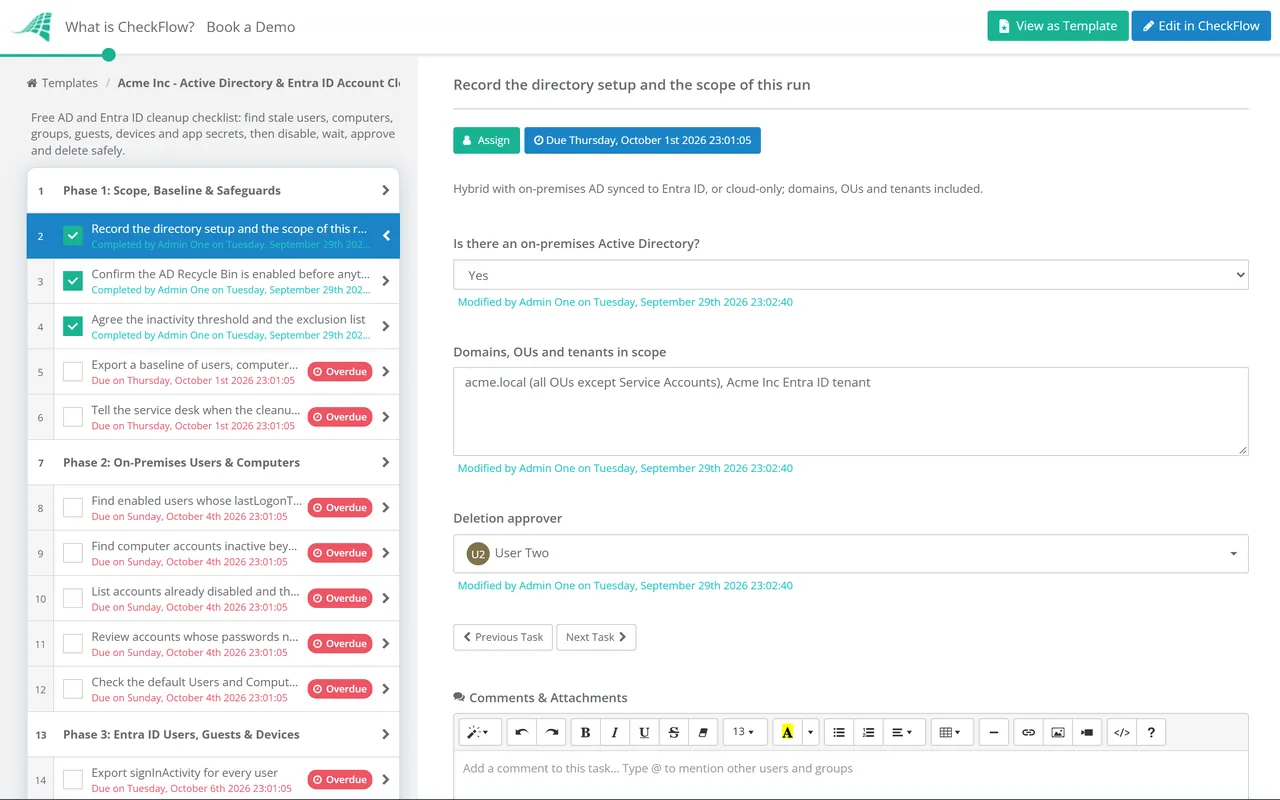
The first answer decides whether the on-premises tasks appear. The deletion approver is named here too.
Appears only when there is an on-premises Active Directory.
Task 2 appears only for hybrid directories.
Task 3 appears only when there is an on-premises Active Directory.
Task 1 appears only when there is an on-premises Active Directory.
Task 4 is an approval. The named approver signs off the deletion list, and nothing is deleted until they do.
Every cleanup depends on a “last seen” date, and none of them is real-time. Each object type has its own timestamp, its own delay and its own trap.
| Object | Timestamp to use | How current it is | Watch out for |
|---|---|---|---|
| AD users and computers | lastLogonTimestamp | Replicated to every domain controller, but only updated when the stored value is older than 14 days minus a random 0 to 5 days | Tools that read lastLogon, which is not replicated and differs on each domain controller |
| Entra ID users | signInActivity: lastSignInDateTime, lastNonInteractiveSignInDateTime, lastSuccessfulSignInDateTime | Can take up to 24 hours to update | lastSignInDateTime includes failed attempts; the successful sign-in date needs Entra ID P1 or P2 |
| Entra ID guests | Last sign-in, or the creation date if they never signed in | As for users | New guests look inactive until they first sign in |
| Entra ID devices | approximateLastSignInDateTime (the activity timestamp) | Replaced only when the stored value is more than 14 days old, give or take 5 | Some active devices have a blank timestamp; BitLocker keys live on the device object |
| Service accounts and app registrations | Owner and purpose, not activity | Not applicable | A quarterly or yearly job looks idle most of the time |
Know how long each mistake stays reversible before you delete anything. With the AD Recycle Bin enabled, a deleted object keeps its attributes and group memberships for the deleted object lifetime, which follows the tombstone lifetime of 180 days in any forest created with Windows Server 2003 SP1 or later. Microsoft Entra ID keeps a deleted user restorable for 30 days, after which permanent deletion starts and cannot be stopped. A deleted Entra device cannot be restored at all, and its BitLocker recovery keys go with it.
One dropdown on the first task drives conditional logic that hides every on-premises task for cloud-only tenants. A quarterly recurring schedule starts each run and assigns it to the directory owner, with due dates that leave room for the grace period.
The deletion approver is picked in a members field at the start, and the approval task holds the checklist until they decide. The activity trail records who disabled each batch, who approved the list and who deleted it, and when.
Candidates, disables and deletions go into tables inside their tasks, and exports attach as files. Tags separate domains or client tenants, and webhooks or the REST API can pass the finished log to your ticketing system.
Most stale user accounts are leavers the exit process missed. CheckFlow’s IT offboarding checklist software covers the day someone leaves, and the IT offboarding security guide lists the accounts, tokens and keys that most often survive a departure. Every leaver this cleanup finds is a reason to tighten that process.
Disabled accounts that still hold a paid licence feed straight into the Software License Audit Checklist. The Monthly IT Maintenance Checklist looks at leavers, MFA coverage and admin accounts every month, so the quarterly cleanup has less to find.

Employee Offboarding Checklist

Software License Audit Checklist

Monthly IT Maintenance Checklist

SaaS Access Offboarding Checklist

IT Asset Management Checklist
Describe the process in a sentence and the AI checklist generator drafts the phases and tasks for you.
Filter enabled users on lastLogonTimestamp, which replicates to every domain controller. In PowerShell, Search-ADAccount with the AccountInactive switch does this, as does Get-ADUser with the LastLogonDate property, which is a readable conversion of the same value. In a hybrid setup, check Entra ID sign-in activity as well: someone who works only in cloud apps may rarely authenticate against a domain controller, depending on how sign-in is configured.
lastLogon is updated only on the domain controller that handled the logon and is never replicated, so finding the true latest value means asking every domain controller. lastLogonTimestamp is replicated, but to limit replication traffic it is only rewritten when the stored value is older than the ms-DS-Logon-Time-Sync-Interval, 14 days by default, minus a random 0 to 5 days. It was designed for finding stale accounts, not for tracking logons in real time.
There is no single right number. CIS Controls v8.1 Safeguard 5.3 asks for dormant accounts to be disabled or deleted after 45 days of inactivity where supported, while Microsoft suggests 90 to 180 days is a reasonable window for many organisations using Entra ID. Pick a threshold, write it into the checklist with its exclusions, and apply it the same way every quarter. Stay well above the 14-day timestamp delay either way.
Use the activity timestamp, shown in the Activity column of the devices list and as ApproximateLastSignInDateTime in Microsoft Graph PowerShell. Microsoft’s guidance is to disable stale devices for a grace period before deleting them, to retire managed devices in Intune or your MDM first, to back up BitLocker keys, and to leave Autopilot devices alone. Hybrid-joined devices are disabled or deleted in on-premises AD and synchronised up.
Yes, if the AD Recycle Bin was enabled before the deletion and the deleted object lifetime has not passed. The object comes back with its attributes and group memberships, from Active Directory Administrative Center or with Restore-ADObject. Without the Recycle Bin you are left with an authoritative restore from backup. A deleted Entra ID user can be restored for 30 days.
14-day free trial, no card required. The Business plan is $10 per user per month after the trial. Full details at checkflow.io/pricing.
14-day free trial, no credit cardFull refund in your first 30 daysUS hosting, EU on request