Monthly IT work rarely fails inside the jobs someone owns. It fails between them: the firewall nobody updated because it is not a server, the leaver whose SaaS account outlived their laptop, the Apple push certificate that nobody renewed.
This free monthly IT maintenance checklist gives an internal IT team, or an MSP running it once per client, one routine across the whole estate. It covers endpoints, servers, backups, network and firewall, accounts, the SaaS tenant, expiry dates and documentation. It does not redo specialist work: patching, server maintenance, restore tests and account cleanup keep their own checklists, and this run confirms they happened and takes their figures. It ends with a one-page summary signed off by a named approver and, for MSP clients, a report the client can act on.
Most IT teams already have owners for the big recurring jobs. Someone runs the patch cycle, someone looks after the servers, someone tests restores. What nobody owns is the month-end question: did all of that happen, and what sits outside every one of those jobs? Network appliances, the Microsoft 365 or Google Workspace tenant, MFA exclusions, domain renewals and paid seats held by people who left belong to no server group or patch ring, so they get checked when someone remembers.
This checklist is that month-end question, written down. It is deliberately shallow where another checklist goes deep, and thorough where nothing else looks.
Specialist checklists
Deep, narrow and run by the owner
Examples: the patch cycle, server maintenance, restore tests, directory cleanup.
Depth: every server, every ring, every restore, with the evidence attached.
Depth: confirms the specialist runs happened and takes their figures, then checks what they leave out.
Blind spot: it does not patch, restore or clean anything up itself.
Output: a one-page monthly summary with a named sign-off.
Timing matters. Microsoft releases security updates on the second Tuesday of the month, and a cycle with test and pilot rings needs time to reach every device. Scheduling this run in the last week of the month means the cycle report, the server runs and the backup reports it relies on already exist.
What the Monthly IT Maintenance Checklist Covers
Seven phases, once a month per estate. A named approver signs off before anything is sent, and the client report appears only on MSP client runs.
Phase 1
Phase 1: Scope & Endpoints
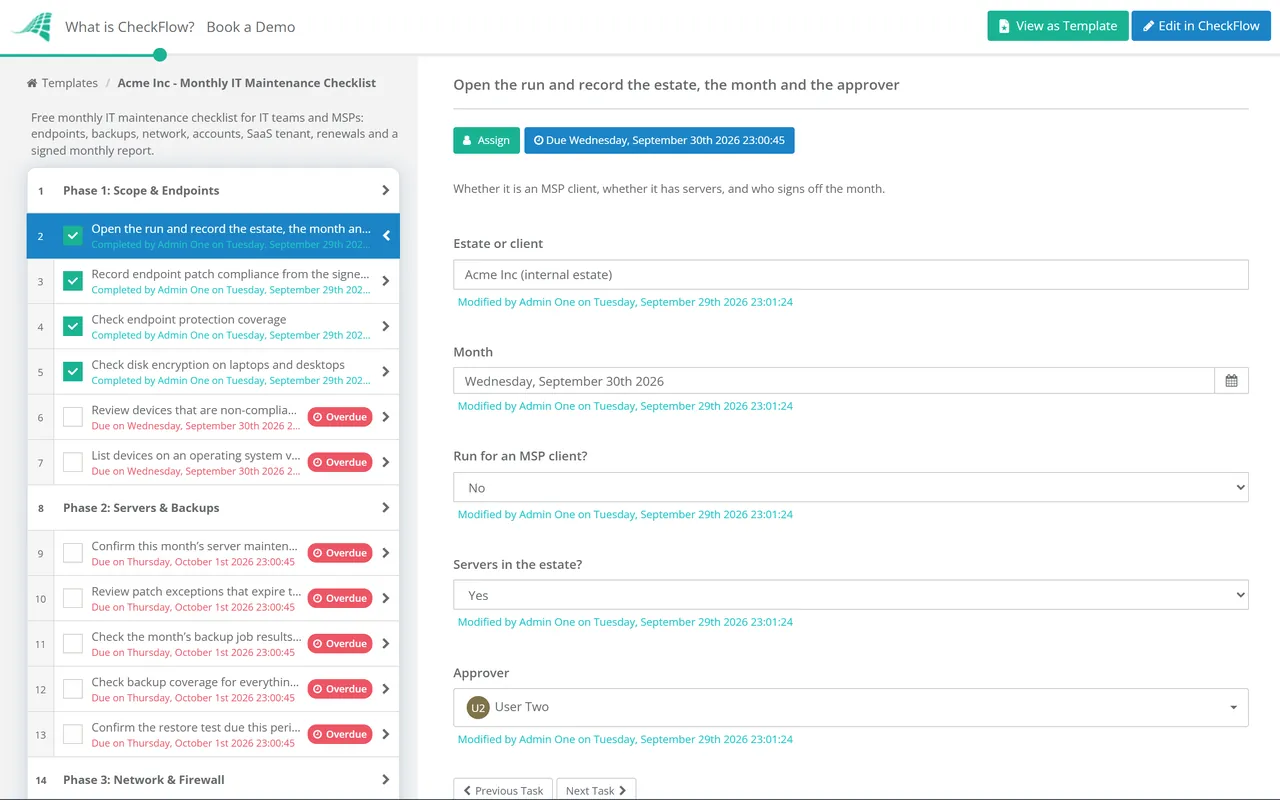
Two answers on the first task, MSP client and servers, decide what appears in Phases 2 and 7.
Open the run and record the estate, the month and the approver — whether it is an MSP client, whether it has servers, and who signs off the month
Record endpoint patch compliance from the signed-off patch cycle report — take the figure from the cycle, do not estimate it; the patching runs in its own checklist
Check endpoint protection coverage — every device reporting to the console, definitions current and no detection left unresolved
Check disk encryption on laptops and desktops — list devices without BitLocker or FileVault, and any whose recovery key is not escrowed
Review devices that are non-compliant in device management — why each fails policy, and whether conditional access is already blocking it
List devices on an operating system version near or past end of support — each one gets an upgrade, a replacement date or a recorded exception
Phase 2
Phase 2: Servers & Backups
The first task appears only when the estate has servers. The rest runs everywhere: cloud-only estates still have data to protect.
Confirm this month’s server maintenance runs were completed — one per server group, with every finding ticketed
Review patch exceptions that expire this month — renewed with fresh approval or escalated; carry any overdue exception into the report
Check the month’s backup job results across every protected system — servers, Microsoft 365 or Google Workspace data and endpoints; note the last good backup for each failure
Check backup coverage for everything added this month — new servers, shared mailboxes, SharePoint sites, Teams and SaaS workspaces are the usual gaps
Confirm the restore test due this period ran and passed — or is booked with a date; the test itself runs in the backup verification checklist
Phase 3
Phase 3: Network & Firewall
Compare firewall, switch, wireless and VPN firmware with vendor releases — schedule updates for critical and high-risk fixes through the change process
Confirm configuration backups ran for every network device — stored off the device, so a failed switch is rebuilt from its saved config
Review firewall rule changes made this month — each inbound rule has an approver and a written business need; rules for finished projects come out
Check that no management interface is open to the internet unprotected — firewall, VPN and wireless controller admin pages need MFA or an IP allow list
Review internet and site link availability for the month — outages, flapping VPN tunnels and links that ran near full at peak times
Phase 4
Phase 4: Accounts & SaaS Tenant
Reconcile this month’s leavers against enabled accounts — the directory plus every SaaS application that is not behind single sign-on
Check MFA coverage for every user — users not yet MFA-capable, and each exclusion from the MFA policy with an owner and an end date
Review who holds administrator roles — remove anyone who no longer needs a role, and keep Global Administrators to fewer than five
Check the emergency access accounts — any sign-in this month is explained, and the last validation test is within 90 days
Count accounts inactive for 45 days and hand them to the cleanup run — record the number here; disabling and deleting them happens in the account cleanup checklist
Read the tenant’s service health and message centre — act on any post with an act-by date, a retirement or a change that needs an admin
Phase 5
Phase 5: Renewals, Expiry Dates & Records
Check the expiry calendar for the next 60 days — domain names, public certificates on appliances, the Apple MDM push certificate and SSO signing certificates
Compare paid SaaS seats with active users — reclaim seats held by leavers and unassigned licences before the next invoice
Check support contracts and subscriptions renewing in the next 90 days — raise the renewal or the cancellation in time for procurement and notice periods
Update the network diagram, asset notes and runbooks — for this month’s changes, while the people who made them remember the details
List the month’s changes, major incidents and open problems — with ticket numbers, so the report explains what moved the figures
Phase 6
Phase 6: Monthly Summary & Sign-off
The named approver signs off the month. The checklist halts at the sign-off task, so nothing reaches a client until the numbers have been checked.
Complete the monthly figures table — patch compliance, backup success, restore test result, MFA coverage, open exceptions and expiries due
Compare each figure with last month — a measure that slips two months running needs an owner, even if it still meets target
List every finding with its ticket number and owner — a finding with no ticket will be found again next month
Sign off the month — the approver named in Phase 1 records Approved or Not approved, with a reason if not approved
Carry open items into next month’s run — add them as comments on next month’s first task so they are checked first
Phase 7 — MSP Clients Only
Phase 7: Client Report
Its tasks appear only when the run is for an MSP client. Internal IT teams stop at the Phase 6 sign-off.
Turn the monthly figures into the client’s report — plain language and trends, not raw tool exports
List the recommendations that need a client decision or budget — hardware reaching end of support, licence shortfalls, risks the client must accept in writing
Record hours used against the support agreement — so out-of-scope work is visible before the invoice goes out
Send the report to the client contact — attach the report and book a review call for anything that needs a decision
Log the client’s decisions — approved, declined or deferred, so next month’s run starts from what the client agreed
The table marks the boundary between this routine and the checklists beside it. Frequencies set by a framework or vendor are shown; the rest are defaults to tune.
Apple MDM push certificate: valid 365 days, renewed with the same Apple ID
For UK organisations certified to Cyber Essentials, several of these checks are now pass-or-fail. Version 3.3 of the requirements, which took effect in April 2026, says authentication to cloud services must always use MFA. It requires inbound firewall rules to be approved and documented by an authorised person with the business need recorded, and unneeded rules removed. It also counts router and firewall firmware as software, so critical and high-risk fixes for them fall under the same 14-day deadline as operating systems. A monthly look at MFA exclusions, rule changes and firmware keeps you inside those lines between assessments.
Why Run Monthly IT Maintenance in CheckFlow?
1
One template, one schedule per estate
A monthly recurring schedule starts the run in the last week of every month and assigns it to the estate’s owner. For an MSP, each client gets its own schedule from the same template, and conditional logic hides the server task and the client report where they do not apply.
2
Figures that line up month after month
Patch compliance, backup success and MFA coverage go into a table inside the summary task, next to last month’s value and the target. The patch cycle report and backup report attach to the tasks that quote them, so every figure can be traced to its source.
3
Signed off before it is sent
The sign-off task goes to the approver picked in Phase 1, and the checklist waits there until they record a decision. The activity trail shows who completed each check and when, and tags per client or site make any month easy to find at audit time.
A monthly routine only works if it starts without anyone remembering to start it. Our guide to recurring checklists explains why a document on a shared drive stops being a reliable control once more than one person runs it, and CheckFlow’s recurring checklist software shows how schedules, assignments and reminders work.
What should be on a monthly IT maintenance checklist?
+
Everything that goes wrong too slowly for monitoring and too quickly for an annual review: endpoint patch compliance, protection and encryption, confirmation that server maintenance and restore tests ran, backup results, network firmware and firewall rule changes, leavers, MFA coverage and admin roles, SaaS tenant notices, and dates that expire, such as domains, certificates and contracts. It should end with a signed summary compared with last month.
Which IT tasks should be done monthly rather than weekly?
+
Weekly work is about things that break in days: alerts, disk space, backup job failures. Monthly work suits things that follow a monthly rhythm or change slowly: the vendor patch cycle, network firmware, account and licence changes from joiners and leavers, and anything with an expiry date. CIS Controls v8.1 sets monthly as the minimum for patching operating systems and applications and for reviewing network infrastructure software versions.
How do MSPs run monthly maintenance for many clients?
+
From one standard template with a schedule per client, so every client gets the same checks and every report has the same shape. Scope questions at the start hide what a client does not have, such as servers. Identical summary figures make clients comparable, and the client report phase turns findings into recommendations with a cost and a decision date.
What should a monthly IT report include?
+
A handful of figures with last month beside them: patch compliance, backup success, the latest restore test result, MFA coverage and open exceptions. Then the findings with ticket numbers, what expires in the next two months and the decisions needed from management or the client. One page is enough.
How do you check MFA coverage in Microsoft 365?
+
In the Microsoft Entra admin center, the authentication methods activity report lists which users are MFA-capable, meaning registered for a strong method and allowed by policy to use it. Its usage and insights views need a Microsoft Entra ID P1 or P2 licence. Check policy exclusions too: an excluded account is unprotected however good the registration figure looks.
Is CheckFlow free for this template?
+
14-day free trial, no card required. The Business plan is $10 per user per month after the trial. Full details at checkflow.io/pricing.
Close Every Month With the Whole Estate Checked
Free trial — no credit card required.
Do you like cookies? 🍪 We use cookies to ensure you get the best experience on our website. Learn more