Backup & Disaster Recovery (BDR) Deployment Checklist Template

A backup deployed without agreed recovery targets can’t be judged a success or a failure. Agree RPO and RTO with the client before anything is installed, and prove them with real restores before the project closes.

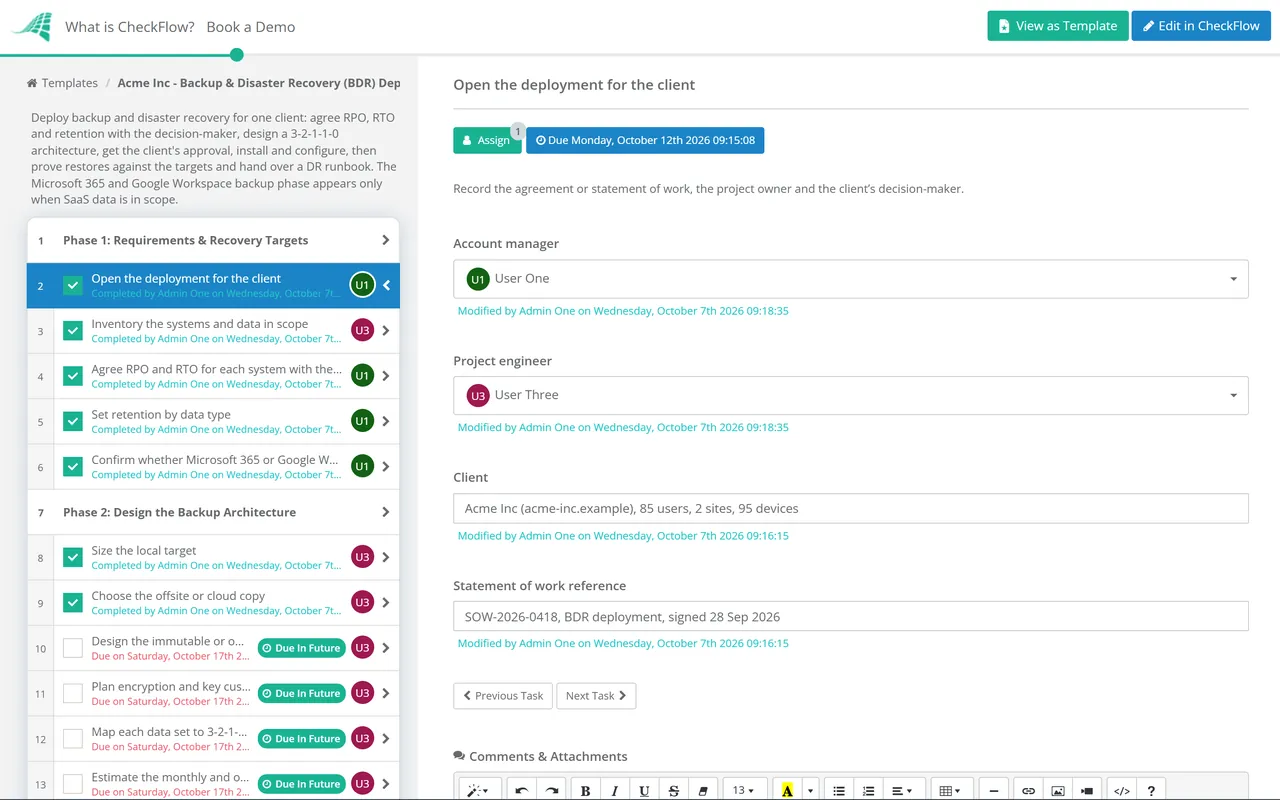
Installing backup software takes an afternoon. Deploying a backup and disaster recovery service that a client can rely on takes longer, because most of the work is deciding things: which systems matter most, how much data the business can afford to lose, how long it can wait, how many years of history it must keep and who is allowed to delete a backup. This free BDR deployment checklist takes an MSP through that first deployment for one client, from the systems inventory to handover. It records RPO, RTO and retention per system, designs local, offsite and immutable copies, and gets the client’s written sign-off on targets and cost before installation starts. It then locks down backup administration, seeds the first backups, proves restores against the agreed targets and hands over to daily monitoring and restore testing. When Microsoft 365 or Google Workspace data is in scope, a conditional phase covers SaaS backup.

Use This Template Free See Live Example
No Credit Card Required

Last reviewed: October 2026

Deployment Sets the Targets That Every Later Check Measures Against

Three recurring processes keep a client’s backups healthy after go-live, and this checklist comes before all of them. The MSP Daily Backup Monitoring Checklist asks each morning whether last night’s jobs ran. The Backup Verification & Restore Test Checklist restores a rotating sample each month and measures it against RPO and RTO. The Business Continuity Plan Testing Checklist exercises how the business keeps working while IT recovers. Each of them depends on numbers and a design that someone agreed at the start. Deployment is where they are agreed.

That is why this checklist puts the client conversation before the installation. A recovery point objective chosen by the technician who configured the schedule isn’t a target, it is a default. When a server fails, the client measures you against what they thought they were buying. Writing it down, with a cost next to it and the client’s approval attached, is what turns a backup product into a BDR service. For the wider recovery plan beyond backup, see our disaster recovery checklist guide.

Backup product installed

Jobs running, targets assumed

Targets: whatever the default schedule happens to deliver.

Copies: often one local and one cloud, under the same admin login.

Proof: a green dashboard on the first morning.

Client view: “we’re backed up”, with no idea what that means.
BDR service deployed

Targets agreed, restores proved

Targets: RPO, RTO and retention per system, signed off by the client.

Copies: local, offsite and immutable, with separate admin credentials.

Proof: measured file, application and full-system restores.

Client view: a one-page recovery summary they approved.

What the BDR Deployment Checklist Covers

Seven phases take one client from inventory to handover. Phase 5 appears only when Microsoft 365 or Google Workspace data is in scope.

Phase 1

Phase 1: Requirements & Recovery Targets

Run this phase with the client’s decision-maker, not only their IT contact. Recovery targets are business decisions.

  • Open the deployment for the client — record the agreement or statement of work, the project owner and the client’s decision-maker
  • Inventory the systems and data in scope — servers, virtual machines, databases, file shares, line-of-business applications and endpoints, from the RMM and documentation platform
  • Agree RPO and RTO for each system with the client — group systems into tiers and record the business reason for each target
  • Set retention by data type — daily, weekly, monthly and yearly restore points, plus any legal, sector or cyber insurance requirement
  • Confirm whether Microsoft 365 or Google Workspace data is in scope — answer Yes or No; Yes adds the SaaS backup phase
Phase 2

Phase 2: Design the Backup Architecture

  • Size the local target — an appliance or repository with room for the agreed retention and a year of data growth
  • Choose the offsite or cloud copy — region and data residency, and check the upload bandwidth can keep the offsite copy within RPO
  • Design the immutable or offline copy — retention lock or air gap, a deletion delay and credentials that are not used anywhere else
  • Plan encryption and key custody — in transit and at rest, with keys stored somewhere that survives the loss of the protected estate
  • Map each data set to 3-2-1-1-0 — record every copy, its storage type and location, and how restores will be verified
  • Estimate the monthly and one-off cost — storage, licences, appliance and labour, per tier
Phase 3

Phase 3: Client Sign-off

  • Write the recovery summary — one page: what is protected, RPO and RTO per tier, retention, what is not covered and the cost
  • Record exclusions the client has chosen — each system left out, with the client’s reason in writing
  • Approve the recovery targets, retention and cost — the account manager records the client’s written approval as an attachment and answers Approved or Not approved before installation
  • Set up the project and agreement in the PSA — project tasks, time entry codes and the new recurring billing lines
Phase 4

Phase 4: Install & Configure

  • Create separate backup admin accounts with MFA — not joined to the client’s domain, not shared with production and limited to the people who need them
  • Deploy agents or the appliance to every system in scope — and check the RMM for anything in the inventory without an agent
  • Configure jobs and schedules by tier — frequency that meets each RPO, application-aware processing for databases and mail
  • Turn on encryption and immutability — and check the retention lock is actually applied to the copies, not only enabled in a policy
  • Route backup alerts into the PSA — failed and missed jobs, deletions, retention changes and new administrator accounts
Phase 5 — SaaS Data Only

Phase 5: Microsoft 365 & Google Workspace Backup

Shown only when SaaS data is in scope. On-premises-only clients go straight to Phase 6.

  • Record the shared responsibility position — the client owns its data; native recovery is limited, for example 14 days of deleted mail by default and a 93-day SharePoint recycle bin
  • Confirm SaaS backup licensing — per user, per mailbox or per GB, and how it appears on the client’s invoice
  • Authorise the backup service with least privilege — record the app consent or service account and who granted it
  • Cover every workload — mailboxes including shared mailboxes, OneDrive, SharePoint sites and Teams; or Gmail, Drive and shared drives
  • Turn on automatic inclusion — so new users, sites and shared drives are protected without anyone remembering to add them
  • Set SaaS retention — against the platform’s native retention and the client’s own retention policy
Phase 6

Phase 6: Seed, Replicate & Prove Restores

  • Run the first full backup of every system — and record how long each took
  • Complete the first offsite replication — seed by shipped drive if bandwidth is short, and record the replication lag
  • Restore files and folders to an alternate location — open them and compare them with the source
  • Restore an application to a point in time — a database or mail store, checked by the system owner
  • Boot a full system from backup in an isolated network — a server or virtual machine, timed from request to working service
  • Record measured times against the agreed RPO and RTO — any miss is fixed and retested before handover
Phase 7

Phase 7: DR Runbook & Handover

  • Write the DR runbook — who declares a disaster, recovery order by tier, contacts and where credentials are kept
  • Store the runbook where an outage can’t reach it — an offline or printed copy as well as the documentation platform
  • Add the client to daily backup monitoring — every job and console on the morning check from the first day
  • Schedule restore testing — monthly sample restores and a quarterly full-system test
  • Hand the recovery summary to the client and close the project — with test evidence attached

Designing the Copies: From 3-2-1 to 3-2-1-1-0

The 3-2-1 rule is old and still useful. A 2012 US-CERT paper, now published by CISA, puts it as three copies of important data, on two different media types, with one copy stored offsite. Ransomware added a requirement it didn’t anticipate: an attacker with administrator access can delete every copy that is online and reachable. The NCSC’s guidance responds with offline backups kept separate from your network, multiple copies with different solutions and locations, and MFA on backup accounts. Its principles for ransomware-resistant cloud backups add immutable storage, deletion delays and alerting on significant changes.

Many MSPs now design to 3-2-1-1-0, an industry extension rather than a government standard: one copy immutable or offline, and zero errors when restores are verified. The table maps each element to what to check during deployment.

Element What it protects against What to check at deployment
3 copiesA single backup that turns out to be unreadableProduction plus at least two backups for every tier-1 system
2 storage typesOne technology failing for every copy at onceThe local target and offsite copy don’t share hardware or a storage account
1 offsiteFire, flood or theft at the client’s siteRegion, data residency and a replication lag that still meets the RPO
1 immutable or offlineAn attacker or insider deleting or encrypting backupsRetention lock applied, deletion delay set, credentials used nowhere else
0 errorsBackups that complete but can’t be restoredFile, application and full-system restores measured in Phase 6

Agreeing recovery targets: a tiering example

Clients asked for an RPO usually say “nothing lost”, and asked for an RTO they say “straight away”. Tiers make the conversation practical, because each one has a price. Treat the figures below as an illustration of the structure, not a recommendation:

  • Tier 1, for example the line-of-business database and file server: RPO of one hour, RTO of four hours, local and offsite copies plus an immutable copy.
  • Tier 2, for example the print server and an internal web application: RPO of 24 hours, RTO of one working day.
  • Tier 3, for example endpoints with data held in OneDrive: RPO of 24 hours or longer, rebuilt from the standard build rather than restored.

UK GDPR Article 32 expects the ability to restore the availability of personal data in a timely manner after an incident, and a process for regularly testing security measures. The signed recovery summary and the Phase 6 restore evidence are a straightforward way to show both.

Why Deploy BDR With CheckFlow?

1

Sign-off before installation

The approval task halts the install until the account manager has attached the client’s written approval of the targets, retention and cost. When a client later asks why a server had a 24-hour RPO, the answer is on the record.

2

SaaS steps only for SaaS clients

One answer in Phase 1 decides whether conditional logic adds the Microsoft 365 and Google Workspace phase. Clients without SaaS data get a shorter checklist, and SaaS clients can’t skip workload coverage.

3

Restore evidence that outlasts the project

Measured restore times, screenshots and the runbook stay attached to the client’s deployment. The first monthly restore test has a baseline to compare against, and insurers or auditors can see what was proved on day one.

BDR deployment is one of the client onboarding projects the MSP process management guide recommends running from a standard checklist. CheckFlow for MSPs runs it alongside the MSP Client Onboarding Checklist, so a new client’s backups go live as part of onboarding.

Once backups are live, the Ransomware Response Checklist covers recovery from an attack, and the Disaster Recovery Audit Checklist reviews the whole recovery capability each year.

Frequently Asked Questions

What is BDR in managed services?

+

BDR stands for backup and disaster recovery. In an MSP agreement it usually means more than backup software: agreed recovery targets for each system, local, offsite and immutable copies, monitoring of every job, scheduled restore testing and a runbook for recovering the client’s systems after a major failure. Backup on its own copies data. BDR includes the plan and the tested ability to bring systems back within an agreed time.

How do you agree RPO and RTO with a client who says everything is critical?

+

Put a price next to each target. Ask what each system does, what an hour or a day without it would cost and how much re-keyed work the business could tolerate. Then show two or three tiers with their monthly cost. Most clients move quickly from “everything is critical” to one or two genuinely critical systems. Record the tier for each system and the client’s reason, and have them approve it in writing.

What does the 3-2-1-1-0 backup rule add to 3-2-1?

+

Two things. The extra “1” is a copy that is immutable or offline, so an attacker with administrator access can’t delete or encrypt it. The “0” means zero errors when backups are verified, which in practice means restores are tested rather than assumed. It is an industry framing, not a government standard, but it matches the direction of CISA and NCSC ransomware guidance on offline copies and tested backups.

Should backup admin accounts be joined to the client’s domain?

+

Generally not. If the backup console signs in with domain credentials, an attacker who takes over the domain can sign in to the backups too, and deleting backups is a common step before ransomware is deployed. Use separate accounts with MFA, limited to the few people who need them, and keep immutable copies under credentials that are used nowhere else. The NCSC also recommends protecting backup accounts with MFA.

How long does the initial backup seed take?

+

It depends on the volume of data and the upload bandwidth, and the arithmetic is worth doing before you promise a date. Two terabytes over a 100 Mbps uplink takes roughly 44 hours at full speed, before overheads, and longer if the link is shared with the working day. Where the first offsite copy would take more than a few days, many services accept a seed on a shipped encrypted drive, with only changes sent afterwards.

Is CheckFlow free for this template?

+

14-day free trial, no card required. The Business plan is $10 per user per month after the trial. Full details at checkflow.io/pricing.

Deploy Backups the Client Agreed To, and Prove They Restore

Free trial — no credit card required.