An RMM rollout that reaches 95% of a client’s devices looks finished. The other 5% are the machines nobody patches, nobody monitors and nobody notices until one of them causes the incident.
The RMM agent is the foundation of almost everything a managed service provider promises. Patching, monitoring, alerting, scripting, remote support and the device count on the agreement all depend on it being on every device and reporting correctly. Yet deployment is often treated as a single step: push the installer, watch the count rise, move on. This free RMM agent deployment checklist gives service managers and onboarding engineers a structured rollout for one client estate. It builds a target inventory before anything is installed, sets up the site structure and policies, gets the policy set approved, runs a pilot, deploys in waves and then reconciles agents against the inventory and the directory until every device is either managed or explained. It also secures the RMM console itself, because a tool with administrative reach into every client is a target. A conditional phase removes a previous RMM agent when you are replacing one.
An Agent That Installed Is Not a Device That Is Managed
The deployment tool reports how many installs succeeded. It can’t tell you about the laptop that has been in a drawer since spring, the server that sits in the wrong site and so picked up the workstation patch policy, or the re-imaged PC that now appears twice. The only way to know coverage is to start from a list of what should be managed and compare it with what is reporting, device by device.
The other half of the job is the console. RMM software reaches every device it manages with administrative rights, and attackers know it. CISA, the NSA and MS-ISAC warned in advisory AA23-025A (January 2023) that criminals were using legitimate remote management software to gain access, and the joint Guide to Securing Remote Access Software that followed in June 2023 noted that RMM install paths are often excluded from EDR inspection. Its recommendations for MSPs include MFA on every account that can reach customer environments, treated as privileged, reduced-privilege roles for routine work such as read-only monitoring, and never reusing admin credentials across customers. A rollout that ignores the console widens the attack surface it was meant to reduce.
Agent installed
What the deployment report shows
Measure: installs that returned success.
Misses: devices never targeted, agents in the wrong site, duplicates and agents that stopped checking in.
Risk: unpatched, unmonitored devices that the agreement says you manage.
Device managed
What the checklist proves
Measure: every device in the target inventory reporting, in the right group, with policies applied.
Method: reconcile agents against discovery, the directory and the asset list.
Outcome: coverage you can state as a number, with an owner and a reason for every exception.
What the RMM Agent Deployment Checklist Covers
Seven phases take one client from target inventory to documented, reconciled coverage. Phase 6 appears only when a previous RMM agent has to come off the devices.
Phase 1
Phase 1: Scope & Target Inventory
Build the list of what should be managed before you install anything. It is the yardstick for every later phase.
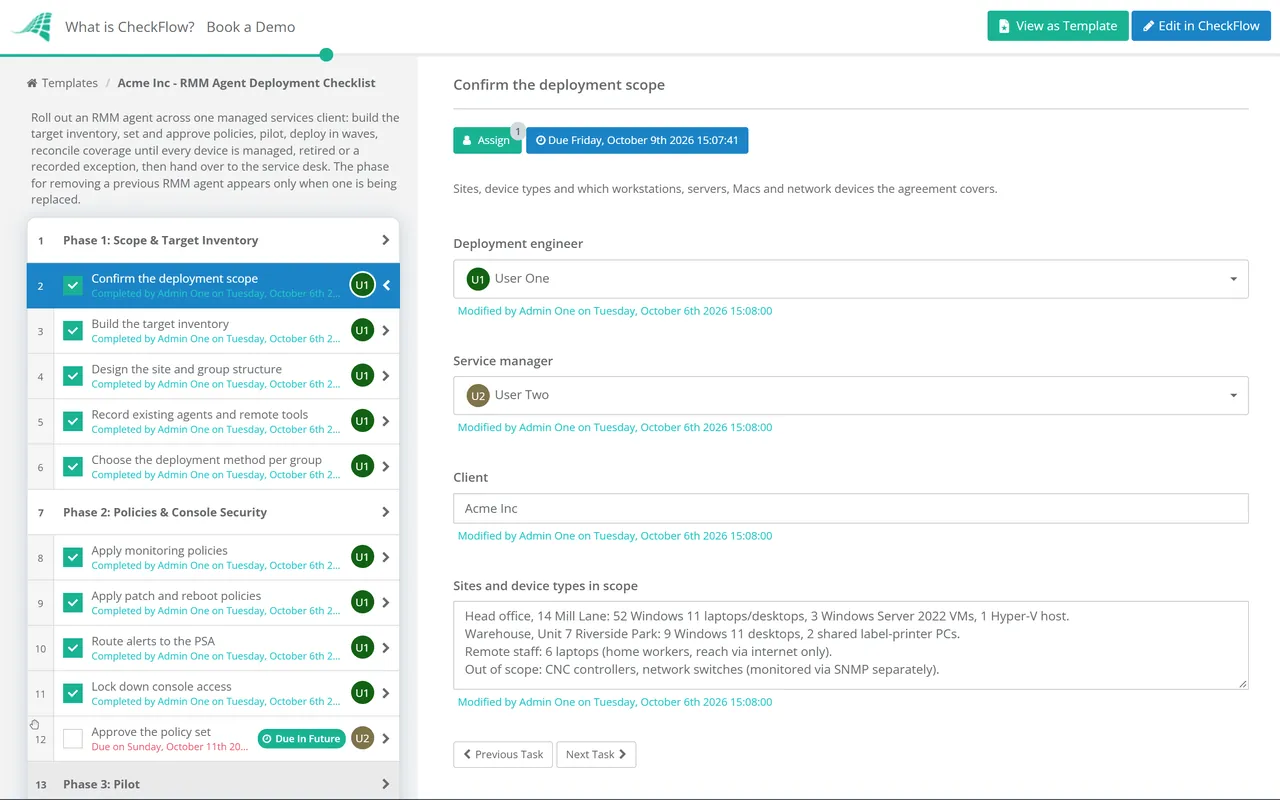
Confirm the deployment scope — sites, device types and which workstations, servers, Macs and network devices the agreement covers
Build the target inventory — merge the discovery scan, Entra ID or Active Directory computer objects, Intune and the client’s asset list into one de-duplicated list
Design the site and group structure — client, sites and device groups that match how patch windows, policies and alerts will differ
Record existing agents and remote tools — any RMM, remote access, antivirus or backup agents already on the estate, and who controls them
Choose the deployment method per group — Intune, Group Policy, Mac MDM, an existing management tool or a manual install link for stragglers
Phase 2
Phase 2: Policies & Console Security
Nothing goes beyond the pilot until the service manager has approved the policy set.
Apply monitoring policies — disk, services, uptime, hardware and security-tool health checks, with thresholds by device role
Apply patch and reboot policies — rings, maintenance windows and reboot behaviour that match the agreement and the client’s working hours
Route alerts to the PSA — each alert type creates or updates a ticket in the right queue with the right priority
Lock down console access — named accounts with MFA, roles scoped to this client, read-only access where it is enough and no shared logins
Approve the policy set — the service manager reviews monitoring, patching, alerting and remote access settings before rollout
Phase 3
Phase 3: Pilot
Deploy to the pilot group — at least one device of each type, at each site, plus a few cooperative users
Confirm each pilot device checks in correctly — right site and group, policies applied and hardware and software inventory populated
Test remote access with the client’s consent settings — the prompt or notification users see matches what was agreed
Trigger a test alert and a test patch scan — the ticket lands in the right PSA queue and the scan results appear
Fix the package or method before scaling — record each pilot issue and how it was resolved
Phase 4
Phase 4: Rollout Waves
Schedule the waves — by site or device group, with the client contact and service desk told what to expect
Deploy wave by wave — start the next wave only when the previous one is reporting healthy
Chase devices the method can’t reach — laptops that are rarely in the office, remote workers off VPN and Macs waiting for a user approval
Merge or remove duplicate agent records — re-imaged and renamed machines that now appear twice
Record coverage after each wave — devices reporting against the target inventory, as a count and a percentage
Phase 5
Phase 5: Coverage Reconciliation
This phase decides whether the rollout is finished. Every device ends up managed, retired or recorded as an exception.
Reconcile agents against the target inventory — list every device with no agent and every agent with no matching device
Reconcile against the directory — enabled computer accounts with recent sign-ins but no agent, and stale accounts to pass to directory clean-up
Check for devices in the wrong place — agents sitting in another client’s or site’s group pick up the wrong policies and the wrong bill
Check agent health, not just presence — last check-in, policies applied and a recent patch scan for every device
Record each exception — device, reason, owner and compensating control for anything that cannot take an agent
Phase 6 — Replacing an RMM
Phase 6: Remove the Previous RMM
Shown only when another RMM agent is on the estate, from an outgoing provider or from your own platform migration.
Confirm your agent reports before removing theirs — no device should be left with neither agent
Agree the removal method and date — in writing with the outgoing provider, including any uninstall password or removal script
Uninstall the previous agent and its remote access components — including any standalone remote support tool it deployed
Verify nothing is left behind — services, scheduled tasks, installed programs and outbound connections to the old platform
Record the removal — device count and date, as evidence that only your tools remain
Phase 7
Phase 7: Document & Hand Over
Update the documentation platform — site structure, deployment method, package location and the exception list
Update the agreement device count — reconcile the PSA agreement with agents reporting, so billing matches what you manage
Add the agent to the new-device process — device builds, Autopilot or imaging include it, so coverage does not decay
Hand over to the service desk — confirm alert queues, monitoring and patch schedules are live for the client
Send the client a coverage summary — devices managed, exceptions and anything they need to decide
Choosing a Deployment Method for Each Group of Devices
Most estates need more than one method. Domain-joined desktops, cloud-only laptops and Macs each have a natural route, and the stragglers always need a fallback. Pick the method per device group in Phase 1, so the pilot tests every route you will rely on.
Method
Suits
Watch for
Intune Win32 app
Windows devices enrolled in Intune, including Entra-joined laptops that never see the office
The install must be fully silent. The Intune management extension checks for new Win32 app assignments every hour, so allow time before chasing.
Group Policy software installation
Domain-joined Windows devices on the office network
It needs a Windows Installer (.msi) package and applies at startup, so laptops that rarely reach a domain controller can miss it.
Mac MDM package and profile
Macs enrolled in the client’s device management service
A privacy profile can pre-approve full disk access, but screen recording for remote control can’t be granted silently. At most the profile lets a standard user approve it.
Existing management tool or script
Estates already managed by another tool you can use during the transition
Confirm who owns that tool and that its access is removed afterwards.
Manual install link
The last few devices no other method reaches
Install links and site keys enrol devices into a client’s site. Expire them when the rollout ends.
Securing the RMM console before the first agent goes out
Phase 2 includes a console check because every agent you deploy extends what a compromised technician account could reach. These points follow the CISA-led guidance on remote access software and the 2022 joint advisory on threats to MSPs:
MFA on every technician account, and on every API or integration account that can act on client devices.
Roles scoped to the clients and actions each person needs, with read-only access for monitoring work.
No shared logins and no admin credentials reused across clients.
Console audit logs retained and reviewed, so remote sessions and scripts can be traced to a person.
An agreed list of approved remote access tools for the client, so anything else that appears can be treated as suspicious.
Why Run RMM Deployments in CheckFlow?
1
Coverage as a number, not a feeling
Each wave records devices reporting against the target inventory, and Phase 5 ends with every gap either closed or recorded as an exception with an owner. Upload the reconciliation export to the task it proves, so the coverage figure has evidence behind it.
2
Policies approved before they scale
The policy set is an approval task assigned to the service manager. Until it is approved, the rollout tasks stay locked, so a bad patch or alert policy is caught on ten pilot devices rather than five hundred.
3
One template for every rollout
Launch the same checklist for a new client or for each client in a move to a new RMM platform. Conditional logic adds the removal phase only where an old agent exists, and the grid view shows which clients are mid-rollout.
The MSP Client Onboarding Checklist covers the whole takeover of a new client, from credentials and discovery to service desk cutover, and treats RMM deployment as one step within it. This checklist expands that step for estates where coverage needs its own plan. Endpoint security usually follows the same waves: the EDR Rollout Checklist picks up from a reconciled RMM inventory.
Agent deployment is one of the processes the MSP process management guide suggests standardising first, because everything else depends on it. Once agents report, the Patch Management Checklist runs the monthly cycle the RMM delivers. See how CheckFlow for MSPs keeps these processes consistent across every client.
Start with a target inventory built from discovery, the directory, Intune and the client’s own asset list, because the deployment tool only knows about devices it reaches. Choose a method for each device group, prove each method in a pilot, then deploy in waves. Finish by reconciling agents against the inventory until every device is either reporting or recorded as an exception with a reason.
How long should an RMM pilot run?
+
Long enough to see a full cycle of check-ins, an alert, a patch scan and ideally one maintenance window. For most clients that means a few days to a week. Include every device type and every deployment method in the pilot, because problems with a Mac profile or a Group Policy package won’t show up on the devices you tested by hand.
How do you find devices that are missing the RMM agent?
+
Compare three lists. The RMM’s device list, the directory’s enabled computer accounts with recent sign-ins, and a network discovery scan of each site. A device in the directory or on the network with no agent is a gap. An agent with no matching directory account may be a personal or unknown device. Stale computer accounts belong in a directory clean-up rather than in your exception list.
Should we remove the old RMM before installing ours?
+
Usually not. Install your agent first, confirm it reports and its policies apply, then remove the previous agent device by device. That avoids a window where nobody can reach or patch the device. Agree the removal date and method with the outgoing provider in writing, and check afterwards that no services, scheduled tasks or remote access components from the old platform are left running.
How should an MSP secure its RMM platform?
+
Treat every account that can reach client devices as privileged. CISA-led guidance recommends MFA on those accounts, reduced-privilege roles for routine work such as read-only monitoring and no reuse of admin credentials across customers. Add roles scoped per client, audit logging of remote sessions and scripts, and an access review whenever a technician joins, moves or leaves.
Can we deploy the RMM agent through Intune?
+
Yes, for Windows devices enrolled in Intune, which is often the only reliable route for cloud-only laptops. Package the installer as a Win32 app and assign it as required to a device group. Intune doesn’t support interactive installs, so the installer must run silently with the client’s site key built in. Confirm each device then checks into the right site before you count it as covered.
Is CheckFlow free for this template?
+
14-day free trial, no card required. The Business plan is $10 per user per month after the trial. Full details at checkflow.io/pricing.
Put the Agent on Every Device, and Prove It
Free trial — no credit card required.
Do you like cookies? 🍪 We use cookies to ensure you get the best experience on our website. Learn more