Publishing a DMARC record takes five minutes. Getting a client to p=reject without blocking their own invoices takes an inventory of every service that sends as them, and that inventory is the real work.
Most client domains an MSP inherits have some email authentication. Usually there is an SPF record that someone added years ago, DKIM that was switched on for Microsoft 365 but not for the invoicing system, and a DMARC record at p=none that sends reports nobody reads. Each piece looks done. None of it stops anyone spoofing the client’s domain. This free email authentication setup checklist takes one client domain from that state to an enforced DMARC policy. It builds a sender inventory, publishes a single SPF record within the 10-lookup limit, enables DKIM for Microsoft 365 or Google Workspace and every third-party sender, then uses DMARC reports to find what is still failing before the policy is tightened. The move to quarantine and then reject needs the client’s approval. A conditional phase covers the Gmail, Yahoo and Outlook.com bulk sender requirements when the client sends marketing email.
Passing SPF and DKIM Is Not the Same as Passing DMARC
The most common surprise in a first DMARC report is a legitimate service that passes SPF and passes DKIM, and still fails DMARC. The marketing platform uses its own bounce domain and DKIM key, so both checks pass for the platform’s domain, not the client’s. DMARC only counts a pass when the domain that passed matches the domain in the From address the recipient sees. Microsoft 365 and Google Workspace behave the same way until custom DKIM is enabled: they sign with their own default domains, which never align with the client’s.
That is why the order of this checklist matters. A domain at p=none is monitoring, not protection. Moving it to p=quarantine or p=reject before every legitimate sender is aligned sends the client’s own invoices, payslips and helpdesk replies to junk, or bounces them. The reports show what is left to fix. The client decides when to enforce.
Records published
DMARC at p=none, indefinitely
What it does: asks receivers to send reports, and to take no action on failures.
What it misses: spoofed mail from the client’s domain is still delivered.
Typical cause: nobody owns the reports, so nobody knows whether enforcement is safe.

Domain protected
DMARC enforced, senders aligned
What it does: asks receivers to quarantine or reject mail that fails DMARC.
What it needs: every legitimate sender passing SPF or DKIM for the client’s own domain.
Evidence: the sender inventory, the reports and the client’s recorded approval.
What the Email Authentication Setup Checklist Covers
One checklist per client domain, from sender inventory to an enforced policy. Phase 6 appears only when the client sends bulk or marketing email.
Phase 1
Phase 1: Inventory Senders & Domains
The scoping answers here decide which DKIM task appears and whether the bulk sender phase is needed.
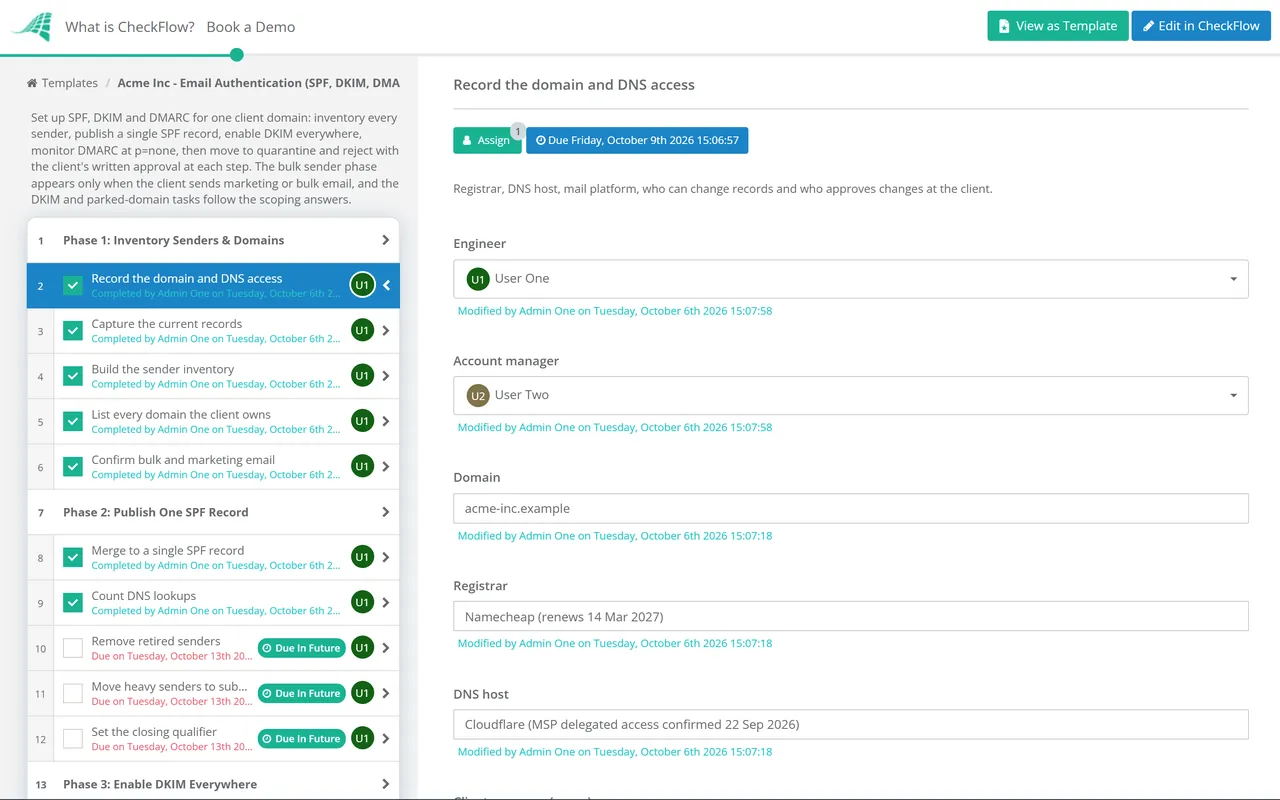
Record the domain and DNS access — registrar, DNS host, mail platform, who can change records and who approves changes at the client
Capture the current records — MX, every SPF record, known DKIM selectors and any DMARC record, with errors and duplicates noted
Build the sender inventory — every service that sends as the domain: mail platform, marketing, CRM, invoicing, helpdesk, website forms, scanners and line-of-business apps
List every domain the client owns — sending domains, sending subdomains and parked domains that should never send mail
Confirm bulk and marketing email — which platforms send it, from which domain or subdomain, and roughly how many messages a day
Phase 2
Phase 2: Publish One SPF Record
Merge to a single SPF record — one per domain or subdomain, since a second record makes SPF return a permanent error
Count DNS lookups — include, a, mx, exists and redirect each count, nested includes too, and the total must stay at 10 or fewer
Remove retired senders — old mail servers, past marketing tools and any ptr mechanism
Move heavy senders to subdomains — when the main domain is near the lookup limit, a subdomain gets its own record and its own 10 lookups
Set the closing qualifier — -all or ~all, recorded with the reason, once every legitimate sender is listed
Phase 3
Phase 3: Enable DKIM Everywhere
Enable DKIM in Microsoft 365 — publish the selector1 and selector2 CNAME values shown in the Defender portal or by Get-DkimSigningConfig, then enable signing
Enable DKIM in Google Workspace — generate a 2048-bit key under Apps, Google Workspace, Gmail, Authenticate email, publish the TXT record, then start authentication
Enable DKIM for third-party senders — each service signs with the client’s domain, not its own
Align the bounce domain where supported — a custom return-path on a client subdomain lets SPF align as well
Check key length — 2048-bit wherever the service and DNS host support it, and rotate any 1024-bit key
Verify with test messages — send to Gmail and Outlook.com and confirm dkim=pass for the client’s domain in the headers
Phase 4
Phase 4: DMARC Monitoring
Leave the domain at p=none until the reports show every legitimate source passing. Weekly review is common practice while you are fixing senders.
Publish DMARC at p=none — with an rua address for aggregate reports
Authorise the report address — if rua points at another domain, that domain must publish a matching _report._dmarc record
Route reports to a shared mailbox — or a reporting service, never one person’s inbox
Review the aggregate reports — match every sending source to the inventory and mark it legitimate, unknown or spoofing
Fix each failing legitimate sender — enable DKIM or align the bounce domain, then confirm it passes in the next reports
Record the enforcement baseline — the share of legitimate mail passing DMARC and any sources still failing
Phase 5
Phase 5: Staged Enforcement
Agree the enforcement plan — dates, subdomains first, who watches the reports and how to roll back
Approve the move to quarantine — the account manager attaches the client’s written go-ahead for the plan and the baseline
Publish p=quarantine — starting with lower-volume subdomains and saving the main domain for last
Review reports at quarantine — check for legitimate mail failing and fix it before going further
Approve the move to reject — the account manager attaches the client’s written confirmation that nothing legitimate is still failing
Publish p=reject — and confirm the subdomain policy matches
Phase 6 — Bulk Email
Phase 6: Bulk Sender Requirements
Shown only when the client sends marketing or bulk email.
Confirm the bulk sending domain — ideally a dedicated subdomain, so its reputation is separate from staff mail
Check SPF, DKIM and DMARC all pass — with the From domain aligned to SPF or DKIM, as Gmail, Yahoo and Outlook.com require
Add one-click unsubscribe — List-Unsubscribe and List-Unsubscribe-Post headers per RFC 8058, plus a visible link in the message
Confirm unsubscribes are honoured promptly — Gmail asks for 48 hours and Yahoo for two days
Monitor the spam complaint rate — in Gmail’s Postmaster Tools, keeping it below 0.3% and ideally below 0.1%
Phase 7
Phase 7: Parked Domains & Ongoing Monitoring
Lock down parked domains — SPF v=spf1 -all, DMARC p=reject and no DKIM records
Document the final records — in the documentation platform, with the sender inventory and the date of each change
Add new senders to the change process — any new service that sends as the client goes through SPF, DKIM and the inventory before go-live
Schedule the report review — monthly is common practice once the domain is enforced
What Gmail, Yahoo and Outlook.com Require From Senders
The largest consumer mailbox providers now set minimum rules for anyone sending to their users. Bulk senders need all three records, an aligned From domain and a working unsubscribe. The table summarises each provider’s published requirements as of October 2026. Check the providers’ own pages before relying on any detail, because they change.
Requirement
Gmail
Yahoo
Outlook.com
Who counts as bulk
Close to 5,000 or more messages a day to personal Gmail accounts; the status is permanent
“A significant volume”, with no published threshold
5,000 or more messages a day to Outlook.com, Hotmail, Live and MSN, from one From domain
All senders
SPF or DKIM
SPF or DKIM
Requirements apply to high-volume senders
Bulk senders
SPF, DKIM and DMARC (p=none is enough), From aligned with SPF or DKIM
SPF, DKIM and DMARC (p=none minimum), passing and aligned
SPF and DKIM pass; DMARC at least p=none, aligned with SPF or DKIM
Unsubscribe
One-click (RFC 8058) for marketing mail, plus a visible link; honour within 48 hours
One-click for marketing and subscribed mail, RFC 8058 recommended; honour within two days
A clear, easy unsubscribe mechanism
Spam complaint rate
Below 0.3%, ideally below 0.1%
Below 0.3%
No published rate
Enforcement
Since February 2024; stepped up from November 2025 with temporary and permanent rejections
Since February 2024; one-click unsubscribe from June 2024
Since 5 May 2025; failing mail is rejected with error 550 5.7.515
DMARC is now an IETF standard, and pct has gone
In May 2026 the IETF published RFC 9989, with RFCs 9990 and 9991 for aggregate and failure reporting. Together they replace RFC 7489 and make DMARC a Proposed Standard. Records published under the old specification keep working, but three changes affect how MSPs roll out policy:
The pct tag has been removed. Receivers ignore tags they don’t recognise, so pct=25 can no longer be relied on to apply a policy to a quarter of failing mail. Stage enforcement by subdomain instead, as this checklist does. A new t=y test flag asks receivers to apply one level less than the published policy.
The rf and ri tags have also been removed. Delete them when you next edit a record.
A new np tag sets the policy for subdomains that don’t exist, which is useful for domains that are often spoofed with invented subdomains.
Why Run Email Authentication Projects in CheckFlow?
1
The same steps for every domain
Each client domain gets its own checklist, with the same inventory, SPF, DKIM and DMARC steps whichever engineer runs it. The scoping questions show only the DKIM task for the client’s mail platform, and the bulk sender phase only when it applies, through conditional logic.
2
Every step to enforcement is approved
The moves to quarantine and to reject are approval tasks assigned to the account manager, who attaches the client’s written go-ahead. The checklist stops until then, and the record shows who approved and when.
3
Monitoring that does not lapse
Once a domain is enforced, a recurring checklist brings the monthly report review back to the right engineer, so a new or failing sender is caught in the review, not when the client’s invoices stop arriving.
Cyber insurance applications and annual risk reviews commonly ask whether SPF, DKIM and DMARC are in place. The Cyber Insurance Readiness Checklist records the status as evidence, the Network Security Audit checks the records for every domain, and this checklist is the project that fixes what they find.
What is the difference between SPF, DKIM and DMARC?
+
SPF lists the servers allowed to send mail for a domain, and is checked against the envelope sender. DKIM adds a cryptographic signature that a receiver verifies with a public key published in the domain’s DNS. DMARC ties the two to the From address the recipient actually sees. A message passes DMARC when SPF or DKIM passes for a domain that aligns with the From domain. DMARC also lets the domain owner ask receivers to quarantine or reject mail that fails, and to send reports.
How long should a domain stay at p=none?
+
Until the aggregate reports show every legitimate sender passing DMARC, and long enough to see mail that only goes out monthly or quarterly, such as invoices and statements. For a small client with a few senders that is often a few weeks. A client with many marketing, finance and line-of-business tools can take months. The risk is the opposite one: domains left at p=none for years because nobody owns the reports.
What happens if an SPF record needs more than 10 DNS lookups?
+
SPF returns a permanent error, and receivers treat the message as failing SPF. The limit counts the include, a, mx, exists and redirect terms, including those nested inside other services’ records, so fewer than ten includes doesn’t guarantee fewer than ten lookups. The usual fixes are to remove retired senders, move bulk services to a subdomain with its own record, or replace an include with the IP ranges of a service that publishes stable ones.
Does every client need DMARC, or only bulk senders?
+
Gmail, Yahoo and Outlook.com only require DMARC from bulk or high-volume senders, and a p=none policy satisfies them. But p=none doesn’t stop anyone spoofing the domain. For a client whose customers act on emailed invoices and payment details, enforcement is the protection, whatever their volume. Treat the bulk sender rules as the minimum for deliverability and enforcement as the goal for security.
Should we still use the pct tag to phase in DMARC?
+
Not as your main control. RFC 9989, published in May 2026, removed pct from the DMARC standard, and some vendor examples have not caught up. Receivers ignore tags they don’t recognise, so you can’t rely on a percentage being applied. Phase enforcement by domain instead: lower-volume subdomains to quarantine first, then the main domain, then reject. Remove pct when you next edit a record.
Do domains that never send email need records?
+
Yes. A parked domain with no records is easy to spoof, because receivers have nothing to check against. Microsoft’s guidance for parked domains is an SPF record of v=spf1 -all, a DMARC record of v=DMARC1; p=reject; and no DKIM records. These take minutes to publish, so cover every domain the client owns, including old brand names and typo domains bought defensively.
Is CheckFlow free for this template?
+
14-day free trial, no card required. The Business plan is $10 per user per month after the trial. Full details at checkflow.io/pricing.
Take Every Client Domain From p=none to Protected
Free trial — no credit card required.
Do you like cookies? 🍪 We use cookies to ensure you get the best experience on our website. Learn more