
Is the device under management?
Covers: prerequisites, profiles, compliance, pilot, waves and renewals.
Runs: once per wave or new platform.
Output: an enrolment rate and a renewal date.
Last reviewed: October 2026
No Credit Card Required
Printed from checkflow.io/templates/information-technology/mdm-enrollment-checklist
This free MDM enrollment checklist is for IT teams and MSPs bringing Windows PCs, Macs, iPhones, iPads and Android devices under management, corporate-owned or personal. It runs once per enrolment wave: platform prerequisites, profiles by ownership, compliance and conditional access, a signed-off pilot, bulk enrolment and a straggler chase with a cut-off date. It ends by recording every Apple certificate and token expiry and booking the yearly renewal.
Enrolment is the moment a device starts taking instructions from your MDM. Every app, setting and compliance rule written afterwards depends on that link. Get it wrong and your policies are aimed at devices that never receive them.
Three jobs are often run as one ticket and then fall apart. This checklist covers the first. The Laptop Provisioning & Imaging Checklist defines what a managed laptop gets once it is enrolled, and one new starter’s accounts and day-one handover sit in the new hire IT setup guide.
Covers: prerequisites, profiles, compliance, pilot, waves and renewals.
Runs: once per wave or new platform.
Output: an enrolment rate and a renewal date.
Covers: app set, security baseline, OS version, naming and spares.
Runs: when the standard, OS or hardware changes.
Output: a versioned build standard.
Covers: accounts, access, the device handover and sign-in.
Runs: once per new starter.
Output: a person ready to work.
Ownership changes the rules more than platform does. A corporate device can be supervised, locked into management and wiped. On a personal device the organisation manages a work container only: Apple User Enrollment keeps work data on a separate volume, and an Android work profile leaves personal apps and usage private. Decide which model applies to each group before anyone is asked to enrol.
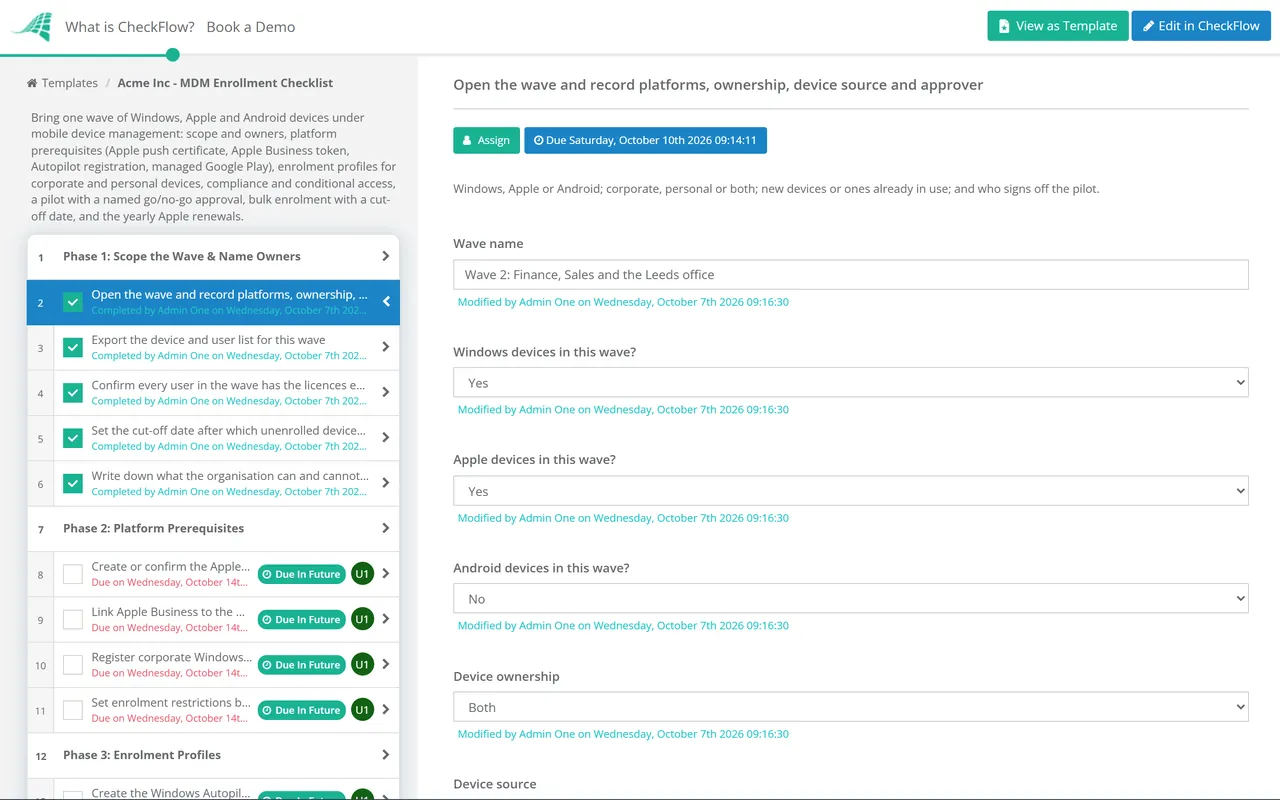
Seven phases take one enrolment wave from scope to renewal dates. The platforms, ownership and device source recorded in Phase 1 show only the tasks this wave needs, and a named approver signs off the pilot before bulk enrolment starts.
The answers on task 1 decide which later tasks appear. Task 5 appears only when personal devices are in scope.
Each prerequisite appears only for the platforms in this wave. Enrolment restrictions apply to every wave.
Windows, Apple and Android profiles appear by platform. The two personal-device tasks appear only when the wave includes BYOD.
The consent walkthrough appears only for BYOD waves. The approver named in Phase 1 records a decision on task 5, and the checklist halts until they do.
The two existing-device tasks appear only when the wave includes devices already in use.
The two Apple tasks appear only when Apple devices are in scope. Task 3 books the renewal as a yearly recurring checklist.
The table uses Microsoft Intune’s terms. Jamf Pro and other MDMs use the same Apple and Google mechanisms under their own names, such as Jamf’s PreStage enrollments for ADE.
| Device | Enrolment path | Needs first | What IT controls |
|---|---|---|---|
| Corporate Windows PC | Windows Autopilot, classic profile or device preparation | Hardware hash registration for classic profiles; Windows 11 and Microsoft Entra join for device preparation | The whole device, including wipe |
| Corporate Mac | Automated Device Enrollment | Push certificate, Apple Business server token, device assigned to your MDM server | The whole device; locked enrolment stops the user removing management |
| Corporate iPhone or iPad | Automated Device Enrollment, supervised | As for the Mac | The whole device; supervised devices have Activation Lock off by default |
| Personal iPhone or iPad | Account-driven User Enrollment (iOS and iPadOS 15 or later) | Push certificate; Microsoft Authenticator on the device | Work apps and accounts on a separate volume; retire, lock and sync, but no wipe |
| Corporate Android | Fully managed, corporate-owned work profile or dedicated | Managed Google Play binding; a factory-reset device; zero-touch needs devices bought from a reseller partner | The whole device, or the work profile plus device-level rules |
| Personal Android | Work profile | Managed Google Play binding | The work profile only |
Two Apple items expire every year. Intune’s documentation gives the MDM push certificate 365 days, with a 30-day grace period after expiry, and says to renew it with the same Apple Account that created it. Creating a new certificate instead forces every Apple device to re-enrol, and Jamf gives Jamf Pro customers the same warning. Apple says external service tokens expire after one year, and Intune adds that the server token needs renewing when the account owner’s password changes or they leave. Apple Business Manager became Apple Business in April 2026; the token steps are the same under the new name.
Nothing on the Windows or Android side expires like this, but Microsoft says a device permanently leaving the organisation should always be deregistered from Autopilot.
Conditional logic reads the platforms, ownership and device source on the first task. An Android BYOD wave never sees Autopilot or Apple token steps.
The go/no-go goes to the approver picked in Phase 1, and Phase 6 waits for their decision. Pilot timings sit in a table inside the task, and the activity trail shows who did what and when.
A yearly recurring schedule opens the renewal run a month before expiry, assigned to a group rather than one admin. Keep the expiry register as a data set every run reads.
CheckFlow’s IT onboarding software runs the per-person side, and the new hire IT setup checklist shows where an enrolled device meets a named starter. Conditional access works best with MFA already in place, so roll that out first with the MFA Rollout Checklist.
Once devices are enrolled, the Laptop Provisioning & Imaging Checklist decides what they receive and the Operating System Upgrade Rollout Checklist moves them to new OS versions. The IT Asset Management Checklist keeps the register Phase 6 reconciles against, and the Remote Work Security Checklist covers remote staff.
Laptop Provisioning & Imaging Checklist
MFA Rollout Checklist
IT Asset Management Checklist
Remote Work Security Checklist
Operating System Upgrade Rollout Checklist
Describe the process in a sentence and the AI checklist generator drafts the phases and tasks for you.
It is the step that connects a device to your mobile device management service so it can receive apps, settings and compliance rules, and be locked or wiped if lost. Corporate devices usually enrol during setup through Windows Autopilot, Apple Automated Device Enrollment or Android zero-touch. Personal devices enrol through a user-started flow that manages a work container only.
Classic Windows Autopilot needs each device registered by its hardware hash before setup, and supports pre-provisioning, self-deploying mode and hybrid join. Autopilot device preparation needs no registration, supports Windows 11 with Microsoft Entra join only, and adds a device to its group at enrolment. A registered device runs the classic profile unless it has been associated with your tenant through device preparation’s device association feature.
Your MDM can no longer reach Apple devices, so policies, apps and remote actions stop arriving. Intune allows a 30-day grace period. Renew the existing certificate with the same Apple Account; a new certificate means every enrolled Mac, iPhone and iPad has to enrol again.
With Apple User Enrollment or an Android work profile, the organisation manages the work apps and accounts it installed and the settings it applies. It cannot see personal apps, photos or messages. On iPhone and iPad, Intune does not collect the serial number, phone number or IMEI, and IT can remove the work data but cannot wipe the phone.
Windows PCs already joined to Microsoft Entra ID can often enrol in place, with corporate identifiers uploaded first if personal devices are blocked. Others can have their hardware hash uploaded so the next reset runs through Autopilot. Company iPhones and iPads bought outside Apple Business can be added with Apple Configurator after an erase. Corporate Android devices need a factory reset before they can be fully managed.
14-day free trial, no card required. The Business plan is $10 per user per month after the trial. Full details at checkflow.io/pricing.
14-day free trial, no credit cardFull refund in your first 30 daysUS hosting, EU on request