
Only 12% of employees say their employer does onboarding well (Gallup). The cost is direct: companies spend an average of $4,700 per hire, it takes 5–8 months for a new employee to reach full productivity, and strong onboarding improves 2-year retention by 82% (Brandon Hall Group). The business case for getting this right is not subtle.
When IT onboarding is poorly executed — the employee waits for accounts, can't access the VPN, doesn't have the right applications, doesn't know how to use the systems — Day 1 is wasted and the new hire's first impression of the organisation is set before they've done a single hour of real work. That impression is remarkably persistent.
This guide is a phase-by-phase IT setup checklist for IT managers, sysadmins, and IT leads who run onboarding 5–20 times per year. It covers pre-start provisioning, Day 1 setup, Week 1 configuration, and the 30-day access review — plus security setup (MFA, MDM, RBAC), remote employee considerations, BYOD vs company device differences, and the seven most common IT onboarding mistakes that cause Day 1 failures.
Why IT Onboarding Is an Operational Priority
New employee productivity depends almost entirely on access. An employee who cannot access email, project management, documentation, and their core work tools is not productive — they are an expensive placeholder. When IT setup takes half a day or extends into Day 2, the cost is the new hire's salary for those hours of wasted time, multiplied across every hire the organisation makes. For a company onboarding 50 people per year at an average salary of $60,000, a 2-hour IT setup improvement per hire recovers more than $3,000 in productive time annually. For a company onboarding 200 people, that figure becomes material.
IT onboarding is also when security posture for that employee is established. MFA enrollment, MDM device compliance, least-privilege access assignment, and security awareness training — done correctly at onboarding — are significantly harder to enforce retroactively. Employees who start without MFA, without MDM, with excessive access "just in case" are persistent security risks. The access review at 30 days is already too late to fix an account that was compromised in week one because it had no MFA and admin rights it didn't need.
SOC 2, ISO 27001, HIPAA, and most enterprise security frameworks include access provisioning controls. Auditors ask: how do you ensure new employees receive only the access they need, and how do you document that it was provisioned correctly? A documented, reproducible IT onboarding checklist is the answer — and the timestamped completion record it produces is the audit evidence. Teams without a structured process answer that question with email threads and spreadsheets, which do not satisfy a SOC 2 Type II auditor asking for evidence across a 12-month audit period.
Key onboarding statistics: 82% improvement in 2-year retention with structured onboarding (Brandon Hall Group). Average cost per hire: $4,700 (SHRM). Time to full productivity: 5–8 months. Only 12% of employees say their employer does onboarding well (Gallup).
The IT Onboarding Timeline
The IT onboarding timeline should start when HR sends the offer acceptance notification — not on the employee's first day. IT that learns about a new hire on the morning they start cannot complete pre-start provisioning; everything that should have been done in advance now happens while the employee sits waiting. The four-phase structure below is the operational standard for IT teams running a repeatable onboarding process.
| Phase | Timing | IT Owner | Key Deliverables |
|---|---|---|---|
| Pre-Start Provisioning | T-5 to T-2 business days before start date | IT / Sysadmin | Identity account, email, RBAC access, device enrollment, application provisioning |
| Day 1 Setup | First day, first 30 minutes | IT / Help Desk | Device configuration completion, MFA enrollment verification, access confirmation walkthrough |
| Week 1 Configuration | Days 2–5 | IT / Help Desk | Role-specific tool configuration, VPN testing, security training completion, initial helpdesk contact established |
| 30-Day Access Review | 25–30 days after start date | IT / Security | Review access grants, remove any temporary or excess permissions, confirm MDM compliance status, close any outstanding access tickets |
The specific IT trigger depends on the HR system. Best practice is a formal integration or notification: HR confirms offer acceptance → IT is notified → provisioning begins. IT should not find out about a new hire on the morning of Day 1. Building a formal SLA for this handoff — five business days for complex setups, two business days minimum — into both teams' onboarding runbooks is the operational fix for the most common IT onboarding failure mode.
Pre-Start IT Checklist (Before Day 1)
Pre-start provisioning is the most consequential phase of IT onboarding. Everything that goes wrong on Day 1 traces back to steps that were skipped, rushed, or not started here. Each step below should be tracked as a discrete task in the IT onboarding checklist, with a named owner and a completion deadline before the employee's start date. HR’s side of the same window, from the signed offer to day one, is in the Preboarding Checklist.
Create the identity provider account
Create the employee's account in the identity provider — Okta, Azure Active Directory, Google Workspace, or equivalent. Set the username to the standard corporate format. Assign the user to the correct groups based on department and role. Configure the MFA policy at account creation — do not wait for the employee to set this up on Day 1. Enforce the policy from the moment the account exists. The identity provider account is the root of all downstream access; it must be created before any application provisioning can begin, and the MFA configuration must be correct before the account is handed to the employee.
Provision the corporate email address
Create the email address following the standard format. Configure the email signature template. Add to appropriate distribution lists — team DL, company-wide DL if applicable. If the email platform is separate from the SSO identity provider, ensure the account is linked and that SSO login is working. Verify that the account is accessible and mail routing is functioning before Day 1. A new hire who cannot access email in their first 15 minutes has a provisioning problem, not a Day 1 problem — this is the step most visibly broken when pre-start work is rushed.
Apply role-based access to core applications
Using the employee's role as defined in the RBAC matrix, provision access to required applications. Critical baseline access for most employees includes: HRIS/people system, project management, communication tools (Slack or Microsoft Teams), documentation and wiki, and the IT ticketing system. Additional role-specific access follows from the RBAC matrix — for engineers, source code repository, CI/CD tools, and cloud platform access scoped by environment; for sales, CRM and communication intelligence tools; for finance, accounting system and expense management. Assign the minimum access level required for the role. Do not grant admin rights unless the role specifically requires them — this is the principle of least privilege applied at provisioning, which is far easier to enforce here than to correct retroactively.
Enroll the device in MDM
For company-issued devices, enroll in Jamf (Mac) or Microsoft Intune (Windows) before shipping or handing over the device. Apply the corporate security baseline profile: full disk encryption enabled, screen lock policy (10-minute timeout maximum), OS patch compliance enforced, required corporate applications pushed via MDM. Verify compliance status in the MDM console before the device leaves IT. Enrolment itself, including Autopilot, Apple automated device enrolment and BYOD, is covered step by step in the MDM enrollment checklist, and the build every laptop receives is kept in the laptop provisioning and imaging checklist. A device that is not enrolled in MDM before it reaches the employee is a device that is significantly harder to enroll after the fact — particularly for remote employees who cannot hand it back to IT for a same-day fix.
Install and configure required applications
Deploy required applications via MDM where possible — this is the preferred approach because it ensures consistent configuration and avoids manual installation variance. For each application: install it, configure SSO or SAML login (the employee should not be creating separate passwords for SSO-integrated applications), and verify authentication is working before the device leaves IT. Applications that require manual configuration beyond SSO — developer tools, specialised line-of-business software — should have configuration instructions documented in the runbook linked to this checklist. Undocumented manual configuration steps are the source of most post-provisioning helpdesk tickets in the first week.
Configure VPN access
Create the VPN user profile — either directly or via identity provider group membership. Install the VPN client via MDM. Test VPN connectivity from outside the corporate network before Day 1 — this means connecting from a non-corporate IP and confirming access to an internal resource. This step is the most commonly skipped in pre-start provisioning and the most commonly broken on Day 1. A VPN that works on the corporate network but fails from a home connection is not a Day 1 discovery; it is a pre-start provisioning failure. For remote employees, this test is non-negotiable before shipping the device.
Prepare physical access and hardware accessories
Order or assign: badge and physical access credential (coordinate with facilities), peripherals (keyboard, mouse, monitor, docking station), headset for video calls, and any role-specific hardware such as a YubiKey for privileged access or developer hardware. If the employee is remote, confirm the shipping address and verify the expected delivery date is at least two business days before the start date — not the day before. A device that arrives on the morning of Day 1, or not at all, is not a logistics problem; it is a pre-start provisioning problem that should have been caught at the time of purchase order.
Send pre-start welcome and credentials
Send the new hire their login credentials and device delivery confirmation at least two business days before their start date. Include: the login URL for the employee portal, instructions for activating MFA before Day 1, the IT contact for Day 1 questions, and the schedule for the Day 1 IT orientation. Do not send credentials to a personal email address without encryption — use HR's secure credential delivery system. Giving the employee the ability to complete MFA enrollment before Day 1 — rather than during the orientation — removes a step from the Day 1 session and confirms the account is accessible before the start date.
Day 1 IT Setup Checklist
Day 1 IT time should be a completion check — confirming that pre-start provisioning worked correctly — not the execution of setup from scratch. If pre-start provisioning was done properly, the Day 1 session should take no more than 30 minutes. If it takes longer, it is evidence that something in the pre-start phase was incomplete.
Device handoff and initial login
Hand over the device. Guide the employee through their first login: identity provider authentication, MFA enrollment verification (or completion if not done pre-start), and password change from the temporary credential. Confirm they can access corporate email within the first 15 minutes. This is the baseline check — if email is not accessible in the first 15 minutes of the Day 1 session, stop and resolve the provisioning issue before continuing. Do not proceed through the remaining checklist steps on top of an unresolved access failure.
Verify access to all required applications
Walk through the core application list with the employee. For each application: confirm SSO login is working, confirm the correct permission level is applied (they can see what they should and cannot access what they shouldn't), and note any access that is missing or incorrectly configured for follow-up. Access gaps should be resolved within the first two hours of the Day 1 session — not flagged as a ticket for later in the week. An employee who ends Day 1 still waiting for access to their primary work tool has had a failed onboarding, regardless of what else went correctly.
Confirm MDM compliance
Verify the device shows as compliant in the MDM console. Run the MDM compliance check with the employee present: full disk encryption is enabled, OS version is current, required applications are installed. If any compliance item is not met, resolve it before the employee leaves the IT session. A device that leaves the Day 1 session in a non-compliant state will not spontaneously become compliant — it will generate a helpdesk ticket in week two when conditional access blocks the employee from an application because the device failed a compliance check.
VPN test
Ask the employee to connect and disconnect from VPN and access an internal resource while connected. Confirm the VPN client is functional from their device. If the employee is in-office, also confirm they know the process for connecting from a home network — this is best done by actually connecting to a mobile hotspot and testing, not by verbal instruction. This check takes three minutes and prevents the "VPN doesn't work from home" helpdesk ticket that otherwise appears reliably on Day 2 at 8:45am.
Security awareness orientation
Briefly cover: how to report a phishing email, what to do if a device is lost or stolen (including the IT emergency contact), corporate data classification and what can and cannot go in personal cloud storage, the location of the acceptable use policy, and the IT helpdesk contact and expected response time SLAs. Provide a written reference card — the employee will not reliably remember a verbal-only orientation. The written card also serves as documentation that the orientation occurred, which is relevant for SOC 2 and ISO 27001 security awareness training controls.
Complete the IT setup sign-off
The employee and the IT technician should both mark complete — in the checklist system, not verbally — that all Day 1 setup items have been verified. This sign-off creates the completion record required for compliance audits. It also closes the loop on the pre-start provisioning checklist: everything that was provisioned before Day 1 has now been confirmed as working by a person who has tested each item. Without this sign-off step, the IT onboarding record is a list of tasks someone intended to complete, not a verified completion record.
Automate Your IT Onboarding Checklist
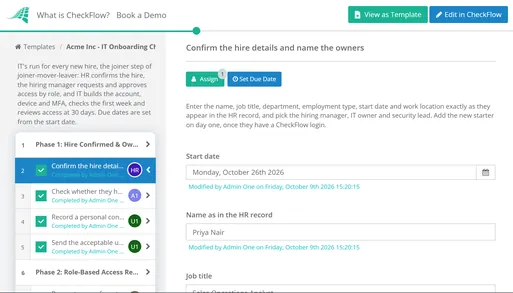
CheckFlow’s IT onboarding software turns your onboarding procedure into a structured, trackable checklist — with pre-start provisioning tasks, Day 1 setup steps, role-based conditional branches, and timestamped completion records for every hire.
Browse IT TemplatesWeek 1 Configuration Checklist
Week 1 is about configuration refinement, training, and making sure the employee is fully operational — not just provisioned. The Day 1 session confirms access exists; Week 1 confirms access is correctly configured for the employee's specific role and that the employee knows how to use the tools and the IT support process.
Role-specific tool configuration
Configure tools that require per-user setup beyond default provisioning. For engineers: IDE configuration, SSH key generation and registration, repository access verification, and local development environment setup. For sales representatives: CRM integration with email and calendar, communication intelligence tool configuration. For finance roles: access to reporting environments and confirmation of approval authority levels. These steps are role-specific — the IT onboarding checklist should branch by department for this section, showing only the relevant steps for the employee's role. Conditional logic in the checklist tool handles this branching automatically.
Security training assignment
Assign and confirm enrollment in mandatory security awareness training. Track completion via the LMS or security training platform. Most compliance frameworks — SOC 2, ISO 27001, HIPAA — require documented completion of security awareness training within the first 30 days. The assignment should happen in Week 1; the deadline for completion should be set at day 25 at the latest, to allow time for the 30-day access review to confirm completion before the review closes. Leaving the completion deadline open-ended ("complete when you get a chance") produces the most common finding in 30-day access reviews: incomplete training.
IT helpdesk self-service orientation
Show the employee how to submit IT tickets, the expected response time SLAs, how to access the IT knowledge base for common issues, and the emergency contact for priority issues. Setting expectations on support channels reduces the "grab the IT person in the hallway" pattern that consumes disproportionate IT time and bypasses the ticketing system that produces the SLA metrics you need for compliance reporting. The employee should leave Week 1 knowing exactly what to do when something breaks — and confident it will be resolved within a defined time window.
Review access with the employee's manager
Confirm with the employee's manager that the access provisioned matches what the role actually needs in practice. This catches RBAC mismatches and permission gaps before they become impediments to the employee's work and before they show up as access review findings at 30 days. It also opens the channel for the manager to request additional access through the correct provisioning process rather than via ad-hoc messages to IT — establishing the process expectation early prevents informal access escalation patterns from developing in the first month.
The 30-Day IT Access Review
At 25–30 days post-start, IT should conduct a brief access review for every recent hire. This review has two purposes: security hygiene and compliance evidence. It is the first formal checkpoint in the access lifecycle for that employee, and for organisations with SOC 2 or ISO 27001 obligations, it needs to be documented.
The review should cover: whether access grants still match the employee's role (temporary access granted during onboarding that was never removed is the most common finding), whether there are unexplained access additions since the initial provisioning, whether MDM compliance is still active (a device that has fallen out of compliance or been unenrolled should trigger an immediate helpdesk ticket, not wait for the next scheduled review), whether security awareness training has been completed, and whether all provisioning tickets from Day 1 access gaps have been resolved and closed.
SOC 2 CC6.2 and CC6.3 require that access is provisioned on a least-privilege basis and reviewed periodically. The 30-day new hire review is the first formal checkpoint in the access lifecycle. Organisations with SOC 2 or ISO 27001 compliance obligations should document this review — date, reviewer, findings, and any access modifications made — and retain the record as part of the employee's onboarding file. A recurring checklist that auto-triggers at day 25 and requires sign-off before closing ensures this review happens consistently and leaves a timestamped record, rather than being skipped during busy periods.
The most common finding in 30-day reviews: employees provisioned with temporary admin rights "to get everything set up" that were never revoked. The 30-day review is specifically designed to catch these. A formal trigger and a completion deadline are what make it happen in practice rather than in policy.
Identity, Access, and Security Setup
Modern IT onboarding follows a specific technical sequence that, when correctly implemented, makes provisioning efficient, access consistent, and offboarding clean. Understanding this flow is the foundation for building an IT onboarding checklist that doesn't require manual decision-making at each step.
The provisioning flow: the HRIS is the source of truth for employee data (name, role, department, start date, manager). That data flows to the identity provider — Okta, Azure Active Directory, or Google Workspace — which is the centralised authentication system. SSO connects the identity provider to every integrated application. Application-specific access is governed by RBAC groups in the identity provider. When this flow is correctly implemented with SCIM (System for Cross-domain Identity Management), adding an employee to an identity provider group automatically provisions their access in every SCIM-compatible application. Offboarding is equally efficient: disabling the identity provider account cascades access removal to all downstream applications within minutes. See the offboarding checklist for how this flow works in reverse.
Multi-Factor Authentication (MFA). MFA is non-negotiable. Enforce it from account creation, not as an optional Day 1 setup item. The minimum MFA standard for corporate applications is TOTP (time-based one-time password via authenticator app) for general applications and hardware security keys — FIDO2/WebAuthn via YubiKey or Google Titan Key — for privileged access including admin consoles, infrastructure access, and financial systems. SMS-based MFA is acceptable only where no better option is supported and should be documented as a formal exception, not treated as a standard configuration.
Mobile Device Management (MDM). MDM enrollment is mandatory for all corporate devices and required for personal devices (BYOD) that access corporate email or applications. Jamf is the standard for Apple-first environments; Microsoft Intune for Windows-first or mixed environments; VMware Workspace ONE for large mixed-fleet environments. MDM compliance policies should block non-compliant devices from accessing corporate applications via Conditional Access in Azure AD or Adaptive MFA in Okta — a device that falls out of compliance should trigger an automatic helpdesk ticket, not wait for a manual review cycle.
Least Privilege and RBAC. Every new hire should receive exactly the access their role requires — no more. The RBAC matrix documents this for each role: a table mapping roles to applications and the permission level appropriate for that role. Below is a simplified example. Review the matrix quarterly to ensure it still reflects what each role actually needs — roles drift over time, and the RBAC matrix is only enforceable if it is current.
| Role | Email + Calendar | Project Mgmt | Source Code Repo | Cloud Platform | Finance System | Admin Console |
|---|---|---|---|---|---|---|
| Software Engineer | Full | Full | Full (own team repos) | Dev environment only | No access | No access |
| Sales Representative | Full | Full | No access | No access | Read-only (own pipeline) | No access |
| IT Administrator | Full | Full | No access | Full (all environments) | No access | Full |
Remote Employee IT Setup: Additional Requirements
Remote onboarding IT setup requires every step from the standard checklist plus a set of remote-specific requirements that are frequently overlooked when organisations extend in-office processes to remote hires. The most common remote onboarding failure is applying the standard in-office checklist without modification — the result is an employee whose laptop arrived the day before their start date, whose VPN doesn't work from their home network, and who has no one nearby to help troubleshoot.
Equipment shipping and tracking
Ship equipment early enough to arrive at least two business days before the start date — not the day before, and not on the start date itself. Use tracked shipping and confirm delivery explicitly; do not assume a shipment that shows "out for delivery" will arrive before 5pm. Include a setup guide printed inside the box or sent digitally in advance. Include all required peripherals, power adapters matched to the employee's country and region, and any hardware security tokens. Test that the laptop powers on and completes MDM enrollment before shipping — a non-enrolling device arriving on the day before start is a critical blocker with no in-person fix available.
Home network and connectivity requirements
Provide the employee with minimum internet speed requirements — typically 25 Mbps symmetric for video calls and VPN. Confirm VPN functionality from a residential IP address before Day 1; some VPN configurations block residential ISPs or trigger geo-blocking rules that work correctly on corporate networks and fail silently from home. If the role requires video calls as the primary communication medium, confirm the employee has adequate upload bandwidth and a camera that meets the quality standard for external calls. Document these requirements in the pre-start welcome email so the employee has time to address connectivity issues before their start date, not on the morning of Day 1.
Remote MFA and security hardware
Remote employees cannot receive hardware tokens at a front desk on Day 1. Ship hardware security keys with the laptop, or use the pre-start credential delivery window to complete TOTP authenticator enrollment before Day 1. Send the employee a setup guide for the authenticator app at the same time as their temporary credentials. Do not use the Day 1 video call to complete MFA enrollment for remote employees — by the time issues arise, IT and the employee may be in different time zones, and any MFA enrollment problem becomes a Day 1 blocker with no easy resolution path.
Remote IT Day 1 orientation
Schedule a 30-minute video call for the Day 1 IT orientation. Cover all the same items as the in-office checklist via screen share: access verification for each application, VPN test (performed live on the call — ask the employee to connect, access an internal resource, and disconnect), security orientation, and IT helpdesk contact confirmation. Complete the same sign-off at the end of the call. The call serves both as the orientation and as the verification step — seeing the employee successfully authenticate to each application and connect via VPN is the equivalent of the in-office walk-through. Schedule this call for the first 30 minutes of the employee's working day, not mid-afternoon.
BYOD vs Company-Issued Device: What Changes
The choice between company-issued devices and BYOD (Bring Your Own Device) affects several steps in the IT onboarding checklist. The security controls do not change — both scenarios require MDM enrollment and compliance enforcement — but the scope of management and the employee experience are different.
| Setup Item | Company-Issued Device | BYOD (Personal Device) |
|---|---|---|
| MDM enrollment | Mandatory — full management profile | Mandatory — work profile / containerisation (MAM) |
| Application deployment | Pushed via MDM | MAM-managed work applications only |
| Disk encryption | Enforced via MDM policy | Required — user must demonstrate compliance |
| Remote wipe scope | Full device wipe | Work container only — personal data unaffected |
| OS compliance enforcement | Full MDM policy enforcement | Compliance conditional access (device must pass baseline) |
| VPN configuration | Deployed via MDM | Manual install + configuration guide |
| Acceptable use | Corporate policy applies fully | Corporate policy applies to work container only |
| Security baseline | Fully enforced via MDM | Baseline enforced via MAM + Conditional Access |
BYOD programmes require a formal policy that employees agree to before enrollment. The policy should clearly cover: what IT can see (work container activity, not personal data or personal applications), what IT can remotely wipe (work container only — personal data is never affected), what personal applications are restricted when the device is accessing corporate resources, and the process for unenrolling a personal device at offboarding. For regulated industries — healthcare, financial services, organisations subject to HIPAA or PCI DSS — BYOD may be restricted or prohibited outright for devices accessing regulated data. Check your compliance requirements before allowing personal device access to regulated systems; the decision made at onboarding becomes the access pattern that auditors will review.
The 7 Most Common IT Onboarding Failures
Failure 1: Setup starts on Day 1. IT learns about the new hire the morning they start. Account creation, device configuration, and application provisioning all happen while the employee sits waiting. Even if IT works quickly, this takes 2–3 hours minimum. The new hire's first impression of the organisation is watching IT frantically configure their laptop. The fix: require HR to notify IT at offer acceptance, with start date and role information. Pre-start provisioning should be complete 48 hours before the start date, not started on it.
Failure 2: MFA treated as optional. IT skips MFA enrollment because it seems like something the employee can set up themselves later. "Later" becomes never. Three months after onboarding, a security audit reveals a significant percentage of users without MFA enrolled. The fix: MFA is configured and enforced at account creation. The first login forces MFA enrollment — there is no "skip for now" option. This is not an IT preference; it is a security baseline requirement and an audit control for every major compliance framework.
Failure 3: Excessive access granted "to be safe." IT grants broad access at onboarding to avoid follow-up requests — the employee is given admin access, full database access, or permissions well beyond what their role requires. This violates the principle of least privilege, inflates the blast radius of any account compromise, and creates SOC 2 audit findings at the access review. The fix: use a role-based access matrix that specifies exactly what each role needs. Requests for access beyond the matrix go through a formal access request process, not informal escalation to IT.
Failure 4: No IT–HR handoff process. IT and HR operate on separate tracks with no formal notification workflow. IT learns about new hires from Slack messages, forwarded calendar invites, or morning-of emails from managers. The fix: integrate the HRIS and IT ticketing system — or at minimum establish a formal notification process — so that offer acceptance automatically triggers an IT provisioning ticket containing role, start date, manager, department, and work location. IT should never find out about a new hire from an informal channel on the morning of their start date.
Failure 5: Remote onboarding treated identically to in-office. The standard in-office onboarding checklist is applied to remote hires without modification. The remote employee receives no equipment guidance, no shipping timeline, no pre-start connectivity testing, no confirmation that MDM enrollment was completed before shipping. On Day 1, their laptop has not arrived, the VPN fails from their home network, and there is no one nearby to provide hands-on help. The fix: maintain a separate remote onboarding checklist with shipping lead times, connectivity requirements, pre-ship MDM verification, and remote Day 1 orientation procedures.
Failure 6: The 30-day review is skipped. The 30-day access review exists as a policy but is never executed in practice. Temporary elevated permissions granted at onboarding remain permanently. Access provisioned for a previous role during an internal transfer is never removed. The fix: create a scheduled checklist task that triggers automatically at 25 days post-start date, assigned to IT with a specific completion deadline. Make the 30-day review a required step in the employee's onboarding completion record — it cannot be skipped or deferred without a documented reason.
Failure 7: No documented completion record. IT completes the onboarding setup but there is no record of what was provisioned, when it was completed, or who verified it. Compliance auditors ask for evidence of access provisioning controls. IT cannot produce it. The fix: every step of the IT onboarding checklist should be completed in a system that produces a timestamped, attributed completion record — not a paper checklist, a verbal sign-off, or an email thread. The record should be available without additional documentation effort; it should be the natural output of running the checklist in a structured tool.
Who Is Responsible for What
IT onboarding spans multiple teams — IT, HR, the hiring manager, and the new hire each have distinct responsibilities. Confusion about ownership is the second most common source of IT onboarding failures, after the IT–HR notification gap. The table below documents the responsibility matrix.
| Task | IT | HR | Hiring Manager | New Hire |
|---|---|---|---|---|
| Notify IT of hire (role, start date, department) | Receives | Sends | Confirms | — |
| Identity account creation and MFA | Owns | — | — | Completes MFA enrollment |
| RBAC application provisioning | Owns | — | Approves role assignments | — |
| Device procurement and enrollment | Owns | — | — | — |
| Equipment shipping (remote) | Owns | — | Confirms shipping address | Receives and powers on |
| Badge / physical access | Coordinates | Initiates | — | — |
| Day 1 IT orientation | Owns | — | — | Attends |
| Security awareness training | Assigns | Tracks completion | — | Completes |
| 30-day access review | Owns | — | Confirms role accuracy | — |
| Application-specific training | — | — | Owns | Attends |
The most common coordination failure is the IT–HR handoff. IT needs: the employee's full name, start date, role and title, department, manager, work location (office vs. remote), and country — the last item matters for device power adapters and VPN geo rules. HR needs to send this before the employee's start date: the standard is five business days for complex setups, two business days minimum for straightforward hires. Establish a formal SLA for the IT–HR notification in both teams' onboarding runbooks. Verbal agreements about "letting IT know in advance" erode under operational pressure; a documented SLA with a formal notification trigger does not.
Stop Running IT Onboarding from Memory
Build a repeatable, documented IT onboarding process in CheckFlow — consistent for every new hire, traceable for every compliance audit, and completable by any IT team member.
Start free trialFree IT Onboarding Templates
CheckFlow includes pre-built IT onboarding and offboarding templates that follow the phase structure in this guide — pre-start provisioning tasks, Day 1 setup steps, Week 1 configuration, and the 30-day access review. Each template includes task assignment, completion tracking, and timestamped records for compliance evidence. Click any card to preview a live template.